Epson Waste Ink Pad Reset: Complete Step-by-Step Guide to Fix the Service Required Error
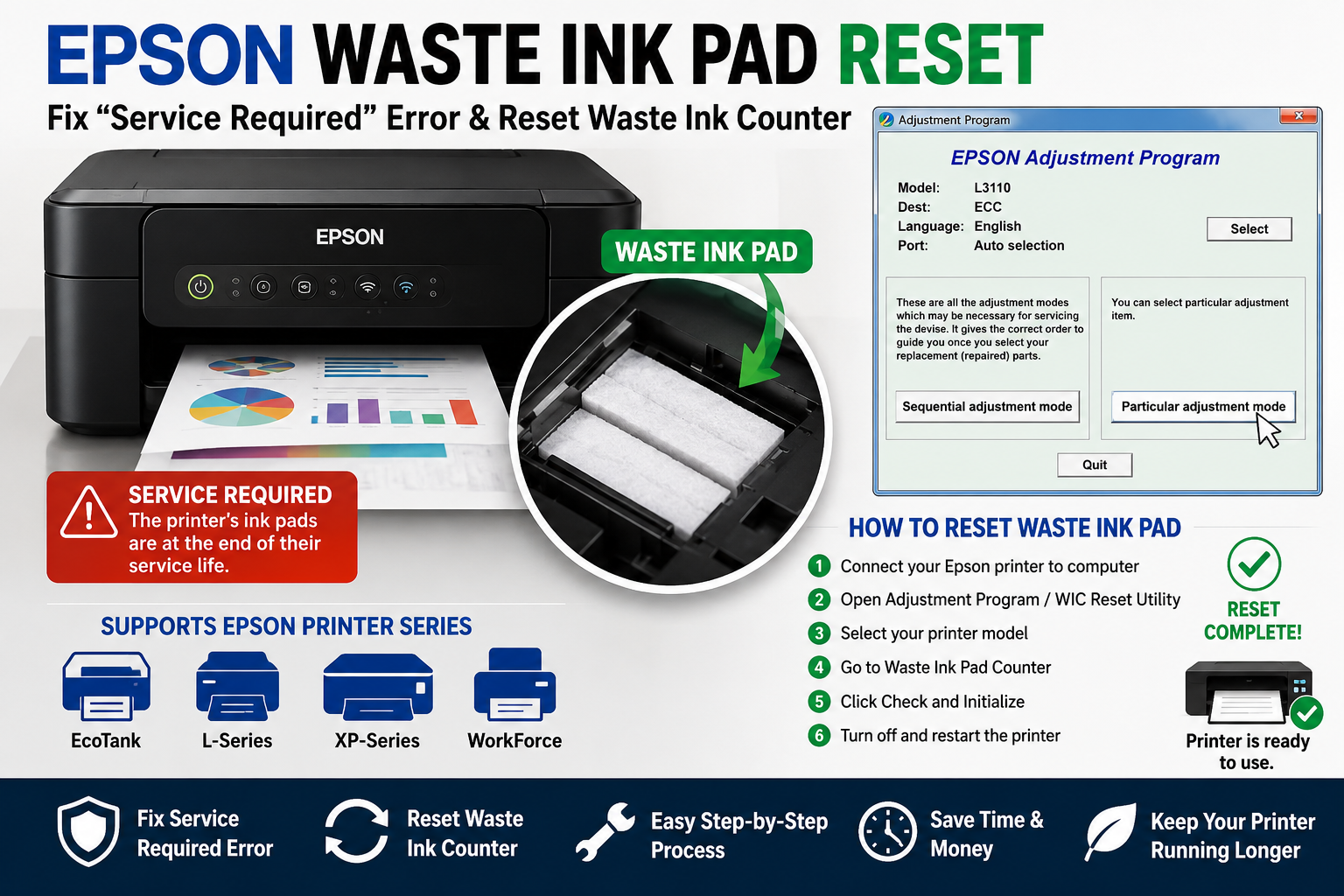
Seeing the “Service Required” message on your Epson printer can be frustrating, especially when you need to print an important document. In many cases, this warning appears because the printer’s waste ink pad counter has reached its predefined limit, causing the device to stop printing until maintenance is performed.
An Epson waste ink pad reset restores the internal maintenance counter after the waste ink pad has been serviced or replaced. However, simply resetting the counter without understanding the underlying issue can lead to ink overflow and potential printer damage. Knowing when to reset the counter—and when to replace the waste ink pad—is essential for keeping your printer reliable and extending its lifespan.
This comprehensive guide explains everything you need to know, including how the waste ink system works, the safest reset methods, troubleshooting tips, and preventive maintenance practices used by printer technicians.
What You’ll Learn
By the end of this guide, you’ll understand:
- What an Epson waste ink pad is
- Why the Service Required error appears
- How the waste ink counter works
- When a reset is appropriate
- How to reset the Epson waste ink pad safely
- Differences between Epson Adjustment Program and WIC Reset Utility
- Common reset errors and fixes
- How to prevent the issue from happening again
- Whether you should replace the waste ink pad or only reset it
What Is an Epson Waste Ink Pad?
An Epson waste ink pad is an absorbent sponge inside the printer that collects excess ink generated during printhead cleaning, nozzle maintenance, and borderless printing. Once the printer estimates the pad is full, it displays a Service Required message and stops printing to prevent ink overflow.
Every Epson inkjet printer contains one or more waste ink pads. These pads are designed to absorb surplus ink that is expelled during automatic maintenance cycles. While users rarely notice this process, it is essential for maintaining print quality and preventing clogged printheads.
During operations such as:
- Printhead cleaning
- Nozzle checks
- Deep cleaning cycles
- Borderless printing
- Automatic maintenance routines
small amounts of unused ink are redirected into the waste ink pad instead of onto the paper.
Over time, the printer tracks this usage using an internal firmware counter rather than measuring the actual saturation of the pad. Once the estimated limit is reached, the printer displays a warning—even if the pad still has some remaining capacity.
Expert Insight
Many technicians find that printers used mainly for frequent head-cleaning cycles reach the waste ink limit sooner than those used for regular printing. Excessive manual cleaning can significantly increase waste ink accumulation.
Signs Your Waste Ink Pad Is Full
You may notice one or more of the following symptoms:
- “Service Required” message on the LCD
- “The printer’s ink pads are at the end of their service life.”
- Printing suddenly stops
- Flashing power and ink lights
- Error displayed in Epson Status Monitor
- Printer refuses to process new print jobs
These symptoms indicate that the maintenance counter has reached its limit and requires attention before printing can resume.
Why Does the Epson Waste Ink Pad Error Occur?
The waste ink pad warning is not triggered by a physical sensor inside the pad. Instead, Epson printers rely on an internal firmware-based waste ink counter that estimates how much ink has been absorbed during maintenance operations.
Several factors contribute to the counter reaching its limit:
1. Frequent Printhead Cleaning
Every cleaning cycle uses a significant amount of ink, much of which is diverted into the waste ink pad. Repeated cleaning sessions can rapidly increase the counter value.
2. High Printing Volume
Businesses, schools, and home offices that print thousands of pages each month naturally accumulate waste ink faster than occasional users.
3. Borderless Printing
Borderless prints require ink to extend beyond the paper edges. Excess ink is captured by the waste ink system, accelerating waste pad usage.
4. Automatic Maintenance Cycles
Even when idle, many Epson printers perform periodic maintenance to keep the printhead in good condition. These routines also contribute to waste ink accumulation.
5. Firmware Protection
Epson intentionally halts printing when the estimated waste ink capacity is reached. This safeguard helps prevent ink leakage that could damage internal components or create a mess around the printer.
Common Error Messages
Depending on the model, you may encounter messages such as:
| Error Message | Meaning |
|---|---|
| Printer’s ink pads are at the end of their service life | Waste ink counter limit reached |
| Service Required | Maintenance needed before printing continues |
| Parts inside your printer are at the end of their service life | Waste ink system requires servicing |
| Ink Pad Full Error | Estimated waste ink capacity exceeded |
| Waste Ink Counter Overflow | Reset or replacement required |
Understanding the cause of these warnings helps you choose the correct solution—whether that’s resetting the counter, replacing the waste ink pad, or seeking professional service.
How to Perform an Epson Waste Ink Pad Reset
You can perform an Epson waste ink pad reset using the Epson Adjustment Program, the WIC Reset Utility, or an authorized Epson service center. Before resetting the waste ink counter, inspect or replace the physical waste ink pad to prevent ink overflow and potential printer damage.
Important: Resetting the counter without servicing the waste ink pad is only a temporary solution. If the pad is physically saturated, excess ink may leak inside the printer.
Before You Begin
Prepare the following:
- Your Epson printer
- USB cable (recommended for most reset tools)
- Windows PC (many reset tools are Windows-only)
- Stable internet connection (if activation is required)
- Administrator access on your computer
- Printer model number (e.g., L3110, L3150, XP-4100)
Safety Checklist
✔ Turn the printer off before inspecting the ink pad.
✔ Place the printer on a protected surface.
✔ Wear disposable gloves if replacing the waste ink pad.
✔ Back up any important printer settings if applicable.
Method 1 – Reset Using Epson Adjustment Program
The Epson Adjustment Program is one of the most widely used service tools for resetting the waste ink counter on compatible Epson printers.
Best For
- Epson EcoTank printers
- Epson L-Series
- Epson XP-Series
- Epson Workforce models (supported versions)
Step-by-Step Guide
Step 1: Connect the Printer
- Turn on the printer.
- Connect it to your PC using a USB cable.
- Ensure Windows detects the printer.
Step 2: Launch the Adjustment Program
Open the software and:
- Select your printer model.
- Choose the correct USB port.
- Confirm communication with the printer.
Step 3: Open Maintenance Functions
Navigate to:
Particular Adjustment Mode → Waste Ink Pad Counter
Step 4: Read the Counter
Click Check to display the current waste ink percentage.
Typical readings include:
| Counter Reading | Recommended Action |
|---|---|
| Below 60% | Continue normal use |
| 60–90% | Monitor usage |
| 90–100% | Service recommended |
| 100%+ | Reset after servicing the waste ink pad |
Step 5: Initialize the Counter
Select:
- Main Pad Counter
- Platen Pad Counter (if available)
Click:
Initialize
The software writes the new counter value to the printer.
Step 6: Restart the Printer
Turn the printer off.
Wait 30 seconds.
Power it back on.
The error should disappear if the reset was successful.
Method 2 – Reset Using WIC Reset Utility
Another popular option is the WIC Reset Utility, which supports many Epson printer models.
It reads the waste ink counter and allows users to reset it using a valid reset key.
Steps
- Install the utility.
- Connect your Epson printer.
- Detect the printer automatically.
- Read the waste ink counter.
- Purchase or enter a reset key (if required).
- Reset the counter.
- Restart the printer.
Advantages
- Beginner-friendly interface
- Supports many Epson printers
- Displays waste ink percentage
- Quick reset process
- Regular software updates
Limitations
- Some resets require a paid activation key.
- Older printer models may not be supported.
- macOS compatibility is limited.
Epson Adjustment Program vs. WIC Reset Utility
| Feature | Epson Adjustment Program | WIC Reset Utility |
|---|---|---|
| Ease of Use | Moderate | Easy |
| Waste Counter Reading | Yes | Yes |
| Counter Reset | Yes | Yes |
| Activation Required | Model dependent | Usually yes |
| Printer Compatibility | Specific models | Wide range |
| Best For | Advanced users | Home users |
| Official Epson Tool | No (service software) | No (third-party) |
Expert Recommendation
For most home users, the WIC Reset Utility is easier to use. Technicians may prefer the Adjustment Program because it offers additional maintenance and diagnostic functions.
Should You Replace the Waste Ink Pad Before Resetting?
Yes.
Resetting the firmware counter does not empty or clean the physical waste ink pad.
Imagine resetting your car’s fuel warning without adding fuel—it removes the alert but doesn’t solve the underlying issue.
Replace the Pad If:
- Ink is leaking.
- Printer has printed thousands of pages.
- Waste ink pad is visibly saturated.
- Printer has been reset multiple times.
- You notice excessive ink inside the printer.
Reset Only If:
- The waste ink pad was recently replaced.
- The printer has low actual usage.
- A technician confirms the pad still has sufficient capacity.
Why Replacement Matters
Ignoring the physical condition of the pad can lead to:
- Ink leakage
- Internal component damage
- Stained furniture
- Electrical issues
- Reduced printer lifespan
Compatible Epson Printer Models
Many Epson printers support waste ink counter resets.
Examples include:
EcoTank Series
- Epson L3110
- Epson L3150
- Epson L3210
- Epson L3250
- Epson L5190
- Epson L5290
- Epson L8050
- Epson L18050
Expression Series
- XP-2100
- XP-2200
- XP-4100
- XP-4200
- XP-6100
Workforce Series
- WF-2810
- WF-2850
- WF-2860
- WF-3820
- WF-4830
Always verify compatibility before using any reset utility.
Common Epson Waste Ink Pad Reset Problems
Even after following the reset process, some users encounter additional issues.
Problem 1: Printer Still Shows “Service Required”
Possible causes:
- Reset unsuccessful
- Incorrect printer model selected
- Firmware mismatch
- Waste pad not serviced
- Printer restart required
Solution
- Run the reset again.
- Confirm the correct printer model.
- Restart the printer.
- Inspect the waste ink pad.
Problem 2: Printer Not Detected
Possible reasons:
- Faulty USB cable
- Driver issue
- Incorrect port
- Firewall interference
Solution
- Reinstall printer drivers.
- Try another USB cable.
- Connect directly to the PC instead of using a USB hub.
- Restart both devices.
Problem 3: Reset Counter Returns to 100%
Possible causes:
- Counter not written successfully
- Unsupported firmware
- Incorrect reset utility
Solution
- Use a compatible version of the software.
- Ensure administrator privileges.
- Repeat the initialization process.
Problem 4: Ink Leakage After Reset
This usually indicates that the physical waste ink pad is saturated.
Solution
- Stop using the printer.
- Replace or clean the waste ink pad.
- Inspect for excess ink before resuming printing.
Expert Tips to Prevent Future Waste Ink Pad Errors
Proper maintenance can significantly delay future waste ink pad warnings.
1. Avoid Unnecessary Head Cleaning
Each cleaning cycle consumes ink and increases the waste ink counter.
Only run cleaning when print quality genuinely declines.
2. Print Regularly
Printing a few pages every week helps prevent clogged nozzles and reduces the need for repeated cleaning cycles.
3. Use Genuine Epson Ink
High-quality ink helps maintain consistent printhead performance and reduces maintenance requirements.
4. Turn Off the Printer Correctly
Always use the power button instead of unplugging the printer. This allows Epson printers to complete their maintenance routines safely.
5. Keep Firmware Updated
Firmware updates can improve maintenance logic and compatibility with supported printer models.
6. Service the Printer Periodically
If your printer is used heavily in a business or office environment, schedule routine maintenance to inspect the waste ink system before it reaches its limit.
| Task | Recommended Frequency |
|---|---|
| Nozzle Check | Monthly |
| Print Test Page | Weekly |
| Head Cleaning | Only when needed |
| Inspect Waste Ink Area | Every 6–12 months |
| Check Firmware Updates | Quarterly |
| Professional Maintenance | Annually (heavy use) |
Technician’s Insight
Professional printer technicians often see users perform multiple waste ink counter resets without ever replacing the physical ink pad. While this may temporarily restore printing, repeated resets without maintenance increase the risk of ink overflow and internal damage. Treat the reset as part of a complete maintenance procedure—not a permanent fix.
Conclusion
An Epson waste ink pad reset is an effective solution for clearing the “Service Required” error when the printer’s waste ink counter reaches its preset limit. However, resetting the counter alone is not always enough. The physical waste ink pad should also be inspected, cleaned, or replaced when necessary to prevent ink leakage and protect your printer from long-term damage.
Whether you use the Epson Adjustment Program, WIC Reset Utility, or seek professional servicing, following the correct maintenance procedure helps extend your printer’s lifespan and restore reliable performance. By avoiding unnecessary printhead cleanings, using genuine Epson ink, and performing routine maintenance, you can significantly reduce the likelihood of encountering the waste ink pad warning again.
With the guidance in this article, you should now understand how the waste ink system works, when a reset is appropriate, and the safest way to get your Epson printer back up and running.
Frequently Asked Questions (FAQ)
1. What is an Epson waste ink pad?
An Epson waste ink pad is an absorbent sponge inside the printer that collects excess ink produced during printhead cleaning, nozzle checks, and other maintenance operations. When the printer estimates that the pad is full, it displays a service warning and stops printing.
2. Can I reset the Epson waste ink pad myself?
Yes. You can reset the waste ink counter using compatible software such as the Epson Adjustment Program or WIC Reset Utility. However, it’s recommended to inspect or replace the physical waste ink pad before resetting the counter.
3. Is it safe to reset the waste ink counter without replacing the pad?
It may temporarily restore printer functionality, but it is not recommended if the waste ink pad is saturated. Continuing to use a full pad can lead to ink leakage and internal damage.
4. Why does my Epson printer say “Service Required”?
This message usually appears because the printer’s internal waste ink counter has reached its predefined limit, indicating that maintenance is required before printing can continue.
5. What causes the waste ink counter to fill up?
The counter increases during:
- Printhead cleaning
- Nozzle cleaning
- Borderless printing
- Automatic maintenance cycles
Frequent cleaning cycles cause the counter to reach its limit more quickly.
6. Does replacing the waste ink pad automatically reset the counter?
No. Replacing the physical waste ink pad does not reset the firmware counter. You must also reset the waste ink counter using a compatible reset tool.
7. Which Epson printers support waste ink pad reset?
Many Epson EcoTank, Expression, Workforce, and Stylus printers support waste ink counter resets. Compatibility depends on the printer model and the reset utility being used.
8. How often should the waste ink pad be replaced?
It depends on usage. Home users may not need replacement for several years, while businesses with high print volumes may require servicing much sooner.
9. Can I continue printing after the warning appears?
Most Epson printers stop printing once the waste ink counter reaches its limit. The warning must be addressed before printing can resume.
10. What is the difference between a waste ink pad and a maintenance box?
A waste ink pad is a fixed absorbent component inside many Epson printers, whereas a maintenance box is a removable cartridge used in certain Epson models to collect waste ink and simplify maintenance.
11. Does using genuine Epson ink reduce waste ink buildup?
Using genuine Epson ink helps maintain optimal printhead performance and may reduce unnecessary cleaning cycles, indirectly slowing waste ink accumulation.
12. Can frequent printhead cleaning damage my printer?
Frequent cleaning won’t usually damage the printer directly, but it consumes significant ink, increases wear on maintenance components, and fills the waste ink pad more quickly.