Epson Scanner Error: Complete Troubleshooting Guide to Fix Scan Problems
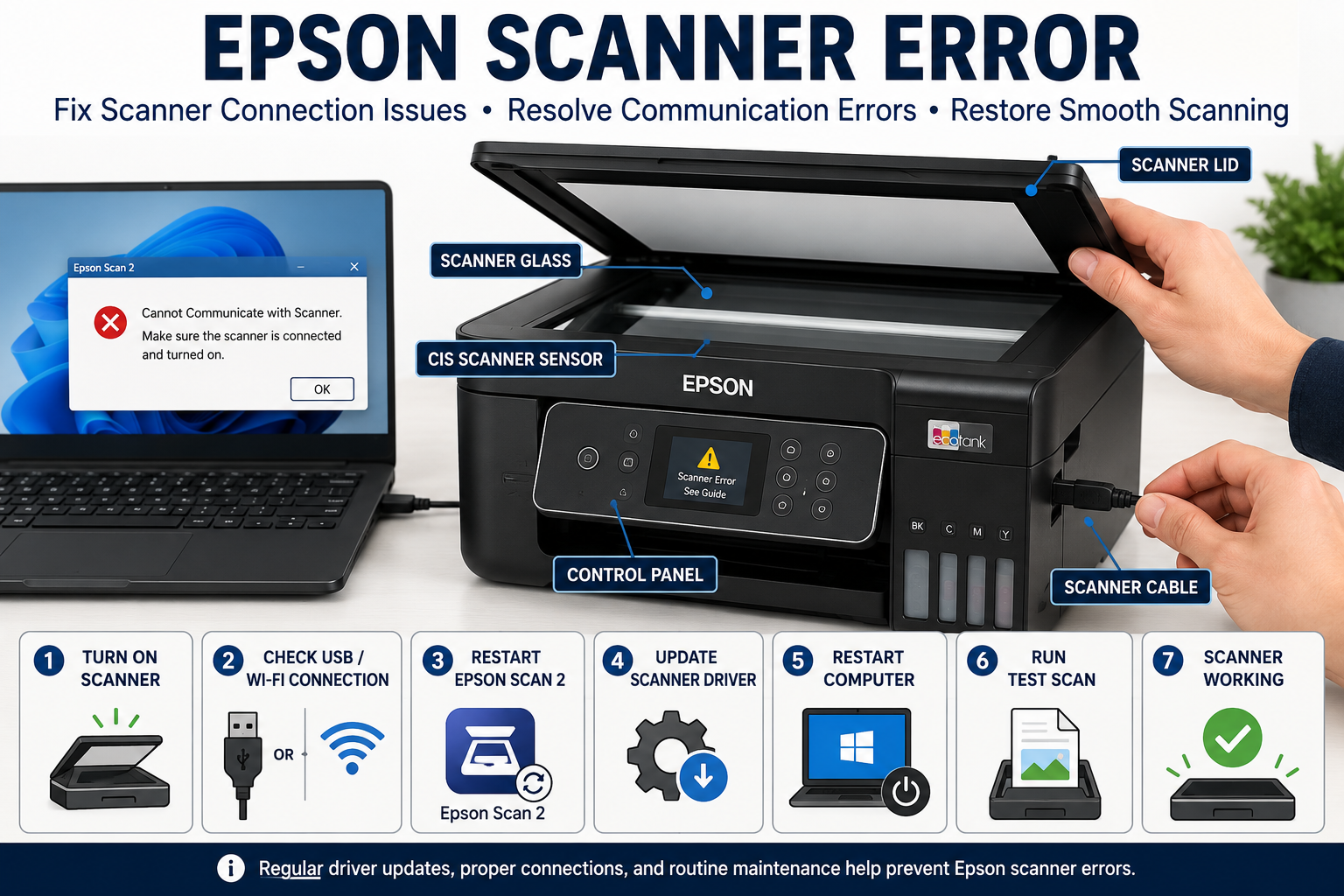
If you’re facing an Epson scanner error, you’re not alone. Whether your Epson scanner won’t connect, displays a communication error, or fails to detect your computer, these issues can disrupt your workflow. The good news is that most Epson scanner problems are caused by software, driver, or network issues—not hardware failure—and can often be resolved in just a few troubleshooting steps.
In this expert guide, you’ll learn how to identify the exact cause of your Epson scanner error, apply proven fixes for Windows and macOS, and prevent future scanning issues. This comprehensive resource covers everything from Epson Scan 2 errors to wireless connectivity problems, making it suitable for home users, students, small businesses, and office environments.
What You’ll Learn
By the end of this guide, you’ll know how to:
- Understand common Epson scanner error messages
- Diagnose software, driver, and hardware problems
- Fix Epson Scan and Epson Scan 2 errors
- Resolve USB and Wi-Fi scanner connection issues
- Troubleshoot Windows 10, Windows 11, and macOS scanning problems
- Reinstall Epson scanner drivers correctly
- Prevent recurring scanner errors with routine maintenance
- Know when to contact Epson support
What Is an Epson Scanner Error?
An Epson scanner error is any issue that prevents your Epson scanner from communicating with your computer or completing a scan successfully. These errors may result from outdated drivers, software conflicts, incorrect network settings, USB connection failures, corrupted Epson Scan software, or hardware malfunctions.
Scanning relies on seamless communication between the scanner hardware, operating system, drivers, and scanning software. If any part of this process fails, the scanner may stop responding or display an error message.
Common Symptoms of an Epson Scanner Error
You may experience one or more of the following:
- Scanner not detected by the computer
- Epson Scan 2 cannot find the scanner
- Communication error message
- Scanner remains offline
- Scan button does nothing
- Unable to scan over Wi-Fi
- Scanner freezes during scanning
- Driver installation errors
- “Cannot communicate with scanner” notification
- Epson Scan software crashes unexpectedly
These symptoms often indicate software or connectivity issues rather than physical damage.
Common Epson Scanner Error Messages Explained
Understanding the exact error message helps you choose the right solution quickly.
| Error Message | Meaning | Recommended Fix |
|---|---|---|
| Cannot Communicate with Scanner | Computer cannot establish a connection | Check USB or Wi-Fi connection, restart devices |
| Scanner Not Found | Scanner isn’t detected | Reinstall drivers, verify network settings |
| Scanner Offline | Scanner is unavailable | Bring scanner online, restart services |
| Communication Error | Data transfer failed | Check firewall, cables, or wireless connection |
| TWAIN Error | Driver communication problem | Reinstall TWAIN-compatible drivers |
| WIA Error | Windows Image Acquisition service issue | Restart WIA service and update drivers |
| Epson Scan 2 Error | Software malfunction | Reinstall Epson Scan 2 and update firmware |
| Scanner Busy | Another process is using the scanner | Close other applications and retry |
Communication Error
A communication error occurs when the computer cannot exchange data with the scanner. This commonly happens due to:
- Loose USB cables
- Weak Wi-Fi signals
- Incorrect IP address
- Firewall restrictions
- Network interruptions
Scanner Not Found
This error usually appears when:
- Drivers are missing
- Scanner isn’t powered on
- Network discovery is disabled
- USB cable is damaged
- Scanner is connected to another computer
TWAIN Driver Error
TWAIN is the standard interface used by most scanning software.
TWAIN errors often indicate:
- Corrupted scanner drivers
- Incompatible software
- Incomplete installations
- Driver conflicts after Windows updates
WIA Service Error
Windows Image Acquisition (WIA) enables communication between scanners and Windows.
If this service stops running, scanning applications may fail entirely.
Typical causes include:
- Disabled Windows services
- Corrupted system files
- Third-party software conflicts
- Driver incompatibility
Main Causes of Epson Scanner Errors
Scanner issues rarely occur without warning. Identifying the root cause can save significant troubleshooting time.
1. Outdated or Corrupted Scanner Drivers
Drivers act as translators between the scanner and your operating system.
Common problems include:
- Driver corruption
- Unsupported Windows versions
- Interrupted driver updates
- Incorrect driver installations
Expert Tip: Always download scanner drivers designed specifically for your Epson model and operating system.
2. Epson Scan Software Issues
Many users continue using outdated Epson Scan software after upgrading Windows.
Common software-related issues include:
- Missing program files
- Corrupted installations
- Incompatible software versions
- Failed updates
Using the latest Epson Scan 2 version significantly improves compatibility with modern operating systems.
3. USB Connection Problems
Physical connection issues remain one of the most common causes.
Check for:
- Damaged USB cable
- Faulty USB ports
- USB hubs causing power loss
- Loose connections
For best performance:
- Connect directly to the computer.
- Avoid low-quality USB extension cables.
- Test another USB port.
4. Wireless Network Problems
Wireless scanners depend on stable network communication.
Common Wi-Fi issues include:
- Weak signal strength
- Router restarts
- IP address conflicts
- Incorrect Wi-Fi password
- Different Wi-Fi bands (2.4 GHz vs. 5 GHz)
If your printer functions but scanning fails, the scanner software may be unable to locate the scanner’s network address.
5. Firewall or Antivirus Blocking the Scanner
Security software may mistakenly block communication between Epson Scan and your scanner.
Possible causes include:
- Firewall restrictions
- Antivirus scanning network traffic
- Blocked Epson services
- Network isolation settings
Temporarily disabling security software can help determine whether it is causing the issue.
6. Windows Services Not Running
Several Windows services are essential for scanning.
These include:
- Windows Image Acquisition (WIA)
- Remote Procedure Call (RPC)
- Plug and Play
- Device Association Service
If any of these services stop, scanner communication may fail.
7. Scanner Firmware Issues
Firmware controls the scanner’s internal functions.
Older firmware versions may cause:
- Random disconnects
- Software compatibility problems
- Slow scanning
- Communication failures
Keeping firmware updated improves stability and security.
8. Hardware Malfunctions
Although less common, hardware problems can occur due to:
- Faulty scanner sensors
- Damaged USB controller
- Power supply issues
- Internal cable failures
- Aging mechanical components
If software troubleshooting fails, hardware diagnostics may be necessary.
How to Fix Epson Scanner Error (Step-by-Step)
Follow these troubleshooting steps in order to identify and resolve the issue efficiently.
Step 1: Restart the Scanner and Computer
A restart clears temporary communication glitches.
- Turn off the scanner.
- Shut down your computer.
- Wait 60 seconds.
- Restart both devices.
- Try scanning again.
This simple step often resolves temporary software conflicts.
Step 2: Verify Physical Connections
Inspect:
- USB cable condition
- Power cable
- Ethernet cable (if applicable)
- Wireless signal indicator
- Scanner status lights
Replace damaged cables if necessary.
Step 3: Confirm Scanner Detection
On Windows:
- Open Device Manager.
- Expand Imaging Devices.
- Locate your Epson scanner.
- Check for warning icons.
If the scanner does not appear, reinstall the driver.
Step 4: Update or Reinstall Epson Scanner Drivers
A clean driver installation often resolves persistent communication problems.
Best practices include:
- Remove the existing Epson scanner driver.
- Restart the computer.
- Download the latest driver for your scanner model.
- Install the driver using administrator privileges.
- Restart the system again.
A clean installation eliminates corrupted driver files and restores proper communication between the scanner and your operating system.
Step 5: Restart the Windows Image Acquisition (WIA) Service
If scanning applications fail to recognize your scanner, restarting the WIA service can restore functionality.
- Press Windows + R and type services.msc.
- Locate Windows Image Acquisition (WIA).
- Right-click the service and select Restart.
- Ensure the startup type is set to Automatic.
- Test the scanner after restarting the service.
Restarting WIA resolves many software-related scanning issues, especially after Windows updates or unexpected system shutdowns.
Windows 11 Epson Scanner Troubleshooting
Windows 11 introduced enhanced security features and driver validation, which can sometimes interfere with scanner communication. If your Epson scanner worked before a Windows update but suddenly stopped, the following fixes can help.
Check Device Manager
- Press Windows + X and select Device Manager.
- Expand Imaging Devices or Printers.
- Locate your Epson scanner.
- If you see a yellow warning icon:
- Update the driver.
- Uninstall the device.
- Restart your PC.
- Reinstall the latest Epson driver.
Expert Tip: Avoid installing generic Windows scanner drivers. Always use Epson’s official drivers designed for your scanner model.
Disable USB Power Saving
Windows may turn off USB ports to save power.
To disable this feature:
- Open Device Manager.
- Expand Universal Serial Bus Controllers.
- Open each USB Root Hub.
- Click Power Management.
- Uncheck Allow the computer to turn off this device to save power.
- Restart your computer.
Enable Network Discovery
For wireless Epson scanners:
- Open Network and Sharing Center.
- Turn on:
- Network Discovery
- File and Printer Sharing
Without these settings, Epson Scan may not locate your scanner over the network.
Fix Epson Scanner Error on macOS
Mac users can also encounter scanner communication issues after macOS updates or permission changes.
Common Fixes
- Restart your Mac.
- Remove and re-add the scanner.
- Update Epson Scan 2.
- Allow scanning permissions in Privacy & Security.
- Check Wi-Fi connectivity.
Reset the Printing System
If scanning stops completely:
- Open Printers & Scanners.
- Right-click the printer list.
- Choose Reset Printing System.
- Add your Epson device again.
This resolves many communication issues after macOS upgrades.
Epson Scanner Driver Problems
Drivers are one of the most common causes of scanner failures.
Symptoms of Driver Issues
- Scanner not detected
- Epson Scan crashes
- Scanner appears offline
- Communication error
- TWAIN error
- WIA error
Clean Driver Installation
For best results:
- Uninstall Epson software.
- Remove the scanner from Device Manager.
- Restart the computer.
- Install the latest driver.
- Restart again.
Avoid installing multiple versions of Epson Scan simultaneously, as they can conflict with each other.
Wireless Epson Scanner Troubleshooting
Wireless scanning offers convenience but introduces additional points of failure.
Check Network Connection
Ensure:
- Scanner and computer are connected to the same Wi-Fi network.
- The router is functioning properly.
- Signal strength is strong.
- Wi-Fi Direct settings are correct.
Assign a Static IP Address
Changing IP addresses can prevent Epson Scan from locating the scanner.
Assigning a static IP:
- Improves reliability
- Prevents connection loss
- Reduces communication errors
This is especially useful in offices with multiple devices.
Restart Your Router
Network cache issues can interrupt scanner communication.
Restart your router by:
- Turning it off.
- Waiting 60 seconds.
- Turning it back on.
- Reconnecting the scanner.
Epson Scan vs. Epson Scan 2
| Feature | Epson Scan | Epson Scan 2 |
|---|---|---|
| User Interface | Older | Modern |
| Windows 11 Support | Limited | Full |
| macOS Compatibility | Limited | Excellent |
| Performance | Standard | Faster |
| Automatic Updates | No | Yes |
| OCR Integration | Basic | Improved |
| Network Scanning | Limited | Enhanced |
| Future Support | Legacy | Recommended |
Recommendation: If your scanner supports Epson Scan 2, use it instead of the legacy Epson Scan software for better compatibility and ongoing updates.
Epson Scanner Error Code Reference
| Error | Meaning | Recommended Solution |
|---|---|---|
| Communication Error | Scanner cannot connect | Check USB or Wi-Fi |
| Scanner Offline | Device unavailable | Restart scanner |
| Scanner Busy | Another scan in progress | Close other applications |
| TWAIN Error | Driver issue | Reinstall drivers |
| WIA Error | Windows service problem | Restart WIA service |
| Scanner Not Found | Device not detected | Check drivers and connections |
| Epson Scan 2 Error | Software malfunction | Reinstall Epson Scan 2 |
| Network Connection Error | Wireless communication failed | Verify Wi-Fi settings |
Prevent Epson Scanner Errors
Preventive maintenance can significantly reduce scanner problems.
Keep Drivers Updated
Install updated drivers periodically to improve compatibility with operating system updates and security patches.
Update Firmware
Firmware updates often include:
- Bug fixes
- Improved communication
- Better network stability
- Security enhancements
Clean the Scanner Regularly
Dust and debris can affect scan quality and sensor performance.
Clean:
- Scanner glass
- Rollers (if applicable)
- Lid backing
- Exterior vents
Use a lint-free microfiber cloth and approved cleaning solutions.
Use High-Quality USB Cables
Low-quality cables may cause intermittent communication failures.
Choose:
- Shielded USB cables
- Certified cables
- Appropriate cable length (avoid excessively long cables)
Avoid Abrupt Shutdowns
Always close Epson Scan software before powering off your computer or scanner. This helps prevent corrupted settings and unfinished scan jobs.
When to Contact Epson Support
If you have tried all troubleshooting steps and your scanner still fails to operate, professional assistance may be required.
Contact Epson Support if:
- Scanner is not powering on.
- Hardware makes unusual noises.
- Firmware updates fail repeatedly.
- Scanner glass or internal components are damaged.
- Communication errors persist after a clean driver installation.
- The scanner is still under warranty and requires service.
Frequently Asked Questions (FAQ)
What causes an Epson scanner error?
Most Epson scanner errors are caused by outdated drivers, software corruption, network connectivity problems, USB issues, firewall restrictions, or incorrect scanner settings.
Why won’t Epson Scan detect my scanner?
This usually occurs because of driver issues, network communication problems, disabled Windows services, or an incorrect USB or Wi-Fi connection.
How do I reset my Epson scanner?
Turn off the scanner, unplug it for one minute, reconnect it, and restart both the scanner and your computer. If necessary, remove and reinstall the scanner using the latest Epson drivers.
Can Windows updates cause Epson scanner errors?
Yes. Major Windows updates can replace or disable scanner drivers, requiring a fresh installation of Epson Scan 2 or updated drivers.
Should I reinstall Epson Scan?
Yes. Reinstalling Epson Scan or Epson Scan 2 often resolves software corruption, missing files, and communication issues.
Can antivirus software block Epson scanners?
Yes. Some security software blocks scanner communication. Temporarily disabling the firewall or antivirus can help identify the cause.
Why does my Epson scanner work over USB but not Wi-Fi?
This usually indicates a network configuration problem, incorrect IP address, firewall restriction, or weak wireless signal.
How often should I update scanner drivers?
Check for updates every three to six months or after major Windows or macOS updates.
Is Epson Scan 2 better than Epson Scan?
Yes. Epson Scan 2 provides improved compatibility, a modern interface, enhanced performance, and better support for current operating systems.
Can a faulty USB cable cause scanner errors?
Absolutely. Damaged or low-quality USB cables are a common cause of intermittent communication failures.
Conclusion
An Epson scanner error can interrupt important tasks, but in most cases, the problem is straightforward to resolve. By following a structured troubleshooting process—checking connections, updating drivers, restarting essential services, reinstalling Epson Scan 2, and verifying network settings—you can restore your scanner quickly and avoid unnecessary downtime.
Regular maintenance, firmware updates, and using the latest Epson software will help prevent recurring scanner issues and ensure reliable performance for years to come.