Epson Printhead Clogged: How to Fix, Clean, and Prevent Printhead Problems
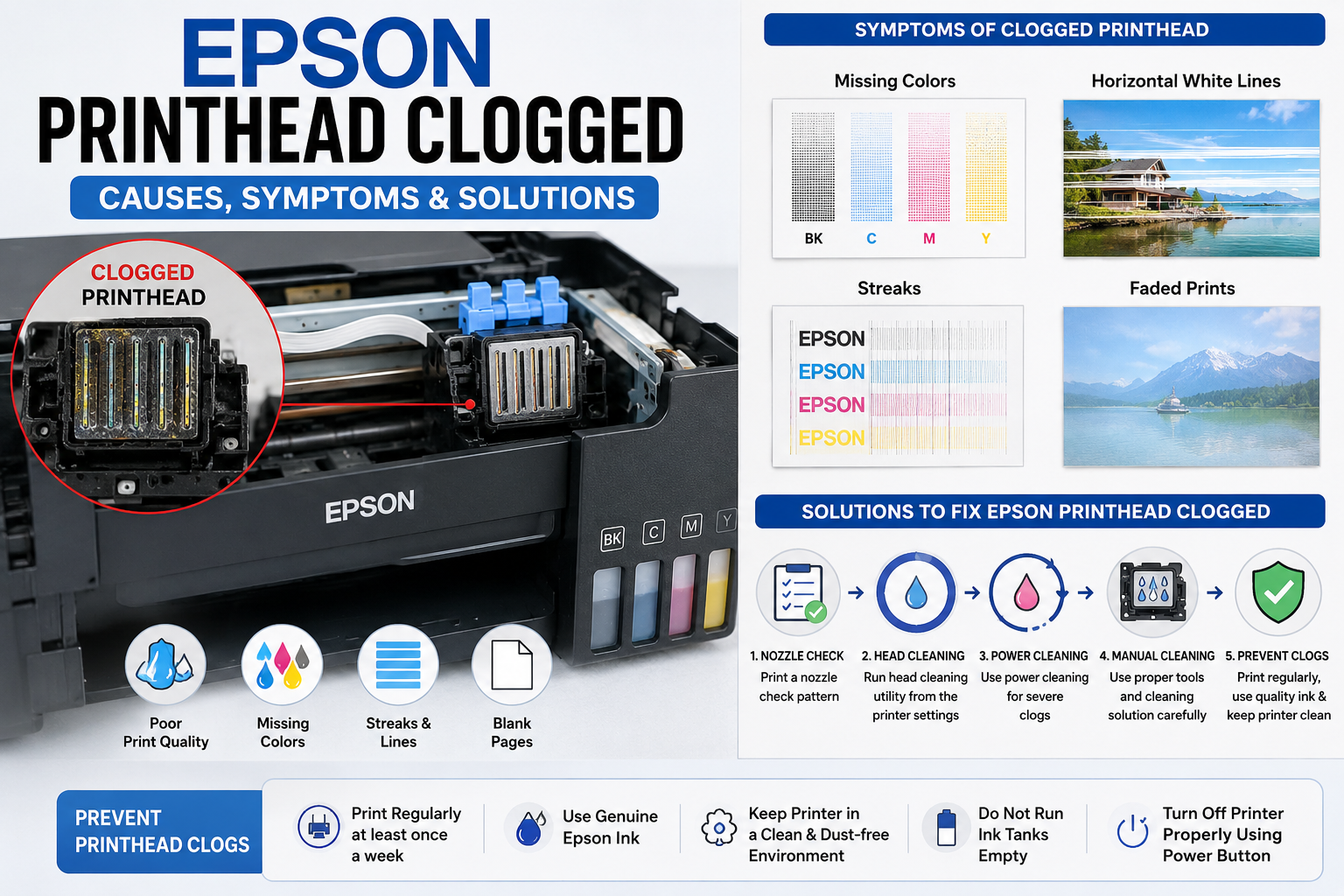
If your Epson printhead clogged issue is causing faded prints, missing colors, streaks, or blank pages, you’re not alone. Printhead clogs are one of the most common reasons Epson printers produce poor-quality output, especially after long periods of inactivity or when incompatible ink is used.
The good news is that many clogged printheads can be restored with the right cleaning techniques and maintenance practices. This guide walks you through the causes, symptoms, cleaning methods, and preventive measures so you can get your Epson printer back to producing crisp, professional-quality prints.
What You’ll Learn
In this guide, you’ll discover:
- What a clogged Epson printhead is
- Common signs of a blocked printhead
- Why Epson printheads become clogged
- How to clean an Epson printhead safely
- When to use Power Cleaning
- Manual cleaning methods
- Tips to prevent future clogs
- When to replace the printhead
- Frequently asked questions
- Expert maintenance recommendations
What Does an Epson Printhead Clogged Issue Mean?
An Epson printhead clogged issue occurs when dried ink, dust, or trapped air blocks the tiny nozzles in the printer’s printhead. These blockages prevent ink from flowing evenly, leading to faded text, missing colors, streaks, or blank pages. Most minor clogs can be resolved using the printer’s built-in cleaning utility.
Unlike many laser printers, Epson inkjet printers use microscopic nozzles to spray precise ink droplets onto paper. Because these openings are extremely small, even a tiny amount of dried ink can disrupt printing.
Common Components Involved
- Printhead nozzles
- Ink delivery system
- Ink cartridges or EcoTank reservoirs
- Maintenance box
- Printer firmware
- Head Cleaning utility
When ink flow is interrupted, the printer may still operate normally, but the printed output will show noticeable defects.
Example
Imagine using an Epson EcoTank printer only once every few weeks. Over time, ink left in the nozzles can dry and harden, restricting ink flow. A nozzle check may then reveal missing lines, indicating clogged nozzles.
Common Symptoms of an Epson Printhead Clog
Recognizing the symptoms early can prevent more serious print quality issues.
Typical Signs
- Missing black ink
- Missing cyan, magenta, or yellow colors
- Horizontal white lines across prints
- Streaky images
- Faded documents
- Uneven color distribution
- Blank pages despite full ink tanks
- Poor photo quality
- Incomplete graphics
- Banding across printed pages
Symptom Comparison Table
| Symptom | Possible Cause | Recommended Solution |
|---|---|---|
| Blank pages | Severe nozzle blockage | Run Nozzle Check and Head Cleaning |
| Missing colors | Partial clog | Perform Head Cleaning cycle |
| Horizontal lines | Blocked nozzles | Clean printhead and align printhead |
| Streaks | Uneven ink flow | Run cleaning utility and nozzle check |
| Faded printing | Dried ink | Restore ink flow through cleaning |
| Patchy photos | Multiple clogged nozzles | Perform Power Cleaning if necessary |
Why Epson Printheads Become Clogged
Understanding the root cause helps you prevent future issues and extend your printer’s lifespan.
1. Infrequent Printer Use
Inkjet printers are designed for regular operation. If left unused for weeks, ink inside the nozzles can dry and harden.
Expert Tip: Print a small color document once a week to keep ink flowing.
2. Using Third-Party or Low-Quality Ink
Non-genuine inks may differ in viscosity or composition, increasing the risk of residue buildup and nozzle blockages.
Recommendation: Use high-quality, compatible ink or genuine Epson ink whenever possible.
3. Low Humidity and Heat
Dry environments accelerate ink evaporation inside the printhead, making clogs more likely.
Best Practice: Store your printer in a clean, temperature-controlled room away from direct sunlight and heating vents.
4. Air Bubbles in the Ink System
Air entering the ink lines can interrupt ink delivery and mimic the symptoms of a clogged printhead.
This often occurs after:
- Refilling ink tanks incorrectly
- Replacing cartridges improperly
- Running the printer with very low ink levels
5. Expired or Old Ink
Ink that has exceeded its recommended shelf life may thicken or separate, affecting print quality and increasing the chance of nozzle blockages.
6. Dust and Environmental Contaminants
Dust particles, paper fibers, and airborne debris can accumulate inside the printer over time, contributing to clogging and reduced print performance.
Maintenance Tip: Keep the printer covered when not in use and clean the exterior regularly to minimize dust buildup.
How to Fix an Epson Printhead Clogged Issue (Step-by-Step)
A clogged Epson printhead can often be restored without replacing the printer. Start with the least aggressive cleaning method and only move to advanced options if print quality does not improve.
Step 1: Check Ink Levels
Before cleaning, verify that each ink cartridge or EcoTank reservoir contains enough ink.
Low ink levels can produce symptoms similar to clogged nozzles.
What to Check
- Black ink level
- Cyan ink level
- Magenta ink level
- Yellow ink level
- Maintenance box status (if applicable)
Pro Tip: Never perform multiple cleaning cycles with nearly empty ink tanks.
Step 2: Print a Nozzle Check Pattern
A nozzle check identifies which nozzles are blocked.
How to Perform a Nozzle Check
- Turn on the Epson printer.
- Open Printer Maintenance from the Epson Utility.
- Select Nozzle Check.
- Print the test pattern.
- Compare the pattern with the reference image.
Normal Nozzle Pattern
- Straight lines
- No missing segments
- Uniform spacing
- Sharp edges
Clogged Nozzle Pattern
- Missing lines
- Broken segments
- Faded colors
- Incomplete grids
If defects appear, proceed with head cleaning.
Step 3: Run the Head Cleaning Utility
Most Epson printers include an automatic cleaning cycle.
Windows
- Open Control Panel.
- Select Devices and Printers.
- Right-click your Epson printer.
- Choose Printing Preferences.
- Open the Maintenance tab.
- Select Head Cleaning.
macOS
- Open System Settings.
- Select Printers & Scanners.
- Choose your Epson printer.
- Open Options & Supplies.
- Run Head Cleaning.
Allow the process to complete before printing another nozzle check.
Step 4: Print Another Test Page
After cleaning:
- Print a nozzle check.
- Print a color image.
- Print black text.
If print quality has improved, avoid running unnecessary additional cleaning cycles.
Step 5: Repeat Only When Necessary
Many users assume more cleaning equals better results.
It doesn’t.
Running too many cleaning cycles:
- wastes ink
- fills the maintenance box
- shortens printer maintenance intervals
- may overheat the printhead
Expert Recommendation
Run no more than 2–3 standard cleaning cycles consecutively before trying another solution.
Cleaning Method Comparison
| Cleaning Method | Difficulty | Ink Usage | Best For |
|---|---|---|---|
| Nozzle Check | Easy | None | Diagnosing clogs |
| Standard Head Cleaning | Easy | Medium | Light clogs |
| Power Cleaning | Moderate | High | Severe clogs |
| Manual Cleaning | Advanced | Low | Stubborn dried ink |
| Professional Service | Expert | N/A | Permanent blockages |
Advanced Methods to Clean a Severely Clogged Epson Printhead
If the standard cleaning cycle does not restore print quality, advanced methods may help. Use these techniques carefully to avoid damaging the printhead.
Method 1: Power Cleaning
Many Epson EcoTank and WorkForce models include Power Cleaning or Power Ink Flushing.
This process forces a larger volume of ink through the nozzles to remove stubborn blockages.
Use Power Cleaning When
- Standard cleaning fails
- Multiple colors are missing
- The printer has been unused for weeks or months
Avoid Power Cleaning If
- Ink levels are low
- The maintenance box is nearly full
- The printer recently completed several cleaning cycles
Important: Power Cleaning consumes significantly more ink than a standard cleaning cycle.
Method 2: Let the Printer Rest
Sometimes dried ink softens naturally.
After one or two cleaning cycles:
- Turn the printer off.
- Leave it unused for 8–12 hours.
- Perform another nozzle check.
This method often works better than repeatedly running cleaning cycles.
Method 3: Print Color Test Pages
Continuous printing helps restore ink flow.
Print:
- solid black page
- cyan page
- magenta page
- yellow page
- color gradient page
These pages encourage ink to circulate through partially blocked nozzles.
Method 4: Manual Printhead Cleaning
Manual cleaning should only be considered if software-based methods fail.
General Process
- Turn off the printer.
- Move the carriage to the maintenance position (following the printer’s instructions).
- Use lint-free swabs.
- Apply a printer-safe cleaning solution.
- Gently remove dried ink deposits.
- Allow the printhead to dry completely.
- Perform a nozzle check.
Never
- Use tap water.
- Use sharp objects.
- Force the printhead.
- Apply excessive pressure.
- Pour alcohol directly inside the printer.
Common Mistakes to Avoid
Many printhead failures occur because users attempt unsafe cleaning methods.
Avoid these mistakes:
Running 10–15 cleaning cycles back-to-back
Using compressed air inside the printhead
Using sewing needles to clear nozzles
Mixing different ink brands
Refilling with poor-quality ink
Ignoring low-ink warnings
Leaving the printer unused for several months
What If the Epson Printhead Still Won’t Unclog?
If you’ve completed the recommended cleaning procedures and the nozzle check still shows missing lines, the issue may be more serious.
Possible causes include:
- Permanently dried ink
- Internal printhead damage
- Air trapped in the ink delivery system
- Damaged ink channels
- Electrical failure of the printhead
- Worn maintenance components
Signs the Printhead May Need Replacement
- No improvement after multiple cleaning attempts
- Entire color channels missing
- Blank pages with full ink tanks
- Repeated nozzle failures
- Printer reports hardware errors
- Ink leaks around the printhead
At this stage, compare the cost of replacing the printhead with the value of the printer. For entry-level models, replacement may not be economical, while higher-end EcoTank or professional printers may justify repair.
How to Prevent Epson Printhead Clogs
Preventive maintenance is the most effective way to avoid recurring printhead issues.
1. Print Regularly
Print a small document with both black and color content at least once every week.
This keeps ink moving through the nozzles and reduces the chance of dried ink buildup.
2. Use Genuine or High-Quality Compatible Ink
Low-quality ink can contain impurities that accelerate clogging.
Benefits of quality ink include:
- Consistent viscosity
- Better color accuracy
- Reduced residue
- Longer printhead life
- Improved print quality
3. Keep the Printer in a Stable Environment
Ideal conditions:
- Moderate room temperature
- Low dust levels
- Moderate humidity
- Away from direct sunlight
- Protected from heating or cooling vents
Environmental stability helps slow ink evaporation and protects internal components.
4. Turn the Printer Off Properly
Always use the printer’s power button instead of unplugging it.
A normal shutdown allows the printhead to park in its sealed maintenance position, reducing exposure to air.
5. Check Ink Before It Runs Empty
Running with empty tanks or cartridges can introduce air into the ink system, leading to poor ink flow and potential clogging.
6. Perform Routine Maintenance
Create a simple maintenance schedule:
| Task | Frequency |
|---|---|
| Print color test page | Weekly |
| Nozzle Check | Monthly |
| Head Cleaning | Only when needed |
| Exterior cleaning | Monthly |
| Firmware updates | Every 3–6 months |
| Maintenance box inspection | As indicated by the printer |
Expert Maintenance Tips
Printer technicians often recommend the following best practices:
- Avoid unnecessary cleaning cycles.
- Store unopened ink in a cool, dry place.
- Replace expired ink promptly.
- Keep firmware updated for optimal maintenance routines.
- Use the correct paper type to reduce dust and fiber buildup.
- Perform a nozzle check before every major print job if the printer has been idle.
Frequently Asked Questions (FAQs)
1. Why is my Epson printhead clogged?
An Epson printhead usually becomes clogged because ink dries inside the microscopic nozzles. This often happens when the printer is left unused for extended periods, low-quality ink is used, or the printer operates in a dry, dusty environment.
2. How do I know if my Epson printhead is clogged?
Common signs include:
- Blank pages
- Missing colors
- White horizontal lines
- Streaky prints
- Faded text
- Poor photo quality
Running a Nozzle Check is the quickest way to confirm whether the printhead is clogged.
3. Can a clogged Epson printhead be fixed?
Yes. Most minor and moderate clogs can be cleared using the printer’s built-in Head Cleaning or Power Cleaning utility. Severe clogs may require manual cleaning or professional servicing.
4. How many times should I run the Head Cleaning utility?
Limit Head Cleaning to 2–3 consecutive cycles. Running it repeatedly wastes ink and may not improve results. If the clog persists, allow the printer to rest before trying again or use Power Cleaning if your model supports it.
5. Does Head Cleaning use ink?
Yes. Every Head Cleaning cycle consumes ink to flush the printhead nozzles. Power Cleaning uses significantly more ink than a standard cleaning cycle.
6. Can I manually clean an Epson printhead?
Yes, but manual cleaning should only be attempted after software-based cleaning methods fail. Use a printer-safe cleaning solution and lint-free materials. Avoid sharp tools, excessive pressure, or household chemicals.
7. Can dried ink permanently damage the printhead?
Yes. If ink remains dried inside the nozzles for a long time, it can cause permanent blockages or damage the printhead, making replacement necessary.
8. Is it safe to use third-party ink?
High-quality compatible ink may work well, but low-quality or incompatible ink can increase the risk of clogged nozzles, poor color accuracy, and reduced printhead life. Always choose ink designed for your Epson printer model.
9. How can I prevent Epson printhead clogs?
The best preventive measures include:
- Print a test page every week.
- Keep ink tanks adequately filled.
- Use genuine or high-quality compatible ink.
- Turn off the printer using the power button.
- Store the printer in a clean, temperature-controlled environment.
10. When should I replace the printhead?
Consider replacing the printhead if:
- Multiple cleaning attempts fail.
- Entire color channels are missing.
- The printer reports printhead hardware errors.
- Manual cleaning does not restore print quality.
11. Does Power Cleaning fix every clog?
No. Power Cleaning is effective for many severe clogs but cannot repair physically damaged or permanently blocked printheads.
12. Can leaving my Epson printer unused cause clogs?
Yes. Long periods of inactivity allow ink to dry inside the nozzles, making regular printing one of the best ways to prevent clogs.