Epson Nozzle Check Failed: Complete Guide to Fix Printhead Problems and Restore Print Quality
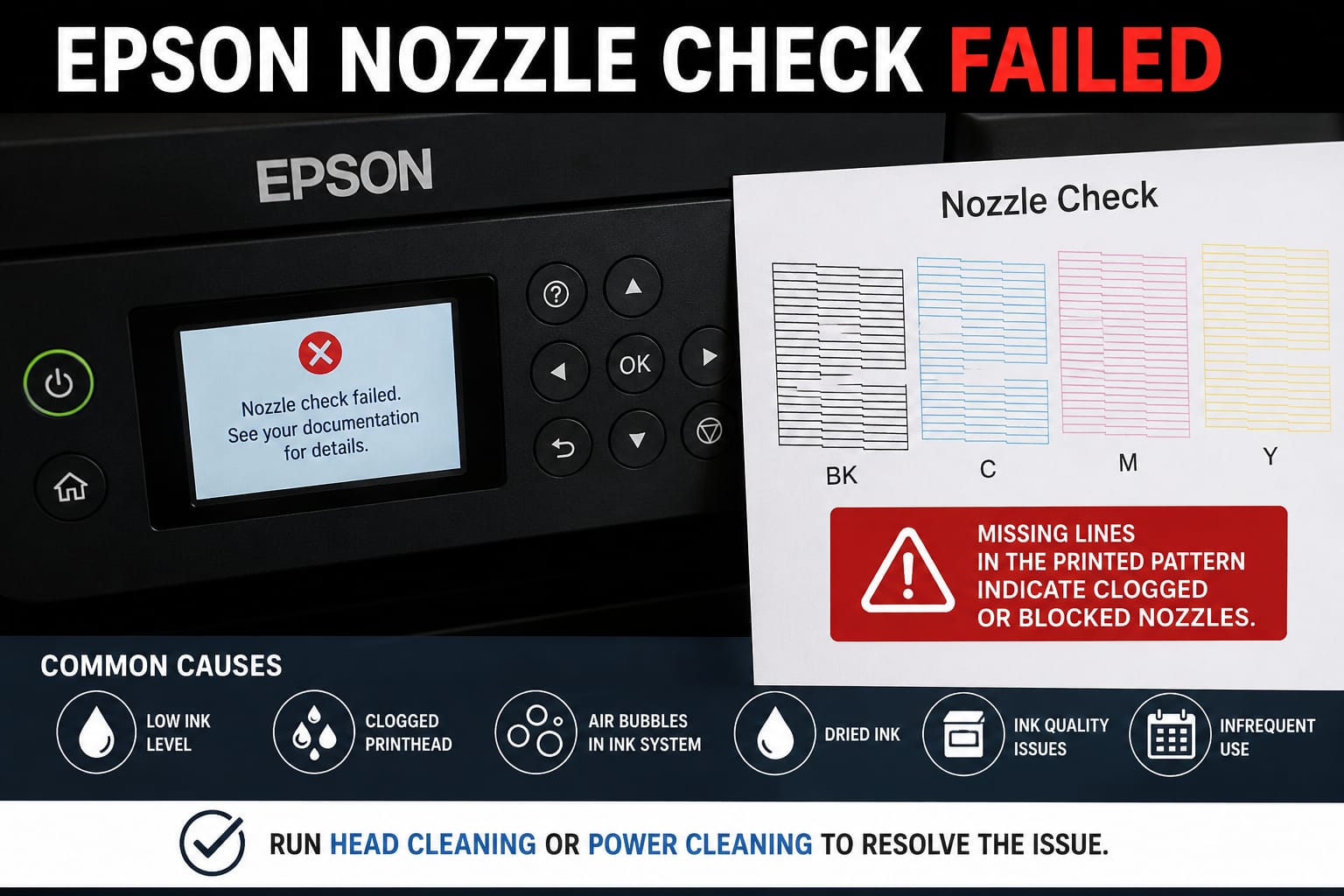
If your Epson nozzle check failed, you’re likely dealing with faded prints, missing colors, streaks, or even completely blank pages. While this issue is common, it doesn’t always mean your printer is damaged. In many cases, clogged nozzles, trapped air in the ink system, dried ink, or improper maintenance are the real causes—and most of these problems can be resolved without replacing the printhead.
Whether you own an Epson EcoTank, WorkForce, Expression Home, or another Epson inkjet printer, understanding why the nozzle check fails is the first step toward restoring crisp, vibrant prints. This guide combines practical troubleshooting, expert maintenance tips, and preventive care to help you fix the problem efficiently while minimizing ink waste.
What You’ll Learn
In this comprehensive guide, you’ll discover:
- What an Epson nozzle check is and why it matters
- The most common causes of nozzle check failures
- How to interpret nozzle check patterns
- Step-by-step methods to fix clogged printhead nozzles
- When to use Head Cleaning vs. Power Cleaning
- Common mistakes to avoid during maintenance
- Preventive tips to keep your Epson printer performing at its best
What Does “Epson Nozzle Check Failed” Mean?
An Epson nozzle check is a built-in diagnostic test that prints a pattern of fine lines for each ink color. This test helps determine whether the printer’s microscopic nozzles are delivering ink correctly. If the printed pattern contains gaps, broken lines, missing colors, or no output at all, the nozzle check has effectively failed, indicating that one or more printhead nozzles are blocked or not functioning properly.
Common Symptoms
- Blank pages during printing
- Missing black, cyan, magenta, or yellow ink
- Horizontal white streaks across documents
- Faded text and washed-out images
- Broken nozzle check pattern
- Uneven print quality
- Random color shifts
Why It Matters
Ignoring a failed nozzle check can lead to:
- Poor print quality
- Increased ink consumption
- Frequent cleaning cycles
- Permanent printhead damage
- Costly repairs or replacements
Common Causes of an Epson Nozzle Check Failure
Several hardware, maintenance, and environmental factors can prevent the nozzle check from printing correctly. Identifying the root cause is essential before starting any cleaning procedure.
| Cause | How It Affects Printing | Severity |
|---|---|---|
| Clogged printhead nozzles | Blocks ink flow, causing missing lines or colors | High |
| Dried ink | Hardens inside microscopic nozzles after long periods of inactivity | High |
| Low or empty ink tanks/cartridges | Insufficient ink supply leads to incomplete nozzle patterns | Medium |
| Air bubbles in ink lines | Interrupts continuous ink flow, especially in EcoTank models | Medium |
| Third-party or incompatible ink | May clog nozzles due to inconsistent viscosity or pigment quality | Medium |
| Dirty capping station or wiper blade | Prevents the printhead from sealing and cleaning properly | High |
| Firmware or software issues | Can interrupt maintenance routines or nozzle check processes | Low |
| Worn or damaged printhead | Physical wear can permanently affect nozzle performance | High |
Expert Insight
In professional printer servicing, clogged nozzles caused by infrequent printer use are among the most common reasons for failed nozzle checks. Running a small color print every week and using genuine Epson ink can significantly reduce the risk of dried ink buildup and help maintain consistent print quality.
How to Fix an Epson Nozzle Check Failed Error (Step-by-Step)
If your Epson nozzle check failed, don’t panic. In most cases, the issue can be resolved by following a structured troubleshooting process instead of repeatedly running cleaning cycles. Start with the simplest fixes and move to advanced maintenance only if necessary.
Step 1: Check Ink Levels
Before cleaning the printhead, confirm that your printer has enough ink.
How to Check
Windows
- Open Control Panel > Devices and Printers.
- Right-click your Epson printer.
- Select Printing Preferences.
- Open Maintenance.
- Check the estimated ink levels.
macOS
- Open System Settings > Printers & Scanners.
- Select your Epson printer.
- View the printer status and ink levels.
Why This Matters
Even if one color is nearly empty, the nozzle check pattern may appear incomplete or fail entirely.
Expert Tip: EcoTank users should also inspect the physical ink tanks to ensure ink is above the minimum level.
Step 2: Print Another Nozzle Check Pattern
A second nozzle check helps determine whether the issue is temporary or persistent.
Healthy Nozzle Pattern
✔ Straight, continuous lines
✔ Every color fully printed
✔ No gaps
✔ No fading
Problematic Pattern
❌ Missing horizontal lines
❌ Blank color sections
❌ Jagged lines
❌ Missing black ink
❌ Entire colors absent
Run Epson Head Cleaning Correctly
The built-in Head Cleaning utility is the safest method for clearing minor nozzle clogs.
Windows
- Open Printer Preferences.
- Click Maintenance.
- Select Head Cleaning.
- Start the cleaning process.
- Wait until it finishes.
- Print another nozzle check.
macOS
- Open Printers & Scanners.
- Select the Epson printer.
- Choose Options & Supplies.
- Open the Utility tab.
- Run Head Cleaning.
Best Practices
- Run only 1–2 cleaning cycles at a time.
- Wait 30–60 minutes before repeating.
- Avoid running more than 3 consecutive cleanings.
Why Too Many Cleaning Cycles Are Bad
Every cleaning cycle consumes ink.
Excessive cleaning can:
- Waste large amounts of ink
- Fill the maintenance box quickly
- Increase wear on internal components
- Fail to remove severe clogs
Industry Insight: Epson service technicians often recommend allowing ink to soften dried deposits naturally between cleaning cycles rather than running repeated cleanings back-to-back.
Head Cleaning vs. Power Cleaning
Many users confuse these two maintenance functions.
| Feature | Head Cleaning | Power Cleaning |
|---|---|---|
| Ink Usage | Low | Very High |
| Cleaning Strength | Light | Intensive |
| Recommended For | Minor clogs | Severe clogs |
| Frequency | Regular maintenance | Rare use only |
| Completion Time | 2–5 minutes | 10–20 minutes |
| Risk | Minimal | Consumes significant ink |
When Should You Use Power Cleaning?
Use Power Cleaning only if:
- Multiple Head Cleaning cycles fail.
- Entire colors are missing.
- The printer has been unused for weeks or months.
- Epson specifically recommends it for your model.
Avoid Power Cleaning If
- Ink levels are already low.
- The maintenance box is nearly full.
- You have recently performed multiple cleanings.
- The issue appears hardware-related.
Expert Recommendation: Reserve Power Cleaning as a last software-based recovery method. It is highly effective for stubborn clogs but should not be used as routine maintenance due to its high ink consumption.
Advanced Troubleshooting When Nozzle Check Still Fails
If standard cleaning doesn’t resolve the issue, investigate deeper causes.
1. Inspect the Ink Supply
Look for:
- Low ink
- Air bubbles
- Loose cartridges
- Improperly seated EcoTank caps
- Damaged cartridges
2. Check for Air in EcoTank Ink Tubes
EcoTank printers occasionally develop trapped air after:
- Refilling ink
- Transporting the printer
- Extended inactivity
Air pockets interrupt ink flow, causing missing nozzle lines even when ink tanks are full.
3. Clean the Capping Station
The capping station seals the printhead when the printer is idle.
If dirty, it can:
- Dry out the printhead
- Reduce cleaning effectiveness
- Cause recurring nozzle failures
Professional servicing may be required for safe cleaning.
4. Inspect the Wiper Blade
The rubber wiper blade removes excess ink.
A dirty blade can spread dried ink across the printhead.
Symptoms include:
- Smudges
- Repeating streaks
- Poor nozzle patterns
- Ink contamination
5. Restart the Printer
Restarting resets:
- Print queue
- Firmware communication
- Internal maintenance routines
Sometimes a simple restart resolves maintenance errors.
Epson Nozzle Check Failed by Printer Series
Different Epson printer families can exhibit unique causes and solutions.
| Epson Series | Common Cause | Recommended Solution |
|---|---|---|
| EcoTank | Air bubbles in ink lines | Head Cleaning, Ink Charging, weekly printing |
| WorkForce | Dried pigment ink | Head Cleaning, Power Cleaning if necessary |
| Expression Home | Long periods of inactivity | Regular maintenance prints |
| SureColor | Heavy production use | Professional maintenance schedule |
| XP Series | Cartridge seating issues | Reseat cartridges and clean contacts |
EcoTank Printers
Most nozzle check failures result from:
- Air entering ink tubes
- Long idle periods
- Delayed refilling
- Incomplete ink charging
WorkForce Printers
Business users often encounter:
- Pigment ink buildup
- High print volume
- Maintenance box nearing capacity
Expression Home Series
Typical causes include:
- Infrequent printing
- Dried dye ink
- Dust accumulation
Common Mistakes That Make Nozzle Problems Worse
Many users unintentionally worsen the issue while trying to fix it.
Avoid these common mistakes:
Running Head Cleaning repeatedly without waiting
Using incompatible third-party ink
Touching the printhead manually
Cleaning electrical contacts with water
Ignoring low ink warnings
Leaving the printer unused for months
Power Cleaning multiple times in one day
Shutting off the printer by unplugging it
Refilling EcoTank reservoirs incorrectly
Prevent Future Epson Nozzle Check Failures
Preventive maintenance is the best way to avoid recurring nozzle issues and extend the life of your Epson printer.
Weekly Maintenance Checklist
- Print one full-color page every 5–7 days.
- Keep ink levels above the minimum mark.
- Use genuine Epson ink whenever possible.
- Turn off the printer using the Power button.
- Store the printer in a clean, dust-free environment.
- Avoid exposing the printer to direct sunlight or extreme temperatures.
- Run a nozzle check once a month if usage is infrequent.
Monthly Maintenance
- Inspect the nozzle check pattern.
- Clean the printer exterior.
- Check for firmware updates.
- Examine the maintenance box (if applicable).
- Verify print alignment.
Pro Tips
- Avoid unplugging the printer immediately after use, as it may interrupt automatic maintenance cycles.
- If you print infrequently, schedule a recurring reminder to produce a color test page weekly.
- Keep the printer covered when not in use to reduce dust buildup around the printhead.
Can a Clogged Epson Printhead Be Fixed?
Yes. Most clogged Epson printheads can be restored using the printer’s built-in Head Cleaning or Power Cleaning functions. Minor clogs often clear after one or two cleaning cycles, while severe clogs may require advanced maintenance or professional servicing. Persistent issues after repeated cleaning could indicate permanent printhead damage.
How Many Head Cleaning Cycles Are Safe?
Most experts recommend no more than 2–3 consecutive Head Cleaning cycles. If print quality does not improve, wait at least 30–60 minutes before trying again. Repeated cleaning without improvement wastes ink and may shorten the lifespan of maintenance components.
Expert Maintenance Tips
- Use your Epson printer regularly to prevent ink from drying in the nozzles.
- Stick to genuine Epson inks for consistent viscosity and reliable flow.
- Address minor print quality issues early before they become severe clogs.
- Keep your printer’s firmware updated to ensure maintenance features work as intended.
- Replace the maintenance box or waste ink container when prompted to maintain effective cleaning performance.
Conclusion
An Epson nozzle check failed message doesn’t necessarily mean your printer has a damaged printhead. In most cases, the issue stems from clogged nozzles, dried ink, trapped air in the ink delivery system, low ink levels, or infrequent printer use. By following a structured troubleshooting process—starting with a nozzle check, verifying ink levels, performing Head Cleaning, and using Power Cleaning only when necessary—you can often restore excellent print quality without costly repairs.
The best long-term solution is preventive maintenance. Printing a color page every week, using genuine Epson ink, and avoiding excessive cleaning cycles can significantly reduce the risk of nozzle blockages. If the nozzle check continues to fail after multiple maintenance attempts, professional servicing or printhead replacement may be the most practical option.
With the right maintenance habits, your Epson printer can continue producing sharp documents and vibrant photos for years to come.
Frequently Asked Questions (FAQs)
1. Why does my Epson nozzle check keep failing?
A failed nozzle check is usually caused by clogged printhead nozzles, dried ink, trapped air, low ink levels, or an issue with the ink delivery system. Running a nozzle check and one or two Head Cleaning cycles often resolves the problem.
2. Can I fix a clogged Epson printhead without replacing it?
Yes. Most clogged printheads can be restored using Epson’s built-in Head Cleaning or Power Cleaning utility. Severe clogs may require professional servicing if software-based cleaning does not work.
3. How many times should I run Epson Head Cleaning?
Avoid running more than 2–3 consecutive cleaning cycles. If print quality does not improve, wait 30–60 minutes before trying again to allow the ink to soften dried deposits.
4. What is the difference between Head Cleaning and Power Cleaning?
Head Cleaning removes light nozzle blockages and uses relatively little ink. Power Cleaning performs a more intensive flush for stubborn clogs but consumes significantly more ink and should only be used when necessary.
5. Why is my Epson printer printing blank pages?
Blank pages are often caused by clogged nozzles, empty ink tanks, trapped air, incorrectly installed cartridges, or printhead issues. A nozzle check can help identify the underlying cause.
6. Can third-party ink cause nozzle problems?
Yes. Some third-party inks may have different chemical properties that increase the likelihood of nozzle clogging or inconsistent ink flow. Genuine Epson ink is generally recommended for the best performance.
7. How often should I print to prevent clogged nozzles?
Printing at least one color page every 5–7 days helps keep ink flowing through the printhead and reduces the risk of dried ink.
8. Does Power Cleaning damage the printer?
No. Power Cleaning is a built-in Epson maintenance function. However, excessive use wastes ink, fills the maintenance box faster, and should not be used as routine maintenance.
9. When should I replace the printhead?
If repeated nozzle checks, Head Cleaning, and Power Cleaning fail to restore print quality, the printhead may be permanently damaged and require replacement or professional repair.
10. Can firmware updates fix nozzle check issues?
Firmware updates generally do not remove physical clogs but can improve printer stability, maintenance routines, and compatibility with newer operating systems.
11. Why are only certain colors missing?
Missing colors usually indicate that the corresponding nozzles are clogged, the ink supply is interrupted, or the cartridge/tank for that color is empty or not functioning correctly.
12. How can I prevent future nozzle check failures?
Regular printing, using genuine Epson ink, proper shutdown procedures, and periodic nozzle checks are the most effective ways to prevent future printhead issues.