Epson L4260 Troubleshooting: Complete Guide to Fix Printing, Wi-Fi, Scanner & Error Problems
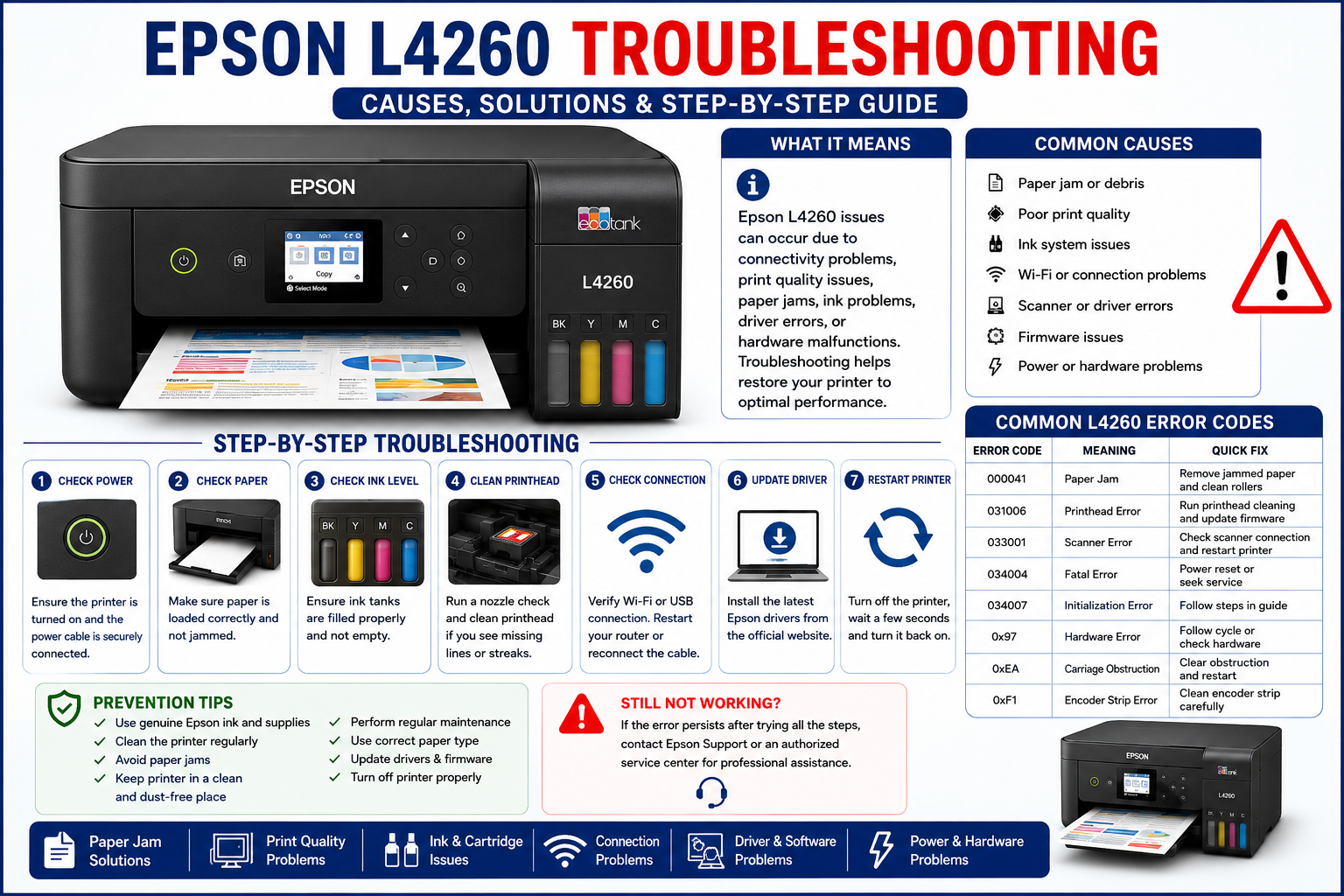
If your Epson L4260 has suddenly stopped printing, won’t connect to Wi-Fi, produces blank pages, or displays flashing error lights, you’re not alone. Many of these issues can be resolved at home with the right troubleshooting steps, without immediately needing professional repair. Whether you’re using the printer for work, school, or everyday documents, understanding the root cause of the problem can save both time and money.
This comprehensive Epson L4260 troubleshooting guide brings together solutions for the most common hardware, software, connectivity, and print quality issues in one place. Instead of searching through multiple articles for different problems, you’ll find a structured, step-by-step approach that helps you diagnose the issue, apply the correct fix, and keep your EcoTank printer running reliably. The guide also includes preventive maintenance tips and expert recommendations based on common support scenarios.
What You’ll Learn
By the end of this guide, you’ll know how to:
- Diagnose Epson L4260 problems using a logical troubleshooting process.
- Fix printer startup, power, and hardware issues.
- Resolve printing errors, blank pages, and poor print quality.
- Troubleshoot Wi-Fi, USB, and mobile printing problems.
- Install or update printer drivers and firmware correctly.
- Fix scanner detection and communication issues.
- Understand common Epson error lights and messages.
- Perform printhead cleaning, nozzle checks, and routine maintenance.
- Prevent recurring issues with practical maintenance tips.
- Decide when a problem can be fixed at home and when it’s time to contact Epson support.
Quick Epson L4260 Troubleshooting Checklist
Before diving into specific fixes, start with these basic checks. Many common printer problems can be resolved in just a few minutes.
- Ensure the printer is powered on and the power cable is securely connected.
- Verify that the LCD screen does not display an error message.
- Check that there is enough paper loaded correctly in the input tray.
- Confirm the ink tanks contain sufficient ink and are filled above the minimum level.
- Remove any visible paper jams or foreign objects from the paper path.
- Make sure the USB cable or Wi-Fi connection is stable.
- Restart the printer, computer, and Wi-Fi router.
- Confirm the Epson L4260 is set as the default printer on your device.
- Clear any stuck print jobs from the print queue.
- Print a nozzle check to identify clogged printheads before attempting a printhead cleaning cycle.
Expert Tip: Following this checklist first can resolve many common Epson L4260 issues without requiring advanced troubleshooting, saving time and reducing unnecessary maintenance cycles.
Fix Epson L4260 Not Turning On
One of the most frustrating problems is when the Epson L4260 won’t power on. This issue may be caused by a loose power connection, an overloaded electrical outlet, internal hardware faults, or firmware problems.
Common Symptoms
- No power light
- Blank LCD display
- Printer doesn’t respond to the Power button
- Printer shuts off immediately after starting
Step-by-Step Solution
- Disconnect the power cable.
- Wait for 60 seconds.
- Plug the cable directly into a wall outlet instead of a power strip.
- Check that the power cable is firmly connected.
- Press and hold the Power button for 10 seconds.
- Try another electrical outlet.
- Remove any connected USB devices.
- Restart the printer.
If the printer still won’t start
The issue may involve:
- Faulty power adapter
- Internal power board failure
- Mainboard damage
These hardware issues typically require professional servicing.
Fix Epson L4260 Not Printing
If your Epson L4260 is not printing, check the printer status, ink levels, print queue, driver installation, and nozzle condition before assuming a hardware failure. In many cases, restarting the printer and clearing pending print jobs resolves the problem.
Possible Causes
- Printer offline
- Empty ink tanks
- Clogged printhead
- Corrupted driver
- Print queue stuck
- Incorrect printer selected
- USB or Wi-Fi connection failure
Troubleshooting Steps
Step 1: Check Ink Levels
Low ink may affect printing quality or stop printing altogether.
Ensure every EcoTank reservoir is above the minimum line.
Step 2: Verify Default Printer
Windows may send print jobs to another printer.
Go to:
Settings → Bluetooth & Devices → Printers & Scanners
Choose:
Epson L4260
Click:
Set as Default Printer
Step 3: Clear Print Queue
Delete all pending print jobs.
Restart both:
- Computer
- Printer
Try printing again.
Step 4: Run Nozzle Check
A nozzle check identifies clogged printhead nozzles.
If missing lines appear:
Run Printhead Cleaning.
Repeat only when necessary.
Expert Insight: Running multiple cleaning cycles back-to-back wastes ink. Perform one cleaning cycle, wait a few minutes, and then print another nozzle check before deciding if another cleaning is needed.
Fix Epson L4260 Printing Blank Pages
Blank pages usually indicate ink delivery problems rather than software errors.
Common Causes
- Air trapped inside ink tubes
- Empty ink tanks
- Clogged printhead
- Incorrect paper settings
- Protective tape left during setup (new printers)
Solution
- Check ink levels.
- Print a Nozzle Check.
- Perform Printhead Cleaning.
- Run Printhead Alignment.
- Verify correct paper settings.
- Print a test page.
Common Mistakes
Avoid:
- Running 10 cleaning cycles consecutively
- Mixing incompatible ink
- Turning off the printer during cleaning
These mistakes can increase ink consumption and may reduce printhead lifespan.
Fix Poor Print Quality
Symptoms
- Faded colors
- Missing lines
- Streaks
- Blurry text
- Smudged pages
- Uneven colors
Possible Causes
| Problem | Likely Cause | Solution |
|---|---|---|
| Faded prints | Low ink | Refill ink |
| White lines | Clogged nozzle | Nozzle cleaning |
| Blurry text | Wrong paper settings | Select correct paper type |
| Color imbalance | Printhead alignment | Run alignment |
| Smudging | Dirty rollers | Clean rollers |
Improve Print Quality
- Use genuine Epson ink.
- Store paper in a dry environment.
- Print regularly to prevent nozzle clogging.
- Run nozzle checks monthly.
- Avoid exposing ink bottles to direct sunlight.
Industry Insight: Inkjet printers that remain unused for several weeks are more likely to develop clogged nozzles because the ink can dry at the printhead. Printing a simple color page once every week helps maintain ink flow and reduces maintenance needs.
Epson L4260 Wi-Fi Troubleshooting
Wireless connectivity issues are among the most common support requests for EcoTank printers.
Symptoms
- Cannot find Wi-Fi network
- Printer offline
- Mobile printing fails
- Printer disconnects frequently
- Unable to print wirelessly
Step-by-Step Wi-Fi Fix
Step 1
Restart:
- Printer
- Router
- Computer
Step 2
Move the printer closer to the router.
Avoid placing it near:
- Microwave ovens
- Thick concrete walls
- Wireless speakers
- Bluetooth hubs
Step 3
Reconnect Wi-Fi.
Use the printer control panel.
Choose:
Network Settings
↓
Wireless LAN Setup
↓
Select your network
↓
Enter Wi-Fi password
Step 4
Print a Network Status Sheet.
Verify:
- IP Address
- Signal Strength
- Network Name (SSID)
Step 5
Reconnect using the Epson Smart Panel app if the printer still isn’t visible.
Wi-Fi Best Practices
- Use a stable 2.4 GHz network if your router offers both 2.4 GHz and 5 GHz bands and setup is failing.
- Avoid changing the router password frequently.
- Reserve a fixed IP address for the printer if your network supports it.
- Keep router firmware updated for improved compatibility and security.
Epson L4260 Offline Problem
Why Does This Happen?
Usually because:
- Network interruption
- Windows print spooler stopped
- Wrong printer selected
- Printer asleep
- Driver corruption
Fix Offline Status
Windows
Open:
Printers & Scanners
↓
Select Epson L4260
↓
Open Queue
↓
Disable
Use Printer Offline
Also disable
Pause Printing
Restart:
- Print Spooler service
- Printer
- Computer
Epson L4260 Scanner Not Working
Symptoms
- Scanner not detected
- Scan button inactive
- Computer cannot find scanner
- Communication error
Solutions
Check USB/Wi-Fi Connection
Reconnect the printer.
Update Scanner Driver
Install the latest scanner software compatible with your operating system.
Restart Epson Scan Software
Close:
- Epson Scan
- Epson Scan 2
- Epson Smart Panel
Restart the application.
Windows Device Manager
Check for:
Unknown Device
or
Missing Scanner Driver
Reinstall if necessary.
macOS Users
Grant scanning permissions if prompted and verify that the printer is added correctly in Printers & Scanners settings.
Fix Epson L4260 Paper Jam
Paper jams don’t always mean paper is visibly stuck. Small scraps, dust, or incorrectly loaded paper can also trigger errors.
Remove a Paper Jam Safely
- Turn off the printer.
- Open the scanner unit.
- Remove jammed paper slowly using both hands.
- Check the rear paper feed path.
- Remove torn paper pieces.
- Close all covers securely.
- Restart the printer.
Prevent Future Paper Jams
- Fan paper before loading.
- Do not exceed the paper tray limit.
- Use paper recommended for inkjet printers.
- Remove damaged or curled sheets before loading.
- Store paper in a dry place to prevent moisture-related sticking.
Epson L4260 Driver Problems
Incorrect or outdated drivers can lead to printing failures, communication errors, or missing printer features.
Signs of Driver Issues
- Printer not detected
- Installation fails
- Printing stops unexpectedly
- Scanner unavailable
- Error during setup
How to Resolve Driver Problems
- Uninstall the existing printer driver.
- Restart the computer.
- Install the latest driver for your operating system.
- Reconnect the printer after installation if prompted.
- Print a test page to confirm successful installation.
Expert Recommendation: Avoid using generic operating system drivers when full Epson drivers are available. Manufacturer drivers typically include scanning utilities, maintenance tools, firmware updates, and advanced print settings that generic drivers may not support.
Firmware Update Troubleshooting
Firmware updates can improve printer stability, compatibility, and performance, but interruptions during the process may cause temporary issues.
Before Updating
- Ensure the printer is connected to a reliable power source.
- Maintain a stable internet connection if updating over Wi-Fi.
- Do not turn off the printer during the update process.
- Close unnecessary applications on the connected computer.
Benefits of Firmware Updates
- Improved compatibility with newer operating systems.
- Better wireless connectivity.
- Bug fixes for known issues.
- Enhanced printer performance and stability.
Preventive Maintenance Tips
Regular maintenance helps reduce unexpected errors and extends the life of your Epson L4260.
Weekly
- Print a color test page.
- Check ink levels.
- Inspect the paper tray for dust.
Monthly
- Run a nozzle check.
- Clean paper feed rollers if needed.
- Verify printer firmware is current.
Every 3–6 Months
- Perform printhead alignment.
- Clean the scanner glass.
- Inspect cables and wireless connections.
- Review printer settings for any changes after operating system updates.
Frequently Asked Questions (FAQ)
1. Why is my Epson L4260 not printing?
Check the ink levels, print queue, printer status, and printhead condition. A clogged nozzle or outdated driver is often the cause.
2. How do I reconnect my Epson L4260 to Wi-Fi?
Open the printer’s Network Settings, select your wireless network, enter the password, and confirm the connection. Restart the printer if necessary.
3. Why does my Epson L4260 print blank pages?
Blank pages are usually caused by clogged printhead nozzles, trapped air in the ink system, incorrect paper settings, or empty ink tanks.
4. How do I clean the Epson L4260 printhead?
Run a nozzle check first. If missing lines appear, perform a printhead cleaning cycle from the printer’s maintenance menu, then check the results again.
5. Why is my Epson L4260 offline?
An offline status may result from Wi-Fi interruptions, a paused print queue, an inactive Print Spooler service, or incorrect default printer settings.
6. How do I fix poor print quality?
Use genuine Epson ink, run nozzle checks, clean the printhead, align the printhead, and choose the correct paper type for your print job.
7. What should I do if the scanner is not detected?
Reconnect the printer, update the scanner driver, restart the scanning software, and verify that the device appears correctly in your operating system.
8. Why are the lights on my Epson L4260 blinking?
Blinking lights can indicate paper jams, ink system issues, maintenance reminders, or hardware errors. Check the printer display or status messages to identify the specific problem.
9. How often should I perform printer maintenance?
Print regularly, check ink levels weekly, run nozzle checks monthly, and clean the printer as needed to maintain consistent performance.
10. Can I use third-party ink in my Epson L4260?
While compatible inks may work, genuine Epson ink is recommended for optimal print quality, reliable performance, and reduced risk of printhead clogging.
11. How do I clear a stuck print queue?
Open your operating system’s printer settings, cancel all pending print jobs, restart the Print Spooler service if necessary, and then resend the document.
12. Why won’t my Epson L4260 connect to my computer?
Verify the USB or Wi-Fi connection, ensure the correct driver is installed, and confirm that the printer is selected as the default device.