Epson Ink Pad Is at the End of Its Service Life – Complete Fix Guide
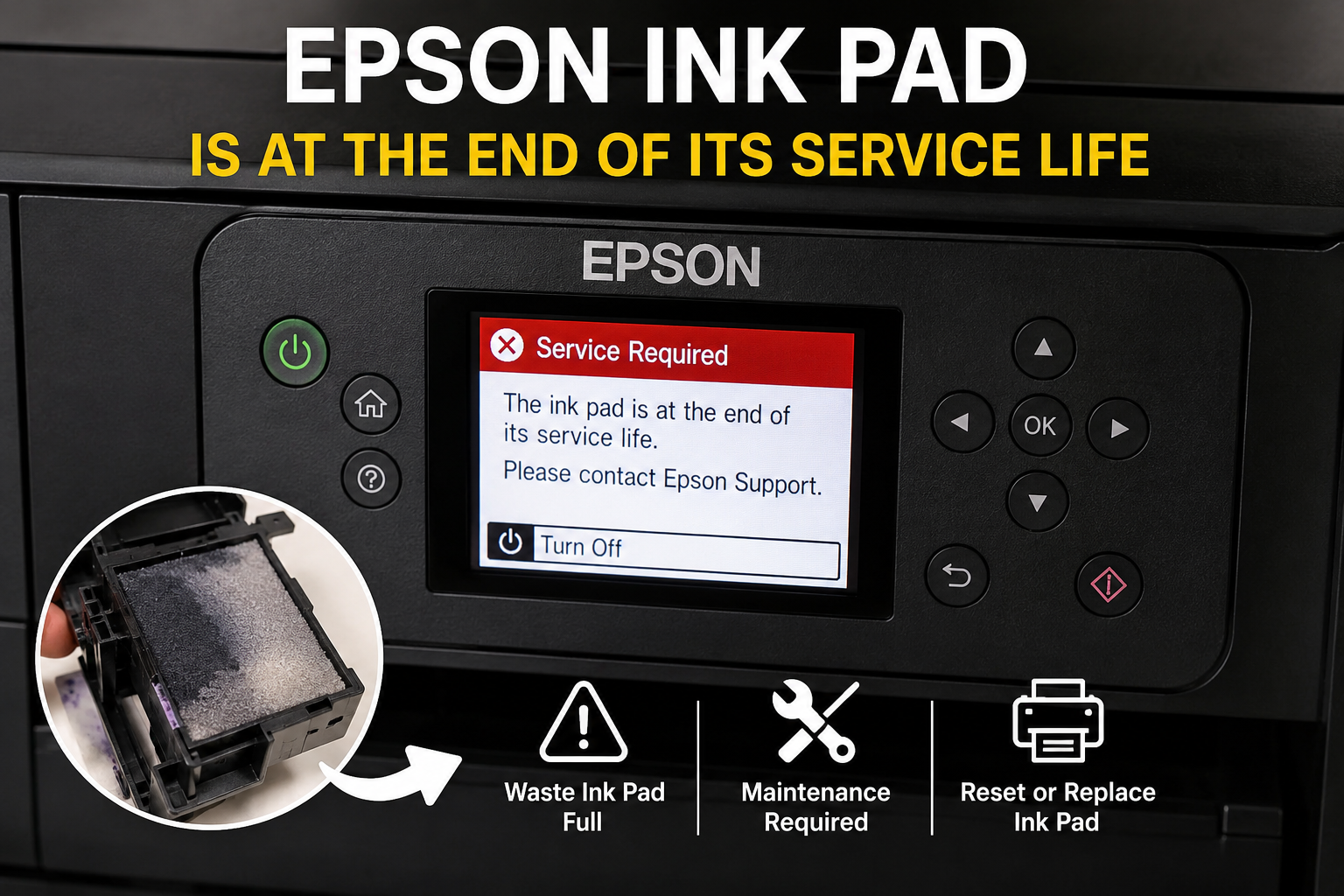
Seeing the message “Epson ink pad is at the end of its service life” can be frustrating, especially when your printer suddenly stops working during an important print job. Many Epson users assume their printer is broken beyond repair, but in most cases, the issue is related to a maintenance component called the waste ink pad.
This warning appears when your Epson printer estimates that its internal waste ink pads have reached their maximum capacity. These pads absorb excess ink generated during cleaning cycles, printhead maintenance, and other internal processes. Once the printer’s waste ink counter reaches a predetermined limit, Epson automatically disables printing to prevent ink leakage and internal damage.
The good news is that this issue is often fixable through maintenance, replacement, or resetting procedures.
What You’ll Learn
In this guide, you’ll discover:
- What Epson waste ink pads actually do
- Why the service life error appears
- Common causes of waste ink pad warnings
- How to troubleshoot the issue safely
- When to replace waste ink pads
- Whether resetting the waste ink counter is safe
- Preventive maintenance tips
- Professional recommendations for long-term printer health
What Does “Epson Ink Pad Is at the End of Its Service Life” Mean?
The message “Epson ink pad is at the end of its service life” indicates that the printer’s waste ink counter has reached its preset limit. Epson printers use internal absorbent pads to collect excess ink from cleaning cycles and maintenance operations. When the printer estimates these pads are full, it stops printing to prevent ink overflow and potential damage.
Understanding Epson Waste Ink Pads
Waste ink pads are absorbent components located inside the printer. Their primary purpose is to collect excess ink that is not transferred to paper.
This includes ink generated during:
- Printhead cleaning cycles
- Nozzle cleaning procedures
- Ink charging operations
- Startup maintenance routines
- Deep cleaning processes
Without these pads, excess ink could leak inside the printer and damage electronic components.
Example
Imagine a sponge placed beneath a sink to catch drips. Over time, the sponge absorbs more and more water until it becomes saturated. Epson waste ink pads function similarly, except they absorb ink instead of water.
Why Does This Error Appear?
The error typically occurs because Epson printers monitor waste ink accumulation using an internal counter rather than a physical sensor.
The printer estimates ink pad saturation based on:
- Number of cleaning cycles
- Amount of ink consumed
- Printer age
- Maintenance operations performed
- Firmware calculations
Once the estimated capacity reaches a predefined threshold, the printer displays:
- Service Required
- Ink Pad End of Service Life
- Printer Parts Inside Your Printer Are At The End Of Their Service Life
- Waste Ink Pad Full
and may stop functioning entirely.
Common Causes of Epson Ink Pad Service Life Errors
Several factors can trigger the warning earlier than expected.
Frequent Printhead Cleaning
Many users repeatedly run nozzle cleaning cycles when print quality declines.
Each cleaning cycle:
- Consumes ink
- Sends excess ink to waste pads
- Increases waste ink counter values
Running excessive cleaning procedures can accelerate pad saturation significantly.
Heavy Printing Volume
Businesses and home offices that print daily generate more waste ink than occasional users.
High-volume usage often leads to:
- Faster counter accumulation
- More maintenance cycles
- Increased ink absorption
As a result, the service life warning appears sooner.
Long-Term Printer Usage
Even lightly used printers accumulate waste ink over time.
Older printers may display the warning because:
- Maintenance cycles continue automatically
- Internal counters increase gradually
- Ink residue accumulates during storage
Age alone can contribute to reaching the service threshold.
Firmware-Based Estimation
An important detail many users overlook is that Epson printers generally estimate waste ink levels rather than directly measuring pad saturation.
This means:
- Pads may still have remaining capacity.
- Counter values may be conservative.
- The warning is preventative rather than reactive.
However, ignoring the warning completely can create a risk of ink leakage if the pads are genuinely saturated.
Signs Your Epson Waste Ink Pads May Actually Be Full
Although the printer relies primarily on estimates, there are physical symptoms that can indicate full waste ink pads.
Warning Signs
- Service required messages
- Printer refusing to print
- Ink stains inside printer
- Excessive ink residue near maintenance area
- Ink pooling beneath the printer
- Repeated maintenance warnings
Advanced Symptoms
- Internal leakage
- Paper smudging
- Persistent error codes
- Strong ink odor around the printer
If multiple symptoms appear together, replacement is often recommended rather than simply resetting the counter.
Epson Models Commonly Affected
The issue can occur across many Epson printer families.
EcoTank Series
- Epson EcoTank ET-2720
- Epson EcoTank ET-2800
- Epson EcoTank ET-2850
- Epson EcoTank ET-3850
WorkForce Series
- Epson WorkForce WF-2830
- Epson WorkForce WF-2850
- Epson WorkForce WF-3820
Expression Series
- Epson Expression XP-4100
- Epson Expression XP-4200
- Epson Expression XP-7100
Photo Printers
- Epson Artisan Series
- Epson SureColor Series
- Epson Photo XP Models
The exact repair method may vary slightly depending on the model.
Advanced Troubleshooting for Epson Ink Pad Is at the End of Its Service Life
If you’ve already reset the waste ink counter but your Epson printer still displays “The ink pad is at the end of its service life,” don’t panic. The issue may be caused by something other than the counter itself.
This section covers the most common reasons the error persists and provides practical solutions based on real-world troubleshooting experience.
1. The Waste Ink Counter Didn’t Reset Properly
Sometimes the reset utility appears to complete successfully, but the printer’s firmware does not save the new value.
Signs
- Same error appears immediately after restarting.
- Printer remains in Service Required mode.
- No change in blinking lights.
Solution
- Restart both the printer and computer.
- Connect the printer directly with a USB cable instead of Wi-Fi.
- Run the reset utility again.
- Confirm that the software reports Counter = 0% after the reset.
- Print a nozzle check to verify normal operation.
Expert Tip: Avoid disconnecting the printer while the reset utility is writing data. Interrupting the process can cause communication errors.
2. The Physical Waste Ink Pad Is Completely Saturated
Resetting only clears the software counter. It does not remove the ink already absorbed by the waste ink pad.
When the pad is saturated, excess ink can leak inside the printer.
Symptoms
- Ink leaking underneath the printer
- Ink stains inside the printer
- Damp maintenance area
- Strong ink odor
Recommended Action
✔ Replace the waste ink pad or maintenance box.
✔ Then perform another counter reset.
3. Wrong Reset Utility
Not every Epson reset program supports every printer model.
Many free utilities only support older printers.
Check the Following
- Correct printer model
- Firmware compatibility
- Operating system compatibility
- Utility version
Example:
A utility designed for an Epson XP-4100 may not work on an ET-2850.
4. Firmware Update Prevents Reset
Some newer Epson firmware versions restrict older adjustment utilities.
Possible Solutions
- Install the latest compatible reset software.
- Use an updated licensed adjustment program.
- Check whether your printer now requires a maintenance box replacement instead.
5. USB Communication Problems
Poor communication can interrupt the reset process.
Best Practices
- Connect directly to the PC.
- Avoid USB hubs.
- Use a high-quality USB cable.
- Disable VPNs or security software that may block communication.
- Restart both devices before attempting another reset.
Epson Ink Pad Error vs Other Epson Printer Errors
Understanding the difference between Epson error messages can save hours of unnecessary troubleshooting.
| Error Message | Meaning | Typical Fix |
|---|---|---|
| Epson ink pad is at the end of its service life | Waste ink counter limit reached | Replace/clean pad and reset counter |
| Paper Jam | Paper path obstruction | Remove jammed paper |
| Printer Offline | Communication issue | Reconnect printer |
| Ink Cartridge Not Recognized | Cartridge detection problem | Reinstall or replace cartridge |
| Nozzle Check Failed | Printhead blockage | Run cleaning cycle |
| Maintenance Box Full | Replace maintenance box | Install new maintenance box |
Can You Reset the Printer Without Replacing the Ink Pad?
Yes—but only temporarily in some situations.
If the printer has relatively low usage and the waste ink pad still has capacity, resetting the counter may restore printing.
However, if the printer has printed thousands of pages over several years, replacing the waste ink pad is the safer and more reliable solution.
Pros of Counter Reset Only
- Quick
- Low cost
- Restores printing immediately
- No disassembly required
Cons
- Doesn’t remove absorbed ink
- Increased risk of leakage over time
- Error may return sooner
How Long Does an Epson Waste Ink Pad Last?
There is no universal lifespan because usage varies.
Several factors influence pad life:
- Number of printed pages
- Frequency of printhead cleaning
- Photo printing
- Ink coverage
- Printer model
- Age of the printer
Estimated Lifespan
| Usage Pattern | Approximate Lifespan |
|---|---|
| Light Home Use | 4–8 years |
| Moderate Home Office | 2–5 years |
| Small Business | 1–3 years |
| Heavy Commercial Printing | Less than 2 years |
These are approximate estimates and may vary significantly by printer model.
How Much Does Epson Ink Pad Replacement Cost?
The total cost depends on your printer model and whether you replace the pad yourself or use an authorized service center.
| Service | Estimated Cost |
|---|---|
| Waste Ink Pad | Low to moderate |
| Maintenance Box | Moderate |
| Professional Labor | Additional service charge |
| Counter Reset Utility | Free or paid depending on software |
Replacing the maintenance box on supported EcoTank models is generally simpler and less expensive than replacing internal absorbent pads.
How to Prevent the Error from Returning
Preventive maintenance can significantly extend the life of the waste ink system.
1. Avoid Unnecessary Head Cleaning
Every cleaning cycle pumps ink into the waste pad.
Only perform cleaning when print quality actually requires it.
2. Print Regularly
Printing a small color document every week helps keep nozzles clear and reduces excessive cleaning cycles.
3. Use Genuine Epson Ink
Compatible or poor-quality inks may increase maintenance requirements.
High-quality ink helps maintain stable printhead performance.
4. Keep the Printer Clean
Dust and debris can contribute to printhead issues that trigger additional cleaning.
5. Turn Off the Printer Properly
Always use the power button.
This allows the printer to park the printhead correctly and complete maintenance routines safely.
6. Monitor Print Quality
Don’t wait until severe clogging develops.
Address minor issues early to reduce repeated cleaning cycles.
Common Mistakes to Avoid
Many users accidentally create bigger problems while trying to fix this error.
Avoid These Mistakes
❌ Resetting the counter repeatedly without replacing a saturated waste ink pad.
❌ Using software meant for another Epson model.
❌ Disconnecting the printer during the reset process.
❌ Ignoring ink leakage.
❌ Running multiple head cleanings unnecessarily.
❌ Downloading reset utilities from untrusted sources.
❌ Assuming every flashing light indicates an ink pad issue.
Expert Recommendations
Based on years of Epson printer maintenance, these practices consistently deliver the best long-term results:
- Replace the waste ink pad or maintenance box when it reaches the end of its service life.
- Reset the waste ink counter only after servicing the printer whenever possible.
- Keep printer firmware and drivers up to date.
- Use the printer regularly to minimize nozzle clogging.
- Store the printer in a clean, dry environment.
- Follow Epson’s maintenance recommendations for your specific model.
Quick Troubleshooting Checklist
| Problem | Recommended Action |
|---|---|
| Service life error appears | Check waste ink counter |
| Counter reset unsuccessful | Retry with compatible utility |
| Error remains after reset | Replace waste ink pad or maintenance box |
| Ink leaking | Stop using printer and replace the pad immediately |
| Utility cannot detect printer | Check USB connection and drivers |
| Error returns quickly | Inspect physical waste ink pad for saturation |
Conclusion
The Epson ink pad is at the end of its service life message is not necessarily a sign that your printer has reached the end of its usable life. In most cases, it indicates that the printer’s internal waste ink management system has reached a predefined maintenance threshold designed to prevent ink overflow.
The most effective solution depends on your printer’s condition. A simple counter reset may restore functionality on lightly used printers, but older or heavily used devices typically require both a waste ink pad (or maintenance box) replacement and a waste ink counter reset to ensure safe, reliable operation.
By understanding how the waste ink system works, following the correct reset procedure, replacing saturated components when needed, and adopting good maintenance habits, you can extend the life of your Epson printer, avoid unnecessary downtime, and reduce the likelihood of seeing this error again.
With proper care, many Epson EcoTank, WorkForce, and Expression printers continue to deliver dependable performance long after their first waste ink service interval.
Frequently Asked Questions (FAQs)
1. What does “Epson ink pad is at the end of its service life” mean?
This message indicates that your Epson printer’s internal waste ink counter has reached its preset limit. The printer stops printing to help prevent waste ink from overflowing inside the device. In most cases, the solution involves resetting the waste ink counter and, if necessary, replacing the waste ink pad or maintenance box.
2. Can I reset the Epson waste ink counter myself?
Yes. Many Epson printer models support waste ink counter resets using compatible service or adjustment utilities. However, you should only use software designed for your exact printer model and follow the instructions carefully.
3. Is it safe to keep printing after this error appears?
Generally, no. Most Epson printers automatically disable printing when this message appears. If you bypass the warning without servicing the waste ink system, there is a risk of ink leakage and internal damage.
4. Does resetting the waste ink counter replace the waste ink pad?
No. Resetting the counter only clears the printer’s internal maintenance count. It does not remove or clean the waste ink already stored in the absorbent pads.
5. How long does an Epson waste ink pad last?
The lifespan depends on the printer model and usage. Home users may not encounter this issue for several years, while businesses with heavy print volumes may reach the service limit much sooner.
6. Which Epson printers use a maintenance box instead of internal ink pads?
Many newer Epson EcoTank models use a replaceable maintenance box instead of permanently installed absorbent waste ink pads. Always check your printer’s user manual to confirm the maintenance system used by your specific model.
7. Why does the error return after resetting the printer?
If the physical waste ink pad is saturated, the error may return quickly even after resetting the counter. Using an incompatible reset utility or failing to complete the reset properly can also cause the message to reappear.
8. Can I clean the waste ink pad instead of replacing it?
Some older Epson printers allow experienced users to remove and clean the absorbent pads. However, replacing the pads or maintenance box is generally the safer and more reliable solution recommended for long-term use.
9. How much does Epson waste ink pad replacement cost?
The cost varies depending on the printer model, whether you perform the replacement yourself, and whether professional servicing is required. Newer models with replaceable maintenance boxes are often less expensive and easier to maintain.
10. What causes the waste ink counter to fill up?
The counter increases every time the printer performs printhead cleaning, nozzle maintenance, startup cleaning cycles, or other maintenance routines that direct excess ink into the waste ink collection system.
11. Can using compatible ink cause this error?
Compatible ink does not directly trigger the waste ink pad warning. However, lower-quality ink may increase nozzle clogging, leading to more frequent cleaning cycles that accelerate waste ink accumulation.
12. Will replacing the maintenance box automatically reset the counter?
Not always. Some Epson models automatically recognize a new maintenance box, while others may still require the waste ink counter to be reset using the appropriate maintenance procedure.
13. Is the Epson printer permanently damaged?
No. In most cases, the printer is protecting itself from potential ink overflow. Once the waste ink system has been serviced correctly, the printer can usually resume normal operation.
14. Can I prevent this error from happening again?
Yes. Printing regularly, minimizing unnecessary head cleaning, using genuine Epson ink, and following the recommended maintenance schedule can significantly extend the life of the waste ink system.
15. When should I contact Epson support?
If the printer continues displaying the error after replacing the waste ink pad or maintenance box and successfully resetting the counter, there may be a hardware issue that requires professional diagnosis.