Epson Ink Cartridge Not Recognized: Complete Troubleshooting Guide to Fix Detection Errors
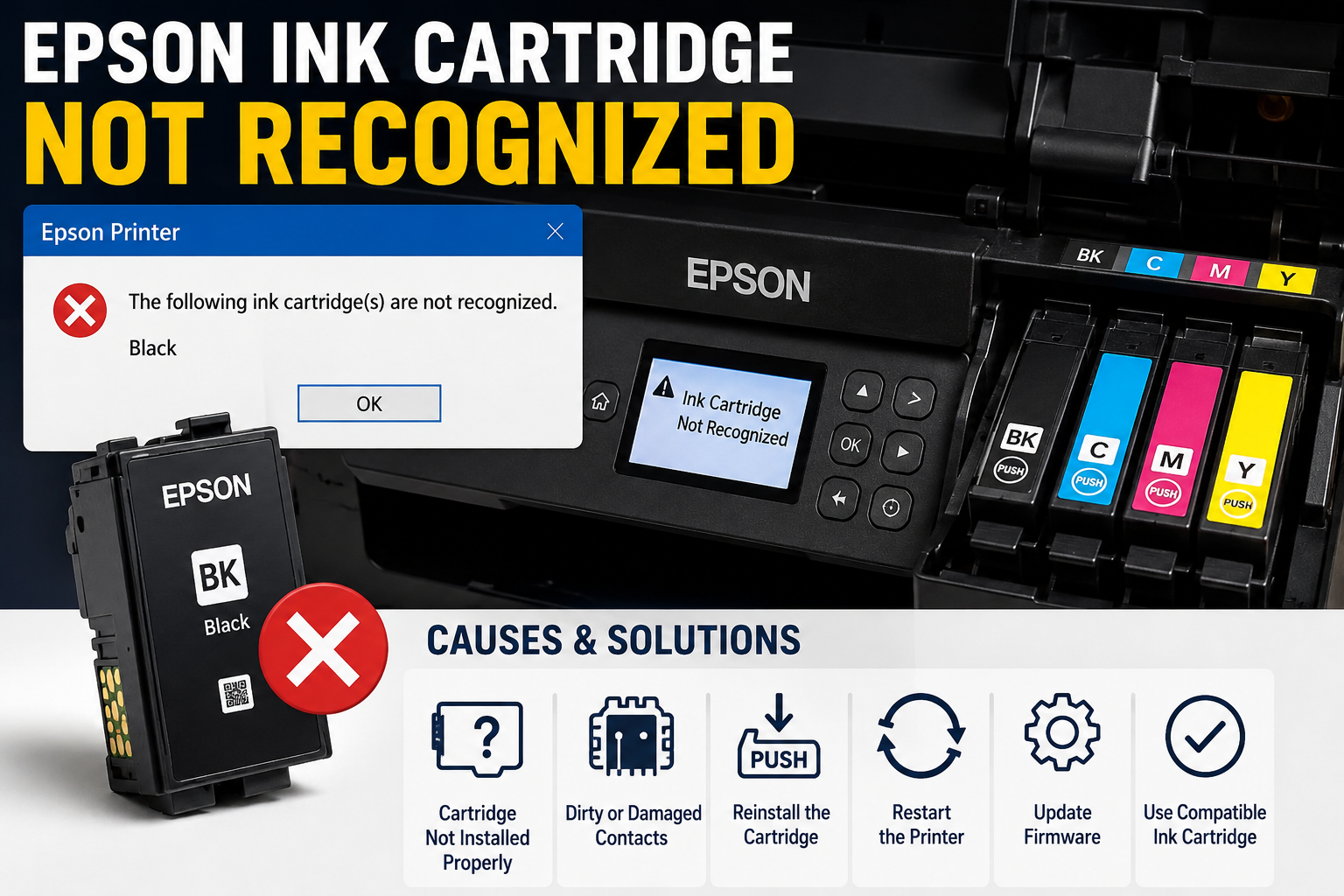
Few printer problems are as frustrating as installing a fresh ink cartridge only to see the message “Epson ink cartridge not recognized.” Whether you’re using an Epson EcoTank, WorkForce, Expression, XP, ET, or WF series printer, this error can stop printing entirely—even when the cartridge is brand new.
In many cases, the issue isn’t a defective cartridge. It could be caused by dirty electrical contacts, an outdated firmware version, an improperly seated cartridge, or a communication problem between the cartridge chip and the printer. Understanding the root cause can save you time, money, and unnecessary cartridge replacements.
As printer troubleshooting specialists recommend, it’s best to start with simple checks before assuming the cartridge has failed. Many recognition errors can be resolved in just a few minutes with the correct troubleshooting sequence.
What You’ll Learn
In this guide, you’ll discover:
- What the “Epson ink cartridge not recognized” error means
- The most common causes behind cartridge detection failures
- Quick fixes you can try immediately
- How Epson cartridge chips work
- Step-by-step troubleshooting instructions
- When to replace the cartridge
- How firmware updates affect compatible cartridges
- Tips to prevent future cartridge recognition problems
- Answers to the most frequently asked questions
What Does “Epson Ink Cartridge Not Recognized” Mean?
The “Epson ink cartridge not recognized” error means your printer cannot communicate with one or more installed ink cartridges. This usually happens because of dirty contacts, an improperly installed cartridge, a damaged cartridge chip, incompatible ink, outdated firmware, or an internal printer hardware issue.
When an Epson printer starts up, it checks each installed cartridge using a small electronic chip located on the cartridge body. This chip stores information such as:
- Cartridge identification
- Ink level estimates
- Cartridge authenticity
- Compatibility with the printer model
- Usage status
If the printer cannot read this information correctly, it displays an error and may refuse to print until the issue is resolved.
Common Error Messages
You may see messages like:
- Ink cartridge not recognized
- Cannot recognize the ink cartridge
- Replace cartridge
- Cartridge error
- Install genuine Epson cartridge
- Ink cartridge cannot be detected
- Cartridge not installed correctly
Although these messages appear different, they often stem from similar communication issues between the printer and the cartridge.
Why Your Epson Printer Doesn’t Recognize an Ink Cartridge
Several factors can prevent your Epson printer from detecting an ink cartridge correctly. Identifying the underlying cause helps you choose the right solution instead of replacing cartridges unnecessarily.
1. Dirty Cartridge Contacts
Over time, dust, ink residue, fingerprints, or oxidation can build up on the cartridge’s gold or copper electrical contacts. Even a small amount of contamination may interrupt communication between the cartridge chip and the printer.
Signs include:
- Cartridge worked previously
- Error appears after replacing ink
- Intermittent recognition failures
2. Improper Cartridge Installation
A cartridge that isn’t fully seated into its slot may not connect properly with the printer’s sensors.
Common installation mistakes include:
- Protective tape not removed
- Cartridge not clicked into place
- Incorrect cartridge slot
- Cartridge installed at an angle
3. Damaged Cartridge Chip
Every Epson cartridge contains a tiny integrated circuit that communicates with the printer.
Damage may occur due to:
- Static electricity
- Physical impact
- Manufacturing defects
- Excessive handling
A damaged chip often causes permanent recognition failures.
4. Incompatible or Incorrect Cartridge
Installing a cartridge designed for another Epson model is a common cause of recognition errors.
Always verify:
- Printer model
- Cartridge number
- Region compatibility
- Firmware compatibility
Even cartridges that appear identical may contain different identification chips.
5. Firmware Update Conflicts
Modern Epson printers receive firmware updates that improve security, reliability, and performance. However, some updates may also change how the printer verifies cartridge chips.
As a result:
- Previously working compatible cartridges may no longer be recognized.
- Genuine Epson cartridges typically continue to work without issue.
- Updated firmware may require newer versions of compatible cartridges from reputable manufacturers.
If the error appears immediately after a firmware update, checking cartridge compatibility is an important troubleshooting step.
Quick Fixes You Should Try First
Before performing advanced troubleshooting, try these simple solutions. In many cases, they restore cartridge recognition within minutes.
✓ Restart the Printer
- Turn off the printer.
- Unplug the power cable.
- Wait 60 seconds.
- Reconnect the power.
- Turn the printer back on.
- Check if the cartridge is detected.
✓ Remove and Reinstall the Cartridge
- Open the cartridge access cover.
- Remove the affected cartridge carefully.
- Inspect it for damage or protective tape.
- Reinsert it firmly until it clicks into place.
- Close the cover and allow the printer to initialize.
✓ Clean the Cartridge Contacts
Use a lint-free cloth lightly dampened with isopropyl alcohol to gently clean the cartridge’s electrical contacts. Allow the contacts to dry completely before reinstalling the cartridge. Avoid touching the contacts with your fingers after cleaning.
✓ Confirm Cartridge Compatibility
Double-check that:
- The cartridge number matches your Epson printer model.
- The cartridge is intended for your geographic region (if applicable).
- The cartridge is not expired or visibly damaged.
Using the correct cartridge helps prevent unnecessary recognition errors.
Step-by-Step Guide: How to Fix an Epson Ink Cartridge Not Recognized Error
If the quick fixes in Part 1 didn’t solve the issue, work through the following steps in order. Each step eliminates one of the most common causes of cartridge recognition problems.
Expert Tip: Test the printer after each step. If the cartridge is recognized, you don’t need to continue with the remaining steps.
Step 1: Check the Cartridge Installation
One of the simplest—and most overlooked—causes is an improperly installed cartridge.
What to Do
- Turn the printer on.
- Open the cartridge access cover.
- Wait until the cartridge carriage stops moving.
- Remove the problematic cartridge.
- Check that all protective plastic and yellow sealing tape have been removed.
- Reinsert the cartridge until it clicks firmly into place.
- Close the cover and wait for the printer to initialize.
Common Installation Mistakes
- Installing the cartridge in the wrong slot
- Not pressing until it clicks
- Leaving protective tape attached
- Tilting the cartridge during installation
Step 2: Inspect the Cartridge Chip
Every Epson cartridge contains a tiny microchip that stores identification and estimated ink-level information.
If this chip is dirty or damaged, the printer cannot authenticate the cartridge.
Look for:
- Scratches
- Bent contacts
- Ink residue
- Dirt
- Oxidation
- Physical cracks
If the chip is visibly damaged, replacing the cartridge is usually the only solution.
Step 3: Clean the Cartridge Contacts
Dirty electrical contacts are among the leading causes of recognition failures.
You’ll Need
- Lint-free microfiber cloth
- Cotton swab
- 90% or higher isopropyl alcohol
Cleaning Process
- Turn the printer off.
- Remove the cartridge.
- Lightly moisten the cloth or swab with alcohol.
- Gently wipe the gold or copper contacts.
- Let the cartridge dry for 5–10 minutes.
- Reinstall the cartridge.
Avoid: Water, household cleaners, tissues, or abrasive materials that can damage the contacts.
Step 4: Clean the Printer’s Cartridge Contacts
The issue may not be the cartridge—it could be the printer’s contact pins.
Inspect the cartridge slot for:
- Dust
- Dried ink
- Paper fibers
- Bent contact pins
Use a flashlight to examine the compartment and carefully remove loose debris without applying excessive force.
Step 5: Restart the Printer
A power cycle clears temporary communication errors.
Proper Restart Procedure
- Turn off the printer.
- Unplug it from the power outlet.
- Wait at least 60 seconds.
- Hold the power button for 10 seconds while unplugged.
- Reconnect the power.
- Turn the printer back on.
Many temporary recognition issues are resolved with this simple reset.
Step 6: Install Cartridges One at a Time
If multiple cartridges were replaced simultaneously, identifying the faulty one can be difficult.
Recommended Method
- Install only the black cartridge first.
- Allow the printer to detect it.
- Install each color cartridge individually.
- Test recognition after each installation.
This process helps isolate the problematic cartridge.
Step 7: Update or Reinstall the Printer Driver
Communication problems between your computer and printer may occasionally trigger cartridge-related errors.
Windows
- Open Device Manager.
- Locate your Epson printer.
- Uninstall the device.
- Restart your computer.
- Install the latest Epson printer driver.
macOS
- Remove the printer from Printers & Scanners.
- Restart the Mac.
- Add the printer again.
- Install any available Epson software updates.
Step 8: Check for Firmware Issues
Firmware controls how the printer communicates with cartridges.
Sometimes:
- A firmware update resolves bugs.
- Other times, it changes compatibility checks, especially for third-party cartridges.
Best Practice
If you use genuine Epson cartridges, keeping firmware up to date is generally recommended.
If you use compatible cartridges, verify with the cartridge manufacturer that they support your printer’s current firmware before updating.
Step 9: Try Another Cartridge
If available:
- Install another genuine Epson cartridge.
- Test whether it is recognized.
Results Interpretation
| Test Result | Likely Cause |
|---|---|
| New cartridge works | Original cartridge defective |
| Both fail | Printer issue |
| Only one color fails | Faulty cartridge slot or chip |
| All cartridges fail | Printer hardware or firmware problem |
Step 10: Reset the Printer
If none of the previous steps work, restoring the printer to its default settings may help.
The exact reset process varies by model, but many Epson printers include a reset option within the maintenance or settings menu.
Note: A reset may clear custom settings such as Wi-Fi configuration, so reconnect the printer to your network afterward if needed.
How to Reset Epson Ink Cartridge Recognition
To reset Epson cartridge recognition, turn off the printer, remove the cartridge, clean its contacts, reinstall it securely, restart the printer, and allow it to complete initialization. If the error persists, test with another compatible cartridge or reset the printer through its maintenance settings.
Soft Reset
Suitable for temporary communication issues.
- Turn off the printer.
- Remove all cartridges.
- Wait one minute.
- Reinstall cartridges.
- Restart the printer.
Power Reset
Useful after firmware or communication errors.
- Turn off the printer.
- Unplug the power cable.
- Wait 60 seconds.
- Hold the power button for 10 seconds.
- Plug the printer back in.
- Turn it on.
Factory Reset
Recommended only after other troubleshooting methods have failed.
A factory reset restores the printer’s default settings and may resolve persistent recognition issues caused by corrupted configurations. Refer to your printer model’s documentation for the exact reset procedure.
Genuine Epson vs Compatible Ink Cartridges
Many users wonder whether third-party cartridges are responsible for recognition errors.
The answer depends on the cartridge’s quality, chip compatibility, and firmware support.
| Feature | Genuine Epson Cartridge | Compatible Cartridge |
|---|---|---|
| Recognition reliability | Excellent | Varies by manufacturer |
| Print quality | Consistently high | Varies |
| Firmware compatibility | Fully supported | May require updated chips |
| Warranty compatibility | Fully supported | May vary |
| Initial purchase cost | Higher | Lower |
| Long-term reliability | Excellent | Depends on quality |
Expert Recommendation
- Use genuine Epson cartridges for maximum compatibility and reliability.
- If using compatible cartridges, purchase from trusted manufacturers that regularly update their chips to remain compatible with newer Epson firmware.
Epson Printer Models Commonly Affected
The “Ink Cartridge Not Recognized” error can occur across many Epson printer families.
Epson EcoTank Series
Examples include:
- ET-2720
- ET-2800
- ET-2850
- ET-3850
Although EcoTank printers primarily use refillable ink tanks, some models or maintenance components may still involve replaceable cartridges or chip-based parts.
Epson Expression Home Series
Frequently affected models include:
- XP-2100
- XP-2200
- XP-3100
- XP-4100
- XP-4200
Epson WorkForce Series
Popular models include:
- WF-2830
- WF-2850
- WF-2930
- WF-3820
- WF-4830
Epson Photo Printers
Examples include:
- XP-970
- XP-15000
These models often use multiple individual cartridges, increasing the likelihood of a single cartridge recognition issue.
Common Mistakes That Make the Problem Worse
Avoid these common errors when troubleshooting:
- Touching cartridge contacts with bare fingers
- Installing cartridges while the printer is powered off (unless the manual specifies otherwise)
- Mixing incompatible cartridge models
- Ignoring firmware compatibility
- Using damaged or expired cartridges
- Forcing a cartridge into the wrong slot
- Cleaning contacts with excessive liquid
- Updating firmware without checking third-party cartridge support
- Continuing to print after repeated error messages
- Buying the cheapest replacement cartridges from unknown sellers
How to Prevent Epson Cartridge Recognition Problems
Preventive maintenance reduces the likelihood of future errors and extends the life of both your cartridges and printer.
Best Practices
- Store cartridges in their original sealed packaging until needed.
- Avoid exposing cartridges to extreme heat, cold, or humidity.
- Keep the printer in a clean, dust-free environment.
- Print a test page regularly to maintain ink flow.
- Handle cartridges by their sides—avoid touching the chip or nozzle.
- Use cartridges designed specifically for your printer model.
- Install firmware updates thoughtfully, especially if you rely on compatible cartridges.
- Replace damaged cartridges promptly rather than attempting repeated installations.
- Clean the cartridge compartment during routine maintenance.
- Purchase ink from reputable retailers to reduce the risk of counterfeit or poor-quality products.
Expert Insight
Printer technicians often find that cartridge recognition issues are caused by simple maintenance problems rather than major hardware failures. Dirty contacts, improper installation, and incompatible cartridges account for a large percentage of support cases. Following a structured troubleshooting process can help resolve most issues without replacing the printer.
Troubleshooting Success Checklist
Use this checklist before seeking professional repair:
- ✔ Cartridge seated correctly
- ✔ Protective tape removed
- ✔ Contacts cleaned
- ✔ Printer restarted
- ✔ Cartridge compatibility confirmed
- ✔ Firmware compatibility checked
- ✔ Driver updated or reinstalled
- ✔ Alternate cartridge tested
- ✔ Printer reset performed
- ✔ Printer still reports the error
If all of the above have been completed and the problem persists, the issue may involve the printer’s cartridge sensor, mainboard, or another internal hardware component.
Frequently Asked Questions (FAQ)
1. Why is my Epson ink cartridge not recognized?
Your Epson printer may not recognize an ink cartridge due to dirty electrical contacts, an improperly installed cartridge, a damaged cartridge chip, incompatible ink, outdated firmware, or an internal printer hardware issue. Cleaning the contacts and reinstalling the cartridge often resolves the problem.
2. Can a genuine Epson cartridge show a “not recognized” error?
Yes. Even genuine Epson cartridges can trigger this error if the chip is dirty, damaged, improperly seated, or if the printer’s cartridge contacts are contaminated.
3. How do I reset an Epson ink cartridge?
Turn off the printer, remove the cartridge, clean the chip contacts, reinstall it securely, and restart the printer. If the issue persists, perform a printer reset through the maintenance menu or test with another compatible cartridge.
4. Does updating Epson firmware affect compatible cartridges?
Yes. Some firmware updates introduce new cartridge authentication checks, which may prevent older third-party cartridges from being recognized. Always verify compatibility before updating if you use non-genuine cartridges.
5. Can I continue printing if one cartridge isn’t recognized?
Most Epson printers will not print until all required cartridges are recognized, even if only one color cartridge has an issue.
6. How do I know if the cartridge chip is damaged?
Inspect the chip for scratches, cracks, bent contacts, corrosion, or other visible damage. If cleaning doesn’t help and another cartridge works, the original cartridge chip is likely faulty.
7. Should I clean the printer contacts?
Yes. Dust, dried ink, or oxidation on the printer’s contact pins can interrupt communication with the cartridge. Clean them gently using a lint-free cloth or swab and isopropyl alcohol.
8. Are compatible ink cartridges safe to use?
Quality compatible cartridges from reputable manufacturers are generally safe and can perform well. However, poor-quality or incompatible cartridges are more likely to cause recognition errors.
9. Can expired cartridges cause recognition problems?
Yes. Although expiration doesn’t always prevent recognition, older cartridges may have deteriorated chips or ink components that increase the likelihood of errors.
10. When should I replace the cartridge?
Replace the cartridge if:
- The chip is physically damaged.
- Cleaning doesn’t resolve the issue.
- The printer recognizes another cartridge but not the original one.
- The cartridge is defective or incompatible with your printer.
11. Can resetting the printer fix cartridge recognition issues?
A soft reset or factory reset can resolve communication glitches or corrupted settings. However, it won’t repair a damaged cartridge chip or faulty hardware.
12. Is this issue caused by the printer or the cartridge?
It depends. Testing with another compatible cartridge is the quickest way to determine whether the problem lies with the cartridge or the printer.
Conclusion
The Epson ink cartridge not recognized error can interrupt printing, but in most cases it can be resolved without replacing your printer. Common causes include dirty cartridge contacts, improper installation, incompatible cartridges, damaged chips, or firmware-related communication issues.
By following the troubleshooting steps in this guide—from checking cartridge installation and cleaning electrical contacts to verifying compatibility and resetting the printer—you can resolve the majority of cartridge recognition errors quickly and safely.
To reduce the chances of future issues, use cartridges designed for your specific Epson model, handle them carefully, keep your printer clean, and perform routine maintenance. If the error continues even after testing with a known compatible cartridge, the problem may involve the printer’s internal hardware, and professional service may be the next step.