Epson Expression Printer Errors: Complete Troubleshooting Guide
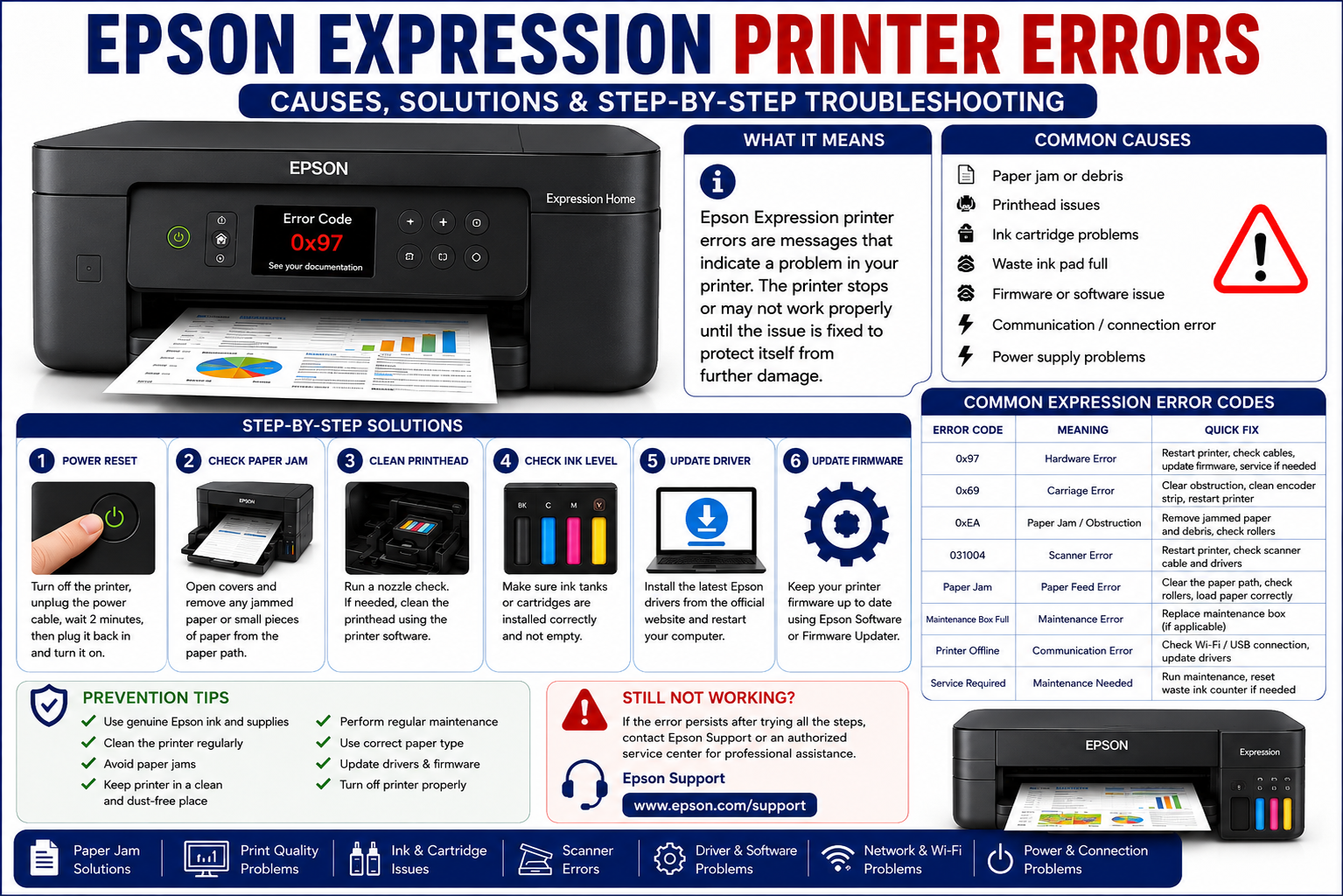
Nothing is more frustrating than preparing to print an important document only to have your Epson Expression printer display an unexpected error. Whether it’s a flashing light, an error code on the LCD screen, a paper jam warning, or a printer that suddenly stops responding, these issues can interrupt work, school assignments, and everyday printing tasks.
The good news is that most Epson Expression printer errors can be diagnosed and fixed without professional repair. Many problems stem from simple causes such as outdated drivers, clogged printheads, paper feed issues, network interruptions, or improperly installed ink cartridges. Understanding what each error means is the first step toward restoring your printer to normal operation.
This comprehensive guide explains the most common Epson Expression printer errors, their causes, and proven troubleshooting methods. Whether you own an Epson Expression Home, Expression Premium, or another model in the Expression series, the solutions outlined here are designed to help you resolve problems quickly and prevent them from recurring.
What You’ll Learn
By the end of this guide, you’ll know:
- What Epson Expression printer errors mean
- Common hardware and software issues
- How to fix paper jams correctly
- Solutions for ink cartridge problems
- Wi-Fi troubleshooting steps
- Print quality improvement techniques
- Scanner error solutions
- Maintenance tips to prevent future errors
- When it’s time to contact Epson support
What Are Epson Expression Printer Errors?
Epson Expression printer errors are warning messages, flashing light patterns, or system notifications that indicate a problem preventing the printer from operating normally. These errors may be related to hardware, software, connectivity, ink delivery, paper handling, or internal maintenance components.
Some errors require only a quick restart, while others may involve replacing consumables, cleaning internal parts, updating firmware, or servicing the printer.
Common Symptoms Include
- Flashing power light
- LCD error codes
- Printer not responding
- Blank pages
- Paper feed failures
- Scanner not working
- Ink cartridge warnings
- Wireless connection failures
- Slow printing
- Poor print quality
Common Causes of Epson Expression Printer Errors
Understanding the root cause helps you resolve issues more efficiently and avoid repeated failures.
1. Outdated Printer Drivers
Printer drivers allow your computer and printer to communicate. Corrupted or outdated drivers can lead to communication failures, printing interruptions, and error messages.
Signs include:
- Printer appears offline
- Print jobs remain in queue
- Device not detected
- Printing suddenly stops
Expert Tip: Always install the latest driver version that matches your operating system.
2. Wi-Fi Connectivity Problems
Wireless printing depends on a stable network connection. If the printer loses access to the network, you may encounter communication errors or failed print jobs.
Common Wi-Fi Issues
- Weak signal strength
- Router restart
- Incorrect password
- IP address conflicts
- Network changes
- Firewall restrictions
Quick Fixes
- Restart your router and printer.
- Reconnect the printer to Wi-Fi.
- Verify that both devices are on the same network.
- Print a network status report to confirm connectivity.
3. Ink Cartridge Recognition Errors
Epson Expression printers monitor ink cartridges electronically. Errors can occur if a cartridge is not installed correctly or if the printer cannot recognize the chip.
Possible Causes
- Protective tape left on the cartridge
- Improper installation
- Dirty electrical contacts
- Damaged cartridge chip
- Incompatible or refilled cartridges
Recommended Solution
- Turn off the printer.
- Remove all ink cartridges.
- Clean the cartridge contacts gently with a lint-free cloth.
- Reinstall each cartridge securely.
- Restart the printer and check whether the error has cleared.
Paper Feed Errors and Paper Jam Problems
Paper feed issues are among the most common Epson Expression printer errors. Even when no paper is visibly stuck, small scraps, dust, or worn rollers can trigger repeated paper jam warnings.
Common Causes
- Wrinkled paper
- Damp paper
- Incorrect paper size
- Overloaded input tray
- Dirty feed rollers
- Torn paper fragments inside the printer
Symptoms
- “Paper Jam” message
- Paper stops halfway
- Multiple sheets feed together
- Grinding noises
- Paper fails to load
How to Fix Paper Feed Errors
- Turn off the printer.
- Remove all paper from the input tray.
- Open every accessible cover.
- Carefully remove any jammed paper using both hands.
- Inspect for small paper scraps.
- Clean the paper feed rollers with a lint-free cloth lightly dampened with water.
- Reload fresh paper and align the guides properly.
- Restart the printer and perform a test print.
Maintenance Tip: Store paper in a cool, dry environment to reduce moisture-related feeding problems.
Common Paper Handling Mistakes
Avoid these habits to reduce paper feed errors:
- Mixing different paper sizes in one tray
- Exceeding the tray’s maximum capacity
- Using curled or damaged paper
- Loading paper without adjusting the guides
- Pulling jammed paper out too quickly, which can leave torn fragments inside the printer
Epson Expression Printer Error Codes
Although different Epson Expression models (such as XP-2100, XP-2200, XP-3100, XP-4100, XP-4200, XP-5100, XP-6100, and others) may display slightly different messages, the following table covers the most common errors and their solutions.
| Error Message | Possible Cause | Recommended Solution |
|---|---|---|
| Paper Jam | Paper stuck inside printer | Remove jammed paper and inspect rollers |
| Printer Error | Internal hardware issue | Restart printer and check for obstructions |
| Scanner Error | The scanner unit cannot initialise. | Restart printer and inspect scanner lock |
| Ink Cartridge Not Recognized | Cartridge chip issue | Reinstall or replace the cartridge. |
| Replace Maintenance Box | Maintenance box full | Install a new maintenance box |
| Communication Error | USB/Wi-Fi problem | Reconnect printer and restart devices |
| Recovery Mode | Interrupted firmware update | Reinstall firmware using Epson software |
| Service Required | Internal component failure | Contact Epson support if restart fails |
| Printhead Error | The printhead cannot initialise. | Perform printhead cleaning and restart |
| Offline | The computer cannot communicate | Set printer as default and reconnect the network. |
Understanding Flashing Light Patterns
Many Epson Expression printers use LED indicators to communicate problems when there isn’t an LCD display.
Power Light Flashing
Possible Causes
- Printer starting up
- Firmware updating
- Internal initialization
- Temporary system error
What to Do
- Wait 2–3 minutes.
- Avoid unplugging the printer during startup.
- Restart only if the light continues flashing for more than five minutes.
Power and Paper Lights Flashing Together
This often indicates the following:
- Paper jam
- Paper feed obstruction
- Roller issue
- Sensor blockage
Solution
- Remove all paper.
- Inspect the paper path carefully.
- Clean feed rollers.
- Reload paper properly.
Ink Light Flashing
Usually indicates:
- Low ink
- Empty cartridge
- Cartridge not recognized
- Cartridge installed incorrectly
Recommended Fix
- Remove cartridges.
- Clean electrical contacts.
- Reinstall carefully.
- Replace empty cartridges if necessary.
All Lights Flashing
One of the more serious Epson Expression printer errors.
Possible reasons include the following:
- Internal hardware malfunction
- Firmware corruption
- Mainboard issue
- Printhead initialization failure
Troubleshooting Steps
- Turn off the printer.
- Disconnect the power cable.
- Wait 10 minutes.
- Restart the printer.
- Update the firmware if the printer powers on.
- Contact Epson support if the error persists.
Epson Expression Printer Offline Error
One of the most searched Epson Expression printer errors is the ‘Offline’ status.
Even when the printer is powered on, your computer may display it as unavailable.
Why It Happens
- Weak Wi-Fi signal
- USB cable disconnected
- Print spooler service stopped
- Incorrect default printer
- Driver corruption
How to Fix Epson Printer Offline
Windows
- Open Settings > Bluetooth & Devices > Printers & Scanners.
- Select your Epson printer.
- Ensure ‘Use Printer Offline’ is disabled.
- Set it as the default printer.
- Restart the Print Spooler service if needed.
macOS
- Open System Settings > Printers & Scanners.
- Remove the printer if it appears inactive.
- Add the printer again.
- Verify the correct driver is installed.
Print Quality Problems
Print quality issues don’t always trigger error codes, but they are among the most common Epson Expression printer problems.
Blank Pages
Possible Causes
- Empty cartridges
- Air in ink lines
- Clogged printhead
- Protective tape not removed
Solution
- Check ink levels.
- Perform a nozzle check.
- Run printhead cleaning.
- Replace empty cartridges.
Faded Printing
Causes
- Low ink
- Incorrect print settings
- Dirty printhead
- Economy mode enabled
Fix
- Select High Quality print mode.
- Clean the printhead.
- Replace low cartridges.
- Align the printhead.
Streaks or Lines
Usually caused by clogged nozzles.
Steps
- Print a nozzle check.
- Run one cleaning cycle.
- Wait 15 minutes.
- Test print again.
- Repeat only if necessary.
Expert Tip: Excessive printhead cleaning wastes ink. Avoid running multiple cleaning cycles back-to-back.
Incorrect Colors
Common reasons include:
- Mixed cartridges
- Expired ink
- Incorrect ICC profile
- Dirty printhead
Scanner Errors
Many Epson Expression printers include integrated scanners, and scanner problems are common after firmware updates or prolonged inactivity.
Common Scanner Problems
- The scanner won’t initialize
- Scanner not detected
- Scanner freezes
- Communication error
- Black scanned images
- Crooked scans
Troubleshooting Scanner Errors
Step 1
Restart both the printer and computer.
Step 2
Reconnect USB or Wi-Fi.
Step 3
Update Epson Scan software.
Step 4
Clean scanner glass.
Step 5
Check scanner lock (if your model includes one).
Wi-Fi Connection Problems
Wireless connectivity issues are among the leading causes of Epson Expression printer errors.
Symptoms
- Printer disappears from network.
- Jobs remain pending.
- Cannot detect printer.
- Mobile printing fails.
Solutions
Restart Everything
Restart:
- Printer
- Router
- Computer
- Mobile device
Check Network
Verify:
- Same Wi-Fi network
- Strong signal
- Correct password
- DHCP enabled
Reconnect Printer
Open:
Network Settings → Wireless Setup Wizard
Reconnect using the correct network credentials.
Driver Problems
Outdated or corrupted drivers frequently cause the following:
- Printing failures
- Offline errors
- Communication errors
- Missing printer features
Driver Update Procedure
- Remove the existing printer.
- Uninstall the old driver.
- Restart the computer.
- Download the latest driver for your exact Epson Expression model from Epson’s support site.
- Install the new driver.
- Add the printer again.
Firmware Errors
Firmware controls how the printer operates internally.
A failed firmware update can place the printer into Recovery Mode.
Recovery Mode Fix
- Connect the printer using a USB cable.
- Download the latest firmware utility for your model.
- Follow the on-screen update instructions.
- Do not disconnect power during the process.
Printhead Problems
The printhead is one of the most critical components in any Epson Expression printer.
Common symptoms include:
- Missing colors
- White lines
- Blurry text
- Smudged prints
- Blank pages
Printhead Cleaning Procedure
- Open Epson Printer Utility.
- Select Maintenance.
- Choose Head Cleaning.
- Wait for completion.
- Print a nozzle check.
Repeat only if the nozzle check still shows missing lines.
Printhead Alignment
Misaligned printheads may produce the following:
- Double text
- Blurred graphics
- Jagged lines
Run the print head alignment utility from the printer’s maintenance menu and follow the prompts.
Maintenance Box Errors
Certain Epson Expression models use a maintenance box to collect excess ink generated during cleaning cycles.
Error Message
Replace Maintenance Box
Solution
- Purchase the correct maintenance box for your model.
- Power off the printer.
- Replace the maintenance box.
- Restart the printer.
Never attempt to reuse or manually empty the maintenance box, as this may damage the printer or result in ink leakage.
Factory Reset Epson Expression Printer
If software troubleshooting fails, a factory reset may resolve persistent configuration issues.
Before Resetting
Remember that a reset may erase:
- Wi-Fi settings
- Saved network credentials
- Custom print preferences
- User-defined settings
Factory Reset Steps
- Turn on the printer.
- Open Settings or Setup.
- Navigate to Restore Default Settings or Reset Settings.
- Confirm the reset.
- Allow the printer to restart.
- Reconfigure Wi-Fi and other preferences.
Preventive Maintenance Tips
Routine maintenance can prevent many Epson Expression printer errors and extend the life of your device.
Weekly
- Wipe exterior surfaces.
- Remove dust from paper trays.
- Check for paper scraps.
Monthly
- Print a nozzle check.
- Clean the printhead if needed.
- Inspect paper feed rollers.
Every 3–6 Months
- Update printer firmware.
- Install the latest printer driver.
- Clean the scanner glass.
- Verify Wi-Fi performance.
Best Practices
- Use genuine or high-quality compatible ink cartridges.
- Store paper in a dry environment.
- Turn off the printer using the power button.
- Avoid interrupting firmware updates.
- Print a colour page every week to help prevent nozzle clogging.
When to Contact Epson Support
While many Epson Expression printer errors can be resolved at home, some situations require professional assistance.
Contact Epson Support if:
- The printer displays a Service Required message.
- All indicator lights continue flashing after troubleshooting.
- The printer makes loud grinding or clicking noises.
- Firmware recovery repeatedly fails.
- The printer does not power on.
- There is visible liquid damage or an electrical burning smell.
- Hardware components such as the printhead or mainboard appear to have failed.
Seeking support promptly can help prevent additional damage and may reduce repair costs if the printer is still under warranty.
Conclusion
Epson Expression printer errors can be frustrating, but most issues are easier to fix than they first appear. Problems related to paper jams, ink cartridges, print quality, Wi-Fi connectivity, drivers, and scanner functions often have straightforward solutions that users can perform at home with minimal technical knowledge.
By understanding common error messages, following systematic troubleshooting steps, and performing regular maintenance, you can improve your printer’s reliability, reduce downtime, and extend its lifespan. If basic troubleshooting does not resolve the problem, don’t ignore persistent hardware warnings—consult Epson’s official support resources or an authorised service centre to avoid further complications.
Frequently Asked Questions (FAQ)
1. What are Epson Expression printer errors?
Answer: Epson Expression printer errors are warning messages, flashing lights, or system notifications that indicate problems with the printer’s hardware, software, paper feed, ink system, scanner, or network connection. Most errors can be resolved through basic troubleshooting or maintenance.
2. Why is my Epson Expression printer showing a paper jam when there isn’t one?
Answer: A false paper jam message may be caused by tiny paper fragments, dirty paper sensors, worn feed rollers, or debris inside the paper path. Carefully inspect the printer and clean the rollers before restarting the device.
3. How do I reset my Epson Expression printer?
Answer: Open the printer’s Settings or Setup menu, select Restore Default Settings or Factory Reset, confirm the action, and allow the printer to restart. You’ll need to reconnect the printer to your Wi-Fi network afterward.
4. Why is my Epson Expression printer offline?
Answer: An offline status is commonly caused by Wi-Fi interruptions, disconnected USB cables, outdated printer drivers, or Windows print spooler issues. Restarting the printer, reconnecting the network, and updating the driver usually resolves the problem.
5. Why won’t my Epson Expression printer recognise the ink cartridge?
Answer: This issue can occur if the cartridge isn’t installed properly, the protective tape wasn’t removed, the chip is dirty, or the cartridge is incompatible. Remove and reinstall the cartridge, clean the contacts, or replace it if necessary.
6. What causes poor print quality on Epson Expression printers?
Answer: Common causes include clogged printheads, low ink levels, incorrect print settings, expired cartridges, or printhead misalignment. Running a nozzle check and printhead cleaning cycle often restores print quality.
7. How often should I clean my Epson printhead?
Answer: Only clean the printhead when a nozzle check indicates missing lines or poor print quality. Unnecessary cleaning cycles consume ink and may shorten the life of the maintenance system.
8. Why does my Epson Expression printer keep disconnecting from Wi-Fi?
Answer: Frequent disconnections may result from weak wireless signals, router configuration changes, IP address conflicts, or outdated firmware. Ensure the printer has a strong signal and update its firmware if available.
9. What does the “Replace Maintenance Box” error mean?
Answer: This message indicates that the maintenance box, which collects waste ink during cleaning cycles, has reached its capacity. Replace it with the correct Epson-compatible maintenance box to continue printing.
10. Can outdated drivers cause Epson Expression printer errors?
Answer: Yes. Outdated or corrupted drivers can cause communication failures, printing errors, offline status, and missing printer features. Installing the latest driver from Epson’s official website is recommended.
11. What should I do if all the printer lights are flashing?
Answer: Turn off the printer, unplug it for several minutes, then restart it. If the lights continue flashing, check for paper jams, firmware issues, or hardware faults. Persistent flashing may require professional service.
12. How can I prevent Epson Expression printer errors?
Answer: Keep your printer clean, update drivers and firmware regularly, use good-quality paper and genuine ink, perform nozzle checks when needed, and avoid interrupting print jobs or firmware updates.
13. Is it safe to use compatible ink cartridges?
Answer: Many high-quality compatible cartridges work well, but low-quality cartridges may cause recognition errors, ink flow issues, or reduced print quality. Always choose reputable brands.
14. When should I contact Epson support?
Answer: Contact Epson support if your printer displays a persistent “Service Required” message, won’t power on, repeatedly enters Recovery Mode, or continues to show hardware errors after completing all recommended troubleshooting steps.
15. Can firmware updates fix Epson Expression printer errors?
Answer: Yes. Firmware updates often improve printer stability, fix known bugs, enhance compatibility, and resolve communication or performance issues. Always follow Epson’s update instructions carefully.