How to Fix Epson Error Code 0xEA: Complete Troubleshooting Guide
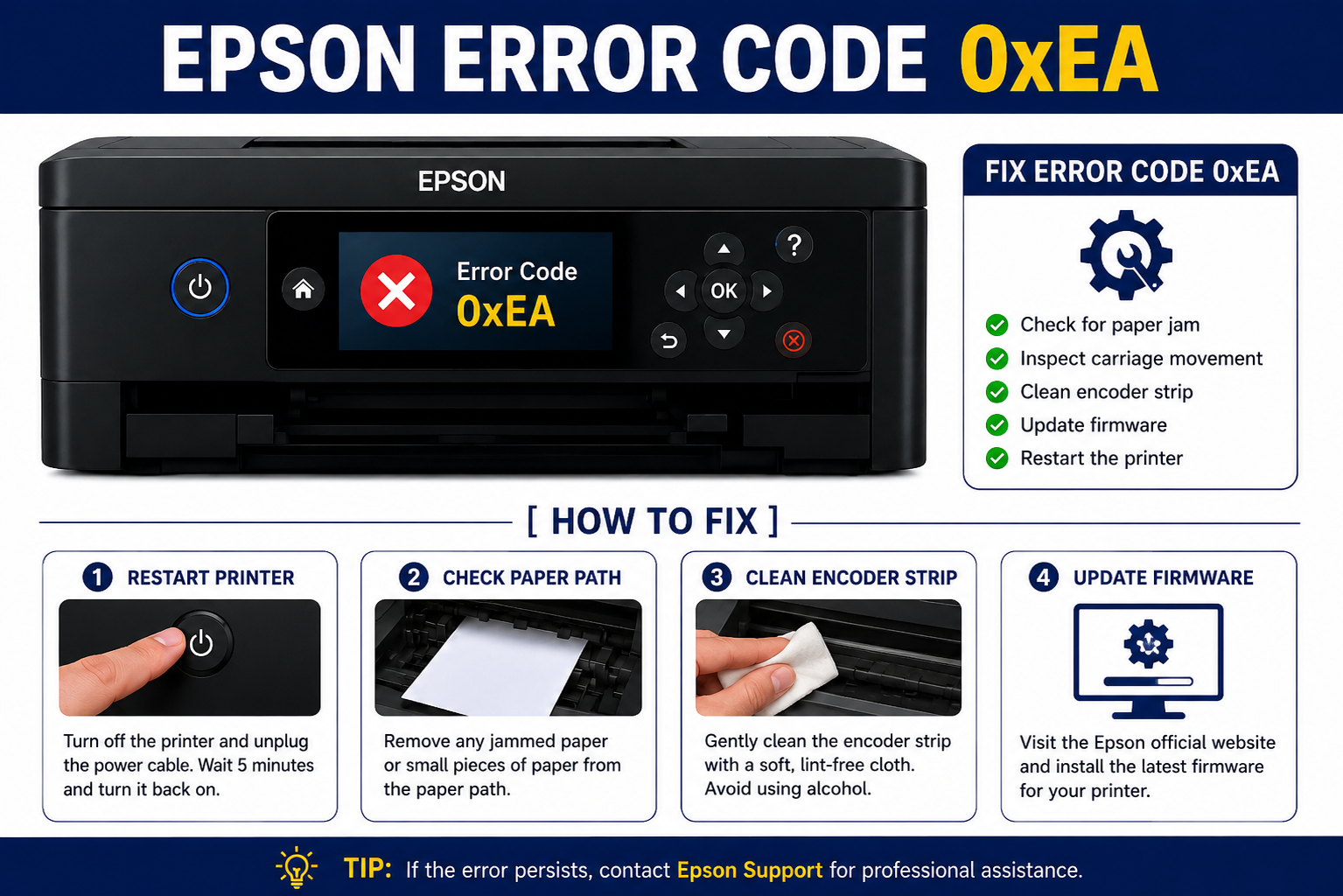
Seeing Epson Error Code 0xEA on your printer can be frustrating, especially when you’re in the middle of printing an important document. This error usually points to a mechanical problem that prevents the printer carriage from moving normally. In many cases, the issue is caused by a paper jam, a foreign object inside the printer, or an obstruction affecting the printhead’s movement. Fortunately, the problem can often be resolved without replacing the printer.
This comprehensive guide explains what Epson Error Code 0xEA means, why it appears, and how to fix it using safe, step-by-step troubleshooting methods. Whether you’re using an Epson EcoTank, WorkForce, Expression, or another compatible model, these solutions can help restore normal printing.
What You’ll Learn
By the end of this guide, you’ll understand:
- What Epson Error Code 0xEA means
- The most common causes of the error
- Signs and symptoms to identify the problem
- Step-by-step troubleshooting methods
- Advanced repair techniques
- Preventive maintenance tips
- When to contact Epson Support
- Frequently asked questions about Error Code 0xEA
What Is Epson Error Code 0xEA?
Epson Error Code 0xEA is a mechanical printer error indicating that the printhead carriage cannot move properly during startup or printing. The issue is commonly caused by paper jams, foreign objects, carriage obstructions, damaged encoder strips, or internal hardware problems.
Understanding the Error
When an Epson printer starts, it performs a self-check by moving the printhead carriage across the carriage rail. During this process, the printer checks that all mechanical components are functioning correctly. If the carriage cannot complete its movement, the printer stops the initialization process and displays Error Code 0xEA.
This protective mechanism helps prevent further damage to internal components such as the printhead, carriage motor, or drive belt.
Unlike software-related errors, Error Code 0xEA is primarily associated with the printer’s mechanical system. In many cases, a careful inspection and removal of the obstruction can resolve the issue.
Components Involved
- Printhead carriage
- Carriage rail
- Encoder strip
- Paper feed rollers
- Drive belt
- Carriage motor
- Internal sensors
Why Does Epson Error Code 0xEA Occur?
Several issues can trigger Error Code 0xEA. Identifying the root cause is essential for applying the correct solution.
1. Paper Jam
A small piece of paper trapped inside the printer is one of the most common reasons for this error. Even tiny scraps hidden beneath the carriage can prevent normal movement.
Example: A torn sheet left behind after removing a paper jam may block the carriage from reaching its home position.
2. Foreign Objects Inside the Printer
Objects such as:
- Staples
- Paper clips
- Dust buildup
- Pen caps
- Labels
- Packaging materials
- Children’s toys (in home environments)
can interfere with the carriage movement.
3. Carriage Lock Obstruction
The printhead carriage must move freely across its rail. If dried ink, debris, or a damaged component blocks its path, the printer reports Error Code 0xEA.
4. Dirty Encoder Strip
The encoder strip is a thin transparent film that helps the printer determine the exact position of the printhead.
If ink, dust, or fingerprints accumulate on the strip, the printer may lose track of the carriage location and trigger the error.
5. Damaged Drive Belt
The drive belt moves the carriage left and right during printing.
Signs of damage include:
- Loose belt
- Cracks
- Missing teeth
- Belt slipping
- Excessive wear
A damaged belt often requires professional replacement.
6. Firmware or Initialization Problems
Although uncommon, corrupted firmware or an interrupted startup process can occasionally contribute to Error Code 0xEA. Restarting the printer or updating the firmware may help if no mechanical issue is found.
7. Internal Hardware Failure
More serious causes include:
- Failed carriage motor
- Faulty sensors
- Damaged mainboard
- Broken gears
- Mechanical wear due to age
These issues typically require professional diagnosis and repair.
Common Symptoms of Epson Error Code 0xEA
Recognizing the symptoms can help you confirm that the issue is related to Error Code 0xEA rather than another printer problem.
| Symptom | Possible Cause |
|---|---|
| Printer stops during startup | Carriage obstruction |
| Printhead does not move | Mechanical jam |
| Grinding or clicking noise | Foreign object or damaged gears |
| Printer displays 0xEA immediately after powering on | Initialization failure |
| Printing suddenly stops | Carriage movement interrupted |
| Paper feeds partially before stopping | Paper path obstruction |
| Carriage moves briefly, then stops | Encoder strip or carriage issue |
| Printer becomes completely unresponsive | Internal hardware fault |
Expert Insight
If the printer makes repeated grinding, clicking, or buzzing sounds while displaying Error Code 0xEA, avoid forcing the carriage to move or repeatedly powering the printer on and off. Continuing to operate the printer in this state may worsen mechanical damage. Instead, inspect the paper path and carriage area carefully before proceeding with troubleshooting.
How to Fix Epson Error Code 0xEA
If your Epson printer displays Error Code 0xEA, don’t panic. In many cases, the issue is caused by a removable obstruction or a minor mechanical problem. Follow the troubleshooting steps below in order, testing the printer after each step.
Pro Tip: Always power off the printer and unplug the power cable before inspecting internal components. This reduces the risk of electrical damage and protects sensitive printer parts.
Step 1: Restart the Printer
A simple restart can clear temporary initialization errors.
How to Restart Your Epson Printer
- Turn off the printer using the Power button.
- Unplug the power cord from the electrical outlet.
- Disconnect the USB cable (if applicable).
- Wait for 5–10 minutes.
- Reconnect the power cable.
- Turn the printer back on.
- Check whether Error Code 0xEA has disappeared.
Why This Works
Restarting resets the printer’s memory and allows the initialization process to begin again. If the error was caused by a temporary software or firmware glitch, this step may resolve it.
Step 2: Check for Paper Jams
Paper jams are the most common cause of Epson Error Code 0xEA.
Areas to Inspect
- Rear paper feed
- Front paper tray
- Output tray
- Duplex unit (if installed)
- Under the printhead carriage
- Paper rollers
- Inside the printer chassis
Tips for Safe Paper Removal
- Pull paper slowly in the direction of the paper path.
- Avoid tearing sheets while removing them.
- Remove even the smallest paper scraps.
- Use a flashlight to inspect hidden areas.
Common Mistake
Many users remove the visible paper but overlook tiny pieces trapped beneath the carriage. Even a small fragment can prevent the printhead from moving freely.
Step 3: Inspect the Printhead Carriage
The printhead carriage should move smoothly from one side of the printer to the other.
How to Inspect It
- Turn off and unplug the printer.
- Open the scanner unit or printer cover.
- Wait until the carriage is unlocked.
- Gently move the carriage from left to right.
- Check for resistance or unusual noises.
If the carriage cannot move freely, inspect the rail for obstructions.
Possible Obstructions
- Dried ink buildup
- Torn paper
- Plastic packaging
- Dust accumulation
- Foreign objects
- Broken internal parts
Step 4: Remove Foreign Objects
Small objects often fall inside printers without being noticed.
Check for Items Such As
- Staples
- Paper clips
- Sticky labels
- Pen caps
- Coins
- Dust clumps
- Children’s toy pieces
- Packaging materials
Use a flashlight to inspect the interior carefully. If necessary, use plastic tweezers to remove debris. Avoid using metal tools that could damage delicate components.
Step 5: Clean the Encoder Strip
The encoder strip is a thin transparent plastic strip located behind the printhead carriage. It helps the printer determine the carriage’s exact position.
Signs of a Dirty Encoder Strip
- Carriage stops unexpectedly.
- Error appears during startup.
- Printer makes repeated clicking sounds.
- Printhead movement is inconsistent.
Cleaning Instructions
- Turn off and unplug the printer.
- Locate the encoder strip.
- Dampen a lint-free cloth with distilled water.
- Gently wipe the strip from one end to the other.
- Allow it to dry completely before powering the printer back on.
Warning: Never use alcohol, acetone, or abrasive cleaners on the encoder strip, as they may damage its markings.
Step 6: Examine the Carriage Rail
The carriage rail guides the printhead during printing.
What to Look For
- Dust buildup
- Sticky residue
- Dried ink
- Bent metal rail
- Signs of corrosion
Clean the rail with a soft, lint-free cloth. Do not apply excessive force or use oil-based lubricants unless recommended by Epson.
Step 7: Inspect the Drive Belt
The drive belt moves the carriage across the printer.
Signs of a Damaged Belt
- Loose belt
- Missing teeth
- Frayed edges
- Cracks
- Slipping during movement
If the drive belt is damaged, replacement is typically required. Because the belt is connected to the printer’s mechanical system, replacing it is best left to a qualified technician.
Step 8: Update the Printer Firmware
Although Error Code 0xEA is usually mechanical, outdated firmware can sometimes contribute to initialization issues.
Firmware Update Process
- Visit the official Epson Support website.
- Locate your printer model.
- Download the latest firmware update.
- Follow Epson’s installation instructions.
- Restart the printer after the update.
Always use firmware designed specifically for your printer model.
Step 9: Reset the Printer
If no mechanical obstruction is found, resetting the printer may clear internal errors.
Basic Reset
- Turn off the printer.
- Disconnect the power cable.
- Wait for at least 10 minutes.
- Reconnect the power.
- Turn the printer back on.
Some Epson models also provide maintenance or recovery modes. Refer to your printer’s user manual for model-specific reset instructions.
Advanced Troubleshooting Methods
If the error persists after completing the basic checks, try the following advanced techniques.
Inspect Internal Gears
Damaged gears may produce:
- Grinding sounds
- Clicking noises
- Jerky carriage movement
- Startup failures
Inspect visible gears for cracks, broken teeth, or signs of wear.
Check the Carriage Motor
A faulty carriage motor may prevent the printhead from moving correctly.
Common Symptoms
- No carriage movement
- Loud humming noise
- Intermittent movement
- Repeated Error Code 0xEA
Motor replacement generally requires professional service.
Inspect Internal Wiring
Loose or damaged cables can interrupt communication between the carriage assembly and the printer’s control board.
Look for:
- Loose ribbon cables
- Pinched wires
- Burn marks
- Damaged connectors
Handle internal wiring carefully to avoid static or physical damage.
Run Epson Diagnostic Utilities
Many Epson printer drivers include maintenance and diagnostic tools that can help identify hardware or firmware issues.
These utilities may allow you to:
- Check printer status
- Perform maintenance routines
- Detect communication errors
- Update firmware
- View error logs
Common Troubleshooting Mistakes to Avoid
Avoiding these mistakes can prevent further damage to your printer.
| Mistake | Why It’s a Problem |
|---|---|
| Forcing the carriage to move | Can damage the motor or drive belt |
| Pulling jammed paper too quickly | May tear paper and leave scraps behind |
| Using sharp metal tools | Can scratch or damage internal components |
| Ignoring grinding noises | May worsen mechanical damage |
| Cleaning with harsh chemicals | Can damage sensors and the encoder strip |
| Skipping inspection of hidden areas | Small obstructions are often overlooked |
| Installing incorrect firmware | May cause additional printer issues |
When to Contact Epson Support
If you’ve completed all troubleshooting steps and the error still appears, the printer may have a hardware failure requiring professional repair.
Contact Epson Support If
- Error Code 0xEA returns immediately after startup.
- The carriage motor does not move.
- The drive belt is broken.
- Internal gears are damaged.
- The printer emits loud grinding noises.
- The encoder strip is torn or damaged.
- The printer has suffered liquid damage.
- You notice burn marks or electrical smells.
Professional technicians have specialized tools to diagnose mechanical and electronic faults safely.
How to Prevent Epson Error Code 0xEA
Preventive maintenance reduces the risk of future mechanical errors and extends the life of your printer.
Best Practices
- Keep the printer free of dust.
- Use high-quality paper recommended by Epson.
- Store paper in a dry environment.
- Remove paper jams carefully.
- Clean the printer regularly.
- Avoid overloading the paper tray.
- Keep liquids away from the printer.
- Update firmware periodically.
- Use genuine Epson ink cartridges when possible.
- Print regularly to prevent ink buildup.
Maintenance Schedule
| Maintenance Task | Recommended Frequency |
|---|---|
| Clean printer exterior | Weekly |
| Check paper path | Weekly |
| Inspect carriage area | Monthly |
| Clean encoder strip | Every 3–6 months (if needed) |
| Update firmware | Every 6 months |
| Perform nozzle check | Monthly |
| Deep clean printer interior | Every 6–12 months |
Expert Recommendations
Printer technicians recommend starting with the simplest solutions before assuming a hardware failure.
Recommended Troubleshooting Order
- Restart the printer.
- Remove all paper jams.
- Check for foreign objects.
- Inspect the carriage movement.
- Clean the encoder strip.
- Examine the carriage rail.
- Check the drive belt.
- Update firmware.
- Reset the printer.
- Contact Epson Support if the issue persists.
Following this sequence minimizes unnecessary repairs and helps identify the most common causes efficiently.
Epson Error Code 0xEA Troubleshooting Table
| Cause | Difficulty | Can You Fix It? | Recommended Solution |
|---|---|---|---|
| Paper jam | Easy | Yes | Remove all jammed paper |
| Foreign object | Easy | Yes | Remove obstruction |
| Dirty encoder strip | Medium | Yes | Clean carefully |
| Dirty carriage rail | Easy | Yes | Wipe with a lint-free cloth |
| Firmware issue | Easy | Yes | Update firmware |
| Drive belt damage | Hard | Usually No | Replace the belt |
| Carriage motor failure | Hard | No | Professional repair |
| Internal gear damage | Hard | No | Replace damaged components |
| Mainboard failure | Expert | No | Service center diagnosis |
Frequently Asked Questions (FAQs)
1. What is Epson Error Code 0xEA?
Epson Error Code 0xEA is a mechanical printer error that indicates the printhead carriage cannot move properly. It is commonly caused by a paper jam, foreign object, dirty encoder strip, or damaged internal components.
2. How do I fix Epson Error Code 0xEA?
To fix Epson Error Code 0xEA:
- Turn off and unplug the printer.
- Remove any jammed paper.
- Check for foreign objects.
- Inspect the printhead carriage.
- Clean the encoder strip.
- Restart the printer.
- Update the firmware if available.
- Contact Epson Support if the error persists.
3. Can a paper jam cause Epson Error Code 0xEA?
Yes. A paper jam is one of the most common causes of Error Code 0xEA. Even small scraps of torn paper hidden inside the printer can block the carriage and trigger the error.
4. Is Epson Error Code 0xEA a hardware problem?
Not always. While the error often results from a simple obstruction or paper jam, it can also indicate hardware issues such as a damaged drive belt, faulty carriage motor, broken gears, or sensor failure.
5. Can I move the printhead carriage manually?
Yes, but only when the printer is powered off and unplugged. Move the carriage gently without forcing it. If it does not move freely, inspect the printer for obstructions instead of applying pressure.
6. Does updating the firmware fix Error Code 0xEA?
Firmware updates can resolve initialization or software-related issues, but they are unlikely to fix mechanical problems such as paper jams or damaged internal components.
7. Why does my Epson printer make a grinding noise with Error Code 0xEA?
Grinding or clicking noises usually indicate that the carriage is blocked or that internal gears or the drive belt are damaged. Stop using the printer until the cause has been identified to avoid further damage.
8. How can I prevent Epson Error Code 0xEA?
Regular maintenance can help prevent this error:
- Clean the printer regularly.
- Remove paper jams carefully.
- Keep dust out of the printer.
- Avoid overloading the paper tray.
- Use recommended paper types.
- Update the printer firmware periodically.
9. Should I reset my Epson printer?
Yes. A basic power reset can clear temporary initialization errors after you have inspected the printer for paper jams and obstructions.
10. When should I contact Epson Support?
Contact Epson Support if:
- Error Code 0xEA remains after troubleshooting.
- The carriage motor fails to move.
- The drive belt is damaged.
- Internal gears are broken.
- You notice electrical smells or burn marks.
- The printer continues making loud grinding noises.
11. Does using third-party ink cause Error Code 0xEA?
Third-party ink cartridges generally do not directly cause Error Code 0xEA because the error is mechanical. However, poor-quality cartridges or ink leaks may contribute to carriage movement issues over time.
12. Can I continue printing with Error Code 0xEA?
No. Continuing to operate the printer while the error is displayed may worsen internal mechanical damage. Resolve the issue before attempting to print again.