Epson Error Code 0x97: How to Fix the Internal Hardware Error Quickly
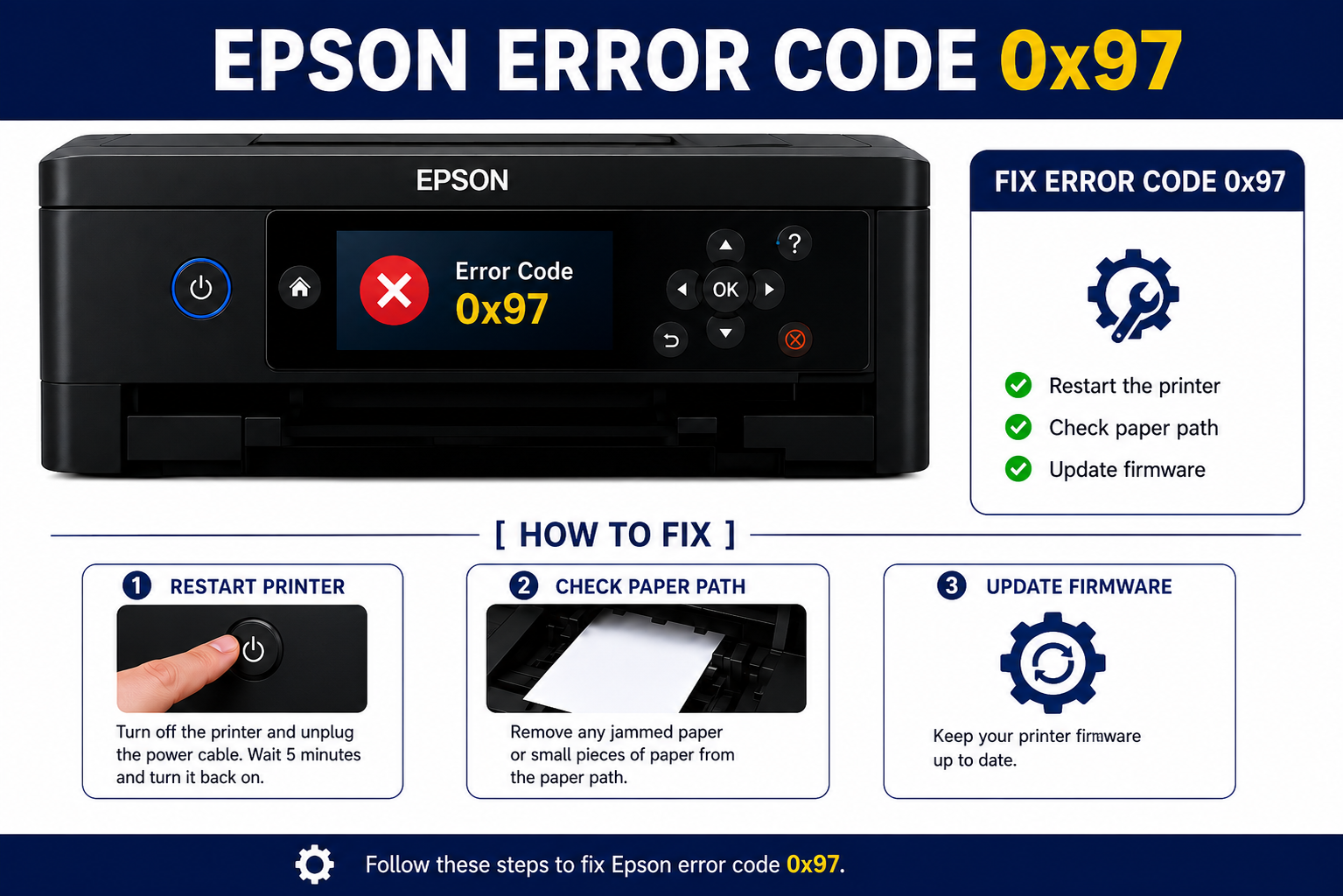
Nothing is more frustrating than preparing to print an important document only to see Epson Error Code 0x97 appear on your printer’s display. Whether you’re working from home, managing a busy office, or printing school assignments, this error can bring productivity to a complete stop.
Although Error Code 0x97 often points to an internal hardware issue, it doesn’t always mean your printer is beyond repair. In many cases, the problem is caused by temporary firmware glitches, corrupted printer drivers, communication failures, or print queue conflicts that can be resolved with the right troubleshooting approach.
As printer technicians often observe, users frequently replace printers too quickly without attempting several proven fixes that can restore normal operation. Understanding the source of the error is the first step toward finding the most effective solution.
This comprehensive guide explains what Epson Error Code 0x97 means, why it occurs, and how to troubleshoot it using both basic and advanced methods. By following these expert recommendations, you’ll be able to determine whether the issue can be fixed at home or requires professional servicing.
What You’ll Learn
In this guide, you’ll discover:
- What Epson Error Code 0x97 means
- Common causes behind the error
- Software and hardware troubleshooting methods
- How to update printer drivers and firmware
- When to reset your Epson printer
- How to identify motherboard-related failures
- Tips to prevent Error Code 0x97 from returning
- When to contact Epson support or seek professional repair
What Is Epson Error Code 0x97?
Epson Error Code 0x97 is an internal printer error that usually indicates a communication problem between the printer’s motherboard and one or more internal hardware components. It commonly appears during startup or while processing a print job, preventing the printer from functioning normally.
Unlike paper jams or low-ink warnings, Error 0x97 often requires deeper troubleshooting because it may involve hardware, firmware, or driver-related issues.
In simple terms:
The printer detects that one of its critical internal systems is not responding correctly, so it stops operating to prevent further damage.
Typical Symptoms
- Printer stops unexpectedly.
- Error Code 0x97 appears on the display.
- Printer refuses to print.
- Printing pauses midway.
- Frequent restarting.
- Printer becomes unresponsive.
- Communication errors with the computer.
- Print jobs remain stuck in the queue.
Common Causes of Epson Error Code 0x97
Understanding the cause helps determine the most effective solution.
1. Internal Hardware Failure
The most common reason is a malfunctioning internal component, including:
- Printer motherboard
- Logic board
- Internal controller
- Sensor failure
- Power regulation circuit
Older printers naturally experience wear that can affect these components over time.
2. Corrupted Printer Drivers
Printer drivers act as translators between your computer and the printer. If they become outdated, corrupted, or incompatible after a system update, communication errors like 0x97 can occur.
Common causes include:
- Interrupted driver installation
- Windows updates
- Driver conflicts
- Incorrect printer model installation
3. Firmware Glitches
Firmware controls your printer’s internal operations. A corrupted firmware update or unexpected shutdown during an update can trigger Error 0x97.
Possible firmware issues include:
- Incomplete update
- Power interruption
- Software bugs
- Memory corruption
4. Print Queue Conflicts
A damaged or overloaded print queue can prevent print jobs from reaching the printer correctly.
Signs include:
- Documents stuck in “Printing”
- Repeated print failures
- Frozen print spooler
- Multiple duplicate print jobs
Clearing the print queue often resolves these communication-related problems before they escalate into more serious errors.
How to Fix Epson Error Code 0x97: Step-by-Step Troubleshooting
Now that you understand what Epson Error Code 0x97 means and its possible causes, it’s time to work through the most effective solutions. Start with the simplest fixes before moving to advanced troubleshooting. After each step, try printing a test page to see if the issue has been resolved.
Solution 1: Perform a Basic Power Cycle
A temporary firmware or communication glitch can often trigger Error Code 0x97. Restarting the printer clears temporary memory and resets internal processes.
Steps
- Turn off the Epson printer.
- Disconnect the power cable from the wall outlet.
- Remove the USB cable or disconnect the printer from Wi-Fi.
- Wait for 5–10 minutes.
- Press and hold the printer’s Power button for 30 seconds while it is unplugged. This helps discharge any remaining electrical power.
- Reconnect only the power cable.
- Turn the printer back on.
- Print a test page.
Why This Works
A power cycle clears temporary firmware errors, resets hardware communication, and can resolve minor startup issues without requiring more advanced repairs.
Expert Tip: Plug the printer directly into a wall outlet rather than a surge protector during troubleshooting. Faulty power strips can occasionally cause unstable voltage that affects printer performance.
Solution 2: Disconnect External Devices
External devices connected to the printer can sometimes interfere with its startup process.
Disconnect
- USB flash drives
- Memory cards
- External hard drives
- USB hubs
- Ethernet cable (if applicable)
Restart the printer with only the power cable connected. If it starts normally, reconnect each accessory one at a time to identify the source of the conflict.
Common Mistake
Many users reconnect all devices immediately after restarting the printer. Testing each device individually makes it much easier to pinpoint the cause.
Solution 3: Clear the Print Queue
A corrupted print job may prevent the printer from operating correctly.
Windows
- Open Settings > Bluetooth & devices > Printers & scanners.
- Select your Epson printer.
- Open the print queue.
- Cancel all pending print jobs.
- Restart the computer.
- Restart the printer.
macOS
- Open System Settings > Printers & Scanners.
- Select the Epson printer.
- Open the print queue.
- Delete all pending documents.
- Restart both the Mac and the printer.
Why This Helps
A damaged print job can block communication between the operating system and the printer, causing repeated errors until the queue is cleared.
Solution 4: Restart the Print Spooler Service (Windows)
The Print Spooler manages communication between Windows and your printer. If it becomes unresponsive, printing errors may occur.
Steps
- Press Windows + R.
- Type services.msc.
- Press Enter.
- Locate Print Spooler.
- Right-click and choose Restart.
- Try printing again.
Benefits
Restarting the spooler:
- Clears stuck print jobs.
- Restores communication.
- Resolves temporary software conflicts.
- Improves print reliability.
Solution 5: Update or Reinstall Epson Printer Drivers
Corrupted or outdated drivers are one of the leading software-related causes of Error Code 0x97.
How to Reinstall Drivers
- Disconnect the printer.
- Open Device Manager.
- Expand Printers.
- Right-click the Epson printer.
- Select Uninstall Device.
- Restart the computer.
- Download the latest driver for your exact printer model from Epson’s official support website.
- Install the driver.
- Reconnect the printer.
- Print a test page.
Why Updated Drivers Matter
Modern operating systems receive frequent updates. Older drivers may become incompatible, leading to communication failures and unexpected printer errors.
Expert Recommendation: Always install drivers designed specifically for your printer model and operating system version.
Solution 6: Update the Printer Firmware
Firmware controls the printer’s internal hardware. If the firmware is outdated or corrupted, Error Code 0x97 may appear.
Firmware Update Steps
- Open the Epson Printer Utility.
- Check for available firmware updates.
- Download the latest version.
- Keep the printer powered on throughout the update.
- Restart the printer after installation.
Important
Never disconnect the printer or turn off the power while a firmware update is in progress. Interrupting the update can corrupt the firmware and create additional problems.
Solution 7: Check USB and Network Connections
Communication problems between the computer and printer may also trigger Error Code 0x97.
Inspect the Following
- Damaged USB cable
- Loose cable connections
- Faulty USB ports
- Weak Wi-Fi signal
- Incorrect network settings
Best Practices
- Use the original USB cable whenever possible.
- Avoid USB hubs during troubleshooting.
- Test another USB port.
- Restart your router if using Wi-Fi.
- Ensure both devices are connected to the same network.
Solution 8: Run Epson Diagnostic Utilities
Many Epson printers include maintenance and diagnostic tools that can detect common software issues.
These utilities can help identify:
- Driver conflicts
- Firmware issues
- Communication errors
- Printhead problems
- Ink system warnings
Running a diagnostic scan can reveal problems that are not immediately visible during normal operation.
Solution 9: Inspect for Internal Hardware Problems
If none of the software solutions work, the issue may involve the printer’s internal components.
Potential hardware issues include:
- Faulty motherboard
- Damaged printhead cable
- Failed sensors
- Power supply issues
- Logic board malfunction
Warning
Avoid disassembling the printer unless you have experience repairing electronic devices. Internal components are delicate, and improper handling may cause additional damage or void any remaining warranty.
Troubleshooting Flowchart
| Symptom | Most Likely Cause | Recommended Solution |
|---|---|---|
| Error appears after startup | Firmware glitch | Power cycle and firmware update |
| Error appears after Windows update | Driver conflict | Reinstall printer drivers |
| Printer freezes while printing | Print queue corruption | Clear print queue |
| Printer won’t turn on properly | Power supply issue | Check power connection |
| Error persists after all software fixes | Hardware failure | Professional repair |
Common Mistakes to Avoid
Many users accidentally make the problem worse by following incorrect advice or skipping important steps.
Avoid these common mistakes:
- Turning the printer off during a firmware update.
- Installing drivers for the wrong printer model.
- Ignoring Windows updates.
- Using damaged USB cables.
- Frequently unplugging the printer while it is operating.
- Attempting hardware repairs without proper knowledge.
- Printing with persistent hardware warnings.
- Failing to restart the computer after reinstalling drivers.
Can Epson Error Code 0x97 Be Fixed?
Yes, in many cases.
The success of the repair depends on the underlying cause.
Software-Related Problems
These are usually easy to fix:
- Driver corruption
- Firmware glitches
- Print spooler issues
- USB communication problems
- Print queue conflicts
Hardware-Related Problems
These may require professional repair:
- Motherboard failure
- Printhead electronics damage
- Internal controller failure
- Power circuit malfunction
If the printer continues displaying Error Code 0x97 after completing all troubleshooting steps, professional servicing is recommended.
How to Prevent Epson Error Code 0x97
Preventive maintenance significantly reduces the chances of encountering internal printer errors.
Best Practices
- Keep printer firmware updated.
- Install the latest Epson drivers.
- Shut down the printer properly.
- Avoid sudden power interruptions.
- Use a surge protector to protect against voltage fluctuations.
- Clean the printer regularly.
- Print a few pages every week to keep the printhead active.
- Avoid forcing paper through the printer.
- Use genuine Epson ink cartridges when recommended for your model.
- Perform routine maintenance using Epson’s utility software.
Maintenance Schedule
| Task | Recommended Frequency |
|---|---|
| Check for driver updates | Monthly |
| Check firmware updates | Every 2–3 months |
| Clean printer exterior | Weekly |
| Run nozzle check | Monthly |
| Print a test page | Weekly |
| Inspect cables | Every 3 months |
Expert Recommendations
Based on common repair scenarios, technicians generally recommend the following approach:
- Start with a power cycle.
- Disconnect external devices.
- Clear the print queue.
- Restart the Print Spooler (Windows).
- Reinstall the latest printer drivers.
- Update the printer firmware.
- Test with a different USB cable or network connection.
- Run Epson diagnostic tools.
- Evaluate for internal hardware failure if the issue persists.
Following this sequence helps eliminate the most common causes efficiently while reducing unnecessary repairs.
Frequently Asked Questions (FAQ)
1. What does Epson Error Code 0x97 mean?
Epson Error Code 0x97 indicates an internal printer communication or hardware problem. It often involves the motherboard, firmware, drivers, or communication between internal components.
2. Can Epson Error Code 0x97 be fixed?
Yes. Many cases are caused by software issues such as outdated drivers, firmware glitches, or print queue problems that can be resolved without replacing the printer.
3. Is Error Code 0x97 always a hardware failure?
No. Although hardware failure is one possible cause, corrupted drivers, firmware issues, USB communication problems, and software conflicts can produce the same error.
4. How do I reset my Epson printer?
Turn off the printer, unplug the power cable, wait several minutes, hold the power button for about 30 seconds while unplugged, reconnect the power, and restart the printer.
5. Can outdated drivers cause Epson Error 0x97?
Yes. Incompatible or corrupted printer drivers can interrupt communication between your computer and printer, leading to this error.
6. Should I update the printer firmware?
Yes. Installing the latest firmware can fix software bugs, improve stability, and resolve known printer issues.
7. Does Windows 11 cause Epson Error Code 0x97?
Windows 11 itself does not directly cause the error, but operating system updates can sometimes create driver compatibility issues that require updated Epson drivers.
8. Can a damaged USB cable trigger this error?
Yes. Faulty USB cables or unstable network connections can interrupt communication between the computer and printer.
9. When should I contact Epson Support?
If Error Code 0x97 remains after completing all recommended troubleshooting steps, professional diagnosis is recommended.
10. How can I prevent Epson Error Code 0x97?
Regular firmware updates, driver maintenance, proper shutdown procedures, and routine printer cleaning can help reduce the likelihood of this error.