Epson Error Code 034004: Causes, Fixes, and Troubleshooting Guide
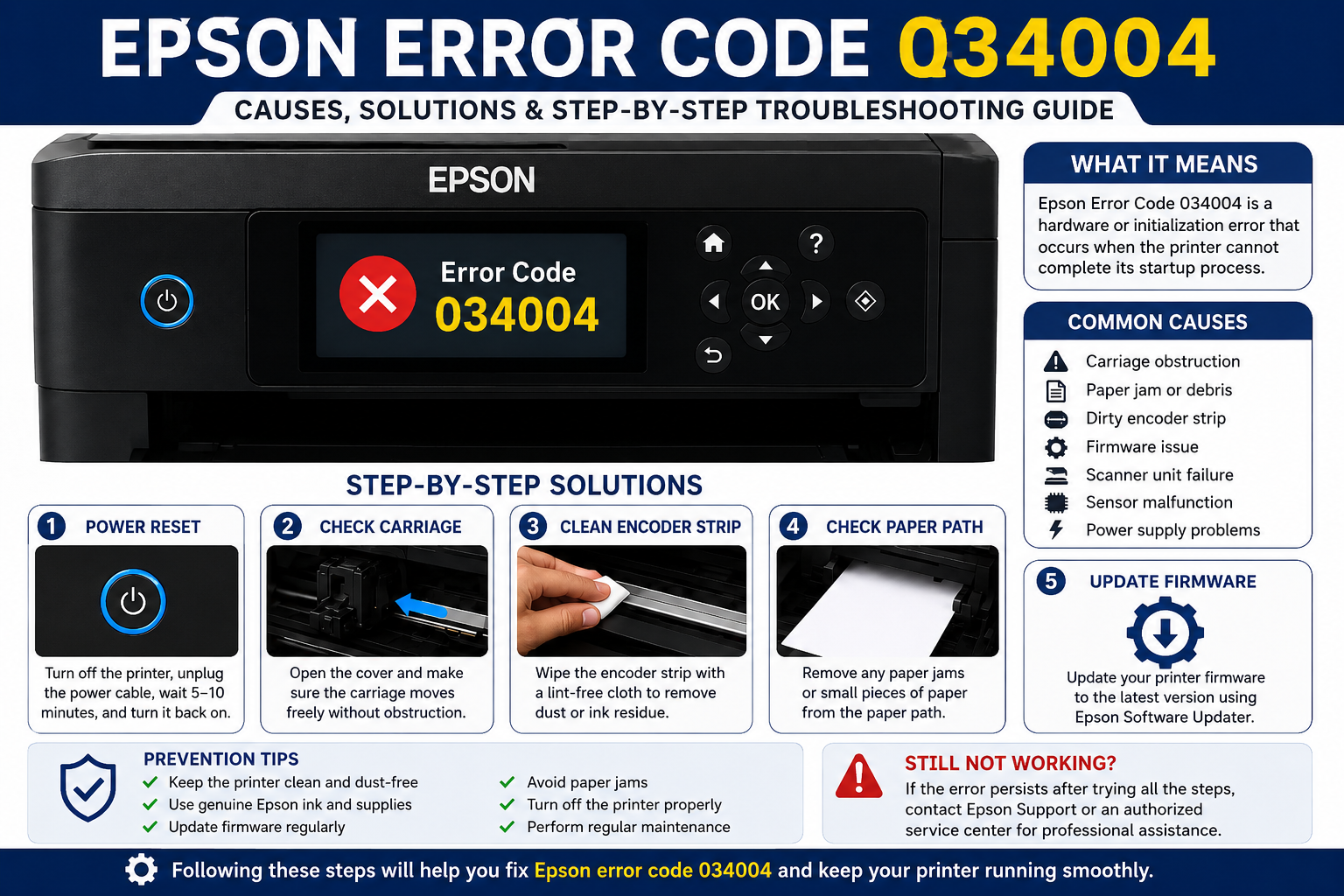
If your Epson printer suddenly displays Epson error code 034004, printing comes to an immediate stop, and it can be difficult to tell whether the problem is minor or requires professional repair. While this error may look alarming, it often points to an issue that can be identified through a systematic troubleshooting process.
In many cases, the error is linked to the printer’s startup sequence, internal hardware movement, firmware, or communication between key components. Before assuming the printer has suffered permanent damage, it’s worth checking several common causes that can often be resolved without replacing the device.
This guide explains what the error means, why it happens, and the steps you can take to restore normal operation.
What You’ll Learn
By the end of this guide, you’ll know:
- What Epson error code 034004 means
- The most common causes of the error
- How to troubleshoot the problem step by step
- When a simple reset is enough
- How firmware updates can help
- Signs of hardware failure
- Ways to prevent the error from returning
- When to contact Epson support
What Is Epson Error Code 034004?
Epson error code 034004 is a startup or hardware-related printer error that indicates the printer has detected an abnormal condition during its initialization process. The device stops operating to protect internal components from potential damage and prompts the user to investigate the issue before printing can continue.
Unlike paper jam warnings or low-ink notifications, this error generally requires troubleshooting beyond routine maintenance.
Common Causes of Epson Error Code 034004
Understanding the root cause is essential because different issues can trigger the same error code. Identifying the correct cause saves time and helps avoid unnecessary repairs.
Some of the most common reasons include:
- Internal hardware malfunction
- Printhead carriage obstruction
- Damaged encoder strip
- Scanner mechanism failure
- Outdated firmware
- Corrupted printer initialization
- Faulty sensors
- Loose internal cable connections
- Mainboard communication errors
- Power interruption during startup
Example – If the printhead carriage cannot move freely because of a small piece of torn paper or dried ink buildup, the printer may stop its startup routine and display Error Code 034004 as a protective measure.
Symptoms Associated with Epson Error Code 034004
Recognizing the symptoms helps narrow down the source of the issue before beginning repairs.
Common signs include:
- Printer stops during startup.
- LCD displays Error Code 034004.
- Printing cannot begin.
- Scanner fails to initialize.
- Carriage movement appears abnormal.
- Unusual clicking or grinding noises.
- Printer repeatedly restarts.
- Buttons become temporarily unresponsive.
Some users notice the issue immediately after moving the printer, installing a firmware update, or recovering from a power outage. These situations can disrupt initialization or expose underlying mechanical problems.
Which Epson Printers Can Display Error Code 034004?
Although the exact appearance of the error varies by model, it can affect several Epson printer families, including:
| Printer Series | May Display Error 034004 |
|---|---|
| Epson EcoTank | ✔ Yes |
| Epson WorkForce | ✔ Yes |
| Epson Expression | ✔ Yes |
| Epson SureColor | Possible |
| Epson Business Inkjet Models | Possible |
The troubleshooting process is generally similar across models, though menu names and maintenance options may differ slightly.
Initial Checks Before Troubleshooting
Before attempting advanced repairs, perform a few simple inspections that often resolve temporary startup issues.
Step 1: Restart the Printer
Turn the printer off, unplug the power cable, wait for at least one minute, reconnect the power, and switch the printer back on. This clears temporary initialization errors and allows the device to perform a fresh startup sequence.
Step 2: Inspect for Paper Obstructions
Open the printer covers and carefully check for:
- Torn paper fragments
- Labels
- Dust accumulation
- Foreign objects
- Packing materials left inside
Even a tiny obstruction can interfere with carriage movement and trigger hardware-related errors.
Step 3: Check Carriage Movement
With the printer powered off, gently inspect whether the printhead carriage can move freely (only if your printer model allows safe manual movement according to the user guide). Resistance or blockage may indicate debris, dried ink, or a mechanical fault.
Step 4: Verify Power Stability
Plug the printer directly into a wall outlet instead of a power strip or extension cord. An unstable power supply can interrupt the startup sequence and occasionally cause initialization errors.
Check for Carriage Obstructions
The printhead carriage moves across the printer during startup. If anything blocks this movement, the printer may stop the initialization process and display Epson error code 034004.
Common obstructions include:
- Torn paper pieces
- Dust buildup
- Dried ink deposits
- Paper clips or staples
- Packaging material
- Misaligned ink cartridges
How to inspect the carriage
- Turn off the printer.
- Disconnect the power cable.
- Open the printer cover.
- Carefully inspect the carriage path.
- Remove any visible obstruction.
- Close the cover.
- Restart the printer.
Expert Tip: Never force the carriage to move. If it feels stuck, there may be an internal mechanical issue that requires servicing.
Inspect the Encoder Strip
The encoder strip is a thin transparent plastic strip located behind the printhead carriage. It helps the printer determine the exact position of the printhead.
If the strip becomes dirty or damaged, the printer may fail its startup checks.
Signs of a dirty encoder strip
- Random startup errors
- Poor print alignment
- Carriage stopping unexpectedly
- Error Code 034004 after powering on
Cleaning the encoder strip
- Turn off the printer.
- Unplug the power cable.
- Locate the encoder strip.
- Use a lint-free cloth slightly dampened with distilled water.
- Wipe gently from one end to the other.
- Allow it to dry completely.
- Restart the printer.
Avoid:
- Alcohol-based cleaners
- Excessive force
- Paper towels
- Sharp objects
Update Epson Printer Firmware
Firmware controls the printer’s internal operations. Older firmware versions may contain bugs that contribute to startup or communication errors.
Benefits of updating firmware
- Improved stability
- Better hardware compatibility
- Bug fixes
- Performance improvements
- Enhanced error handling
Steps to update firmware
- Connect the printer to your computer.
- Ensure a stable internet connection.
- Open the Epson Software Updater.
- Check for available firmware updates.
- Install the latest version.
- Restart the printer after installation.
Important: Never turn off the printer while a firmware update is in progress, as this could cause additional issues.
Reinstall the Printer Driver
A corrupted or outdated printer driver can sometimes interfere with communication between your computer and the printer.
Signs of a driver issue
- Printer appears offline
- Printing jobs remain in the queue
- Communication errors
- Device not detected
Driver reinstallation steps
- Remove the current printer driver from your computer.
- Restart the computer.
- Download the latest driver for your printer model.
- Install the driver.
- Reconnect the printer.
- Print a test page.
Check Ink Cartridge Installation
Improperly installed cartridges may prevent the printer from completing its startup sequence.
Inspect the following:
- Each cartridge is fully seated.
- Protective tape has been removed.
- No cartridge is leaking.
- Cartridge contacts are clean.
- Genuine Epson cartridges are being used when possible.
Examine the Scanner Unit
Many Epson multifunction printers perform a scanner self-test during startup. If the scanner mechanism fails, Error Code 034004 may appear.
Look for
- Scanner lock still engaged
- Scanner not moving
- Clicking noises
- Obstructions under the scanner glass
- Loose scanner cables
If the scanner cannot initialize correctly, professional servicing may be required.
Perform a Factory Reset (If Supported)
Some Epson printer models allow users to restore factory settings through the control panel.
A factory reset can resolve:
- Incorrect configuration settings
- Minor firmware glitches
- Network-related problems
- Temporary software conflicts
Note: A factory reset does not repair damaged hardware.
When Is Epson Error Code 034004 a Hardware Problem?
Sometimes the error indicates a component failure rather than a temporary software issue.
Possible hardware failures
- Printhead carriage motor failure
- Encoder sensor damage
- Mainboard malfunction
- Internal ribbon cable damage
- Scanner motor failure
- Power supply issues
- Faulty sensors
Warning signs
- Loud grinding noises
- Burning smell
- Printer shuts down unexpectedly
- Error appears immediately after every restart
- Printer cannot complete initialization
In these situations, professional diagnosis is recommended.
Common Mistakes to Avoid
Many users accidentally make the problem worse while trying to fix it.
Avoid these mistakes:
- Forcing the carriage manually
- Pulling on internal cables
- Using excessive cleaning fluid
- Updating firmware during unstable power conditions
- Ignoring unusual mechanical noises
- Disassembling the printer without experience
- Using incompatible replacement parts
Taking a careful, step-by-step approach reduces the risk of further damage.
Troubleshooting Table
| Problem | Possible Cause | Recommended Solution |
|---|---|---|
| Error appears during startup | Initialization failure | Restart printer |
| Carriage won’t move | Mechanical obstruction | Remove debris |
| Clicking noises | Gear or carriage issue | Inspect carriage path |
| Scanner won’t initialize | Scanner mechanism fault | Check scanner assembly |
| Printer freezes | Firmware issue | Update firmware |
| Error after power outage | Corrupted startup sequence | Perform power cycle |
| Error persists after reset | Hardware malfunction | Contact Epson Support |
How to Prevent Epson Error Code 034004
Preventive maintenance reduces the likelihood of startup and hardware errors.
Best practices
- Clean the printer regularly.
- Keep the printer dust-free.
- Use genuine Epson ink cartridges.
- Update firmware periodically.
- Avoid sudden power interruptions.
- Print regularly to prevent ink buildup.
- Store the printer in a dry environment.
- Remove paper jams carefully.
- Avoid overloading the paper tray.
- Inspect the printer for debris every few weeks.
Consistent maintenance extends the life of the printer and helps minimize unexpected errors.
When Should You Contact Epson Support?
If you have completed all troubleshooting steps and the error remains, it may indicate an internal hardware fault that requires professional attention.
Consider contacting Epson Support if:
- The printer displays Error Code 034004 after every restart.
- Firmware updates do not resolve the issue.
- The printer makes loud mechanical noises.
- Internal components appear damaged.
- The scanner or printhead fails to initialize.
- The printer is still under warranty.
- You are uncomfortable opening the printer for inspection.
Professional technicians have specialized diagnostic tools to identify failed components and perform repairs safely.
Expert Maintenance Tips
Experienced printer technicians recommend a proactive maintenance routine to keep Epson printers operating reliably.
Weekly
- Wipe exterior surfaces.
- Check for dust around vents.
- Print a test page.
Monthly
- Inspect the paper path.
- Remove dust from accessible areas.
- Check ink cartridge condition.
Every 3–6 Months
- Update printer firmware.
- Run printhead cleaning if needed.
- Perform nozzle checks.
- Review printer settings.
Routine maintenance can reduce wear on internal components and help prevent errors like Epson error code 034004.
Frequently Asked Symptoms and Their Meaning
| Symptom | Likely Cause |
|---|---|
| Printer stops immediately after power-on | Startup initialization failure |
| Carriage moves then stops | Carriage obstruction or motor issue |
| LCD shows 034004 continuously | Persistent hardware or firmware issue |
| Scanner fails to move | Scanner mechanism fault |
| Grinding sound | Mechanical gear problem |
| Printer restarts repeatedly | Internal communication failure |
| Error appears after moving printer | Dislodged component or obstruction |
Frequently Asked Questions (FAQ)
1. What is Epson error code 034004?
Epson error code 034004 is a startup or hardware-related printer error that occurs when the printer detects an issue during initialization. The problem may be caused by firmware, carriage movement, sensors, or internal hardware.
2. Can I fix Epson error code 034004 myself?
Yes. Many cases can be resolved by restarting the printer, removing paper jams, checking the carriage path, updating firmware, or reinstalling the printer driver. Persistent hardware faults usually require professional repair.
3. Does restarting the printer remove Error Code 034004?
Restarting can clear temporary software or initialization glitches, but it will not resolve mechanical failures or damaged hardware.
4. Can outdated firmware cause Error Code 034004?
Yes. Outdated firmware may create communication issues between printer components. Installing the latest firmware can improve stability and resolve certain startup errors.
5. Is Error Code 034004 dangerous?
No. The error is actually a protective feature that prevents the printer from operating when it detects a potential internal problem.
6. Will a factory reset fix Error Code 034004?
A factory reset may resolve software configuration issues but generally will not repair hardware failures.
7. Can a paper jam trigger Epson error code 034004?
Yes. Even small paper fragments left inside the printer can block carriage movement and trigger this error.
8. Should I continue printing after seeing Error Code 034004?
No. Resolve the issue first. Continuing to operate a malfunctioning printer could worsen internal damage.
9. When should I contact Epson Support?
Contact Epson Support if:
- The error returns after every restart.
- Firmware updates do not help.
- You hear grinding noises.
- The printer is under warranty.
- Internal components appear damaged.
10. How can I prevent Epson error code 034004?
Regular maintenance, firmware updates, careful paper handling, and using genuine Epson supplies significantly reduce the chances of encountering this error.