Epson Error Code 031006: Causes, Fixes, and Troubleshooting Guide
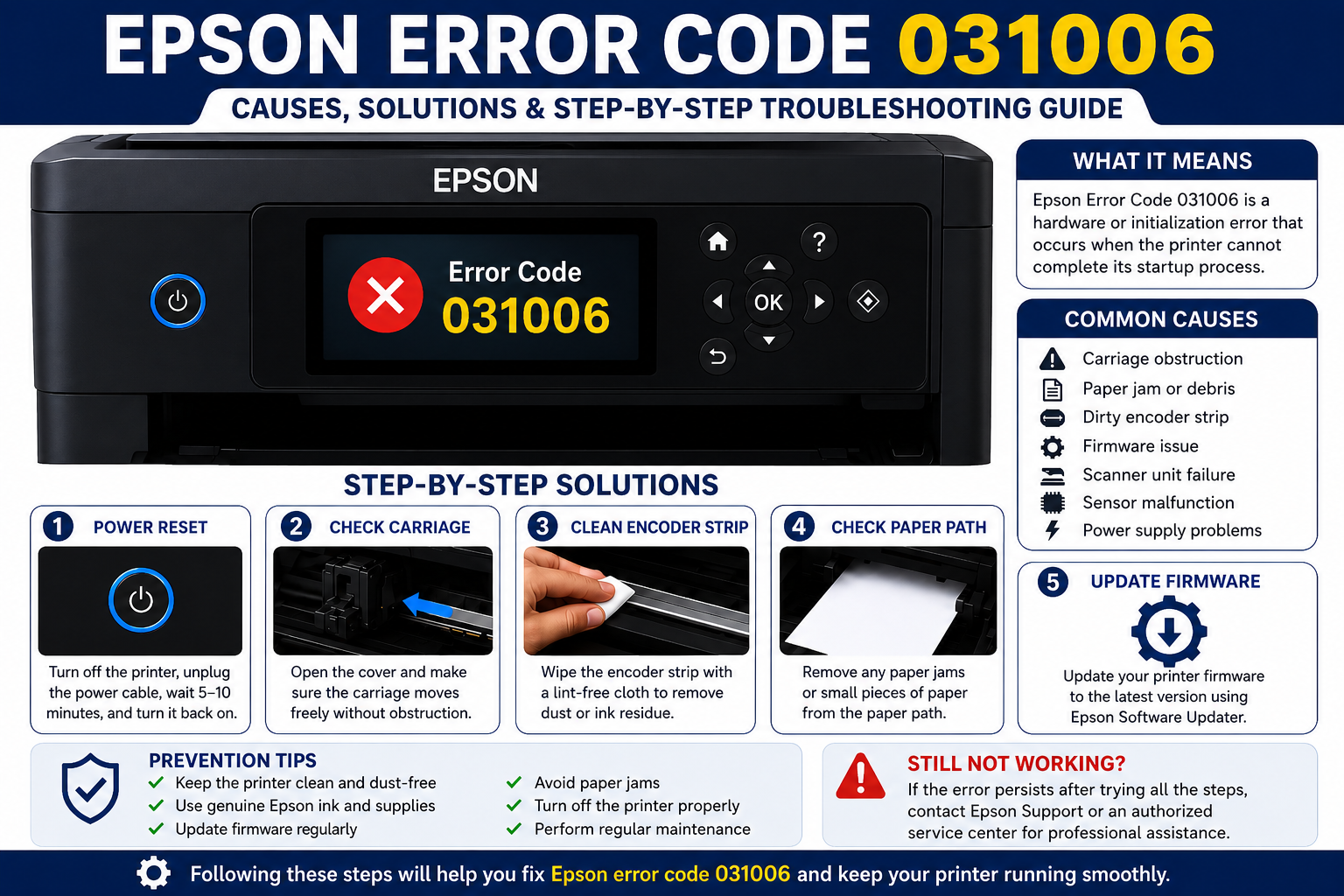
If your Epson printer suddenly stops working and displays Epson error code 031006, you’re likely wondering what went wrong and how to fix it quickly. While this error can seem alarming, it doesn’t always mean your printer has suffered a major hardware failure. In many cases, the issue can be resolved through systematic troubleshooting, such as checking for carriage obstructions, restarting the printer, updating firmware, or inspecting internal components.
This comprehensive guide explains the possible causes of Epson error code 031006, walks you through proven troubleshooting methods, and shares preventive maintenance tips to help keep your printer running reliably. Whether you’re using your printer at home, in a small office, or for business purposes, these solutions are designed to help you identify the problem and restore normal operation safely.
What You’ll Learn
By the end of this guide, you’ll understand:
- What Epson error code 031006 means
- Common reasons why the error appears
- How to troubleshoot the printer step by step
- Which fixes are safe to perform at home
- When a firmware update can help
- Signs that indicate a hardware problem
- When it’s time to contact Epson support
- Best practices to prevent the error from returning
What Is Epson Error Code 031006?
Epson error code 031006 is an internal printer error that generally indicates the printer detected a problem during its startup or self-diagnostic process. The issue is often related to the printer’s mechanical components, carriage movement, printhead assembly, firmware, or internal sensors. Because the printer cannot complete its initialization sequence, it pauses operation to prevent further damage.
Although the error may appear suddenly, it is usually triggered by one or more underlying issues rather than a single fault. Identifying the root cause is essential before attempting repairs.
Common Symptoms
You may notice one or more of the following:
- Printer displays 031006 on the screen.
- Printing jobs stop unexpectedly.
- The printhead fails to move normally.
- Unusual grinding or clicking noises.
- Printer freezes during startup.
- Paper feeding does not begin.
- The printer becomes unresponsive.
- Printing software reports the device as offline.
Why This Error Should Not Be Ignored
Ignoring Epson error code 031006 can lead to repeated startup failures and, in some cases, additional wear on internal components. Addressing the issue promptly improves the chances of resolving it with simple troubleshooting rather than requiring costly repairs.
Common Causes of Epson Error Code 031006
Understanding the cause of the error makes troubleshooting much more effective. Below are the most common reasons this error appears.
| Possible Cause | Description | Severity |
|---|---|---|
| Carriage obstruction | Foreign objects prevent carriage movement | Moderate |
| Paper jam | Torn paper blocks internal mechanisms | Low to Moderate |
| Dirty encoder strip | Sensor cannot accurately detect carriage position | Moderate |
| Printhead issue | Printhead cannot initialize correctly | Moderate to High |
| Firmware problem | Corrupted or outdated firmware interrupts startup | Moderate |
| Internal sensor failure | Sensors return invalid readings | High |
| Logic board malfunction | Mainboard communication error | High |
| Damaged mechanical components | Worn gears, belts, or carriage assembly | High |
Expert Insight
In practical troubleshooting, Epson error code 031006 is frequently associated with startup interruptions caused by mechanical resistance or sensor-related issues rather than catastrophic hardware failure. Beginning with simple inspections—such as checking for paper scraps, carriage obstructions, and firmware updates—can often resolve the issue without disassembling the printer.
How to Fix Epson Error Code 031006
Most Epson printers display error code 031006 because the printer cannot complete its startup sequence. Follow these troubleshooting steps in order.
1. Restart Your Epson Printer
A temporary system glitch can interrupt the printer’s initialization process. Performing a power cycle clears temporary memory and forces the printer to restart its internal diagnostics.
Steps
- Turn off the printer.
- Disconnect the power cable from the wall outlet.
- Wait at least 5–10 minutes.
- Reconnect the power cable.
- Turn the printer back on.
- Check whether the error has disappeared.
Why It Works
A complete restart resets temporary firmware processes that may have become stuck during startup.
Expert Tip: Always plug the printer directly into a wall outlet instead of a surge protector while troubleshooting power-related issues.
2. Check for Paper Jams
Even a tiny piece of paper trapped inside the printer can prevent internal components from moving freely.
Inspect These Areas
- Rear paper feed
- Front paper tray
- Duplex unit
- Output tray
- Print path
- Roller assembly
Remove Paper Carefully
- Switch off the printer.
- Pull out any visible paper slowly.
- Never force jammed paper.
- Remove small scraps with tweezers if necessary.
- Close all covers securely before restarting.
Common Mistake
Many users remove only the visible sheet and overlook tiny paper fragments hidden behind rollers.
3. Inspect the Printhead Carriage
The printhead carriage moves across the printer while printing. If something blocks its movement, Epson error code 031006 may appear.
Look for
- Packing materials left inside
- Pieces of paper
- Dust buildup
- Ink residue
- Loose cables
- Foreign objects such as paper clips
How to Check
- Turn off the printer.
- Open the printer cover.
- Gently move the carriage (only if it moves freely).
- Remove any visible obstruction.
- Close the cover.
- Restart the printer.
Important
Never force the carriage to move. Excessive pressure can damage the carriage belt or motor.
4. Verify Ink Cartridge Installation
Improperly installed or damaged cartridges can interfere with printer initialization.
Check That
- Every cartridge clicks firmly into place.
- Protective plastic has been removed.
- Cartridges are genuine or compatible with your model.
- Contacts are clean.
- No cartridge is leaking.
Signs of Cartridge Problems
- Printer cannot recognize ink.
- Carriage stops moving.
- Ink warning lights remain on.
- Startup process freezes.
5. Clean the Encoder Strip
The encoder strip is a transparent plastic strip behind the carriage. It tells the printer the exact position of the printhead.
If the strip becomes dirty, the printer cannot accurately detect carriage movement.
Cleaning Steps
- Turn off the printer.
- Open the cover.
- Locate the transparent encoder strip.
- Use a lint-free microfiber cloth.
- Wipe gently from one end to the other.
- Avoid pulling or bending the strip.
- Allow it to dry completely.
- Restart the printer.
Avoid Using
- Alcohol (unless recommended by Epson)
- Paper towels
- Abrasive cloths
- Excessive force
Update Printer Firmware
Firmware acts as the printer’s operating system. Outdated or corrupted firmware can trigger startup errors, including Epson error code 031006.
Why Firmware Matters
Firmware updates often include:
- Bug fixes
- Performance improvements
- Hardware compatibility updates
- Stability enhancements
- Security patches
How to Update Firmware
- Connect the printer to a stable internet connection or computer.
- Open the Epson Software Updater or your printer utility.
- Check for available firmware updates.
- Install the latest version.
- Do not turn off the printer during the update.
- Restart the printer after completion.
Expert Recommendation
Always keep your printer firmware current, especially if Epson has released updates addressing startup or hardware-related issues.
Update or Reinstall Printer Drivers
Sometimes the printer itself is functioning correctly, but communication between the computer and printer becomes corrupted.
Symptoms
- Printer appears offline.
- Error messages persist on the computer.
- Print jobs remain in the queue.
- Driver installation failed.
- Device is not detected.
Windows Driver Update
- Open Device Manager.
- Expand Printers.
- Right-click your Epson printer.
- Select Update Driver.
- Install the latest available driver.
If problems continue:
- Uninstall the existing driver.
- Restart the computer.
- Install the newest driver from Epson’s support website.
- Reconnect the printer.
Run Printer Diagnostics
Many Epson printers include built-in diagnostic tools that help identify hardware or software issues.
Diagnostics Can Detect
- Sensor failures
- Printhead movement issues
- Ink delivery problems
- Communication errors
- Firmware faults
Benefits
Running diagnostics before replacing parts can save time and avoid unnecessary expenses.
Reset the Epson Printer
If the error persists after completing the previous steps, a reset may restore normal operation.
Soft Reset
A soft reset clears temporary settings without removing your printer configuration.
Steps
- Turn off the printer.
- Disconnect the power cable.
- Wait 10 minutes.
- Reconnect power.
- Restart the printer.
Factory Reset
Some Epson printer models include a factory reset option through the control panel menu.
A factory reset restores default settings and may resolve persistent software-related issues. However, it also removes saved network settings and custom preferences, so you’ll need to reconfigure the printer afterward.
Advanced Troubleshooting
If Epson error code 031006 still appears, the issue may involve internal hardware components.
Possible Hardware Problems
- Faulty carriage motor
- Damaged carriage belt
- Printhead failure
- Logic board malfunction
- Defective sensors
- Broken gears
- Internal wiring damage
- Power supply issues
Warning Signs
- Loud grinding noises
- Burning smell
- Printer shuts down repeatedly
- Display freezes
- Carriage does not move at all
- Printer fails to initialize after multiple restart attempts
These issues typically require professional inspection and repair.
When to Contact Epson Support
If you’ve completed all troubleshooting steps and the error remains, it’s time to seek assistance from Epson or an authorized service center.
Contact Support If
- Error code returns immediately after startup.
- Firmware updates do not resolve the issue.
- The printer cannot initialize.
- Internal components appear damaged.
- The printer is still under warranty.
- You suspect a logic board or sensor failure.
Before contacting support, have the following information ready:
- Printer model number
- Serial number
- Firmware version (if available)
- Error code (031006)
- A summary of the troubleshooting steps you’ve already tried
Providing these details can help speed up the diagnosis and reduce repair time.
How to Prevent Epson Error Code 031006
Regular maintenance can significantly reduce the likelihood of startup errors and extend the life of your printer.
Preventive Maintenance Checklist
- Keep the printer interior free of dust and paper debris.
- Use genuine or high-quality compatible ink cartridges.
- Install firmware updates when available.
- Turn the printer off properly instead of unplugging it abruptly.
- Store paper in a dry environment to prevent jams.
- Clean the encoder strip and rollers periodically.
- Avoid overloading the paper tray.
- Print a test page regularly if the printer is used infrequently.
- Place the printer on a stable, level surface.
- Schedule routine maintenance for heavily used office printers.
Best Practices
Consistent care helps prevent mechanical wear, improves print quality, and minimizes unexpected error codes like 031006. Simple habits—such as keeping the printer clean, updating firmware, and using appropriate supplies—can reduce downtime and improve long-term reliability.
Quick Troubleshooting Summary
| Problem | Recommended Solution |
|---|---|
| Temporary system glitch | Restart the printer |
| Paper jam | Remove jammed paper and debris |
| Carriage obstruction | Inspect and clear the carriage path |
| Dirty encoder strip | Clean the strip carefully |
| Ink cartridge issue | Reseat or replace cartridges |
| Outdated firmware | Install the latest firmware update |
| Driver problem | Reinstall or update printer drivers |
| Hardware failure | Contact Epson Support or an authorized service center |
Frequently Asked Questions (FAQ)
1. What does Epson error code 031006 mean?
Epson error code 031006 usually indicates that the printer encountered a problem during startup or self-diagnosis. It may be caused by a mechanical obstruction, firmware issue, or internal hardware fault.
2. Can I fix Epson error code 031006 myself?
Yes. In many cases, restarting the printer, removing paper jams, checking the carriage, cleaning the encoder strip, or updating firmware resolves the problem.
3. Does restarting the printer remove error code 031006?
A power cycle can clear temporary firmware glitches and is often the first troubleshooting step. However, if the underlying cause is mechanical or hardware-related, additional repairs may be required.
4. Is Epson error code 031006 a hardware problem?
Not always. While it can indicate a hardware issue, software glitches, outdated firmware, or obstructions inside the printer can produce the same error.
5. Can outdated firmware cause Epson error code 031006?
Yes. Corrupted or outdated firmware may interrupt the printer’s startup process and trigger this error. Updating to the latest firmware can often resolve such issues.
6. Will replacing ink cartridges fix Epson error code 031006?
If the error is caused by improperly installed or damaged cartridges, reseating or replacing them may solve the problem. Otherwise, additional troubleshooting will be necessary.
7. What should I check before contacting Epson Support?
Prepare the following information:
- Printer model
- Serial number
- Firmware version
- Error code
- Troubleshooting steps already attempted
8. Can paper jams trigger Epson error code 031006?
Yes. Even small pieces of torn paper can block the carriage or sensors, causing the printer to stop during startup.
9. Should I reset my Epson printer?
A soft reset is safe and may resolve temporary issues. Perform a factory reset only if recommended for your printer model, as it removes saved settings.
10. How can I prevent Epson error code 031006 from recurring?
Regular cleaning, timely firmware updates, proper paper handling, and using compatible ink cartridges can significantly reduce the likelihood of this error.