Epson Error Code 031004: Causes, Fixes, and Complete Troubleshooting Guide
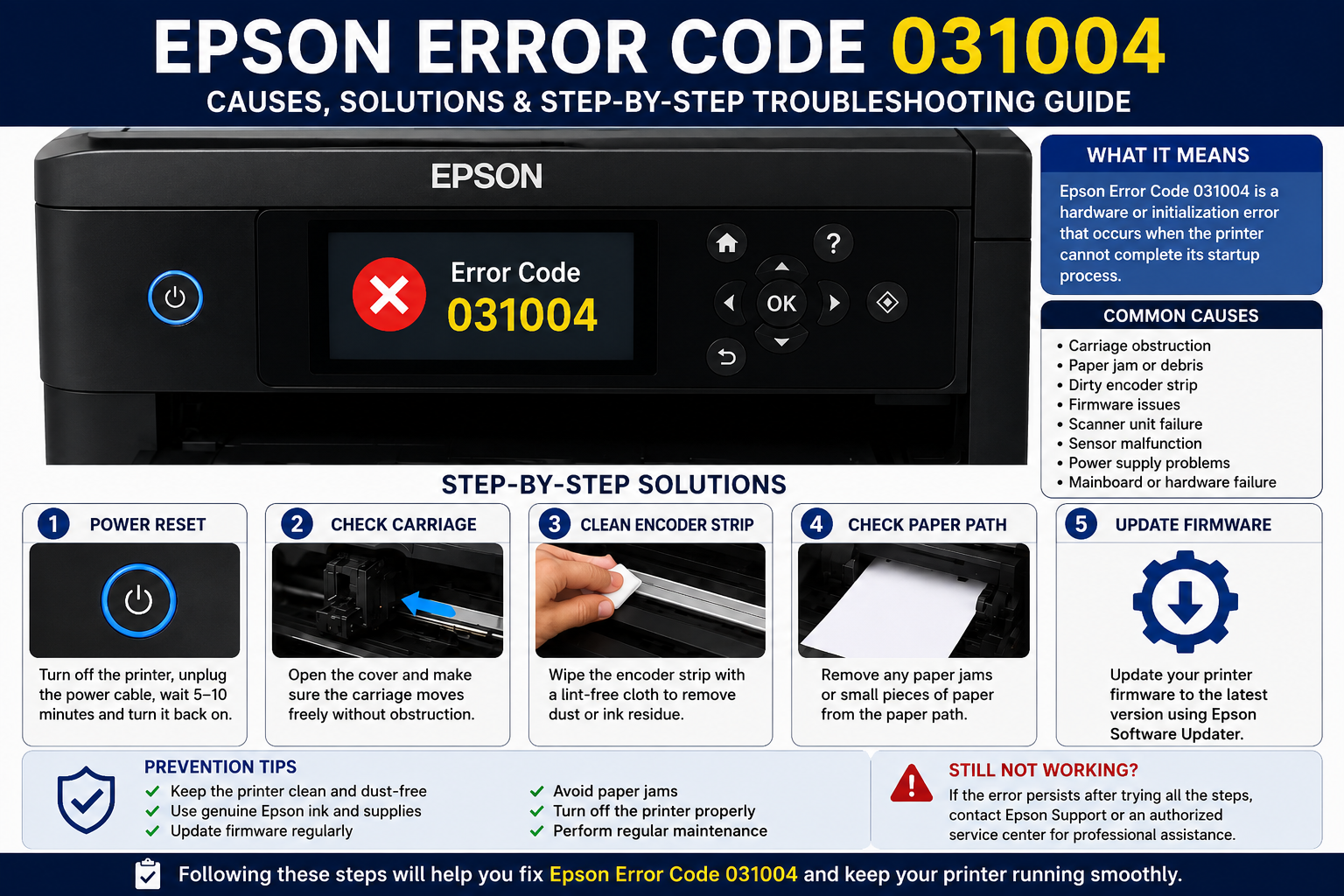
If your Epson printer suddenly displays Epson error code 031004, you’re likely dealing with a hardware or initialization issue that prevents the printer from completing its startup process. While the error can seem alarming, it doesn’t always mean your printer has suffered permanent damage. In many cases, simple checks—such as clearing obstructions, restarting the device, or updating firmware—can resolve the problem.
This comprehensive guide explains what the error means, why it occurs, and the exact troubleshooting steps experts recommend before considering professional repair.
What You’ll Learn
In this guide, you’ll discover:
- What Epson error code 031004 means
- Common symptoms to recognize
- The most likely causes
- Step-by-step troubleshooting methods
- Advanced fixes for persistent errors
- When to contact Epson support
- Tips to prevent the error from returning
- Frequently asked questions and expert recommendations
What Is Epson Error Code 031004?
Epson error code 031004 is an internal printer hardware or initialization error that occurs when the printer cannot complete its startup sequence. The issue is commonly related to carriage movement, sensors, firmware problems, internal components, or mechanical obstructions.
Unlike simple paper jam errors, this code typically indicates that one or more internal systems failed during the printer’s self-diagnostic process.
How the Printer Starts Normally
When you power on an Epson printer, it performs several automatic checks:
- Initializes the motherboard
- Checks the printhead
- Tests carriage movement
- Reads internal sensors
- Detects ink levels
- Verifies scanner components (on multifunction models)
- Loads firmware
- Prepares the printer for printing
If any of these processes fail, the printer may display Epson error code 031004.
Is Error Code 031004 Serious?
It depends on the underlying cause.
In many situations, the issue is temporary and can be fixed through basic troubleshooting. However, if the error stems from a damaged printhead, faulty carriage motor, or failed mainboard, professional servicing may be necessary.
The key is to begin with the simplest solutions before assuming major hardware failure.
Common Symptoms of Epson Error Code 031004
Recognizing the symptoms can help you narrow down the cause more quickly.
Typical Signs
- Printer freezes during startup
- LCD screen displays Error 031004
- Printer refuses to print
- Carriage does not move
- Printer repeatedly restarts
- Strange clicking or grinding noises
- Initialization process never finishes
- Scanner fails to initialize (multifunction models)
- Print jobs remain stuck in the queue
- Power light flashes continuously
Example Scenario
Imagine you switch on your printer to print an important document. Instead of reaching the home screen, the display shows 031004, the carriage stops moving, and the printer becomes unresponsive. This usually indicates that the startup diagnostics encountered a hardware-related issue before the printer became operational.
Main Causes of Epson Error Code 031004
Understanding the cause makes troubleshooting much more effective.
| Cause | Description | Severity |
|---|---|---|
| Carriage obstruction | Something blocks printhead movement | Medium |
| Paper fragments | Small paper pieces inside printer | Low |
| Dirty encoder strip | Printer cannot detect carriage position | Medium |
| Firmware corruption | Startup process interrupted | Medium |
| Scanner initialization failure | Multifunction scanner cannot initialize | Medium |
| Sensor malfunction | Internal sensors fail during diagnostics | High |
| Damaged carriage motor | Mechanical movement fails | High |
| Printhead problem | Printhead cannot initialize | High |
| Motherboard failure | Main control board malfunction | Very High |
| Power supply instability | Insufficient voltage during startup | Medium |
Most Common Cause
One of the most frequent causes is restricted carriage movement. Dust, dried ink, or small scraps of paper can prevent the printhead from moving freely, causing the printer to stop its startup process and display error code 031004.
How to Fix Epson Error Code 031004
Begin with the simplest solutions before attempting advanced repairs.
Step 1: Restart the Printer
A restart clears temporary initialization glitches.
Steps
- Turn off the printer.
- Disconnect the power cable.
- Wait for 5–10 minutes.
- Press and hold the power button for 20 seconds while unplugged.
- Reconnect the power cable.
- Turn the printer back on.
Why It Helps
This drains residual electrical charge and resets temporary hardware states.
Step 2: Check for Paper Obstructions
Even tiny pieces of paper can interrupt carriage movement.
Inspect:
- Paper feed tray
- Rear access door
- Output tray
- Internal rollers
- Under the carriage
Use a flashlight if necessary to inspect hidden areas.
Step 3: Inspect the Printhead Carriage
Open the printer cover after powering off the device.
Carefully check whether:
- The carriage moves smoothly.
- Dried ink is restricting movement.
- Packaging material remains inside a new printer.
- Foreign objects are lodged in the carriage path.
Never force the carriage, as excessive pressure may damage internal components.
Step 4: Clean the Encoder Strip
The encoder strip is a transparent plastic strip that helps the printer determine the exact position of the printhead.
If it becomes dirty, the printer may fail its startup checks.
Cleaning Procedure
- Turn off and unplug the printer.
- Locate the encoder strip behind the carriage.
- Use a lint-free cloth lightly dampened with distilled water.
- Gently wipe the strip from end to end.
- Allow it to dry completely before restarting the printer.
Avoid using alcohol or excessive force, as the strip is delicate.
Step 5: Remove and Reinstall Ink Cartridges (or Check Ink Tanks)
Incorrectly seated cartridges or issues with the ink delivery system can interfere with initialization.
Steps
- Power off the printer.
- Open the cartridge compartment.
- Remove each cartridge carefully.
- Inspect for damage or leaks.
- Reinstall each cartridge securely.
- Restart the printer and check whether the error clears.
For EcoTank models, ensure the ink tanks are properly filled and there are no visible leaks or air bubbles in the ink lines.
Step 6: Disconnect External Devices
Occasionally, connected accessories or communication issues can interfere with startup.
Try This
- Disconnect the USB cable.
- Disable Wi-Fi temporarily.
- Remove memory cards or USB drives.
- Restart the printer without any external connections.
- Reconnect accessories one at a time after confirming the printer starts normally.
This helps determine whether the error is caused by the printer itself or by an external connection.
Step 7: Update the Printer Firmware
Outdated or corrupted firmware can interrupt the printer’s startup sequence and lead to initialization errors.
Why Firmware Matters
Firmware acts as the printer’s operating system. It controls:
- Printer startup
- Printhead movement
- Sensor communication
- Ink management
- Scanner initialization
- Error detection
A failed or outdated firmware version may cause the printer to display error code 031004.
How to Update Firmware
- Turn on the printer if possible.
- Connect it to a stable Wi-Fi or USB connection.
- Open Epson Software Updater on your computer.
- Check for available firmware updates.
- Install the latest version.
- Restart the printer after the update is complete.
Expert Tip: Never turn off the printer during a firmware update, as doing so may corrupt the firmware and cause additional errors.
Step 8: Perform a Printer Reset
A reset restores factory settings and clears temporary configuration issues.
Soft Reset
- Turn off the printer.
- Unplug the power cable.
- Wait for 10 minutes.
- Plug the printer back in.
- Turn it on.
Factory Reset (If Accessible)
If the printer reaches the settings menu:
- Open Settings.
- Select Restore Default Settings.
- Confirm the reset.
- Allow the printer to restart.
Note: A factory reset may erase saved Wi-Fi networks and custom settings.
Step 9: Check the Scanner Unit (Multifunction Printers)
For Epson all-in-one printers, the scanner is tested during startup. If it fails to initialize, the printer may stop the boot process and display error code 031004.
Signs of Scanner Problems
- Scanner lamp does not move.
- Loud clicking noises.
- Scanner remains in one position.
- Scanner light does not turn on.
- Scanner cover vibrates during startup.
What to Inspect
- Loose scanner cable
- Dust or debris
- Broken scanner rail
- Damaged scanner belt
- Obstructions under the scanner glass
Step 10: Inspect Internal Sensors
Modern Epson printers use multiple sensors to monitor internal operations.
These include:
- Paper sensor
- Carriage position sensor
- Ink sensor
- Cover sensor
- Encoder sensor
If one sensor fails during startup, the printer may halt initialization as a protective measure.
Symptoms of Sensor Failure
- Random startup failures
- Intermittent errors
- Printer freezes
- Error appears after transportation
- Startup stops at the same point every time
Step 11: Examine the Carriage Belt
The carriage belt moves the printhead across the page.
If it becomes:
- loose,
- cracked,
- worn,
- stretched,
- or broken,
the carriage cannot move correctly.
Inspect for
- Missing belt teeth
- Frayed edges
- Belt slipping
- Excessive looseness
- Oil or ink contamination
A damaged belt usually requires professional replacement.
Step 12: Test the Power Supply
Insufficient voltage can interrupt the printer’s startup routine.
Check the Following
- Wall outlet
- Power adapter
- Extension cords
- Power strip
- Cable damage
For best results:
- Plug the printer directly into a wall outlet.
- Avoid overloaded extension boards.
- Use the original Epson power adapter.
Printer Models That May Display Error Code 031004
Although Epson error codes can vary by model, users have reported similar startup errors on several printer series.
| Epson Printer Series | May Display 031004 |
|---|---|
| EcoTank ET Series | Yes |
| EcoTank L Series | Yes |
| WorkForce Series | Yes |
| Expression Home Series | Yes |
| SureColor Series | Occasionally |
| Photo XP Series | Yes |
The exact cause and repair process may differ depending on your printer model.
When Should You Contact Epson Support?
Sometimes, home troubleshooting isn’t enough.
Professional assistance is recommended if:
- The error returns after every restart.
- The printer makes grinding noises.
- The carriage does not move at all.
- Internal components appear damaged.
- Firmware updates fail repeatedly.
- You notice a burning smell.
- Liquid has entered the printer.
- The motherboard is suspected to be faulty.
If your printer is still under warranty, avoid disassembling it, as this could void the warranty.
Common Mistakes to Avoid
Many users unintentionally make the problem worse while trying to fix it.
Avoid these mistakes:
- Forcing the printhead manually
- Using excessive force to remove paper
- Cleaning with harsh chemicals
- Touching electronic components with wet hands
- Disconnecting power during firmware updates
- Ignoring unusual mechanical noises
- Installing unofficial firmware
- Using incompatible ink cartridges
- Continuing to print despite repeated hardware errors
Prevention Tips
Preventive maintenance significantly reduces the likelihood of startup errors.
Monthly Maintenance Checklist
Clean dust from the printer exterior.
Remove small paper scraps.
Inspect the paper path.
Clean the encoder strip carefully.
Update firmware when available.
Use genuine Epson ink.
Print a test page every week if the printer is rarely used.
Store the printer in a dry, dust-free environment.
Avoid sudden power interruptions.
Use a surge protector for added electrical protection.
Epson Error Code 031004 vs Other Common Epson Errors
| Error Code | Meaning | Difficulty to Fix |
|---|---|---|
| 031004 | Hardware or startup error | Medium to High |
| 000031 | Internal printer error | High |
| 000041 | Mechanical failure | High |
| 000043 | Printhead movement issue | Medium |
| 000044 | Carriage obstruction | Medium |
| 000100 | Hardware initialization error | High |
Understanding the differences between error codes can help you apply the correct troubleshooting steps and avoid unnecessary repairs.
Expert Recommendations
Printer technicians generally follow this troubleshooting order:
- Restart the printer.
- Check for paper jams.
- Inspect carriage movement.
- Clean the encoder strip.
- Verify ink cartridge installation.
- Update firmware.
- Reset printer settings.
- Inspect scanner operation.
- Check internal sensors.
- Seek professional repair if the issue persists.
Following this sequence helps eliminate simple causes before investigating more complex hardware faults.
Quick Troubleshooting Checklist
If you’re looking for a fast solution, follow this checklist:
- Restart the printer.
- Remove any paper jams.
- Check carriage movement.
- Clean the encoder strip.
- Reseat ink cartridges or inspect ink tanks.
- Disconnect external devices.
- Update firmware.
- Reset the printer.
- Inspect the scanner unit.
- Contact Epson support if the error remains.
Frequently Overlooked Causes
Some less obvious factors can also contribute to Epson error code 031004:
- Dust accumulation inside the printer
- Ink residue on sensors
- Improper transportation causing internal components to shift
- Power fluctuations
- Long periods of inactivity
- Incompatible third-party ink cartridges
- Physical impact or accidental drops
- Moisture or high humidity affecting internal electronics
Checking these factors can save time and help resolve persistent issues.
Frequently Asked Questions
1. What does Epson error code 031004 mean?
Epson error code 031004 indicates that the printer encountered a hardware or initialization problem during startup. It may be related to the printhead, carriage, sensors, firmware, or another internal component.
2. Can I fix Epson error code 031004 myself?
Yes. In many cases, restarting the printer, removing paper debris, checking the carriage, cleaning the encoder strip, or updating the firmware can resolve the issue without professional repair.
3. Is Epson error code 031004 caused by a paper jam?
Sometimes. Even small pieces of paper or foreign objects can obstruct the carriage and trigger this error during the printer’s startup process.
4. Will resetting my Epson printer remove error 031004?
A reset can clear temporary software or configuration issues, but it will not fix damaged hardware components.
5. Can outdated firmware cause Epson error code 031004?
Yes. Corrupted or outdated firmware can interfere with the printer’s initialization process and may cause startup errors.
6. Should I replace my printer if error 031004 appears?
Not immediately. Perform all recommended troubleshooting steps first. Many cases are resolved without replacing the printer.
7. Can third-party ink cartridges trigger Epson error code 031004?
Incompatible or poorly installed third-party cartridges can sometimes interfere with printer initialization and contribute to hardware-related errors.
8. Why does my Epson printer keep showing error 031004 after restarting?
Persistent errors usually indicate a hardware issue such as a faulty sensor, damaged carriage motor, or motherboard failure that requires professional inspection.
9. How can I prevent Epson error code 031004?
Regular cleaning, firmware updates, proper shutdown procedures, and using genuine Epson consumables can reduce the risk of startup errors.
10. When should I contact Epson support?
If the error remains after completing all troubleshooting steps or the printer makes unusual noises, fails to initialize, or shows signs of hardware damage, contact Epson support or an authorized service center.