Epson Error Code 000101: Causes, Fixes, and Complete Troubleshooting Guide
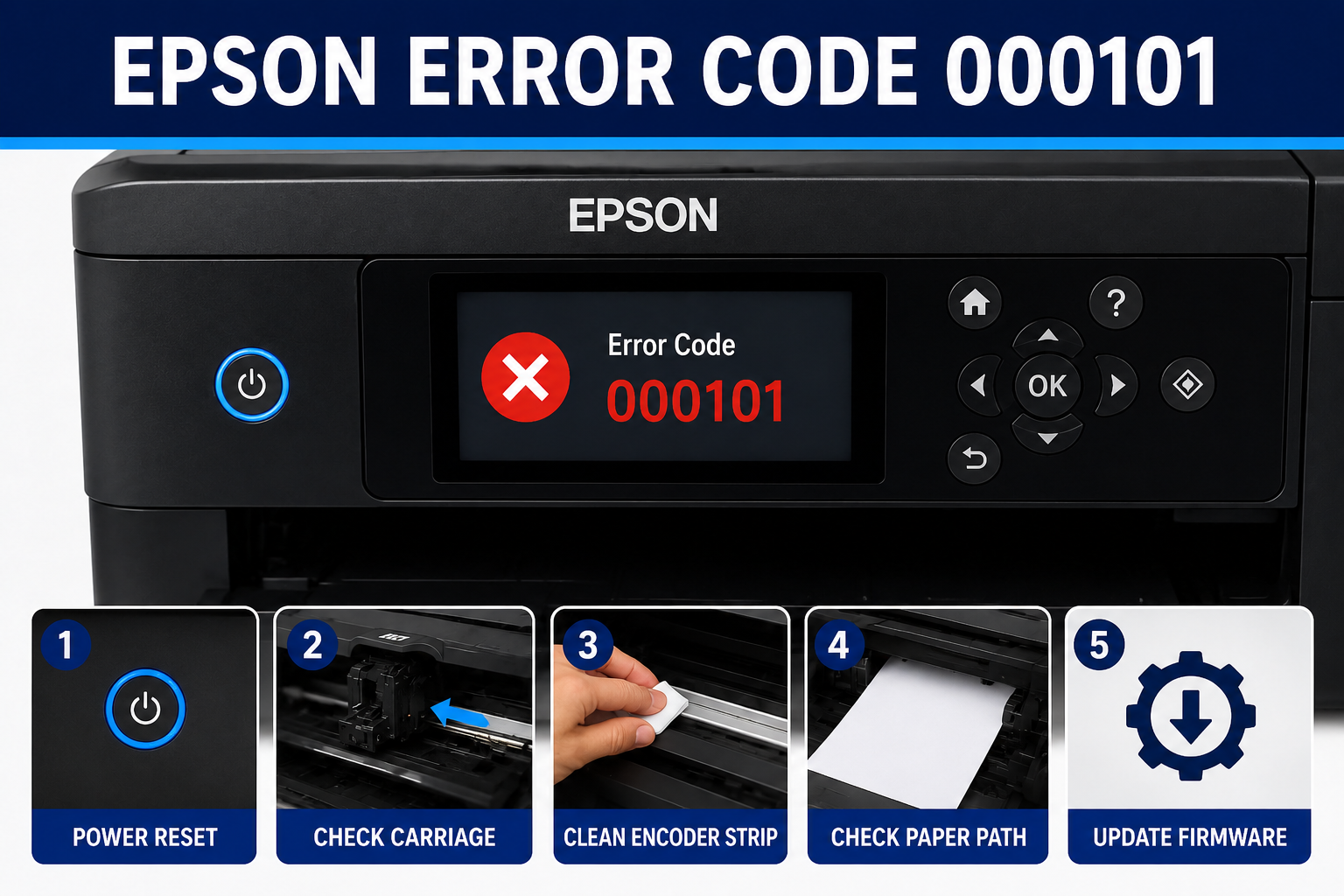
If your Epson printer suddenly displays Epson error code 000101, it can interrupt your printing tasks and leave you wondering whether the problem is minor or requires professional repair. In many cases, this error is linked to a hardware issue that affects the printer’s internal movement, such as the carriage mechanism, paper feed path, or an obstruction inside the printer. While the message may seem alarming, it does not always mean your printer is permanently damaged.
The good news is that many users can resolve Epson error code 000101 by performing a few simple troubleshooting steps before considering a service appointment. Checking for paper scraps, cleaning the paper path, inspecting the carriage, and restarting the printer often resolve the issue. However, if the error persists, it may indicate a more complex mechanical or sensor-related problem.
This comprehensive guide explains the meaning of Epson error code 000101, its common causes, practical solutions, preventive maintenance tips, and situations where professional assistance is the best option.
What You’ll Learn
By the end of this guide, you’ll understand:
- What Epson error code 000101 means.
- The most common reasons the error appears.
- How to diagnose the problem step by step.
- Easy fixes you can try at home.
- Advanced troubleshooting techniques.
- When the printer needs professional repair.
- Tips to prevent the error from returning.
- Answers to frequently asked questions about Epson error code 000101.
What Is Epson Error Code 000101?
Epson error code 000101 is a printer startup or hardware-related error that usually occurs when the printhead carriage cannot move correctly or the paper feed mechanism detects an internal obstruction. It may also result from paper jams, foreign objects, dirty rollers, sensor issues, or mechanical failures.
Unlike software errors, this code typically indicates that the printer’s internal components cannot complete their normal startup sequence. As a safety measure, the printer stops operating to prevent further damage.
Common Symptoms
If your printer displays error code 000101, you may notice one or more of the following:
- Printer stops during startup.
- Printing jobs fail immediately.
- Loud clicking or grinding noises.
- Printhead does not move.
- Paper remains inside the printer.
- LCD displays “Error Code 000101.”
- Printer becomes unresponsive.
- Scanner or multifunction features may stop working.
These symptoms often point to a mechanical issue rather than a software or driver problem.
Common Causes of Epson Error Code 000101
Understanding the root cause of the error makes troubleshooting much easier. In most cases, Epson error code 000101 is triggered by a blockage or malfunction that prevents the printer from completing its initialization process.
1. Paper Jam
Even a tiny piece of torn paper can block the printer’s sensors or prevent the carriage from moving freely. Hidden paper fragments are one of the most common causes of startup errors.
Signs include:
- Crumpled paper inside the printer.
- Grinding sounds during startup.
- Paper feed stopping midway.
2. Foreign Objects Inside the Printer
Small items such as paper clips, staples, labels, bits of packaging, or dust buildup can obstruct the paper path or carriage mechanism.
Common objects found inside printers include:
- Staples
- Paper clips
- Sticky labels
- Torn paper pieces
- Dust accumulation
- Small plastic fragments
3. Printhead Carriage Obstruction
The printhead carriage must move smoothly across the printer during startup. If something blocks its movement, the printer detects abnormal resistance and displays Epson error code 000101.
Possible reasons include:
- Ink buildup
- Misaligned cartridges
- Broken carriage belt
- Physical obstruction
- Damaged carriage rail
4. Dirty or Worn Paper Feed Rollers
Paper feed rollers gradually collect dust, paper fibers, and ink residue. Over time, they may struggle to grip paper correctly, leading to feeding problems that contribute to hardware-related errors.
Common warning signs include:
- Multiple sheets feeding together.
- Paper not entering properly.
- Frequent paper jams.
- Slipping rollers.
- Uneven paper movement.
5. Sensor or Mechanical Failure
If no visible obstruction is present, the issue may involve an internal sensor or another mechanical component that detects the printer’s operating status.
Examples include:
- Carriage position sensor malfunction.
- Paper feed sensor failure.
- Encoder strip contamination.
- Motor issues.
- Internal gear damage.
These problems typically require more advanced diagnosis and, in some cases, professional repair.
How to Fix Epson Error Code 000101
If your Epson printer is displaying Epson error code 000101, don’t panic. In many cases, the issue can be resolved without replacing any parts or taking the printer to a repair center. Start with the simplest solutions and move on to more advanced troubleshooting only if the error persists.
Expert Tip: Disconnect the printer from the power source before inspecting any internal components. This reduces the risk of electrical damage and allows the printer to reset completely.
Step 1: Restart the Printer
A temporary hardware glitch can sometimes trigger Epson error code 000101. Restarting the printer clears temporary memory and allows the printer to perform a fresh hardware check.
How to Restart Your Epson Printer
- Turn off the printer using the Power button.
- Unplug the power cable from the wall outlet.
- Disconnect the USB or Ethernet cable (if connected).
- Wait for 5–10 minutes.
- Plug the power cable back in.
- Turn on the printer.
- Check if the error has disappeared.
Why This Works
Restarting the printer resets the hardware initialization process and clears minor communication issues between the printer’s components.
Step 2: Check for Paper Jams
Paper jams are one of the leading causes of Epson error code 000101. Even a tiny piece of paper left inside the printer can block sensors or prevent the printhead carriage from moving.
Inspect These Areas Carefully
- Rear paper feed
- Front output tray
- Duplex unit
- Paper cassette
- Under the printhead carriage
- Rear access panel
Best Practices
- Remove paper slowly using both hands.
- Pull paper in the direction of the paper path.
- Never force stuck paper out.
- Use a flashlight to inspect hidden areas.
Common Mistake: Users often remove the visible paper but leave behind small scraps that continue triggering the error.
Step 3: Inspect the Printhead Carriage
The printhead carriage should move smoothly from one side of the printer to the other. If it cannot move freely, the printer may stop during startup and display Epson error code 000101.
How to Check the Carriage
- Turn the printer off.
- Open the scanner or printer cover.
- Wait until the carriage unlocks.
- Gently slide the carriage left and right.
- Check for resistance or unusual noises.
- Remove any visible obstruction.
Look for
- Torn paper
- Dust buildup
- Packing materials
- Loose labels
- Foreign objects
- Ink buildup
If the carriage does not move at all, avoid forcing it, as this may damage the carriage belt or motor.
Step 4: Remove Foreign Objects
Many printer owners are surprised to find everyday items lodged inside the printer. These objects can block the paper path or interfere with the carriage movement.
Common Objects Found Inside Printers
| Object | Can Cause Error 000101? | Recommended Action |
|---|---|---|
| Torn paper | Yes | Remove carefully |
| Staples | Yes | Remove with tweezers |
| Paper clips | Yes | Remove immediately |
| Sticky labels | Yes | Peel off gently |
| Dust buildup | Yes | Clean with compressed air |
| Packaging tape | Yes | Remove completely |
Expert Recommendation
Use a flashlight and inspect every corner of the printer before restarting it.
Step 5: Check the Ink Cartridges
Improperly installed or damaged ink cartridges may interfere with the printhead carriage’s movement.
Inspect the Cartridges
Check for:
- Loose cartridges
- Incorrect installation
- Protective tape still attached
- Ink leakage
- Damaged cartridge housing
If necessary:
- Remove each cartridge.
- Inspect the contacts.
- Reinstall them securely.
- Close the printer cover.
- Restart the printer.
Step 6: Clean the Encoder Strip
The encoder strip is a thin transparent plastic strip located behind the printhead carriage. It helps the printer determine the carriage’s exact position.
If it becomes dirty, the printer may fail its startup sequence.
Signs of a Dirty Encoder Strip
- Random carriage movement
- Grinding noises
- Startup failure
- Repeated hardware errors
Cleaning Procedure
- Turn off the printer.
- Locate the transparent encoder strip.
- Use a lint-free cloth slightly dampened with distilled water.
- Wipe gently from one end to the other.
- Allow it to dry completely.
- Restart the printer.
Important: Never use alcohol or abrasive cleaners on the encoder strip.
Step 7: Clean the Paper Feed Rollers
Dirty rollers can prevent paper from feeding correctly, causing startup issues.
Supplies Needed
- Lint-free cloth
- Distilled water
- Cotton swabs
Cleaning Steps
- Turn off the printer.
- Locate the paper feed rollers.
- Dampen the cloth slightly.
- Rotate each roller manually while cleaning.
- Allow the rollers to dry.
- Test the printer again.
Benefits of Cleaning Rollers
- Better paper feeding
- Fewer paper jams
- Improved print reliability
- Reduced hardware errors
Step 8: Update Printer Firmware
Firmware updates often include bug fixes, hardware compatibility improvements, and performance enhancements that may resolve startup errors.
Before Updating
Ensure:
- Stable power supply
- Reliable internet connection
- Printer remains powered on throughout the update
Benefits of Firmware Updates
- Fixes known bugs
- Improves hardware communication
- Enhances printer stability
- Optimizes performance
Step 9: Perform a Printer Reset
If the previous solutions do not work, resetting the printer may clear temporary hardware faults.
Basic Reset Procedure
- Turn off the printer.
- Unplug the power cable.
- Wait for 10 minutes.
- Reconnect the power cable.
- Turn the printer back on.
- Check if the error has been resolved.
Keep in mind that a basic reset may not fix issues caused by damaged hardware.
When to Contact Epson Support
If Epson error code 000101 continues after completing all troubleshooting steps, the printer may have an internal mechanical or electronic fault that requires professional attention.
Seek Professional Repair If
- The carriage does not move at all.
- You hear loud grinding noises.
- The printer displays the error immediately after startup.
- There is visible damage to internal components.
- The printer repeatedly jams despite being clear.
- The error returns after every reset.
Attempting to disassemble the printer without the proper tools or expertise can lead to additional damage and may void the warranty.
How to Prevent Epson Error Code 000101
Preventive maintenance can significantly reduce the likelihood of encountering hardware-related errors.
Maintenance Checklist
- Clean the printer every month.
- Use high-quality paper recommended by Epson.
- Avoid overloading the paper tray.
- Remove paper jams carefully.
- Keep the printer free from dust.
- Store paper in a dry environment.
- Install genuine Epson ink cartridges.
- Update firmware regularly.
- Perform routine nozzle checks and printhead cleaning.
- Turn off the printer using the Power button instead of unplugging it.
Expert Insight
Regular maintenance not only helps prevent Epson error code 000101 but also extends the overall lifespan of your printer and improves print quality over time.
Troubleshooting Summary Table
| Problem | Possible Cause | Recommended Solution |
|---|---|---|
| Error 000101 on startup | Carriage obstruction | Inspect and clear carriage path |
| Printer won’t print | Paper jam | Remove all jammed paper |
| Grinding noise | Foreign object inside printer | Remove obstruction carefully |
| Paper not feeding | Dirty feed rollers | Clean rollers |
| Carriage stuck | Ink buildup or blockage | Inspect and clean carriage area |
| Error after cartridge replacement | Improper cartridge installation | Reinstall cartridges correctly |
| Random startup failures | Firmware issue | Update printer firmware |
| Error persists after all fixes | Mechanical failure | Contact Epson Support |
Common Mistakes to Avoid
Many users accidentally make the problem worse by trying quick fixes without identifying the actual cause.
Avoid these mistakes:
- Pulling jammed paper out forcefully.
- Touching the encoder strip with dirty hands.
- Using sharp tools to remove obstructions.
- Ignoring unusual grinding or clicking noises.
- Installing incompatible or damaged ink cartridges.
- Using low-quality or damp paper.
- Skipping routine printer maintenance.
- Turning off the printer by unplugging it instead of using the Power button.
By avoiding these common errors and following the troubleshooting steps in this guide, you can often resolve Epson error code 000101 without the need for costly repairs.
Frequently Asked Questions (FAQ)
1. What is Epson error code 000101?
Answer: Epson error code 000101 is a hardware-related startup error that usually occurs when the printhead carriage, paper feed mechanism, or an internal sensor cannot complete the printer’s initialization process. Common causes include paper jams, obstructions, dirty rollers, or mechanical failures.
2. Can I fix Epson error code 000101 myself?
Yes. In many cases, you can resolve the issue by:
- Restarting the printer
- Removing paper jams
- Checking the printhead carriage
- Cleaning the paper feed rollers
- Removing foreign objects
- Updating the printer firmware
If these steps do not work, professional repair may be required.
3. Does a paper jam cause Epson error code 000101?
Yes. Even a tiny piece of torn paper left inside the printer can block sensors or restrict carriage movement, causing Epson error code 000101.
4. Is Epson error code 000101 a serious problem?
Not always. Many cases are caused by minor obstructions or maintenance issues that users can fix at home. However, if the error persists after troubleshooting, it may indicate a mechanical or electronic hardware fault.
5. Should I reset my Epson printer?
Yes. Performing a basic power reset is a good first troubleshooting step because it clears temporary hardware glitches and allows the printer to restart its initialization process.
6. Why is my Epson printer making grinding noises?
Grinding noises usually indicate:
- A paper jam
- A blocked printhead carriage
- A foreign object inside the printer
- A damaged gear or motor
Stop using the printer until you identify the cause.
7. Can third-party ink cartridges cause error 000101?
Although not always the direct cause, poorly manufactured or improperly installed third-party cartridges can interfere with carriage movement or prevent proper printer initialization.
8. How do I prevent Epson error code 000101?
You can reduce the chances of this error by:
- Cleaning the printer regularly
- Using genuine Epson ink cartridges
- Keeping paper dry
- Removing paper jams carefully
- Updating firmware
- Cleaning paper feed rollers
- Avoiding overloaded paper trays
9. When should I contact Epson support?
Contact Epson support if:
- The printer still displays error 000101 after troubleshooting.
- The carriage does not move.
- You hear continuous grinding noises.
- Internal components appear damaged.
- The printer is still under warranty.
10. Does updating firmware fix Epson error code 000101?
Sometimes. Firmware updates can resolve known software or hardware communication bugs, although they cannot repair damaged mechanical components.