Epson Error Code 000041: Causes, Fixes & Complete Troubleshooting Guide
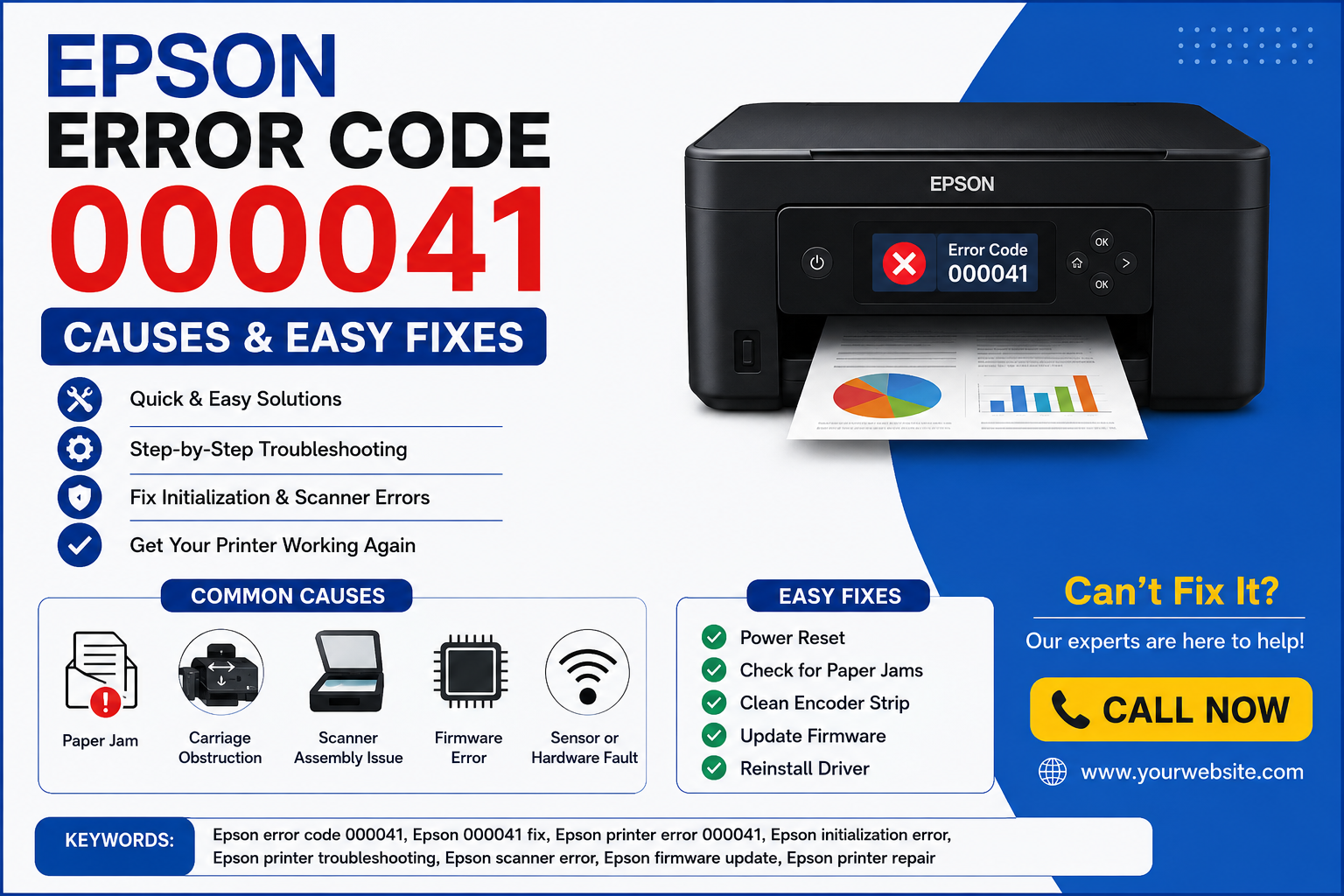
If your Epson printer suddenly displays Epson error code 000041, you’re likely unable to print, scan, or even complete the printer’s startup process. This error typically appears during initialization and usually points to a problem with the printer’s internal hardware, carriage movement, scanner mechanism, or firmware.
The good news is that many cases can be resolved without replacing the printer. By following a structured troubleshooting process, you can identify the root cause and restore normal operation.
In this comprehensive guide, you’ll learn:
- What Epson Error Code 000041 means
- Common causes behind the error
- Step-by-step troubleshooting methods
- Advanced diagnostic techniques
- When to seek professional repair
- Tips to prevent the error from recurring
What Is Epson Error Code 000041?
Epson Error Code 000041 is an initialization error that typically occurs when the printer detects a problem with the carriage assembly, scanner unit, internal sensors, firmware, or another hardware component during startup. The printer halts operation to prevent further damage until the issue is resolved.
Unlike simple paper jams or low ink warnings, Error Code 000041 indicates that the printer cannot complete its self-check sequence successfully.
During startup, the printer checks:
- Printhead movement
- Carriage motor operation
- Scanner initialization
- Sensor communication
- Internal electronics
- Firmware status
If any of these checks fail, Error Code 000041 may appear on the display.
Common Causes of Epson Error Code 000041
Several different issues can trigger this error. Identifying the exact cause is the first step toward a successful repair.
| Cause | Severity | Can You Fix It? |
|---|---|---|
| Paper jam | Low | Yes |
| Carriage obstruction | Low | Yes |
| Dirty encoder strip | Medium | Yes |
| Scanner lock engaged | Medium | Yes |
| Firmware corruption | Medium | Yes |
| Sensor malfunction | High | Sometimes |
| Carriage motor failure | High | Usually requires repair |
| Mainboard failure | Critical | Professional service recommended |
In many cases, the problem is mechanical rather than electronic, which means careful inspection can resolve it without expensive repairs.
Signs Your Epson Printer Has Error Code 000041
Before the error appears, you may notice several warning signs that indicate something isn’t functioning correctly.
Common symptoms include:
- Printer freezes during startup
- Initialization never completes
- Carriage stops moving halfway
- Grinding or clicking noises
- Scanner fails to initialize
- The display shows Error 000041
- Printer repeatedly restarts
- Printing jobs remain stuck in the queue
- Scanner lamp behaves abnormally
- Buttons become unresponsive
If multiple symptoms occur together, the issue is more likely related to internal hardware than software.
How Epson Printers Initialize During Startup
Understanding the startup sequence makes it easier to identify where the error occurs.
When powered on, an Epson printer performs several automatic checks before it becomes ready to print.
Step 1: Firmware Loads
The printer’s firmware initializes the motherboard and checks essential components.
Step 2: Carriage Moves
The printhead carriage travels across the rail to confirm smooth movement and proper motor operation.
Step 3: Sensor Calibration
Position sensors verify that the carriage, paper feed system, and other moving parts are aligned correctly.
Step 4: Scanner Initialization
On all-in-one models, the scanner assembly moves to its home position and calibrates.
Step 5: Ready State
Once all checks pass successfully, the printer enters standby mode and is ready for printing.
If any step fails, the printer interrupts the startup process and displays Epson Error Code 000041 to protect internal components from potential damage.
How to Fix Epson Error Code 000041: Step-by-Step Troubleshooting
The best way to resolve Epson Error Code 000041 is to start with simple checks before moving on to advanced diagnostics. Many users can fix the problem without replacing any parts.
Follow these solutions in order.
Method 1: Perform a Complete Power Reset
A power reset clears temporary memory errors and allows the printer to reinitialize.
Steps
- Turn off the printer using the Power button.
- Disconnect the power cable from the wall outlet.
- Remove the USB or Ethernet cable.
- Wait for 5–10 minutes.
- Press and hold the Power button for 30 seconds while unplugged to discharge any remaining power.
- Reconnect the power cable directly to a wall outlet (avoid extension boards if possible).
- Turn the printer back on.
Why It Works
A power reset clears temporary firmware glitches that may interrupt the printer’s startup sequence.
Expert Tip: If the error disappears after a power reset but returns frequently, it could indicate an underlying hardware issue that needs further investigation.
Method 2: Check for Paper Jams and Foreign Objects
Even a small scrap of paper or a paper clip can block the carriage and trigger Error Code 000041.
Inspect These Areas
- Rear paper feed
- Front output tray
- Duplex unit (if equipped)
- Under the printhead carriage
- Ink cartridge compartment
- Scanner bed edges
Look For
- Torn paper pieces
- Staples
- Labels
- Dust buildup
- Packing materials
- Plastic fragments
Common Mistake
Never pull jammed paper forcefully. Remove it slowly in the direction of the paper path to avoid damaging internal sensors.
Method 3: Inspect the Printhead Carriage
The printhead carriage must move freely during initialization. If it encounters resistance, the printer may stop and display Error Code 000041.
How to Inspect
- Turn off the printer.
- Unplug the power cord.
- Open the printer cover.
- Wait until the carriage unlocks.
- Gently slide the carriage from side to side.
Normal Behavior
The carriage should move smoothly without resistance.
Possible Problems
- Ink buildup
- Foreign objects
- Broken gears
- Obstructed rails
- Bent components
If You Find Resistance
Remove any visible obstruction using tweezers or compressed air. Avoid forcing the carriage, as excessive pressure can damage the carriage motor or guide rail.
Method 4: Clean the Encoder Strip
The encoder strip is a thin transparent plastic strip located behind the printhead carriage. It helps the printer determine the carriage’s exact position.
If the strip becomes dirty with ink, grease, or dust, the printer may lose track of the carriage location.
Signs of a Dirty Encoder Strip
- The carriage jerks suddenly
- Grinding noises
- Repeated startup failures
- Incorrect carriage positioning
- Error Code 000041 during initialization
Cleaning Steps
- Turn off and unplug the printer.
- Locate the encoder strip.
- Use a lint-free microfiber cloth lightly dampened with distilled water.
- Wipe the strip gently from one end to the other.
- Allow it to dry completely before restarting.
Warning: Never use alcohol, acetone, or abrasive cleaners on the encoder strip, as they can damage its markings.
Method 5: Check the Scanner Assembly
For Epson all-in-one printers, the scanner assembly performs a calibration during startup. If it cannot move correctly, the printer may display Error Code 000041.
Inspect for
- Shipping lock still engaged
- Obstructions under the scanner bed
- Broken scanner belt
- Misaligned scanner carriage
- Loose ribbon cables
Symptoms of Scanner Failure
- Loud clicking noises
- Scanner lamp does not move
- Scanner stops halfway
- Continuous calibration attempts
If the scanner mechanism appears damaged, professional servicing is recommended.
Method 6: Verify Ink Cartridge Installation
Improperly seated ink cartridges can sometimes interrupt printer initialization.
Check That
- Every cartridge clicks securely into place.
- Genuine or compatible cartridges are installed correctly.
- Protective tape has been removed.
- Cartridge contacts are clean and undamaged.
Clean the Contacts
Use a dry, lint-free cloth to gently wipe the cartridge contacts. Avoid touching the contacts with your fingers.
Method 7: Update the Printer Firmware
Firmware updates often include bug fixes that improve hardware communication and startup reliability.
Steps
- Visit Epson’s official support website.
- Download the latest firmware for your printer model.
- Connect the printer directly via USB if recommended.
- Run the firmware updater.
- Wait until the update finishes without interrupting the process.
Benefits
- Fixes initialization bugs
- Improves hardware compatibility
- Resolves known firmware issues
- Enhances printer stability
Important: Never turn off the printer during a firmware update. Interrupting the process may corrupt the firmware.
Method 8: Reinstall the Printer Driver
Although Error Code 000041 is commonly hardware-related, a corrupted driver can occasionally interfere with printer communication.
Windows
- Open Device Manager.
- Expand Printers.
- Right-click your Epson printer.
- Select Uninstall device.
- Restart your computer.
- Download and install the latest driver from Epson’s support page.
macOS
- Open System Settings > Printers & Scanners.
- Remove the Epson printer.
- Restart your Mac.
- Add the printer again using the latest driver.
Method 9: Inspect Internal Sensors
Modern Epson printers rely on multiple sensors to detect carriage position, paper movement, and scanner alignment.
A faulty or blocked sensor may trigger Error Code 000041.
Possible Sensor Issues
- Dust accumulation
- Ink contamination
- Misalignment
- Damaged sensor wiring
- Failed optical sensor
If you’re comfortable opening the printer, inspect accessible sensors for visible contamination. Otherwise, consult a technician.
Method 10: Check the Carriage Motor
The carriage motor drives the printhead across the guide rail.
Signs of Motor Failure
- Loud grinding noises
- Carriage does not move
- Jerky movement
- Burning smell
- Startup stops immediately
Can You Repair It?
Replacing a carriage motor requires partial disassembly of the printer and is generally not recommended for beginners.
Method 11: Examine the Mainboard
If all mechanical components appear functional, the issue may originate from the printer’s logic board.
Possible Mainboard Problems
- Burned components
- Power regulation failure
- Damaged connectors
- Corrupted firmware memory
A failed mainboard often requires professional diagnosis and replacement.
Troubleshooting Table
| Problem | Likely Cause | Recommended Solution |
|---|---|---|
| The printer won’t start | Firmware glitch | Perform power reset |
| The carriage won’t move | Obstruction | Inspect carriage path |
| Clicking noise | Scanner issue | Check scanner assembly |
| Grinding sound | Carriage motor | Inspect motor and gears |
| Startup freezes | Encoder strip dirty | Clean encoder strip |
| Random restarts | Firmware corruption | Update firmware |
| The error persists after the reset. | Hardware fault | Professional repair |
Common Mistakes to Avoid
Avoiding these mistakes can prevent further damage:
- Forcing the printhead carriage manually
- Pulling jammed paper in the wrong direction
- Using household cleaners on printer components
- Updating firmware during unstable power conditions
- Ignoring unusual noises
- Opening sealed electronic components without experience
- Using incompatible ink cartridges
- Continuing to power-cycle the printer repeatedly without inspection
When Should You Contact Epson Support?
Professional assistance is recommended if:
- Error Code 000041 remains after completing all troubleshooting steps.
- The carriage motor has failed.
- The scanner assembly is damaged.
- The mainboard shows signs of failure.
- The printer is still under warranty.
- There is visible smoke, a burning smell, or liquid damage.
Attempting complex repairs without the proper tools may void your warranty or cause additional damage.
Preventing Epson Error Code 000041
Routine maintenance can reduce the likelihood of initialization errors.
Best Practices
- Keep the printer in a clean, dust-free environment.
- Use high-quality paper to minimize jams.
- Remove jammed paper carefully.
- Clean the encoder strip periodically.
- Install firmware updates when available.
- Use genuine Epson ink cartridges whenever possible.
- Avoid turning off the printer during startup.
- Schedule regular maintenance for high-volume printing environments.
- Inspect the paper path for debris every few weeks.
- Keep liquids away from the printer.
Expert Recommendation
For offices and businesses with heavy printing demands, performing a preventive inspection every 3–6 months can help detect worn rollers, dirty sensors, or carriage alignment issues before they lead to startup errors like Epson Error Code 000041.
Frequently Asked Questions (FAQ)
1. What does Epson Error Code 000041 mean?
Epson Error Code 000041 indicates that the printer failed its startup or initialization process. The issue is usually related to the printhead carriage, scanner mechanism, internal sensors, firmware, or another hardware component that prevents the printer from completing its self-check.
2. Can I fix Epson Error Code 000041 myself?
Yes. In many cases, you can resolve the error by performing a power reset, removing paper jams, checking the carriage path, cleaning the encoder strip, or updating the printer firmware. Hardware failures may require professional repair.
3. Does a paper jam cause Error Code 000041?
Yes. Even a small piece of torn paper or debris can block the carriage or paper path, causing the printer to stop during initialization and display Error Code 000041.
4. Is Epson Error Code 000041 a hardware problem?
It can be. While temporary firmware glitches may trigger the error, persistent occurrences are often linked to hardware issues such as a faulty carriage motor, dirty encoder strip, scanner malfunction, or damaged sensor.
5. Will updating the firmware fix Error Code 000041?
If the error is caused by corrupted or outdated firmware, installing the latest firmware from Epson may resolve the issue. Firmware updates do not repair damaged hardware components.
6. Can third-party ink cartridges cause Error Code 000041?
Incorrectly installed or low-quality compatible cartridges may interfere with initialization on some printer models. Ensure cartridges are seated properly and compatible with your Epson printer.
7. How do I know if the encoder strip is dirty?
Common signs include:
- Grinding noises
- Carriage stopping unexpectedly
- Repeated startup failures
- Incorrect carriage movement
- Error Code 000041 during initialization
8. Should I reset my Epson printer?
Yes. A complete power reset is the first troubleshooting step because it clears temporary firmware and memory errors without affecting your printer settings.
9. When should I contact Epson support?
Contact Epson support if:
- The error persists after all troubleshooting steps.
- Internal components appear damaged.
- The printer emits burning smells or unusual noises.
- The printer is under warranty.
- You suspect a mainboard or motor failure.
10. Can a damaged scanner trigger Error Code 000041?
Yes. On Epson multifunction printers, the scanner assembly performs an initialization check during startup. If it cannot complete this process, the printer may display Error Code 000041.
11. Is it worth repairing an Epson printer with Error Code 000041?
If the issue is caused by a paper jam, dirty encoder strip, or firmware glitch, repair is usually worthwhile. However, if the mainboard or carriage motor has failed on an older printer, replacement may be more cost-effective.
12. How can I prevent Epson Error Code 000041?
Preventive measures include:
- Cleaning the printer regularly
- Using quality paper
- Updating firmware
- Removing paper jams carefully
- Keeping the printer dust-free
- Performing routine maintenance