Epson Error Code 000031: Causes, Fixes, and Complete Troubleshooting Guide
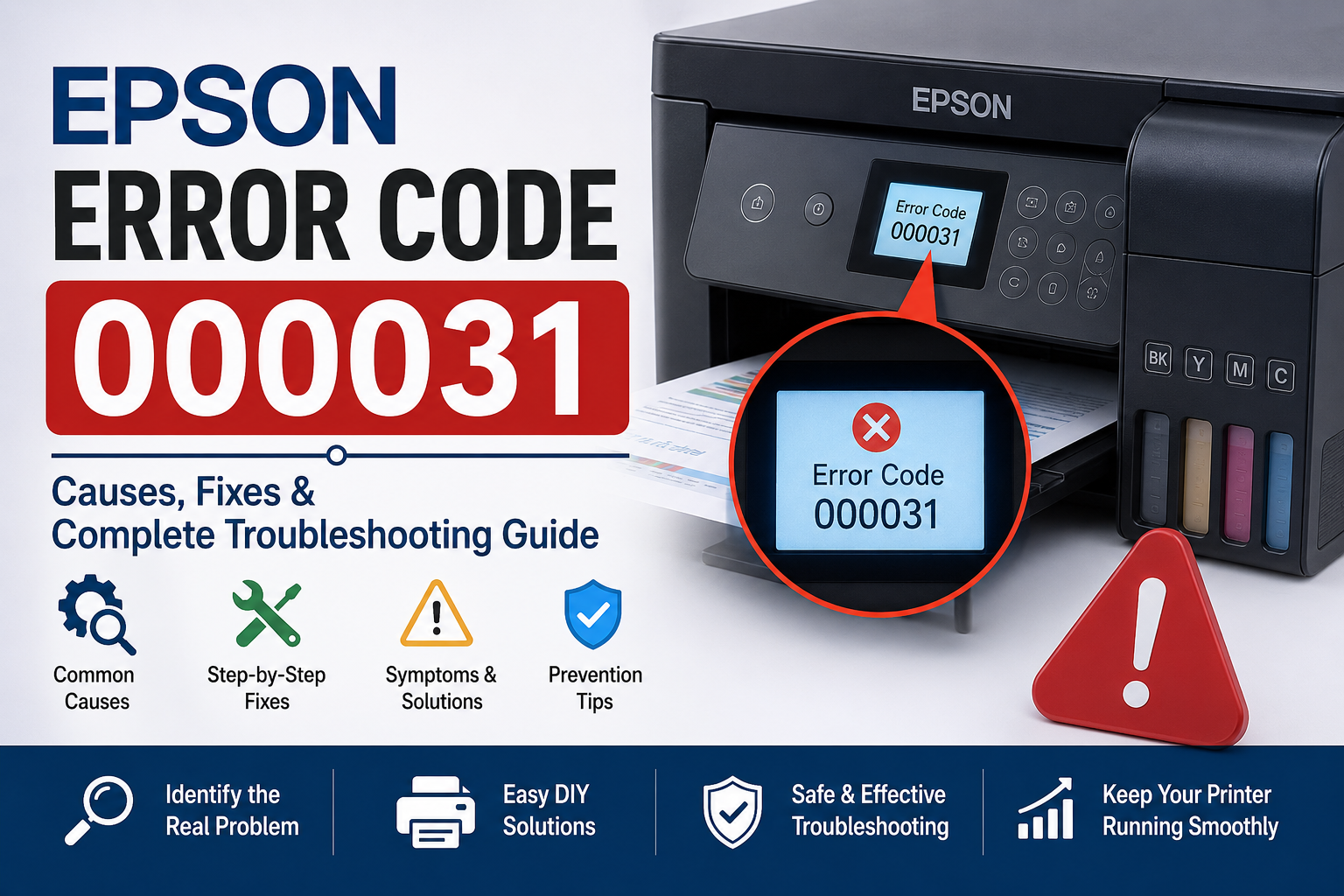
Have you turned on your Epson printer only to see Epson Error Code 000031 displayed on the screen? You’re not alone. This error is one of the most frustrating issues for Epson printer users because it often prevents the printer from starting or completing a print job. The good news is that, in many cases, the problem can be resolved without replacing the printer or paying for expensive repairs.
Error Code 000031 is generally associated with a hardware-related issue that prevents the printer’s internal components from operating normally. Depending on your Epson printer model, the error may be caused by a carriage obstruction, paper feed problem, encoder strip contamination, sensor malfunction, or even outdated firmware.
This comprehensive guide explains everything you need to know about Epson Error Code 000031, including its causes, symptoms, troubleshooting methods, preventive maintenance tips, and when it’s time to contact Epson support.
Unlike many online guides that focus on only one possible cause, this article covers every common scenario to help you diagnose the problem accurately.
What You’ll Learn
In this guide, you’ll discover:
- What Epson Error Code 000031 means
- The most common causes of the error
- Warning signs before the printer stops working
- How to diagnose the issue step by step
- Easy fixes you can perform at home
- Solutions for popular Epson EcoTank printer models
- Preventive maintenance tips
- When professional repair is necessary
- Frequently asked questions about Error Code 000031
What Does Epson Error Code 000031 Mean?
Epson Error Code 000031 is a hardware-related printer error that usually indicates the printer cannot initialize one or more internal mechanical components. It is commonly caused by a carriage jam, paper feed obstruction, dirty encoder strip, faulty sensor, or internal hardware malfunction.
Unlike ink cartridge errors, Error Code 000031 typically appears during printer startup or initialization before printing begins.
When the printer powers on, it performs a self-check by testing several mechanical components, including:
- Print head movement
- Carriage motor
- Paper feed mechanism
- Internal sensors
- Scanner assembly (on multifunction models)
If any of these components fail the startup test, the printer displays Error Code 000031 to prevent further damage.
Why Does Epson Error Code 000031 Occur?
Every Epson printer performs hundreds of mechanical operations each time it starts. Even a small obstruction can interrupt this process.
Some of the most common reasons include:
- Small pieces of torn paper inside the printer
- Dust buildup on internal sensors
- Carriage unable to move freely
- Damaged timing belt
- Dirty encoder strip
- Scanner lock left engaged
- Internal hardware failure
- Corrupted firmware
- Foreign objects inside the printer
Understanding the root cause is the key to fixing the issue permanently.
Common Symptoms of Epson Error Code 000031
Recognizing the symptoms can help narrow down the cause before you begin troubleshooting.
1. Printer Stops During Startup
The printer begins its initialization sequence but suddenly stops before reaching the ready state.
You may hear the carriage attempt to move once before everything halts.
2. LCD Displays Error Code 000031
Many Epson EcoTank printers display:
Error Code: 000031
Some older models may instead show:
- Printer Error
- Service Required
- Turn Printer Off and On Again
3. Blinking Power Light
Instead of displaying an error message, some Epson printers continuously blink the power LED.
This usually indicates the printer cannot complete its startup diagnostics.
4. Carriage Doesn’t Move
When opening the printer cover, you may notice:
- Print head remains parked
- Carriage refuses to move
- Grinding noises
- Clicking sounds
These are strong indicators of a mechanical obstruction.
5. Printer Makes Grinding Noise
Grinding or repeated clicking often suggests:
- Obstructed carriage path
- Damaged gears
- Foreign object trapped inside
- Timing belt slipping
Ignoring these sounds may worsen the problem.
6. Printing Stops Unexpectedly
Sometimes the printer begins printing but suddenly freezes before completing the page.
This usually indicates that one of the printer’s sensors detects abnormal movement.
What Causes Epson Error Code 000031?
Paper jams are the leading cause of Epson Error Code 000031.
Even after removing a jammed sheet, tiny pieces of paper can remain lodged inside the printer.
These fragments may block:
- Paper feed rollers
- Internal sensors
- Carriage movement
- Exit path
Common signs
- Paper won’t feed
- Printer makes clicking noises
- Error appears immediately after a paper jam
Expert Tip
Always inspect the printer with a flashlight. Small paper scraps are easy to miss but can continue triggering the error.
2. Foreign Objects Inside the Printer
Unexpected objects often find their way into printers, especially in homes and offices.
Examples include:
- Staples
- Paper clips
- Pen caps
- Sticky notes
- Dust buildup
- Children’s toys
- Label backing paper
Even a tiny object can prevent the carriage from moving correctly.
Before assuming the printer has failed, perform a thorough visual inspection.
3. Carriage Jam
The print head carriage moves left and right across the printer while printing.
If anything blocks this movement, the printer immediately stops to protect the motor.
Common causes include:
- Dried ink buildup
- Obstruction on carriage rail
- Broken plastic pieces
- Misaligned cartridges
- Damaged carriage guide
Symptoms
- Loud clicking
- Carriage stops halfway
- Print head feels stuck
- Error appears during startup
4. Dirty Encoder Strip
The encoder strip is a thin transparent plastic strip that helps the printer determine the exact position of the print head.
Over time it collects:
- Dust
- Ink mist
- Fingerprints
- Grease
When the printer cannot accurately read the encoder strip, it may display Error Code 000031.
Signs of a dirty encoder strip
- Carriage moves erratically
- Printing becomes misaligned
- Startup errors occur
- Random stopping during printing
Cleaning the encoder strip carefully is often enough to restore normal operation.
5. Paper Feed Sensor Problems
Modern Epson printers rely on multiple optical sensors to detect paper movement.
If one sensor becomes:
- Dirty
- Misaligned
- Damaged
- Blocked
the printer may incorrectly assume paper is jammed.
This causes Error Code 000031 even when no paper is present.
Common symptoms
- False paper jam messages
- Printer won’t feed paper
- Startup failure
- Intermittent errors
6. Timing Belt Issues
The timing belt controls carriage movement with precise accuracy.
Although timing belts are designed to last for years, they can eventually:
- Stretch
- Slip
- Crack
- Break
When this happens, the carriage cannot reach its expected position during startup.
The printer immediately stops initialization and displays Error Code 000031.
Warning signs
- Loud grinding
- Skipping carriage
- Sudden stopping
- Uneven movement
Timing belt replacement is usually considered an advanced repair and may require professional servicing.
7. Scanner Lock Left Enabled (Multifunction Printers)
If you own an Epson all-in-one printer with scanning capabilities, the scanner transport lock could be the cause.
Many users forget to unlock the scanner after moving the printer.
During startup, the scanner attempts to initialize.
If it cannot move, the printer may display Error Code 000031.
Always check that the scanner lock switch is in the unlocked position after transportation.
8. Firmware or Initialization Errors
Although less common than hardware issues, outdated or corrupted firmware can sometimes trigger startup errors.
Possible causes include:
- Interrupted firmware updates
- Power outages during initialization
- Software corruption
- Communication issues between printer components
Keeping your printer firmware updated can improve stability and resolve known bugs.
How to Fix Epson Error Code 000031 (Step-by-Step)
If your Epson printer displays Error Code 000031, don’t panic. In many cases, the issue can be resolved without replacing parts. Follow these troubleshooting steps in order, testing the printer after each one.
Important: Always turn off the printer and unplug the power cable before opening the printer or touching internal components.
Step 1: Perform a Complete Power Reset
A power reset clears temporary hardware glitches and reinitializes the printer.
How to do it
- Turn off the printer.
- Unplug the power cable from both the printer and the wall outlet.
- Disconnect the USB or Ethernet cable if connected.
- Wait for 5–10 minutes.
- Press and hold the Power button for 30 seconds while unplugged.
- Reconnect the power cable.
- Turn the printer back on.
Why it works
Residual electrical charge inside the printer can sometimes prevent proper startup. A full power reset forces the printer to initialize from scratch.
Success Rate: Moderate for firmware or temporary startup issues.
Step 2: Check for Hidden Paper Jams
Many users remove visible paper but overlook tiny scraps trapped inside the printer.
Areas to inspect
- Rear paper feed
- Front output tray
- Duplex unit (if equipped)
- Under the print head
- Paper rollers
- Maintenance area
Use a flashlight to inspect every corner of the printer.
Look for
- Torn paper
- Sticky labels
- Envelopes
- Thick paper
- Cardstock fragments
Even a piece as small as one inch can trigger Error Code 000031.
Step 3: Remove Any Foreign Objects
Objects accidentally dropped into the printer are a common cause of carriage movement errors.
Common items found inside printers
- Staples
- Paper clips
- Pen caps
- Binder clips
- Coins
- Label backing
- Plastic packaging
- Dust buildup
Gently tilt the printer if necessary and remove any visible objects with tweezers. Avoid using sharp tools that could damage internal components.
Step 4: Check the Print Head Carriage
The carriage should move smoothly across the metal rail.
How to inspect it
- Turn off the printer.
- Open the top cover.
- Wait until the carriage unlocks (if applicable).
- Carefully move the carriage from left to right.
Normal behavior
- Smooth movement
- No resistance
- No grinding sounds
If the carriage feels stuck
Look for:
- Ink buildup
- Paper fragments
- Broken plastic pieces
- Misaligned ink cartridges
Never force the carriage. Excessive pressure can damage the carriage motor or guide rail.
Step 5: Inspect the Encoder Strip
The encoder strip is a thin, transparent plastic strip that runs behind the print head.
It tells the printer the exact position of the carriage.
If the strip becomes dirty, you may notice:
- Startup errors
- Misaligned printing
- Carriage movement problems
- Error Code 000031
Cleaning procedure
- Turn off the printer.
- Locate the transparent strip.
- Use a lint-free microfiber cloth lightly dampened with distilled water.
- Wipe gently from one end to the other.
- Allow it to dry completely.
Do not use alcohol, paper towels, or excessive force, as these can damage the strip.
Step 6: Inspect the Paper Feed Rollers
Dirty rollers can cause the printer to misread paper movement.
Signs of dirty rollers
- Paper doesn’t feed
- Multiple sheets feed together
- Grinding noises
- False paper jam messages
Cleaning steps
- Use a lint-free cloth.
- Lightly dampen it with water.
- Rotate each roller while cleaning.
- Allow the rollers to dry before testing the printer.
Clean rollers improve paper feeding and reduce sensor-related errors.
Step 7: Verify the Scanner Lock (Multifunction Printers)
If your Epson printer includes a scanner, locate the scanner transport lock.
Check that it is:
- In the Unlocked position
- Not jammed
- Free of obstructions
A locked scanner can prevent the printer from completing its startup sequence.
Step 8: Update the Printer Firmware
Firmware updates often fix bugs related to startup and hardware initialization.
Before updating
Ensure:
- Stable power supply
- Reliable internet connection (if using Wi-Fi)
- No interruption during installation
Always download firmware from Epson’s official support website for your printer model.
Step 9: Reset the Printer Settings
Some Epson printers allow users to restore factory defaults.
A factory reset can clear:
- Startup configuration errors
- Network settings
- Temporary firmware conflicts
Remember that resetting the printer may erase Wi-Fi and custom settings, so you’ll need to configure them again afterward.
Step 10: Contact Epson Support
If none of the previous steps resolve Error Code 000031, the issue may involve a hardware component that requires professional diagnosis.
Possible failures include:
- Carriage motor
- Mainboard
- Timing belt
- Paper feed sensor
- Encoder sensor
- Scanner motor
- Power supply board
Avoid disassembling the printer beyond basic maintenance unless you have experience repairing printers.
Troubleshooting Table for Epson Error Code 000031
| Symptom | Possible Cause | Recommended Solution |
|---|---|---|
| Printer won’t start | Hardware initialization failure | Power reset |
| Paper jam message remains | Hidden paper scraps | Remove debris |
| Grinding noise | Carriage obstruction | Inspect carriage path |
| Print head won’t move | Carriage jam | Remove obstruction |
| Error after moving printer | Scanner lock engaged | Unlock scanner |
| False paper jam | Dirty sensor | Clean sensors |
| Carriage moves erratically | Dirty encoder strip | Clean encoder strip |
| Startup freezes | Firmware issue | Update firmware |
Model-Specific Solutions
Although Error Code 000031 has similar causes across Epson printers, some models have unique characteristics.
Epson L3210 Error Code 000031
The Epson L3210 is one of the most popular EcoTank printers.
Most common causes:
- Paper scraps
- Dirty encoder strip
- Scanner initialization problem
- Carriage obstruction
Recommended troubleshooting
- Perform a power reset.
- Check under the carriage for paper.
- Clean the encoder strip.
- Verify scanner movement.
Epson L3250 Error Code 000031
The L3250 adds Wi-Fi functionality but shares the same print mechanism.
Common causes include:
- Carriage movement errors
- Firmware bugs
- Dust accumulation
- Feed roller contamination
Updating firmware can be particularly helpful for this model.
Epson L3110 Error Code 000031
Users frequently report:
- Carriage jams
- Paper feed issues
- Internal obstructions
Pay close attention to the rear paper feed and carriage rail.
Epson L3150 Error Code 000031
If the error appears after transportation:
- Check the scanner lock.
- Verify ink tanks are properly secured.
- Ensure nothing shifted inside the printer during transport.
Epson ET-Series Printers
Popular models such as the ET-2800, ET-2850, and ET-3850 may display Error Code 000031 because of:
- Feed sensor issues
- Encoder strip contamination
- Carriage motor resistance
Routine cleaning significantly reduces these problems.
Common Mistakes to Avoid
Many users unintentionally make the problem worse while attempting repairs.
Avoid these common mistakes:
- Forcing the carriage to move
- Pulling jammed paper too quickly
- Using excessive force
- Cleaning the encoder strip with alcohol
- Touching sensors with dirty hands
- Ignoring grinding noises
- Updating firmware during an unstable power supply
- Using compressed air too close to sensitive components
Preventing Epson Error Code 000031
Preventive maintenance can reduce the likelihood of hardware errors and extend your printer’s lifespan.
1. Keep the Printer Clean
Dust accumulates over time and can interfere with sensors and moving parts.
- Wipe the exterior weekly.
- Remove paper dust from the input tray.
- Clean rollers periodically.
2. Use High-Quality Paper
Low-quality paper creates more dust and tears easily.
Avoid:
- Damp paper
- Curled sheets
- Torn pages
- Staples or folded paper
3. Store the Printer Properly
Place the printer on:
- A stable surface
- Away from direct sunlight
- In a dry environment
- Free from excessive dust
Avoid placing heavy objects on top of the printer.
4. Perform Regular Maintenance
A simple monthly maintenance routine can prevent many common issues.
Checklist:
- Clean paper rollers.
- Remove dust.
- Check the carriage path.
- Inspect the encoder strip.
- Update firmware when available.
5. Turn Off the Printer Correctly
Always use the printer’s Power button instead of unplugging it while it’s running.
Proper shutdown allows the print head to return to its parked position safely.
When Should You Contact Epson Support?
Seek professional assistance if:
- Error Code 000031 persists after completing all troubleshooting steps.
- You hear loud grinding or repeated clicking noises.
- The carriage cannot move even after removing obstructions.
- The printer smells like burnt plastic or overheats.
- A timing belt or internal gear appears damaged.
- The printer repeatedly fails during startup despite a factory reset.
These symptoms may indicate a deeper hardware issue that requires specialized tools or replacement parts.
Frequently Asked Questions (FAQs)
What does Epson Error Code 000031 mean?
Epson Error Code 000031 indicates that the printer has detected a hardware initialization problem. The issue is commonly related to the print head carriage, paper feed mechanism, encoder strip, internal sensors, or another mechanical component that prevents the printer from starting normally.
Can I fix Epson Error Code 000031 myself?
Yes. In many cases, you can resolve the error by:
- Performing a power reset
- Removing paper jams
- Cleaning the encoder strip
- Checking the carriage path
- Removing foreign objects
- Updating the printer firmware
If the problem persists after these steps, professional servicing may be required.
Does Error Code 000031 indicate a paper jam?
Not always. While hidden paper fragments are a common cause, the error can also result from:
- Carriage obstructions
- Dirty sensors
- Scanner lock issues
- Timing belt problems
- Hardware failures
A complete inspection is recommended.
Why does my Epson printer show Error Code 000031 even when there’s no paper jam?
Small paper scraps, dust-covered sensors, or carriage movement issues can trigger the error even when no visible paper is stuck. Carefully inspect the printer’s interior and clean accessible components.
Can outdated firmware cause Epson Error Code 000031?
Although the error is usually hardware-related, outdated or corrupted firmware can occasionally interfere with the printer’s startup process. Installing the latest firmware from Epson may resolve known software issues.
Is Epson Error Code 000031 covered under warranty?
If your printer is still within the manufacturer’s warranty period and the issue isn’t caused by accidental damage or misuse, Epson may repair or replace the printer according to its warranty policy. Check your warranty status before arranging service.
Which Epson printers commonly display Error Code 000031?
The error has been reported on several Epson EcoTank models, including:
- Epson L3210
- Epson L3250
- Epson L3110
- Epson L3150
- Epson ET-2800 Series
- Epson ET-2850 Series
The exact cause may vary depending on the model.
How can I prevent Epson Error Code 000031?
To reduce the risk of this error:
- Clean the printer regularly
- Use high-quality paper
- Remove paper jams carefully
- Keep firmware updated
- Avoid forcing the print head carriage
- Store the printer in a clean, dust-free environment
When should I contact Epson support?
Contact Epson support if:
- The error remains after troubleshooting
- You hear grinding or clicking noises
- The carriage won’t move
- Internal parts appear damaged
- The printer won’t complete startup
Professional diagnosis can identify hardware faults that require replacement parts.