Epson EcoTank Error Codes: Complete Troubleshooting Guide for Every Common Error
Seeing an error code on your Epson EcoTank printer can be frustrating, especially when you need to print an important document. Whether it’s a paper feed problem, printhead issue, scanner malfunction, or firmware error, these messages are designed to help identify the source of the problem. Understanding what each code means can save time, reduce unnecessary repairs, and often get your printer working again without professional assistance.
This comprehensive guide explains the most common Epson EcoTank error codes, their causes, and the best ways to fix them. It also includes expert maintenance tips, prevention strategies, and practical troubleshooting steps suitable for beginners and experienced users alike.
What You’ll Learn
By the end of this guide, you’ll understand:
- What Epson EcoTank error codes mean
- Why these errors occur
- Common hardware and software causes
- How to troubleshoot each issue
- When to reset your printer
- Which errors require professional service
- How to prevent future printer problems
- Best maintenance practices for long-term performance
What Are Epson EcoTank Error Codes?
Epson EcoTank error codes are diagnostic messages displayed by the printer to indicate specific hardware, software, maintenance, or communication issues. These codes help users identify the root cause of a problem so it can be resolved more efficiently.
Unlike generic warning lights, error codes provide more detailed information, making it easier to determine whether the issue involves the printhead, paper feed, scanner, ink system, firmware, or another component.
Common reasons an error code appears include:
- Paper jams
- Low or incorrectly installed ink
- Printhead movement issues
- Scanner failures
- Firmware corruption
- Maintenance box replacement
- Waste ink pad reaching capacity
- Internal hardware malfunctions
- Network communication problems
- Power interruptions during printing
Understanding these messages allows you to take the appropriate corrective action instead of relying on trial and error.
Common Epson EcoTank Error Codes and Their Meanings
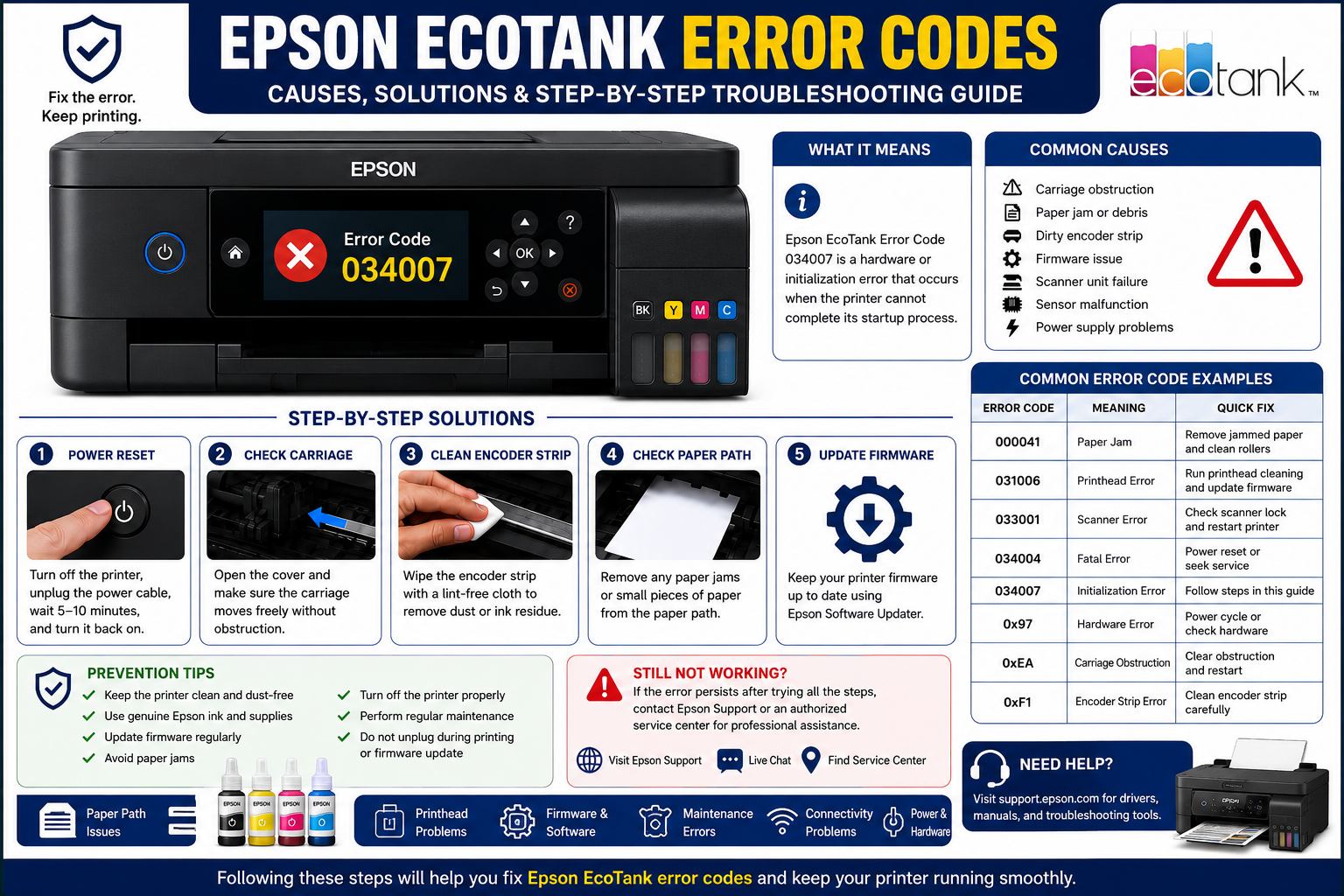
The table below summarizes some of the most frequently encountered Epson EcoTank error codes. While the exact code may vary by model, the underlying issue is often similar.
| Error Code | Problem | Possible Cause | Recommended Solution |
|---|---|---|---|
| 000041 | Paper Jam | Paper stuck in feed path | Remove jammed paper and inspect rollers |
| 000043 | Carriage Jam | Printhead cannot move | Remove obstructions and restart printer |
| 031006 | Printhead Error | Printhead initialization failure | Reseat printhead and update firmware |
| 033001 | Scanner Error | Scanner mechanism issue | Check scanner lock and restart device |
| 034004 | Fatal Hardware Error | Internal hardware malfunction | Perform power reset or seek service |
| 034007 | Mechanical Error | Carriage or sensor issue | Inspect carriage path and encoder strip |
| 0x97 | Internal Hardware Error | Printhead electronics failure | Power cycle printer; professional repair may be required |
| 0xEA | Carriage Obstruction | Printhead blocked | Remove debris and inspect carriage |
| 0xF1 | Printhead Movement Error | Encoder strip contamination | Clean encoder strip carefully |
| Recovery Mode | Firmware Issue | Interrupted update | Reinstall firmware using Epson utility |
Tip: Error codes may differ slightly depending on your Epson EcoTank model, but the troubleshooting process is usually similar.
Understanding Different Categories of Epson EcoTank Errors
Knowing which category an error belongs to helps you diagnose the problem more efficiently.
1. Hardware Errors
Hardware errors indicate a physical issue inside the printer.
Examples include:
- Damaged printhead
- Faulty sensors
- Broken gears
- Motor failures
- Mainboard issues
Symptoms
- Loud grinding noises
- Printer stops unexpectedly
- Error remains after restart
- Printhead won’t move
2. Paper Feed Errors
Paper feed problems are among the most common issues faced by EcoTank users.
Typical causes include:
- Wrinkled paper
- Dusty rollers
- Incorrect paper size
- Overloaded paper tray
- Foreign objects inside the printer
Quick Fixes
- Remove all paper.
- Clean the rollers with a lint-free cloth.
- Reload fresh paper correctly.
- Restart the printer.
- Print a test page.
3. Ink System Errors
EcoTank printers rely on a continuous ink supply system, making proper ink flow essential.
Common causes include:
- Air trapped in ink lines
- Empty ink tanks
- Incorrect ink refill
- Clogged printhead nozzles
- Ink charging interruption
Signs of Ink Problems
- Missing colors
- Blank pages
- Streaky prints
- Ink warning messages
- Reduced print quality
Regular nozzle checks and printhead cleaning can resolve many ink-related issues before they become serious.
How to Fix Epson EcoTank Error Codes
Most Epson EcoTank error codes can be resolved without replacing the printer. Before assuming a hardware failure, work through a systematic troubleshooting process. Many issues stem from paper jams, firmware glitches, connection problems, or maintenance components that require cleaning or replacement.
Follow the steps below in order, testing the printer after each one.
Step 1: Restart the Printer
A simple restart can clear temporary system errors caused by interrupted print jobs or communication issues.
How to Restart Your Epson EcoTank
- Turn off the printer using the Power button.
- Unplug the power cable from the wall outlet.
- Wait for 3–5 minutes.
- Reconnect the power cable.
- Turn the printer back on.
- Print a test page.
Why This Works
Restarting the printer:
- Clears temporary memory
- Stops frozen print jobs
- Reinitializes hardware
- Resets communication between the printer and computer
Expert Tip: Avoid unplugging the printer while it is actively printing, as this may lead to firmware or recovery mode errors.
Step 2: Check for Paper Jams
Paper jams are among the most common reasons for Epson EcoTank error messages.
Even if no paper is visible, small torn pieces can block internal sensors.
Inspect These Areas
- Rear paper feed
- Front output tray
- Duplex unit (if available)
- Paper cassette
- Printhead carriage path
How to Remove Jammed Paper
- Turn off the printer.
- Open all access covers.
- Pull the paper out slowly using both hands.
- Remove any small paper fragments.
- Close all covers securely.
- Restart the printer.
Common Mistakes to Avoid
- Pulling paper too quickly
- Using sharp objects inside the printer
- Leaving tiny paper scraps behind
- Ignoring dust buildup on rollers
Step 3: Inspect the Printhead
The printhead is responsible for placing ink onto the paper. If it cannot move freely or becomes clogged, several Epson EcoTank error codes may appear.
Symptoms of a Printhead Problem
- Blank pages
- Missing colors
- Streaks on prints
- Grinding sounds
- Printhead movement errors
Troubleshooting Steps
- Open the printer cover.
- Verify the printhead moves freely.
- Remove any foreign objects.
- Check for dried ink buildup.
- Run the built-in Print Head Cleaning utility.
- Perform a nozzle check.
Note: Repeated cleaning cycles consume ink. If print quality does not improve after two or three cleanings, inspect the printer for mechanical issues instead of continuing additional cleaning cycles.
Step 4: Verify Ink Levels
EcoTank printers use refillable ink tanks rather than cartridges, but low or improperly filled tanks can still trigger errors.
Check the Following
- Ink above the minimum line
- Correct Epson ink bottles used
- Tank caps closed securely
- No visible air bubbles in the ink system
Signs of Ink Supply Problems
- Colors missing
- Faded printing
- Printer pauses unexpectedly
- Ink charging messages
If you recently refilled the printer, allow the ink system to complete its charging process before printing.
Step 5: Update Printer Firmware
Firmware controls the printer’s internal operations. Older firmware may cause compatibility issues, unexpected error codes, or failed print jobs.
Benefits of Firmware Updates
- Improved reliability
- Better wireless performance
- Bug fixes
- Security improvements
- Enhanced compatibility with newer operating systems
Before Updating
- Connect the printer to stable power.
- Avoid interrupting the update.
- Ensure the printer has a reliable USB or Wi-Fi connection.
Interrupting a firmware update may place the printer into Recovery Mode.
What Is Recovery Mode?
Recovery Mode is a protective state that appears when a firmware update is interrupted or becomes corrupted. It allows the printer to receive a fresh firmware installation.
Common Causes
- Power outage during update
- USB cable disconnected
- Computer restarted unexpectedly
- Corrupted firmware download
- Unstable network connection
How to Fix Recovery Mode
- Restart the printer.
- Connect it directly to your computer with a USB cable.
- Download the correct firmware for your printer model from Epson’s support website.
- Run the firmware update utility.
- Wait until the installation completes.
- Restart the printer again.
Prevention Tips
- Never unplug the printer during an update.
- Use a reliable power source.
- Keep your computer awake until the update finishes.
- Avoid updating firmware over unstable Wi-Fi if possible.
Maintenance Box Error
Many Epson EcoTank models monitor the maintenance box, which collects waste ink during printhead cleaning cycles.
Common Messages
- Maintenance Box Full
- Replace Maintenance Box
- Printer Maintenance Required
Symptoms
- Printer refuses to print
- Maintenance warning appears
- Error persists after restart
Solution
- Turn off the printer.
- Open the maintenance box compartment.
- Remove the full maintenance box.
- Install a compatible replacement.
- Restart the printer.
Replacing the maintenance box promptly helps prevent ink overflow and protects internal components.
Waste Ink Pad Error
Waste ink pads absorb excess ink generated during cleaning and maintenance.
When these pads reach their estimated capacity, the printer may stop functioning until service is performed.
Typical Warning Messages
- Service Required
- Ink Pad Near End of Service Life
- Waste Ink Pad Full
What Causes This?
- Frequent printhead cleaning
- Heavy printing volume
- Long-term printer use
Recommended Solution
- Replace or service the waste ink pads as recommended for your model.
- Reset the waste ink counter only after the pads have been replaced or properly serviced.
Important: Resetting the counter without addressing the physical waste ink pads can lead to ink leakage and possible printer damage.
Wi-Fi and Connection Errors
Wireless communication problems can sometimes appear as printer errors or prevent print jobs from reaching the device.
Common Causes
- Weak Wi-Fi signal
- Router restart
- Incorrect network password
- Outdated printer driver
- Firewall restrictions
Troubleshooting Steps
- Restart your router.
- Restart the printer.
- Reconnect the printer to Wi-Fi.
- Confirm the printer is on the same network as your computer or mobile device.
- Install the latest printer driver if necessary.
- Print a network status report to verify connectivity.
USB Communication Errors
If you’re printing via USB, a faulty connection can interrupt communication.
Check These Items
- Loose USB cable
- Damaged cable
- Incorrect USB port
- Driver issues
- Computer sleep mode
Quick Fix
- Disconnect the USB cable.
- Wait 30 seconds.
- Connect it to a different USB port.
- Restart both the printer and the computer.
- Print a test page.
Scanner Errors
Some Epson EcoTank models include built-in scanners that can display errors if the scanner unit cannot initialize correctly.
Possible Causes
- Scanner lock engaged
- Obstruction on scanner bed
- Faulty sensor
- Firmware issue
Troubleshooting
- Ensure the scanner lock (if present) is in the unlocked position.
- Remove any objects from the scanner glass.
- Restart the printer.
- Test the scanner using the Epson scanning software.
If the scanner continues to fail after these checks, professional servicing may be required.
When Should You Contact Epson Support?
While many Epson EcoTank error codes can be resolved at home, certain situations require professional assistance.
Contact Support If:
- The same error returns repeatedly after troubleshooting.
- The printer makes loud grinding or clicking noises.
- There is visible smoke, a burning smell, or signs of liquid damage.
- The printer will not power on.
- Firmware recovery repeatedly fails.
- Internal components appear damaged.
Attempting to disassemble complex printer mechanisms without proper knowledge can cause additional damage.
Expert Maintenance Tips to Prevent Epson EcoTank Error Codes
Routine maintenance is one of the best ways to reduce printer errors and extend the life of your EcoTank printer.
Follow These Best Practices
- Print a test page every week to keep ink flowing.
- Use genuine Epson ink designed for your printer model.
- Store paper in a dry, dust-free location.
- Clean the paper feed rollers periodically.
- Keep the printer covered when not in use.
- Avoid overloading the paper tray.
- Install firmware updates when appropriate.
- Perform nozzle checks only when needed.
- Replace maintenance components as recommended.
- Turn the printer off using the Power button instead of unplugging it.
Maintenance Checklist
| Maintenance Task | Recommended Frequency |
|---|---|
| Nozzle Check | Every 2–4 weeks |
| Printhead Cleaning | Only when print quality declines |
| Roller Cleaning | Every 2–3 months |
| Exterior Cleaning | Monthly |
| Firmware Check | Every few months |
| Maintenance Box Inspection | As prompted by the printer |
| Paper Tray Cleaning | Monthly |
| Test Print | Weekly |
Common Mistakes That Trigger Epson EcoTank Errors
Avoiding these habits can significantly reduce the likelihood of recurring problems.
- Using incompatible ink.
- Ignoring early warning messages.
- Interrupting firmware updates.
- Forcing jammed paper out of the printer.
- Leaving the printer unused for extended periods.
- Overfilling the paper tray.
- Skipping regular maintenance.
- Continuing to print despite unusual noises.
- Resetting maintenance counters without replacing worn components.
Frequently Asked Questions (FAQ)
1. What are Epson EcoTank error codes?
Epson EcoTank error codes are diagnostic messages that identify hardware, software, maintenance, or communication issues affecting your printer.
2. Can I fix Epson EcoTank error codes myself?
Yes. Many issues, such as paper jams, printhead cleaning, firmware recovery, and connection problems, can be resolved at home by following the recommended troubleshooting steps.
3. Why is my Epson EcoTank showing a paper jam when there isn’t one?
Small paper fragments, dirty rollers, or blocked sensors can trigger a false paper jam error even when no full sheet of paper is visible.
4. What does Epson Recovery Mode mean?
Recovery Mode appears when a firmware update is interrupted or corrupted. The printer requires the firmware to be reinstalled before normal operation can resume.
5. How do I reset an Epson EcoTank printer?
Turn off the printer, unplug it for several minutes, reconnect the power cable, restart the printer, and print a test page. Some maintenance-related issues may require additional reset procedures.
6. What causes printhead errors?
Printhead errors may result from dried ink, carriage obstructions, electrical faults, or internal hardware failures.
7. How often should I clean the printhead?
Only clean the printhead when print quality declines or a nozzle check indicates clogged nozzles. Unnecessary cleaning consumes ink.
8. What is the maintenance box?
The maintenance box collects waste ink generated during cleaning cycles. It should be replaced when the printer indicates it is full.
9. Can outdated firmware cause printer errors?
Yes. Running outdated firmware may lead to compatibility problems, communication issues, or unexpected error messages.
10. When should I contact Epson support?
Contact support if troubleshooting does not resolve the issue, the printer has repeated hardware errors, or there are signs of internal damage.
11. Why does my Epson EcoTank keep displaying the same error?
A recurring error often indicates an unresolved hardware problem, damaged component, or maintenance item that requires replacement.
12. How can I prevent Epson EcoTank error codes?
Perform regular maintenance, use genuine Epson ink, keep the printer clean, install firmware updates carefully, and avoid interrupting print jobs or firmware updates.