Epson Printer Recovery Mode Error: Causes, Fixes, and Complete Troubleshooting Guide
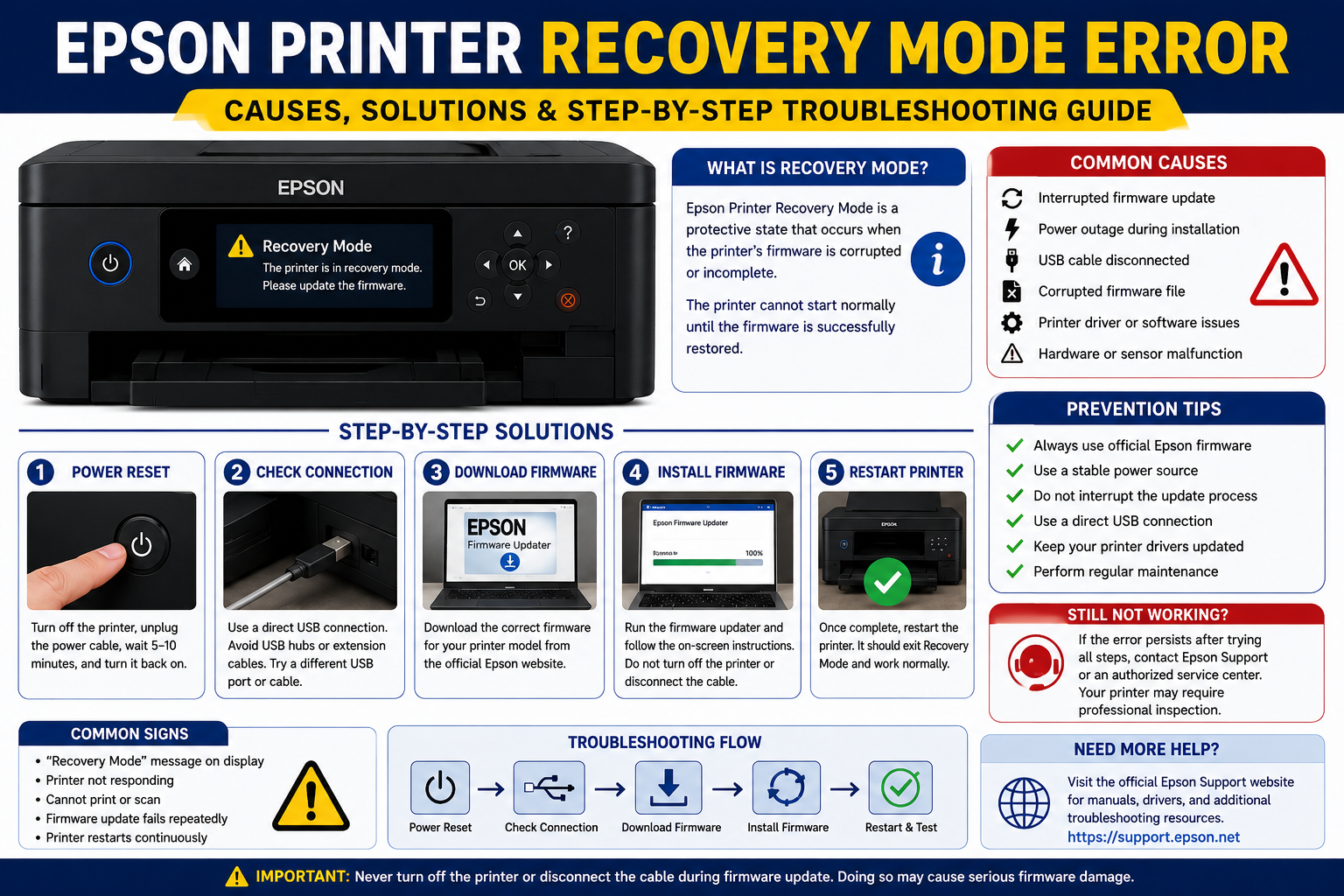
Nothing is more frustrating than turning on your Epson printer only to see a Recovery Mode message instead of the home screen. In most cases, this error appears after an interrupted firmware update, sudden power loss, or software communication issue. While it can seem alarming, Recovery Mode is actually a built-in safety feature designed to prevent permanent firmware damage and give users a chance to restore the printer.
The good news is that many recovery mode issues can be resolved without replacing the printer or visiting a repair center. By following the correct troubleshooting steps and using Epson’s official firmware tools, you can often get your device back up and running in a short amount of time.
Whether you’re using an Epson EcoTank, WorkForce, Expression, or another compatible model, this guide explains the causes, solutions, and preventive measures in a clear, step-by-step format.
What You’ll Learn
In this guide, you’ll discover:
- What Epson Printer Recovery Mode means
- Why the Recovery Mode error appears
- The most common firmware-related causes
- Step-by-step troubleshooting methods
- How to reinstall firmware safely
- When to seek professional assistance
- Tips to prevent Recovery Mode errors in the future
What Is an Epson Printer Recovery Mode Error?
An Epson printer recovery mode error is a protective system state that activates when the printer detects corrupted or incomplete firmware. It prevents the printer from operating normally until the firmware is successfully restored using Epson’s official recovery tools.
Unlike traditional printer errors, Recovery Mode does not necessarily indicate hardware failure. Instead, it signals that the printer’s internal operating software could not load correctly.
Think of firmware as the printer’s operating system. If it becomes corrupted during an update, the printer automatically enters Recovery Mode to avoid further damage.
Common Characteristics
- Printer displays “Recovery Mode”
- Printing functions stop
- Control panel becomes unresponsive
- Firmware update cannot continue
- Printer may repeatedly restart
- Computer may still detect the printer via USB
Example Scenario
Imagine updating your Epson printer firmware during a thunderstorm. Halfway through the installation, the power goes out. Since the firmware installation never completed, the printer cannot boot normally and automatically enters Recovery Mode to protect itself from running damaged software.
Common Causes of Epson Printer Recovery Mode Error
Understanding the root cause helps you choose the correct solution instead of trying random fixes.
| Cause | Description | Severity |
|---|---|---|
| Interrupted firmware update | Update stopped before completion | High |
| Power outage | Electricity failure during installation | High |
| USB cable disconnected | Firmware transfer interrupted | High |
| Computer shutdown | PC restarted during update | High |
| Corrupted firmware file | Damaged download or incomplete installation | Medium |
| Driver conflict | Outdated drivers interfering with communication | Medium |
| Unsupported operating system | Compatibility issue during update | Medium |
| Faulty USB port | Data transfer interrupted | Medium |
| Antivirus interference | Security software blocked firmware installation | Low |
| Internal hardware failure | Mainboard or flash memory issue | High |
1. Interrupted Firmware Update
This is the leading cause of Recovery Mode errors. Firmware updates rewrite critical system files stored inside the printer. If the process stops before completion, the firmware becomes incomplete, preventing the printer from starting normally.
Common reasons include:
- Accidental power loss
- Loose USB cable
- Laptop battery depletion
- System crash
- Manual cancellation of the update
Expert Tip: Never disconnect the printer or power off your computer while a firmware update is in progress, even if it appears to pause for several minutes.
2. Corrupted Firmware File
Firmware files can become damaged during download due to unstable internet connections or incomplete downloads. Installing a corrupted file may leave the printer unable to boot properly.
Signs include:
- Update fails immediately after starting
- Unexpected error messages during installation
- Recovery Mode appears after reboot
- Firmware version remains unchanged
3. Communication Problems Between Printer and Computer
Firmware updates require stable communication throughout the installation process. Even a brief interruption can cause Recovery Mode.
Common communication issues include:
- Defective USB cables
- USB hubs causing unstable connections
- Faulty computer USB ports
- Outdated printer drivers
- Operating system conflicts
- Background applications interrupting the update
For the most reliable firmware updates, connect the printer directly to your computer using a high-quality USB cable and avoid using USB hubs or docking stations.
How to Fix an Epson Printer Recovery Mode Error
In most cases, you can resolve an Epson printer recovery mode error by following a systematic troubleshooting process. The key is to start with the simplest solutions before moving on to firmware recovery or advanced diagnostics.
To fix an Epson printer recovery mode error, restart the printer, check the USB connection, download the latest official Epson firmware, reinstall the firmware using a direct USB connection, and complete the update without interruption. If recovery fails repeatedly, the printer may require professional servicing.
Step 1: Restart the Printer and Computer
A simple restart can resolve temporary communication issues between the printer and your computer.
Follow These Steps
- Turn off the printer.
- Unplug the power cable.
- Wait for 60 seconds.
- Restart your computer.
- Reconnect the printer directly to the computer using a USB cable.
- Turn the printer back on.
Why This Works
Restarting clears temporary memory, resets communication channels, and prepares the printer for another firmware recovery attempt.
Common Mistakes to Avoid
- Restarting too quickly without waiting.
- Using a USB hub instead of a direct connection.
- Leaving multiple printer drivers active.
Step 2: Check the USB Connection
Firmware recovery relies on uninterrupted data transfer. Even a loose or damaged USB cable can interrupt the process.
USB Connection Checklist
Use the original Epson USB cable whenever possible.
Connect directly to the computer.
Avoid USB extension cables.
Disconnect other USB devices that may interfere.
Try another USB port if the printer is not detected.
Example
Suppose your firmware update stops at 35%. The issue may not be the printer—it could simply be an unstable USB connection causing data loss during installation.
Step 3: Download the Correct Epson Firmware
Using the wrong firmware version can prevent the printer from exiting Recovery Mode.
Best Practices
- Download firmware only from Epson’s official support website.
- Select the exact printer model.
- Verify your operating system version.
- Close unnecessary programs before running the installer.
Avoid These Mistakes
Downloading firmware from unofficial websites.
Installing firmware intended for another Epson model.
Using outdated recovery utilities.
Step 4: Reinstall the Printer Firmware
Reinstalling the firmware is the most effective solution when the printer is stuck in Recovery Mode due to an interrupted update.
Step-by-Step Firmware Recovery
- Turn on the printer.
- Connect it to your computer via USB.
- Launch the Epson Firmware Updater.
- Wait for the printer to be detected.
- Select your printer.
- Begin the firmware installation.
- Do not disconnect the USB cable.
- Do not turn off the printer.
- Wait until the update reaches 100%.
- Restart the printer.
What Happens During Recovery?
The updater overwrites the damaged firmware with a complete version, allowing the printer to boot normally.
Recovery Time
Most firmware installations finish within 5–15 minutes, depending on the printer model and computer performance.
Step 5: Update the Printer Driver
Outdated or corrupted drivers can interfere with firmware communication.
Signs You Need a Driver Update
- Printer is detected intermittently.
- Firmware updater cannot find the printer.
- Windows displays driver errors.
- Printer disappears during installation.
Driver Update Tips
- Remove old printer drivers before installing new ones.
- Restart the computer after installation.
- Reconnect the printer only after the driver setup completes.
Step 6: Disable Security Software Temporarily
Some antivirus or firewall programs may block firmware installation.
Temporarily Disable
- Antivirus software
- Firewall protection
- USB monitoring utilities
- Device management applications
Remember to enable your security software again once the firmware update is complete.
Step 7: Try Another Computer
If the recovery process still fails, the problem may lie with your computer rather than the printer.
Why This Helps
A different computer may have:
- Updated USB drivers
- Compatible operating system
- Fewer software conflicts
- Better hardware stability
This simple test can quickly determine whether the issue is computer-related.
Advanced Troubleshooting for Persistent Recovery Mode Errors
If the basic fixes do not work, additional troubleshooting may be necessary.
Check for Power Supply Issues
An unstable power source can interrupt firmware installation.
Look for These Symptoms
- Printer restarts unexpectedly.
- Display turns off randomly.
- Power LED flickers.
- Recovery process stops repeatedly.
Recommendation
Use a reliable wall outlet or an uninterruptible power supply (UPS) during firmware updates to prevent interruptions.
Verify Computer Compatibility
Older operating systems or outdated system components may not support the latest firmware tools.
Ensure That
- Windows or macOS is fully updated.
- USB drivers are current.
- Printer software is compatible with your operating system.
- Administrator permissions are enabled during installation.
Remove and Reinstall Printer Software
Corrupted software installations can prevent successful communication with the printer.
Procedure
- Uninstall Epson printer software.
- Restart the computer.
- Remove the printer from system settings.
- Install the latest printer software.
- Retry the firmware recovery process.
Troubleshooting Table
| Problem | Possible Cause | Recommended Solution |
|---|---|---|
| Printer stuck in Recovery Mode | Interrupted firmware update | Reinstall firmware |
| Printer not detected | Faulty USB cable | Replace USB cable |
| Firmware update stops | Unstable connection | Use direct USB connection |
| Recovery Mode returns | Corrupted firmware | Download firmware again |
| Printer restarts repeatedly | Power interruption | Check power supply |
| Firmware utility cannot detect printer | Driver issue | Reinstall printer driver |
| Update freezes | Software conflict | Disable antivirus temporarily |
| Printer remains unresponsive | Hardware fault | Contact Epson Support |
Recovery Mode vs Other Epson Printer Errors
Many users confuse Recovery Mode with other common Epson printer issues. Understanding the difference helps identify the correct solution.
| Error Type | Cause | Can You Print? | Typical Solution |
|---|---|---|---|
| Recovery Mode | Corrupted or incomplete firmware | ❌ No | Reinstall firmware |
| Paper Jam Error | Paper blocked inside printer | ❌ No | Remove jammed paper |
| Offline Error | Communication issue | ❌ No | Reconnect printer |
| Ink System Error | Ink delivery problem | Limited or No | Clean or service ink system |
| Maintenance Box Full | Waste ink box reached limit | ❌ No | Replace maintenance box |
| Print Queue Error | Software issue | Sometimes | Clear print queue |
How to Prevent Epson Printer Recovery Mode Errors
Preventing firmware issues is much easier than recovering from them. Following a few simple practices can significantly reduce the risk of seeing Recovery Mode.
Best Practices
- Always download firmware from Epson’s official website.
- Use a direct USB connection during firmware updates.
- Avoid updating firmware during storms or unstable power conditions.
- Do not interrupt the update process, even if it appears to pause.
- Close unnecessary applications before starting the update.
- Keep your operating system and printer drivers up to date.
- Ensure your laptop is connected to power before beginning a firmware installation.
Expert Tips from Printer Technicians
Technicians who regularly service Epson printers recommend the following:
Before Updating Firmware
- Verify the printer model number carefully.
- Read the firmware release notes.
- Back up important printer settings if applicable.
During the Update
- Keep the printer powered on.
- Avoid printing any documents.
- Do not disconnect the USB cable.
- Allow the process to finish naturally.
After the Update
- Restart both the printer and computer.
- Print a test page.
- Confirm the new firmware version.
- Check that all printer functions operate normally.
When Should You Contact Epson Support?
While many Recovery Mode errors can be resolved at home, some situations require professional assistance.
Seek Technical Support If:
- The firmware recovery fails multiple times.
- The printer is not detected on any computer.
- The display remains blank after recovery attempts.
- The printer powers off during every firmware installation.
- The motherboard or internal flash memory may be damaged.
- The printer remains in Recovery Mode even after a successful firmware installation.
Ignoring these signs could lead to further hardware issues, so professional diagnosis is recommended if standard troubleshooting does not restore normal operation.
Frequently Asked Questions (FAQs)
1. What is an Epson printer recovery mode error?
An Epson printer recovery mode error occurs when the printer detects corrupted or incomplete firmware. Recovery Mode prevents the printer from operating until the firmware is successfully restored using Epson’s official firmware recovery tool.
2. Why is my Epson printer stuck in Recovery Mode?
The most common reasons include:
- Interrupted firmware update
- Power outage during installation
- Faulty USB connection
- Corrupted firmware file
- Outdated printer drivers
- Communication failure between the printer and computer
3. Can I fix Epson Recovery Mode without professional help?
Yes. In many cases, you can resolve the issue by reinstalling the correct firmware, using a direct USB connection, updating printer drivers, and following Epson’s official recovery instructions.
4. Will I lose my printer settings after firmware recovery?
Most standard settings remain unchanged. However, some custom network or administrative settings may reset depending on the printer model and firmware version.
5. How long does firmware recovery take?
A firmware recovery typically takes 5–15 minutes, depending on your printer model, computer performance, and USB connection stability.
6. Can Wi-Fi be used for firmware recovery?
For the most reliable results, Epson recommends using a direct USB connection during firmware recovery. Wireless connections may be less stable and increase the risk of interruption.
7. Does Recovery Mode mean my printer is damaged?
No. Recovery Mode is a built-in safety feature designed to protect the printer from incomplete or corrupted firmware. It does not automatically indicate a hardware failure.
8. Can a power outage cause Recovery Mode?
Yes. If the printer loses power while installing firmware, the update may remain incomplete, causing the printer to enter Recovery Mode.
9. What if the Epson Firmware Updater cannot detect my printer?
Try the following:
- Restart both devices.
- Connect using a different USB port.
- Replace the USB cable.
- Update or reinstall the printer driver.
- Disable antivirus software temporarily.
- Test the recovery process on another computer.
10. Should I reinstall the printer driver after firmware recovery?
Yes. Updating or reinstalling the latest printer driver helps ensure compatibility and improves communication between your computer and the printer.
11. Can outdated drivers cause Recovery Mode?
While outdated drivers usually do not trigger Recovery Mode directly, they can interfere with firmware communication and prevent a successful recovery.
12. When should I contact Epson Support?
Contact Epson Support if:
- Recovery Mode persists after several recovery attempts.
- The printer is not detected by any computer.
- Firmware installation repeatedly fails.
- The printer will not power on normally.
- You suspect a hardware or motherboard issue.