Epson L805 Error: Complete Troubleshooting Guide to Fix Common Printer Problems
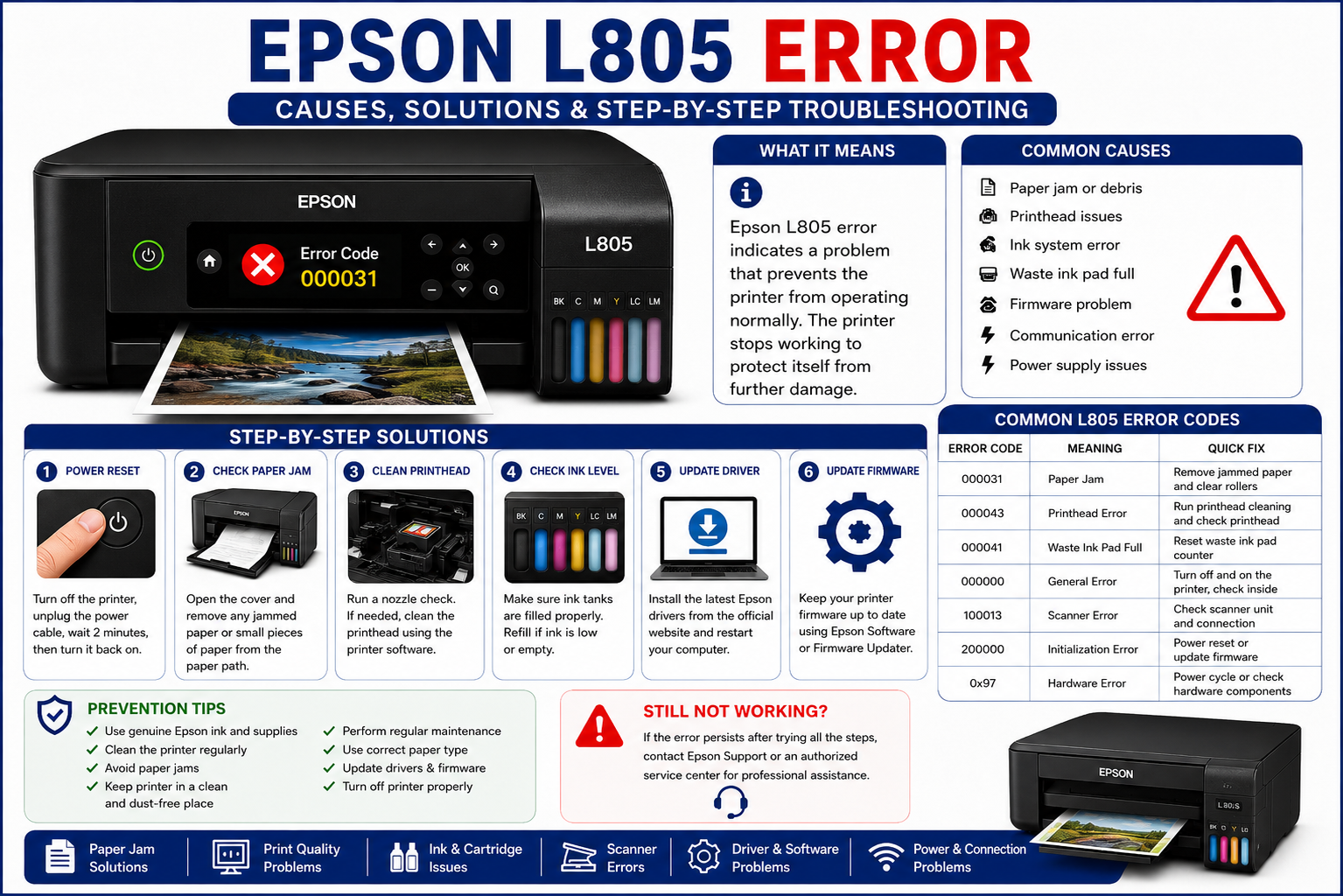
If your Epson L805 error has suddenly interrupted your printing tasks, you’re not alone. Whether your printer displays a General Error, flashes red lights, refuses to print, or reports a Service Required message, these issues can be frustrating—especially when you’re in the middle of important work. Fortunately, most Epson L805 problems can be diagnosed and resolved without replacing the printer.
This comprehensive guide explains the most common Epson L805 errors, what causes them, and how to fix each issue step by step. It also includes preventive maintenance tips and expert recommendations to help you avoid recurring problems and keep your printer running smoothly.
What You’ll Learn
- Common Epson L805 error messages and meanings
- Why your Epson L805 displays blinking lights
- Step-by-step troubleshooting for hardware and software issues
- How to reset common Epson L805 errors
- Solutions for print quality, paper feed, and communication problems
- Preventive maintenance tips to extend printer life
- When professional servicing is necessary
What Is an Epson L805 Error?
Featured Snippet Answer
An Epson L805 error is any warning, error code, or hardware/software issue that prevents the printer from operating normally. Errors may result from paper jams, printhead problems, communication failures, outdated drivers, waste ink counter limits, or internal hardware faults. Identifying the specific error helps determine the correct troubleshooting steps.
Common Symptoms
Users may notice one or more of the following:
- Red lights flashing continuously
- Printer refuses to print
- Printer appears offline
- Paper does not feed correctly
- Ink warning messages
- General Error notification
- Service Required message
- Print jobs stuck in queue
- Poor print quality
- Communication failure with the computer
These symptoms often point to different underlying causes, making proper diagnosis essential before attempting repairs.
Common Epson L805 Error Messages and Their Meanings
The following table summarizes the most frequently encountered Epson L805 errors and their likely causes.
| Error Message | Possible Cause | Recommended Action |
|---|---|---|
| General Error | Internal hardware issue | Restart printer and inspect carriage |
| Service Required | Waste ink pad counter full | Reset counter and inspect waste ink pads |
| Paper Jam | Obstruction in paper path | Remove jam and clean rollers |
| Communication Error | USB or driver issue | Reconnect cable and reinstall driver |
| Printer Offline | Connection problem | Set printer online and restart Print Spooler |
| Ink Error | Cartridge or ink system issue | Check ink tanks and run charging cycle |
| No Paper | Empty tray or feed roller issue | Reload paper and inspect rollers |
| Printhead Error | Clogged or damaged printhead | Perform nozzle check and printhead cleaning |
Understanding the meaning of these messages is the first step toward resolving the issue efficiently.
Why Does the Epson L805 Show Errors?
Printer errors generally fall into four categories:
1. Hardware Problems
These involve physical components inside the printer, such as:
- Paper feed rollers
- Carriage assembly
- Printhead
- Encoder strip
- Sensors
- Waste ink pads
Dust buildup, worn parts, or obstructions can trigger hardware-related errors.
2. Software Issues
Software problems often include:
- Corrupted printer drivers
- Outdated firmware
- Windows Print Spooler errors
- Incorrect printer settings
- Driver conflicts after operating system updates
Keeping your printer software updated helps minimize these issues.
3. Ink System Problems
The Epson L805 uses a continuous ink tank system, which requires proper maintenance. Errors may occur due to:
- Air bubbles in ink tubes
- Low ink levels
- Improper refilling
- Clogged printhead nozzles
- Ink charging interruptions
Regular nozzle checks and proper ink refilling practices can help maintain reliable performance.
4. User-Related Issues
Some errors are caused by everyday usage, including:
- Loading damaged or incorrect paper
- Disconnecting the printer during printing
- Ignoring maintenance reminders
- Using incompatible drivers
- Turning off the printer while it’s processing print jobs
Following Epson’s recommended operating procedures can reduce the likelihood of these user-induced errors.
How to Diagnose an Epson L805 Error Before Fixing It
Before attempting any repair, take a systematic approach to identify the root cause.
Step 1: Observe the Printer
Check for:
- Flashing indicator lights
- Unusual noises
- Paper stuck inside the printer
- Carriage movement restrictions
- Ink level status
Step 2: Read the Error Message
If an error appears on your computer or Epson Status Monitor, note the exact wording. This provides valuable clues about whether the issue is related to hardware, software, or maintenance.
Step 3: Run a Basic Inspection
- Ensure the printer is powered on properly.
- Verify that paper is loaded correctly.
- Check USB or Wi-Fi connections.
- Confirm ink tanks are adequately filled.
- Look for visible obstructions inside the printer.
Performing these initial checks can often resolve simple issues without further troubleshooting.
How to Fix Epson L805 General Error
The General Error is one of the most common issues reported by Epson L805 users. It usually indicates that the printer has detected an internal problem and has paused all printing operations to prevent further damage. While the message may seem alarming, the underlying cause is often something simple, such as a paper obstruction, carriage blockage, dirty encoder strip, or sensor issue.
Common Causes
- Paper jam inside the printer
- Carriage unable to move freely
- Dirty or damaged encoder strip
- Foreign objects inside the printer
- Faulty paper feed sensor
- Internal hardware malfunction
Step-by-Step Fix
- Turn off the printer and unplug the power cable.
- Open the printer cover.
- Carefully inspect the paper path for torn paper or debris.
- Move the printhead carriage gently by hand (only when the printer is powered off).
- Remove any foreign objects such as paper clips, labels, or small pieces of paper.
- Clean the encoder strip carefully with a lint-free cloth if it appears dirty.
- Reconnect the printer and power it on.
- Print a test page.
Expert Tip: Never force the carriage to move. If it feels stuck, inspect both sides for obstructions before applying pressure.
How to Fix Epson L805 Service Required Error
Featured Snippet Answer
The Service Required error on the Epson L805 usually means the internal waste ink pad counter has reached its preset limit. The printer stops operating to prevent ink overflow. After confirming the waste ink pads are in good condition or have been serviced, the counter can be reset using Epson’s maintenance tools.
Why This Happens
During printhead cleaning cycles, excess ink is collected in waste ink pads inside the printer. Epson monitors this usage with an internal counter. Once the counter reaches its limit, printing is disabled until maintenance is performed.
Symptoms
- “Service Required” message
- Both red lights blinking
- Printing stops completely
- Printer not recognized after startup
Recommended Solution
- Inspect the waste ink pads.
- Clean or replace them if necessary.
- Reset the waste ink counter using the appropriate Epson service utility.
- Restart the printer.
- Print a nozzle check to confirm normal operation.
Note: Resetting the counter without addressing saturated waste ink pads may eventually lead to ink leakage.
Epson L805 Blinking Red Lights
Flashing red indicator lights do not always indicate a serious hardware failure. They simply signal that the printer requires attention.
Possible Reasons
| Blinking Pattern | Likely Cause | Solution |
|---|---|---|
| Paper light blinking | Paper feed problem | Reload paper and clear jams |
| Ink light blinking | Ink system issue | Check ink levels and perform ink charging |
| Both lights blinking | General error or service required | Inspect printer and perform diagnostics |
| Continuous flashing | Internal hardware issue | Restart printer and inspect components |
Troubleshooting Checklist
- Restart the printer.
- Remove jammed paper.
- Check ink tank levels.
- Clean paper feed rollers.
- Verify carriage movement.
- Run Epson Status Monitor.
- Update printer drivers.
- Perform a nozzle check.
Fixing Epson L805 Paper Jam Error
Paper jams are often caused by improper paper loading, damaged sheets, or worn feed rollers.
Common Causes
- Curled paper
- Damp paper
- Multiple sheets fed together
- Dirty rollers
- Incorrect paper size settings
How to Remove a Paper Jam
- Turn off the printer.
- Open the rear paper access.
- Pull the jammed paper slowly in the direction of travel.
- Remove any remaining paper fragments.
- Clean the paper rollers.
- Reload fresh paper.
- Restart the printer.
Avoid These Mistakes
- Never pull paper backward.
- Avoid using wrinkled paper.
- Do not overload the input tray.
Epson L805 Communication Error
Communication errors occur when the computer cannot exchange data with the printer.
Common Reasons
- Loose USB cable
- Faulty USB port
- Driver corruption
- Firewall interference
- Print Spooler service failure
- Network interruption (if shared)
Step-by-Step Solution
- Disconnect the USB cable.
- Restart both the printer and the computer.
- Reconnect using a different USB port.
- Remove pending print jobs.
- Restart the Windows Print Spooler.
- Reinstall the Epson printer driver.
- Print a test page.
Expert Recommendation: Connect the printer directly to the computer instead of using a USB hub during troubleshooting.
Epson L805 Printer Offline Error
The Offline status usually indicates a software or connection issue rather than a hardware failure.
How to Bring the Printer Online
- Open Windows Settings.
- Navigate to Printers & Scanners.
- Select Epson L805.
- Open the print queue.
- Disable Use Printer Offline.
- Clear all pending print jobs.
- Restart the Print Spooler service.
- Reboot the printer.
Epson L805 Print Quality Problems
Poor print quality often develops gradually and is typically linked to maintenance issues rather than permanent hardware damage.
Symptoms
- Missing colors
- Horizontal lines
- Faded prints
- Smudges
- Uneven ink distribution
- Blurry text
Causes
- Clogged printhead nozzles
- Air bubbles in ink tubes
- Low-quality paper
- Incorrect print settings
- Low ink levels
Recommended Solution
- Run a nozzle check.
- Perform printhead cleaning.
- Wait 30 minutes.
- Run another nozzle check.
- Repeat only if necessary.
- Perform printhead alignment.
Best Practice: Excessive cleaning cycles consume ink and contribute to waste ink pad usage. Limit repeated cleanings unless print quality clearly improves.
Epson L805 Ink System Errors
Because the Epson L805 uses an integrated ink tank system, improper handling can introduce air into the ink lines or interrupt normal ink flow.
Signs of Ink System Issues
- Empty sections in printed images
- Incorrect colors
- Ink warning messages
- Air bubbles in tubes
- Slow ink flow
Troubleshooting Steps
- Check ink tank levels.
- Ensure tank caps are properly secured.
- Verify ink tubes are free of large air gaps.
- Perform an ink charging cycle if recommended.
- Use genuine Epson-compatible ink to maintain print quality.
Epson L805 Driver Problems
A damaged or outdated driver can trigger communication errors, printing failures, or incorrect printer status messages.
Symptoms
- Printer not detected
- Offline status
- Print jobs remain in queue
- Random error messages
- Slow printing
Solution
- Remove the existing driver.
- Restart the computer.
- Install the latest Epson L805 driver compatible with your operating system.
- Set the printer as the default device.
- Print a test page.
Preventive Maintenance Tips
Routine maintenance helps reduce unexpected errors and extends the life of your Epson L805.
| Maintenance Task | Recommended Frequency |
|---|---|
| Nozzle Check | Weekly |
| Printhead Cleaning | Only when required |
| Roller Cleaning | Monthly |
| Exterior Cleaning | Monthly |
| Driver Update Check | Every 2–3 months |
| Firmware Review | Every 6 months |
| Internal Inspection | Every 12 months |
Expert Recommendations for Long-Term Reliability
Technicians who regularly service Epson EcoTank printers recommend several habits that significantly reduce recurring errors:
- Print a color page every week to keep ink flowing.
- Keep the printer covered when not in use to minimize dust buildup.
- Store paper in a dry environment.
- Use the printer’s Power button instead of unplugging it.
- Avoid interrupting printhead cleaning or ink charging cycles.
- Inspect the printer periodically for loose paper scraps or foreign objects.
- Use genuine or high-quality compatible ink to maintain consistent performance.
- Keep drivers and firmware updated when official updates are available.
These simple practices can prevent many of the hardware and maintenance-related issues that lead to common Epson L805 errors.
Quick Troubleshooting Flowchart
| Problem | First Check | Next Step |
|---|---|---|
| General Error | Paper path | Carriage movement |
| Printer Offline | USB/Wi-Fi connection | Restart Print Spooler |
| Blinking Lights | Error pattern | Identify specific warning |
| Paper Jam | Paper path | Clean rollers |
| Poor Print Quality | Nozzle check | Printhead cleaning |
| Communication Error | USB cable | Reinstall driver |
| Service Required | Waste ink pads | Reset maintenance counter |
Conclusion
An Epson L805 error does not always indicate a major printer failure. In many cases, problems such as paper jams, communication errors, blinking lights, print quality issues, or offline status can be resolved through systematic troubleshooting and regular maintenance. Understanding the meaning behind each error message allows you to identify the root cause quickly and apply the correct solution without unnecessary repairs.
By following the preventive maintenance practices outlined in this guide—such as performing periodic nozzle checks, keeping the printer clean, using quality ink, and maintaining updated drivers—you can significantly reduce downtime and extend the lifespan of your Epson L805. For persistent hardware faults or repeated service warnings, professional inspection may be the safest course of action to ensure reliable long-term performance.
Frequently Asked Questions (FAQ)
1. What does the Epson L805 General Error mean?
The General Error usually indicates an internal hardware issue such as a paper jam, carriage obstruction, dirty encoder strip, or sensor malfunction. Inspect the printer carefully before restarting it.
2. Why are both red lights blinking on my Epson L805?
Both red lights often indicate a Service Required warning, waste ink counter limit, or another internal error. The exact cause should be verified through the Epson Status Monitor or by checking the printer for obstructions.
3. How do I reset my Epson L805 printer?
You can reset the printer by turning it off, disconnecting the power for several minutes, and restarting it. Maintenance-related errors, such as a full waste ink counter, may require a dedicated reset utility after servicing the printer.
4. Why is my Epson L805 not printing even though it has ink?
Possible causes include clogged printhead nozzles, communication issues, incorrect printer settings, outdated drivers, or pending print jobs in the queue.
5. How often should I clean the printhead?
Only clean the printhead when print quality issues are visible. Unnecessary cleaning consumes ink and increases waste ink pad usage.
6. Can a paper jam damage the Epson L805?
Minor paper jams rarely cause permanent damage if removed carefully. Forcing paper out in the wrong direction, however, may damage rollers or sensors.
7. How long does an Epson L805 printer typically last?
With regular maintenance and proper use, the Epson L805 can provide many years of reliable service. Longevity depends on usage volume, cleaning habits, and component wear.
8. Why does my Epson L805 keep showing “Printer Offline”?
This usually results from USB connection issues, driver conflicts, disabled Print Spooler services, or incorrect printer settings in Windows.
9. What causes poor print quality on the Epson L805?
Common causes include clogged printhead nozzles, air in the ink lines, low ink levels, unsuitable paper, or incorrect print settings.
10. When should I seek professional repair?
Professional servicing is recommended if the printer continues displaying errors after standard troubleshooting, has persistent hardware failures, or shows signs of physical damage or ink leakage.