Epson L3150 Printer Error: Complete Troubleshooting Guide to Fix Common Problems
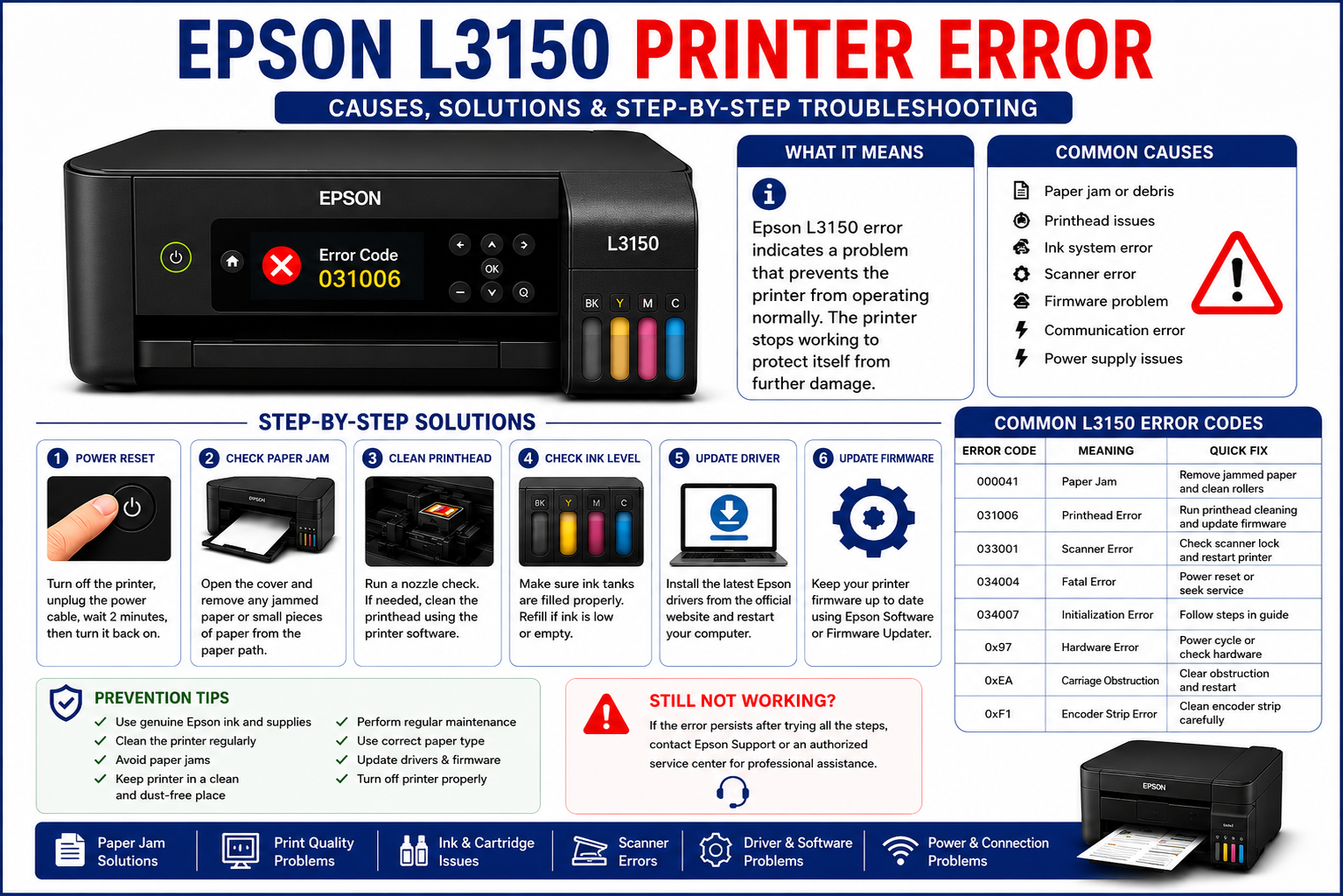
If your Epson L3150 printer error has interrupted an important print job, you’re not alone. Whether your printer displays a Service Required message, flashes its ink and paper lights, refuses to print, or produces poor-quality output, these issues can be frustrating. Fortunately, many Epson L3150 problems can be resolved at home with the right troubleshooting approach.
The Epson EcoTank L3150 is known for its reliable performance and low-cost printing, but like any printer, it can experience hardware faults, software conflicts, connectivity issues, or routine maintenance alerts over time. Understanding what each error means is the first step toward fixing it efficiently.
This comprehensive guide combines practical troubleshooting steps, expert recommendations, and preventive maintenance tips to help you diagnose and resolve the most common Epson L3150 printer errors without unnecessary service visits.
What You’ll Learn
In this guide, you’ll discover:
- Common Epson L3150 printer errors and their causes
- Meaning of blinking power, paper, and ink lights
- How to troubleshoot printing failures
- Solutions for paper jam and paper feed problems
- Methods to fix ink system and printhead issues
- Wi-Fi and USB connection troubleshooting
- Steps to resolve Service Required and waste ink pad errors
- Printer reset methods
- Preventive maintenance best practices
- When professional repair is necessary
Common Epson L3150 Printer Errors and Their Causes
Understanding the root cause of a printer error can save time and prevent unnecessary repairs. Many Epson L3150 issues are linked to routine maintenance, while others result from hardware wear, software conflicts, or user-related mistakes.
Common Error Categories
| Error Type | Possible Cause | Severity | Can You Fix It? |
|---|---|---|---|
| Service Required | Waste ink pad counter reached limit | Medium | Yes |
| Paper Jam | Obstruction inside printer | Low | Yes |
| Ink Error | Low ink, air bubbles, clogged printhead | Medium | Yes |
| Communication Error | USB or Wi-Fi issue | Low | Yes |
| Offline Printer | Driver or network problem | Low | Yes |
| Print Quality Issue | Dirty printhead or nozzle blockage | Low | Yes |
| Scanner Error | Scanner initialization failure | Medium | Sometimes |
| Firmware Error | Interrupted update or corrupted firmware | High | Sometimes |
Expert Insight
One common mistake users make is assuming every blinking light indicates a hardware failure. In many cases, the issue is caused by something simple, such as a loose cable, an unfinished print queue, incorrect paper loading, or a maintenance reminder. Taking a few minutes to identify the specific error can prevent unnecessary repairs and reduce downtime.
Understanding Epson L3150 Error Indicator Lights
One of the fastest ways to diagnose an Epson L3150 problem is by observing its LED indicators. The combination of flashing or solid lights often reveals the underlying issue before any software message appears.
What the Indicator Lights Mean
| Light Pattern | Meaning | Recommended Action |
|---|---|---|
| Power light blinking | Printer is processing or initializing | Wait until the operation completes |
| Ink light flashing | Ink level issue or printhead maintenance required | Check ink levels and run a nozzle check |
| Paper light flashing | Paper jam, empty tray, or paper feed issue | Remove jammed paper and reload correctly |
| Ink and paper lights flashing together | Maintenance error or waste ink pad warning | Inspect for jams and check maintenance status |
| All lights flashing | Critical hardware or firmware problem | Restart the printer and perform diagnostics |
Common Causes of Blinking Lights
- Paper loaded incorrectly
- Paper feed roller obstruction
- Clogged printhead
- Ink tank not filled properly
- Firmware interruption
- Waste ink counter reaching its limit
- Internal sensor detecting a fault
Quick Tip
Before assuming a serious hardware failure, power off the printer, unplug it for about a minute, reconnect it, and restart. This simple reset often clears temporary communication or initialization errors and is a good first step before moving on to more advanced troubleshooting.
How to Fix Epson L3150 Printer Error Step by Step
If your Epson L3150 displays an error or stops printing, avoid trying random fixes. Instead, follow a structured troubleshooting process. This helps identify the real cause and reduces the risk of making the issue worse.
Step 1: Restart the Printer
A simple restart can resolve temporary software or communication glitches.
Follow these steps:
- Turn off the printer using the Power button.
- Disconnect the power cable.
- Wait for 60–90 seconds.
- Reconnect the power cable.
- Turn the printer back on.
- Print a test page.
Why it works: Restarting clears temporary memory, resets printer processes, and re-establishes communication with your computer or mobile device.
Expert Tip: If the printer is connected to a Wi-Fi network, restart your router at the same time to eliminate network-related issues.
Fix Epson L3150 Not Printing
One of the most common Epson L3150 printer errors is when the printer appears ready but refuses to print.
Possible Causes
- Empty or low ink tanks
- Clogged printhead
- Printer set to Offline
- Print queue stuck
- Incorrect printer selected
- Corrupted printer driver
- Loose USB cable
- Weak Wi-Fi connection
Step-by-Step Solution
1. Check Ink Levels
The EcoTank system makes it easy to inspect ink levels visually.
Ensure:
- Black ink is above the minimum line.
- Color tanks contain enough ink.
- Ink bottles are genuine Epson products.
- Tank caps are securely closed.
2. Run a Nozzle Check
A clogged printhead is one of the leading causes of missing colors and blank pages.
Steps:
- Open Printer Preferences.
- Select Maintenance.
- Click Nozzle Check.
- Print the test pattern.
- If gaps appear, perform Printhead Cleaning.
Avoid running multiple cleaning cycles back-to-back, as they consume a significant amount of ink.
3. Clear the Print Queue
Sometimes the issue lies with a stuck print job rather than the printer itself.
Windows:
- Open Devices and Printers.
- Right-click Epson L3150.
- Select See What’s Printing.
- Cancel all pending jobs.
- Restart the Print Spooler service if needed.
4. Set Epson L3150 as the Default Printer
Multiple installed printers can cause documents to be sent to the wrong device.
Verify that:
- Epson L3150 is selected as the default printer.
- “Use Printer Offline” is unchecked.
5. Reinstall the Printer Driver
A damaged or outdated driver can trigger communication errors.
To reinstall:
- Remove the existing printer.
- Restart your computer.
- Download the latest driver from Epson’s official support website.
- Install the driver.
- Reconnect the printer.
Epson L3150 Paper Jam Error
Paper jams are among the easiest printer issues to resolve, but improper removal can damage internal rollers.
Common Causes
- Wrinkled paper
- Damp paper
- Overloaded paper tray
- Foreign objects
- Dust buildup
- Worn feed rollers
How to Remove a Paper Jam
- Turn off the printer.
- Open the scanner unit.
- Remove visible paper carefully.
- Pull paper slowly in the direction of travel.
- Check the rear paper path.
- Remove small paper fragments.
- Close all covers securely.
- Restart the printer.
Avoid These Mistakes
Pulling paper forcefully
Using sharp tools
Leaving torn paper inside
Overfilling the paper tray
Prevent Future Paper Jams
- Store paper in a dry environment.
- Fan paper before loading.
- Use supported paper sizes.
- Keep the tray below the maximum limit.
- Clean feed rollers regularly.
Epson L3150 Ink Error Troubleshooting
Ink system errors often occur after refilling, extended periods without use, or incorrect maintenance.
Symptoms
- Ink light blinking
- Missing colors
- Faded prints
- Blank pages
- Horizontal streaks
- Air bubbles in ink tubes
Recommended Fixes
Perform Printhead Cleaning
Navigate to:
Maintenance → Head Cleaning
Run one cleaning cycle.
Wait 15 minutes before running another.
Printhead Alignment
Misaligned printheads often produce blurry text.
Run:
Maintenance → Printhead Alignment
Follow the on-screen instructions.
Refill Ink Properly
When refilling:
- Use only compatible Epson EcoTank ink.
- Avoid overfilling tanks.
- Keep bottle nozzles clean.
- Secure tank caps tightly.
Check Ink Tubes
Inspect transparent ink tubes for:
- Air gaps
- Empty sections
- Leaks
If significant air is present, the printer may require an ink charging procedure.
Epson L3150 Service Required Error
One of the most searched Epson L3150 printer errors is the “Service Required” message.
The Epson L3150 Service Required error usually appears when the printer’s waste ink pad counter reaches its preset limit. The printer stops working to prevent ink overflow. Resolving the issue generally involves servicing or replacing the waste ink pads and resetting the waste ink counter using appropriate maintenance software.
What Is the Waste Ink Pad?
During:
- Head cleaning
- Ink charging
- Nozzle maintenance
unused ink is directed into an absorbent waste ink pad inside the printer.
Over time, Epson estimates the pad has reached its capacity and displays a service warning.
Symptoms
- Service Required message
- All indicator lights flashing
- Printing disabled
- Scanner unavailable
- Error shown in Epson Status Monitor
Can You Continue Printing?
Usually No.
Once the internal counter reaches its limit, the printer locks many functions until the maintenance issue is addressed.
Expert Recommendation
Resetting only the counter without replacing or servicing saturated waste ink pads may eventually lead to ink leakage. If the printer has seen heavy use, inspect or replace the waste ink pads before performing a reset.
Epson L3150 Wi-Fi Connection Problems
Wireless printing issues are another frequent cause of user frustration.
Symptoms
- Printer Offline
- Printer not detected
- Mobile cannot print
- Connection keeps dropping
- Slow print jobs
Troubleshooting Steps
Restart Everything
Restart:
- Printer
- Wi-Fi router
- Computer
- Smartphone
Verify Network
Ensure:
- Printer and computer are on the same Wi-Fi network.
- The router signal is strong.
- Guest Wi-Fi is not being used if it blocks device communication.
Reconnect Wi-Fi
Use the Epson setup utility or Smart Panel app to reconnect the printer.
Follow the setup wizard until the connection is confirmed.
Check Firewall Settings
Some antivirus or firewall software blocks printer communication.
Temporarily disable the firewall for testing.
If printing works afterward, add Epson software to the firewall’s allowed list.
Epson L3150 USB Communication Error
USB issues often appear after Windows updates or cable damage.
Checklist
✔ Use the original USB cable.
✔ Connect directly to the computer.
✔ Avoid USB hubs.
✔ Try another USB port.
✔ Test another cable.
✔ Restart the Print Spooler.
Epson L3150 Scanner Error
Because the L3150 is an all-in-one printer, scanning problems are also common.
Possible Causes
- Missing scanner driver
- USB interruption
- Wi-Fi communication issue
- Scanner initialization failure
- Outdated Epson Scan software
Solutions
- Restart the printer.
- Reinstall Epson Scan.
- Update scanner drivers.
- Verify USB or Wi-Fi connectivity.
- Test scanning using Epson Scan before trying third-party software.
How to Reset Epson L3150 Printer
A reset can resolve temporary software faults, communication problems, and certain maintenance errors.
Soft Reset
- Turn off the printer.
- Unplug the power cable.
- Wait for one minute.
- Plug it back in.
- Turn the printer on.
- Print a test page.
Network Reset
If you’re experiencing Wi-Fi issues:
- Reset the printer’s network settings.
- Reconnect it to your wireless network.
- Install the printer again if necessary.
Factory Reset
A factory reset restores the printer’s settings to their defaults. Before using this option, back up any custom network or print settings, as you’ll need to reconfigure them afterward. Refer to Epson’s official documentation for the exact reset procedure for your model.
Preventive Maintenance Tips to Avoid Epson L3150 Printer Errors
Preventive maintenance can significantly reduce unexpected printer downtime and improve print quality.
| Maintenance Task | Recommended Frequency |
|---|---|
| Nozzle Check | Every 2–4 weeks |
| Print a Color Page | Weekly if the printer is rarely used |
| Printhead Cleaning | Only when nozzle check indicates clogging |
| Clean Exterior | Monthly |
| Clean Paper Feed Rollers | Every 3–6 months |
| Check Ink Levels | Before large print jobs |
| Update Printer Driver | Every few months or when Epson releases updates |
| Firmware Check | Periodically, following Epson guidance |
Best Practices
- Use genuine Epson ink to maintain print quality.
- Avoid switching the printer off directly from the power outlet.
- Keep the printer on a stable, dust-free surface.
- Protect the printer from humidity and direct sunlight.
- Remove paper dust from the input tray regularly.
- Print at least one page every week to help reduce the chance of printhead clogging.
- Keep firmware and drivers up to date.
When Should You Contact Professional Support?
Some issues indicate hardware faults that are difficult to resolve without specialized tools or replacement parts.
Consider professional service if:
- All lights continue flashing after troubleshooting.
- The printer produces grinding or unusual mechanical noises.
- Ink leaks from inside the printer.
- The printhead remains blocked despite repeated maintenance.
- The scanner carriage fails to initialize.
- Firmware recovery attempts are unsuccessful.
- The printer repeatedly displays the same critical error after resets.
Expert Recommendations
From a long-term maintenance perspective, most Epson L3150 printer errors fall into three categories:
- Routine maintenance issues, such as clogged nozzles or paper feed problems, which users can usually resolve at home.
- Software and connectivity issues, including driver conflicts, offline status, or Wi-Fi communication failures, which often require updating drivers or reconfiguring the connection.
- Hardware-related faults, such as waste ink pad saturation, sensor failures, or mechanical damage, which may require professional servicing.
By identifying the category first, users can apply the correct solution more quickly, avoid unnecessary repairs, and extend the lifespan of their Epson EcoTank L3150.
Frequently Asked Questions (FAQ)
1. Why is my Epson L3150 showing an error?
An Epson L3150 printer error can occur because of paper jams, ink system issues, driver problems, Wi-Fi connectivity failures, printhead clogging, or the waste ink pad reaching its service limit. Identifying the specific error message or LED light pattern helps determine the correct solution.
2. How do I reset my Epson L3150 printer?
Turn the printer off, unplug it for one minute, reconnect the power, and restart it. For persistent issues, you may need to reset the network settings or follow Epson’s factory reset procedure.
3. What does the Service Required error mean?
This message usually indicates that the printer’s internal waste ink pad counter has reached its preset limit. The waste ink pads may need servicing or replacement, and the counter must be reset before printing can resume.
4. Why are both the paper and ink lights blinking?
Simultaneous blinking often signals a maintenance-related issue, such as a waste ink pad warning, a paper feed problem, or another printer error that requires further troubleshooting.
5. Why is my Epson L3150 not printing even though it is connected?
Common causes include clogged printheads, low ink levels, a stuck print queue, incorrect printer settings, outdated drivers, or communication problems between the computer and printer.
6. How do I fix poor print quality?
Run a nozzle check and, if necessary, perform a printhead cleaning. Ensure the ink tanks contain sufficient ink and use the printhead alignment utility if text or images appear blurry.
7. Can I use third-party ink in my Epson L3150?
While compatible inks may work, Epson recommends using genuine EcoTank ink to help maintain print quality and reduce the risk of clogging or other ink system issues.
8. Why is my Epson L3150 offline?
The printer may appear offline because of network interruptions, disabled printer services, incorrect default printer settings, or outdated drivers. Restarting the printer and checking its connection often resolves the issue.
9. How often should I clean the printhead?
Only clean the printhead when a nozzle check indicates clogged nozzles or when print quality noticeably declines. Excessive cleaning wastes ink and is generally unnecessary.
10. When should I contact Epson support?
If your printer continues displaying critical errors, all indicator lights keep flashing after troubleshooting, or you notice unusual mechanical noises or ink leaks, professional servicing is recommended.