Epson L3210 Error: Complete Troubleshooting Guide to Fix All Common Problems
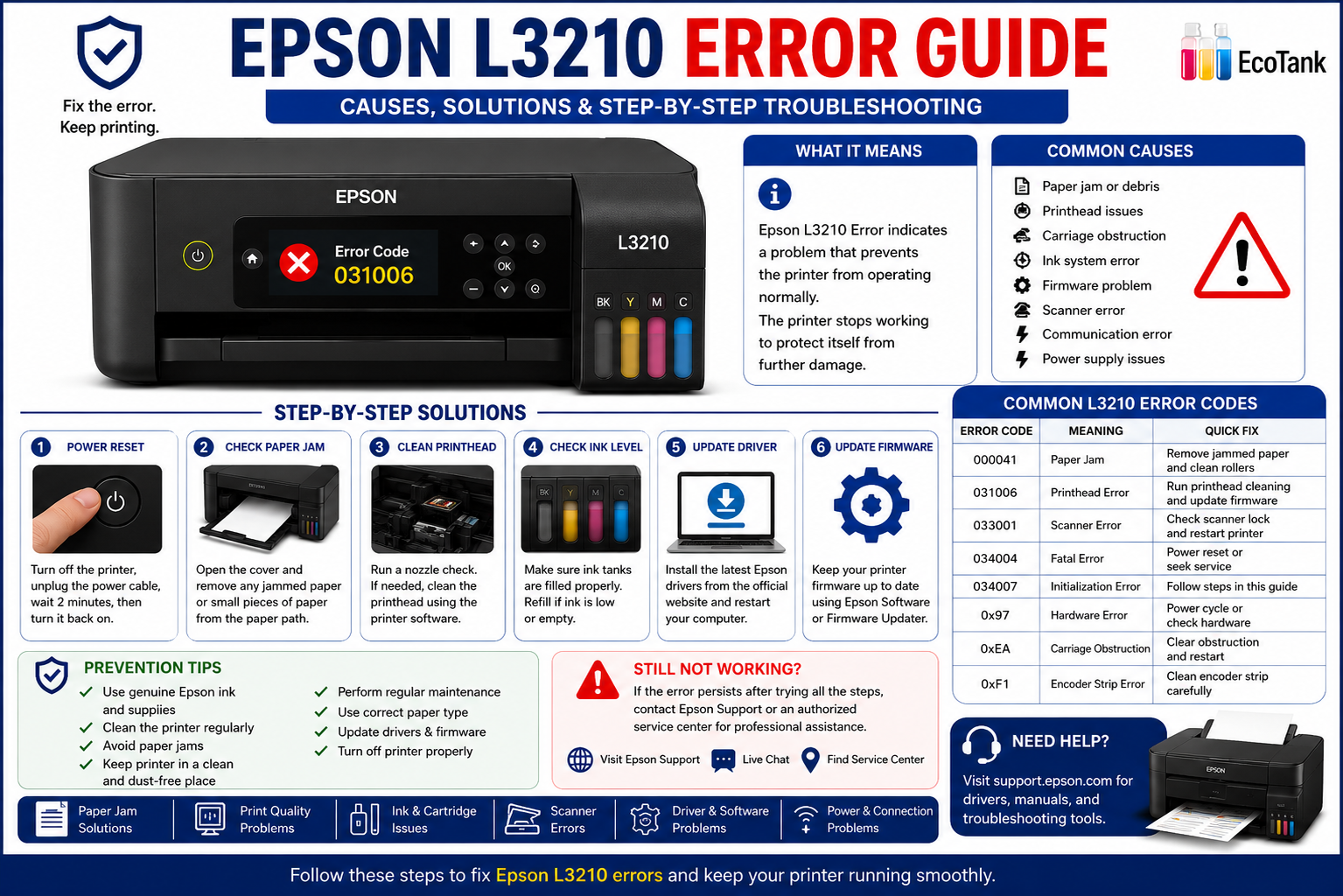
Few things are more frustrating than seeing an unexpected error on your Epson L3210 just when you need to print an important document. Whether your printer displays an error code, flashes its indicator lights, refuses to print, or shows a “Service Required” message, these issues can interrupt your work and leave you wondering what went wrong.
The good news is that many Epson L3210 error messages can be resolved without replacing the printer or visiting a service center. In many cases, the problem is related to paper jams, printhead movement, outdated drivers, communication issues, firmware glitches, or routine maintenance that you can address yourself.
In this comprehensive guide, you’ll learn how to identify the root cause of common Epson L3210 errors, follow proven troubleshooting steps, understand when a reset is appropriate, and apply preventive maintenance practices to keep your printer running smoothly.
What You’ll Learn
In this guide, we’ll cover:
- What Epson L3210 errors mean
- The most common error messages and codes
- Why Epson L3210 errors occur
- Step-by-step troubleshooting methods
- How to fix printing and scanning issues
- Driver and firmware solutions
- Resetting the Epson L3210 safely
- Preventive maintenance tips
- Frequently asked questions
- Expert recommendations for long-term printer reliability
What Is an Epson L3210 Error?
An Epson L3210 error is a warning generated by the printer when it detects a hardware malfunction, software issue, communication problem, maintenance requirement, or printing interruption. The printer displays an error message or blinking indicator lights to help identify the underlying problem so it can be resolved before printing resumes.
Understanding Epson L3210 Errors
The Epson L3210 includes built-in diagnostic features that constantly monitor the printer’s internal components. When the printer detects something unusual, it automatically pauses operation to protect itself from potential damage.
These alerts may indicate issues with:
- Paper feeding
- Printhead movement
- Ink delivery
- Scanner initialization
- USB communication
- Driver compatibility
- Internal sensors
- Waste ink pad capacity
- Firmware integrity
- Mechanical components
Rather than ignoring these warnings, it’s important to identify the specific cause. Prompt troubleshooting can often prevent minor issues from becoming more serious or costly repairs.
Example
If the printer detects resistance while moving the printhead, it may stop printing immediately and display an error. In many cases, the cause could be as simple as a small piece of paper or debris obstructing the carriage path.
Common Signs of an Epson L3210 Error
Symptoms may include:
- Printer stops responding
- Red indicator lights flashing
- Error message on the computer
- “Service Required” notification
- Paper feed interruption
- Scanner not initializing
- Blank pages
- Poor print quality
- Printer appears offline
- Failed print jobs
Recognizing these symptoms early can help you diagnose the issue more quickly and reduce unnecessary downtime.
Common Causes of Epson L3210 Errors
Understanding why your Epson L3210 displays an error is the first step toward resolving it effectively. While the exact cause depends on the specific error message or blinking light pattern, most issues fall into a few common categories.
Hardware-Related Problems
Physical issues are among the most frequent causes of printer errors.
Examples include:
- Paper jams
- Dust buildup
- Obstructed printhead carriage
- Damaged rollers
- Loose USB connection
- Faulty sensors
- Printhead contamination
- Encoder strip dirt
- Ink system blockage
- Internal mechanical wear
Expert Insight
Many printer failures reported as “hardware errors” are actually caused by small obstructions, such as torn paper fragments or dried ink residue, which can often be removed during routine cleaning.
Software and Driver Issues
A printer may be in perfect physical condition but still display errors due to software conflicts.
Common software-related causes include:
- Corrupted printer drivers
- Outdated firmware
- Windows update conflicts
- Incorrect printer settings
- Stuck print queue
- Communication timeout
- Device Manager conflicts
- Antivirus interference
- USB driver issues
- Unsupported operating system updates
Example
A recent operating system update may replace or disable the existing printer driver, causing the Epson L3210 to appear offline even though the hardware is functioning normally.
Epson L3210 Error Codes Explained
Not every Epson L3210 error points to the same problem. Some errors are caused by paper jams or carriage obstructions, while others relate to firmware, communication, scanner initialization, or the printer’s internal maintenance system.
The table below provides a quick overview of the most common Epson L3210 errors and their recommended solutions.
| Error / Symptom | Possible Cause | Recommended Fix |
|---|---|---|
| Service Required | Waste ink pad counter reached limit | Reset counter and inspect ink pad |
| Paper Jam | Paper stuck or sensor blocked | Remove jammed paper and clean sensors |
| Recovery Mode | Interrupted firmware update | Reinstall firmware correctly |
| Printer Offline | Driver or USB issue | Reinstall driver and reconnect printer |
| Blinking Power & Ink Lights | General hardware fault | Perform diagnostics and inspect carriage |
| Scanner Error | Scanner initialization failure | Restart printer and reinstall scanner driver |
| Communication Error | USB cable or driver problem | Replace cable and reinstall drivers |
| Printhead Error | Carriage obstruction or printhead issue | Clean carriage path and inspect printhead |
| Ink Charging Error | Ink system interruption | Restart ink charging process |
| Firmware Error | Corrupted firmware | Update firmware using Epson utility |
How to Fix Epson L3210 Error Step by Step
Before attempting advanced repairs, follow these troubleshooting steps in order. In many cases, one of these basic solutions resolves the issue without professional assistance.
Step 1: Restart the Printer
A simple restart can clear temporary software glitches and communication errors.
Steps
- Turn off the printer.
- Disconnect the power cable.
- Wait for 2–3 minutes.
- Disconnect the USB cable.
- Reconnect the power cable.
- Turn the printer back on.
- Connect the USB cable only after Windows finishes loading.
Why it works: Restarting clears temporary memory and reinitializes the printer’s hardware.
Step 2: Inspect for Paper Jams
Paper jams are one of the most common causes of Epson L3210 errors.
Check carefully for:
- Torn paper pieces
- Labels stuck inside
- Dust buildup
- Foreign objects
- Bent paper
- Multiple sheets feeding together
Expert Tip
Even a tiny paper fragment hidden near the rollers or printhead carriage can trigger repeated error messages.
Step 3: Check the Printhead Carriage
Open the printer cover while the printer is powered off.
Inspect whether:
- The carriage moves freely.
- Nothing blocks its movement.
- Ink tubes are correctly positioned.
- No cables are loose.
- The encoder strip is clean.
Never force the carriage. If it feels stuck, identify the obstruction first.
Step 4: Verify the USB Connection
Many communication errors are caused by faulty USB cables.
Check the following:
- Cable is securely connected.
- USB port is functioning.
- Cable length is under 2 meters.
- No USB hubs are being used.
- Cable isn’t damaged.
If possible, test with another USB cable.
Step 5: Restart the Print Spooler (Windows)
A stuck print spooler can prevent print jobs from reaching the printer.
Steps
- Press Windows + R.
- Type services.msc.
- Locate Print Spooler.
- Right-click and select Restart.
- Retry printing.
This resolves many “printer not responding” issues.
How to Fix Epson L3210 Blinking Lights
Blinking indicator lights provide valuable clues about the printer’s condition.
Power Light Flashing
Possible causes:
- Printer initializing
- Firmware update in progress
- Power fluctuation
- Internal hardware issue
Solution:
- Wait several minutes.
- Restart the printer.
- Check the power adapter.
- Avoid unplugging during initialization.
Ink Light Flashing
Possible causes:
- Low ink
- Ink charging interrupted
- Air in ink tubes
- Incorrect ink refill
Solution
- Verify ink levels.
- Refill using genuine Epson ink.
- Run Ink Charging Utility if required.
- Perform nozzle check.
Paper Light Flashing
Usually indicates:
- Paper jam
- Empty tray
- Paper sensor blockage
- Incorrect paper size
Fix
- Reload paper.
- Remove jammed sheets.
- Clean paper feed rollers.
- Check paper settings in the print dialog.
Multiple Lights Flashing Together
This often indicates:
- Service required
- Waste ink counter reached limit
- Internal hardware error
- Firmware problem
Do not repeatedly power cycle the printer, as this may worsen firmware-related issues.
Epson L3210 Service Required Error
The Service Required error on an Epson L3210 typically appears when the printer’s internal waste ink pad counter reaches its predefined limit. The printer stops functioning to prevent ink overflow and requires maintenance before normal operation can resume.
Why It Happens
During printhead cleaning, excess ink is directed into waste ink pads inside the printer. The printer estimates how much ink these pads have absorbed using an internal counter.
Once the counter reaches its limit, the printer displays:
“Service Required”
Even if the pads are not physically full, the printer will stop printing until the issue is addressed.
How to Fix It
Possible solutions include:
- Inspect the waste ink pads.
- Clean or replace the pads if necessary.
- Reset the waste ink counter using compatible service software.
- Restart the printer.
- Print a nozzle check page.
Expert Note: Resetting the counter without servicing saturated ink pads may eventually lead to ink leakage. Whenever possible, inspect or replace the pads before resetting.
Epson L3210 Communication Error
Communication failures occur when the computer cannot properly exchange data with the printer.
Common Causes
- Loose USB cable
- Corrupted driver
- Faulty USB port
- Windows updates
- Print spooler issues
- Antivirus software
- Driver conflicts
Step-by-Step Fix
- Disconnect the printer.
- Restart your PC.
- Remove the Epson printer from Windows.
- Restart again.
- Install the latest Epson driver.
- Connect the printer only when prompted.
- Print a test page.
Epson L3210 Print Quality Problems
Sometimes the printer works but produces poor-quality output.
Symptoms
- Blank pages
- Missing colors
- Horizontal lines
- Smudges
- Faded prints
- Uneven ink distribution
Possible Causes
- Clogged printhead
- Low ink
- Air bubbles
- Incorrect paper settings
- Dirty printhead
- Dried ink
Recommended Fixes
- Run Nozzle Check.
- Perform Printhead Cleaning.
- Execute Printhead Alignment.
- Use genuine Epson ink.
- Print regularly to prevent ink from drying.
Avoid running multiple cleaning cycles consecutively, as this uses a significant amount of ink.
Epson L3210 Scanner Error
Scanner errors can prevent copying and scanning even when printing functions normally.
Common Causes
- Driver corruption
- Scanner lock enabled
- USB communication failure
- Initialization error
- Firmware issue
Troubleshooting Steps
- Restart the printer.
- Restart the computer.
- Reinstall the scanner driver.
- Try another USB cable.
- Disconnect other USB devices.
- Update Windows.
- Test using Epson Scan software.
Epson L3210 Driver Problems
Outdated or corrupted drivers are a frequent source of printer issues.
Signs of Driver Problems
- Printer offline
- Print jobs disappear
- Device not detected
- Error messages
- Scanner unavailable
Driver Installation Best Practices
- Download drivers from Epson’s official support page.
- Remove older drivers before installing new ones.
- Restart the computer after installation.
- Connect the printer only when the installer requests it.
Using the correct driver version for your operating system helps avoid compatibility issues and improves overall printer stability.
Preventive Maintenance Tips
Routine maintenance can significantly reduce the likelihood of future Epson L3210 errors.
Best Practices
- Keep the printer covered when not in use.
- Print a test page every week to prevent ink from drying.
- Use only genuine Epson inks.
- Avoid overfilling ink tanks.
- Clean the exterior regularly with a soft, lint-free cloth.
- Store paper in a dry, dust-free location.
- Keep the printer on a stable, level surface.
- Avoid sudden power interruptions during printing or firmware updates.
- Update printer drivers periodically.
- Perform nozzle checks and printhead alignment when print quality declines.
Maintenance Checklist
| Task | Recommended Frequency |
|---|---|
| Clean exterior | Monthly |
| Nozzle check | Every 2–4 weeks |
| Printhead cleaning | Only when needed |
| Printhead alignment | After replacing or servicing the printhead |
| Driver update | Every 3–6 months |
| Firmware check | Periodically, if Epson releases updates |
| Inspect paper path | Monthly |
| Check USB cable | Every few months |
Expert Recommendations
Based on common repair scenarios, these best practices can help extend the life of your Epson L3210:
- Diagnose the specific error before attempting repairs.
- Start with simple troubleshooting steps before considering hardware replacement.
- Keep your printer software and drivers up to date.
- Use high-quality paper to reduce paper feed issues.
- Avoid interrupting firmware updates or ink charging cycles.
- Schedule regular maintenance rather than waiting for problems to appear.
- If a hardware error persists after completing all recommended steps, contact an authorized Epson service center for further diagnosis.
Frequently Asked Questions (FAQ)
1. What does an Epson L3210 error mean?
An Epson L3210 error indicates that the printer has detected a problem preventing normal operation. The issue may be related to hardware, software, communication, paper feeding, ink delivery, or routine maintenance. Identifying the exact error message is the first step toward resolving it.
2. Why is my Epson L3210 printer blinking?
Flashing indicator lights usually signal paper jams, low ink, carriage obstructions, maintenance requirements, firmware issues, or internal hardware faults. The blinking pattern helps identify the specific problem.
3. How do I reset my Epson L3210?
You can perform a basic reset by:
- Turning off the printer.
- Disconnecting the power cable.
- Waiting 2–3 minutes.
- Reconnecting the power.
- Restarting the printer.
For maintenance-related errors, such as “Service Required,” the waste ink pad counter may also need to be reset after inspecting or replacing the ink pads.
4. Why won’t my Epson L3210 print?
Common causes include:
- Printer offline
- Driver issues
- USB communication problems
- Paper jams
- Clogged printhead
- Empty ink tanks
- Stuck print queue
- Firmware errors
5. Can I fix Epson L3210 errors without a technician?
Yes. Many issues—such as paper jams, communication errors, print spooler problems, driver conflicts, and clogged printheads—can often be resolved at home using basic troubleshooting steps.
6. What causes the “Service Required” message?
This message typically appears when the printer estimates that the waste ink pads have reached their service limit. The printer stops printing to reduce the risk of ink overflow.
7. How often should I clean the printhead?
Only clean the printhead when you notice missing colors, faded output, or nozzle check failures. Running unnecessary cleaning cycles consumes ink and may shorten maintenance intervals.
8. Why is my Epson L3210 printing blank pages?
Possible reasons include:
- Clogged printhead
- Air in the ink system
- Empty ink tanks
- Incorrect driver settings
- Firmware issues
Run a nozzle check before performing a printhead cleaning cycle.
9. Should I update my Epson L3210 firmware?
Yes, but only when Epson releases an official firmware update that addresses bugs, compatibility, or security improvements. Avoid interrupting the update process.
10. How long does an Epson L3210 printer last?
With proper maintenance, genuine Epson ink, and regular cleaning, an Epson L3210 can provide reliable service for many years. Actual lifespan depends on print volume, usage habits, and environmental conditions.
11. Why is my Epson L3210 showing a communication error?
A communication error is often caused by a faulty USB cable, outdated driver, unstable connection, or print spooler issue. Reinstalling the driver and testing a different USB port usually resolves the problem.
12. When should I contact Epson support?
You should contact Epson support if:
- Hardware errors persist after troubleshooting.
- The printer has suffered physical damage.
- Firmware recovery fails.
- Internal components require replacement.
- The printer is still under warranty.