Epson L3250 Error Code: Complete Troubleshooting Guide to Fix Common Printer Errors
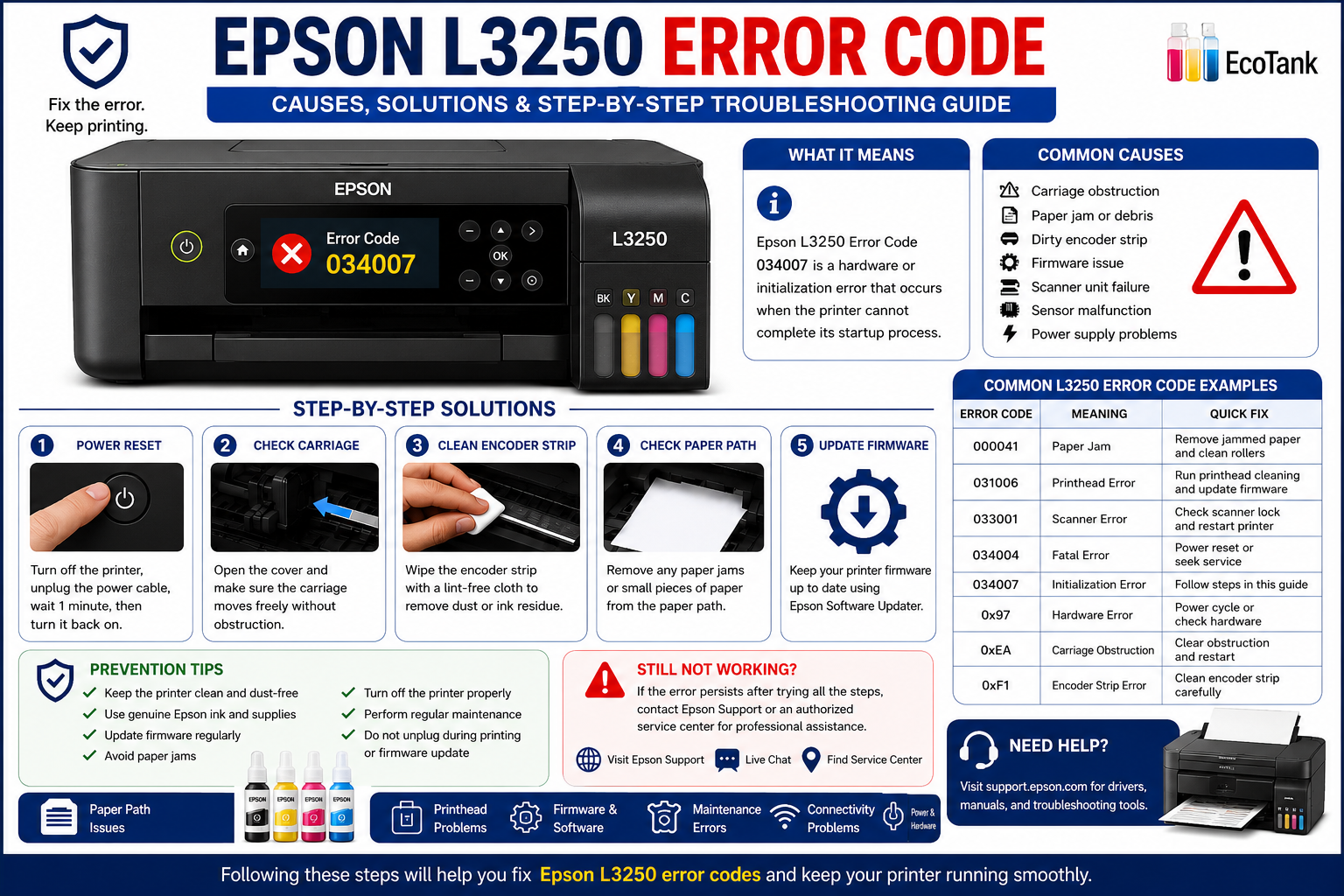
If your Epson L3250 error code has suddenly interrupted an important print job, you’re not alone. Whether your printer displays blinking lights, a paper feed error, a scanner issue, or a service warning, these messages are designed to help identify the underlying problem. The good news is that many Epson L3250 errors can be resolved at home with the right troubleshooting steps, saving both time and repair costs.
This comprehensive guide explains the most common Epson L3250 error codes, what causes them, and how to fix each issue safely. You’ll also learn preventive maintenance tips to reduce future errors and understand when it’s time to contact Epson support for professional assistance.
What You’ll Learn
By the end of this guide, you’ll know how to:
- Understand common Epson L3250 error codes.
- Identify the root cause of printer problems.
- Fix paper jams and carriage issues.
- Resolve scanner and communication errors.
- Troubleshoot Wi-Fi and driver problems.
- Reset your Epson L3250 safely.
- Perform regular maintenance to prevent future issues.
- Determine when professional repair is necessary.
What Is an Epson L3250 Error Code?
An Epson L3250 error code is a built-in diagnostic message or pattern of indicator lights that alerts users to a hardware, software, or communication issue affecting the printer. These codes help identify the source of the problem, making it easier to apply the correct troubleshooting steps.
Unlike simple status notifications, error codes often indicate conditions that prevent normal printing or scanning. Depending on the issue, the printer may pause operation until the problem is resolved.
Common reasons an error code appears include:
- Paper jams or paper feed obstructions.
- Printhead carriage movement problems.
- Low or interrupted power supply.
- Ink system or ink charging errors.
- Scanner initialization failures.
- USB or Wi-Fi communication issues.
- Outdated or corrupted printer drivers.
- Internal hardware malfunctions.
- Waste ink pad nearing the end of its service life.
Quick Answer: An Epson L3250 error code is a diagnostic alert that identifies a specific printer issue. While many errors can be resolved through basic troubleshooting, persistent hardware or service-related errors may require professional repair.
Common Epson L3250 Error Codes Explained
The table below summarizes some of the most frequently encountered Epson L3250 error conditions, their likely causes, and recommended solutions.
| Error / Symptom | Possible Cause | Recommended Solution |
|---|---|---|
| Paper Jam Error | Jammed paper, debris, damaged rollers | Remove jammed paper, inspect rollers, reload paper correctly |
| Carriage Error | Obstruction, dirty encoder strip, carriage stuck | Turn off printer, remove obstruction, clean encoder strip carefully |
| Scanner Error | Scanner lock engaged, damaged scanner cable, initialization failure | Unlock scanner (if applicable), restart printer, reconnect cables |
| Ink Charging Error | Interrupted setup, air in ink lines, improper ink filling | Complete ink charging process and ensure ink tanks are filled correctly |
| Communication Error | Faulty USB cable, unstable Wi-Fi, driver issue | Reconnect USB, restart router, reinstall or update the printer driver |
| Service Required Message | Waste ink pad counter reached limit | Reset the waste ink counter using approved service software or seek professional servicing |
| Recovery Mode | Firmware update interrupted | Retry the firmware update using the official Epson firmware recovery process |
| All Lights Blinking | General hardware or firmware fault | Power cycle the printer, check for obstructions, and inspect for hardware issues |
| Printer Offline | Driver conflict, network issue | Set the printer as default, clear the print queue, reconnect to the network |
| Fatal Error | Internal mechanical or electronic failure | Perform basic diagnostics; if unresolved, contact an authorized Epson service center |
Expert Tip
Not every Epson L3250 error indicates a serious hardware failure. Simple issues such as paper misalignment, loose cables, or outdated drivers often trigger error messages that can be resolved in just a few minutes. Start with the least invasive troubleshooting steps before considering repairs.
What Causes Epson L3250 Error Codes?
Before attempting any repair, it’s important to understand why your Epson L3250 displays an error. Most error codes are triggered by hardware sensors or firmware that detect abnormal conditions. Identifying the root cause helps you apply the correct fix and avoid unnecessary troubleshooting.
Common Causes of Epson L3250 Error Codes
1. Paper Feed Problems
Paper feed issues are among the most common causes of printer errors. Even a small piece of torn paper can block sensors and stop printing.
Common causes include:
- Wrinkled paper
- Multiple sheets feeding together
- Torn paper inside the printer
- Dirty paper feed rollers
- Incorrect paper size settings
Expert Tip: Always remove jammed paper slowly in the direction of the paper path to avoid damaging internal components.
2. Printhead Carriage Obstruction
The printhead carriage moves across the printer during printing. If its movement is blocked, the printer detects a carriage error and stops operating.
Possible reasons include:
- Foreign objects inside the printer
- Ink buildup
- Dirty encoder strip
- Damaged carriage belt
- Packaging materials left inside a new printer
Common Symptoms
- Grinding noises
- Printhead stops halfway
- Flashing error lights
- Printer won’t initialize
3. Ink System Issues
The Epson L3250 EcoTank system relies on a continuous ink supply. Problems with ink flow or air in the tubes can trigger errors.
Possible causes:
- Empty ink tanks
- Incorrect ink refilling
- Air bubbles in ink lines
- Interrupted initial ink charging
- Non-genuine or incompatible ink
4. Scanner Initialization Errors
Because the Epson L3250 is an all-in-one printer, scanner issues can prevent the entire device from starting correctly.
Possible reasons:
- Scanner lock engaged
- Scanner cable disconnected
- Scanner motor failure
- Internal sensor malfunction
5. Driver or Firmware Problems
Software issues are often overlooked but can generate communication or initialization errors.
These include:
- Corrupted printer driver
- Outdated firmware
- Interrupted firmware update
- Operating system incompatibility
6. Waste Ink Pad Warning
During cleaning cycles, excess ink is collected in the waste ink pad. When the internal counter reaches its preset limit, the printer displays a Service Required message.
Important: Resetting the counter without replacing or servicing the waste ink pad may lead to ink overflow over time. If the pad is genuinely saturated, it should be serviced or replaced according to Epson’s recommendations.
How to Fix Epson L3250 Error Codes (Step-by-Step Guide)
The following troubleshooting process addresses the most common Epson L3250 errors. Work through each step in order before moving to more advanced solutions.
Step 1: Restart the Printer
A simple restart can clear temporary software glitches.
Steps
- Turn off the printer.
- Unplug the power cable.
- Wait 60 seconds.
- Reconnect the cable.
- Turn the printer back on.
- Check whether the error persists.
Why this works: Restarting clears temporary memory and reinitializes the printer hardware.
Step 2: Inspect for Paper Jams
Paper jams are one of the leading causes of Epson printer errors.
Follow these steps:
- Open the scanner unit carefully.
- Check the rear paper path.
- Remove any visible paper gently.
- Inspect for torn paper scraps.
- Reload paper neatly.
- Restart the printer.
Avoid These Mistakes
- Pulling paper backward forcefully
- Using wet or curled paper
- Overloading the paper tray
- Mixing different paper sizes
Step 3: Check the Printhead Carriage
If the carriage cannot move freely, the printer may display a carriage or fatal error.
What to do:
- Turn the printer off.
- Open the printer cover.
- Gently move the carriage by hand only if it moves freely without force.
- Remove any foreign objects such as paper clips, labels, or packaging material.
- Clean away visible dust.
- Close the cover and restart the printer.
Caution: Never force the carriage. If it resists movement, forcing it may damage the mechanism.
Step 4: Verify Ink Levels
Low or improperly filled tanks can interrupt printing.
Check for:
- Low ink
- Incorrect ink bottle
- Air bubbles
- Open tank caps
- Ink leakage
If ink levels are low, refill using the correct Epson ink for your printer model and ensure the tank caps are properly secured.
Step 5: Check USB or Wi-Fi Connection
Communication errors often originate from connection problems rather than hardware failures.
USB Users
- Reconnect the cable.
- Try another USB port.
- Replace damaged cables.
- Restart your computer.
Wi-Fi Users
- Restart the router.
- Reconnect the printer to Wi-Fi.
- Verify the printer and computer are on the same network.
- Print a network status report if needed.
Step 6: Update or Reinstall the Printer Driver
Corrupted drivers frequently cause communication and printing issues.
Steps
- Remove the existing printer driver from your computer.
- Restart the computer.
- Download the latest Epson L3250 driver from Epson’s official support website.
- Install the driver.
- Reconnect the printer.
- Print a test page.
Expert Insight: Installing the latest driver after major Windows or macOS updates often resolves unexplained communication problems.
Step 7: Update Printer Firmware
Firmware updates can improve stability and resolve known bugs.
Before updating:
- Ensure a stable power supply.
- Do not disconnect the printer during the update.
- Avoid using the printer until the update is complete.
An interrupted firmware update may place the printer into Recovery Mode, requiring the firmware update to be repeated using Epson’s recovery procedure.
How to Reset an Epson L3250 Printer
Resetting the printer can resolve certain software-related issues, clear temporary faults, and restore normal operation. It is not a solution for every hardware error, but it is a useful troubleshooting step.
Method 1: Basic Power Reset
- Turn off the printer.
- Disconnect the power cable.
- Wait for one minute.
- Reconnect the cable.
- Turn the printer on.
- Print a test page.
Method 2: Restore Network Settings
If you’re experiencing Wi-Fi or communication problems:
- Open the printer’s network settings.
- Select the option to restore or reset network settings.
- Reconnect the printer to your Wi-Fi network.
- Update the printer connection on your computer or mobile device if required.
Method 3: Waste Ink Counter Reset
If the printer displays a Service Required message because the waste ink counter has reached its limit, the counter may need to be reset after the waste ink pad has been inspected or serviced.
Important: The counter should only be reset when appropriate maintenance has been carried out. Ignoring a saturated waste ink pad can lead to ink leakage and potential printer damage.
Prevent Epson L3250 Errors with Regular Maintenance
Preventive maintenance significantly reduces the likelihood of recurring printer errors and extends the life of your Epson L3250.
Best Maintenance Practices
- Keep the printer free from dust.
- Use genuine Epson ink whenever possible.
- Print regularly to reduce printhead clogging.
- Store paper in a dry environment.
- Clean paper feed rollers periodically.
- Avoid overfilling the paper tray.
- Keep the firmware and drivers up to date.
- Shut down the printer using the power button instead of unplugging it.
- Place the printer on a stable, level surface.
- Perform nozzle checks and head cleaning only when necessary.
Maintenance Schedule
| Maintenance Task | Recommended Frequency |
|---|---|
| Exterior cleaning | Weekly |
| Check paper rollers | Monthly |
| Nozzle check | Monthly or when print quality drops |
| Printhead cleaning | Only if nozzle check indicates clogging |
| Firmware update | When Epson releases a stable update |
| Driver update | Every few months or after OS updates |
| Inspect ink levels | Before large print jobs |
| Internal inspection | Every 6–12 months or as needed |
When Should You Contact Epson Support?
While many Epson L3250 issues can be resolved at home, some errors indicate hardware problems that require professional attention.
Contact Epson Support If:
- The printer displays a persistent Fatal Error.
- The printhead carriage does not move after removing obstructions.
- Scanner errors continue after restarting the printer.
- Ink leaks are visible inside the printer.
- Electrical components emit unusual smells or smoke.
- The printer repeatedly enters Recovery Mode.
- The waste ink pad requires physical replacement.
- The printer fails to power on despite a working power outlet.
- Firmware updates repeatedly fail.
- Mechanical noises continue after basic troubleshooting.
Expert Recommendation
If your Epson L3250 is still covered by its manufacturer’s warranty, avoid disassembling internal components. Unauthorized repairs may void the warranty. Instead, document the error message, note any blinking light patterns, and contact Epson support or an authorized service center for further assistance.
Frequently Asked Questions (FAQs)
1. What does an Epson L3250 error code mean?
An Epson L3250 error code is a diagnostic message that indicates a problem with the printer’s hardware, software, ink system, paper feed, scanner, or communication. The code helps identify the issue so you can apply the appropriate troubleshooting steps.
2. How do I fix my Epson L3250 error code?
Start by restarting the printer, checking for paper jams, verifying ink levels, inspecting the printhead carriage, reconnecting the USB or Wi-Fi connection, updating the printer driver, and installing the latest firmware. If the error persists, professional servicing may be required.
3. Why are all the lights blinking on my Epson L3250?
Blinking lights often indicate a paper jam, carriage issue, maintenance warning, or internal hardware fault. Refer to the specific blinking pattern or software message to identify the exact cause before attempting repairs.
4. How do I reset my Epson L3250 printer?
You can perform a basic reset by turning off the printer, unplugging it for about one minute, reconnecting the power cable, and turning it back on. If you’re troubleshooting network issues, reset the printer’s network settings. Waste ink counter resets should only be performed after appropriate maintenance.
5. What is the Epson L3250 “Service Required” message?
This message usually appears when the waste ink pad counter reaches its preset limit. The printer may need maintenance, including inspection or replacement of the waste ink pad, followed by resetting the counter using approved service procedures.
6. Can I fix Epson L3250 errors without visiting a service center?
Yes. Many common issues—such as paper jams, driver conflicts, Wi-Fi connection problems, and minor printhead errors—can be resolved at home. Persistent hardware failures or recurring fatal errors should be handled by an authorized service technician.
7. Why is my Epson L3250 not printing even though it is powered on?
Possible causes include clogged nozzles, low ink, print queue issues, communication problems, incorrect printer settings, or a hardware error. Running through the basic troubleshooting steps often resolves the problem.
8. Does updating firmware fix Epson L3250 errors?
Firmware updates can resolve software bugs, improve printer stability, and fix compatibility issues. However, they won’t repair mechanical faults such as damaged rollers or a failed printhead carriage.
9. How can I prevent Epson L3250 error codes?
Preventive measures include using genuine Epson ink, keeping the printer clean, avoiding paper overload, updating drivers and firmware, performing nozzle checks only when necessary, and following the recommended maintenance schedule.
10. When should I replace my Epson L3250 instead of repairing it?
If the printer has multiple hardware failures, recurring fatal errors, or repair costs approach the price of a replacement printer, purchasing a new device may be more economical. For newer printers under warranty, contact Epson before considering replacement.
11. Can third-party ink cause Epson L3250 errors?
Non-genuine ink may not always cause problems, but incompatible or poor-quality ink can contribute to print quality issues, clogged nozzles, or ink system warnings. Using ink designed for the Epson L3250 helps maintain reliable performance.
12. Why does my Epson L3250 keep showing the same error after restarting?
If the same error returns after restarting, the underlying cause has not been resolved. Check for physical obstructions, verify connections, inspect consumables, and update the printer software. Persistent errors may indicate a hardware issue.