Epson EcoTank Troubleshooting: Complete Guide to Fix Common Printer Problems
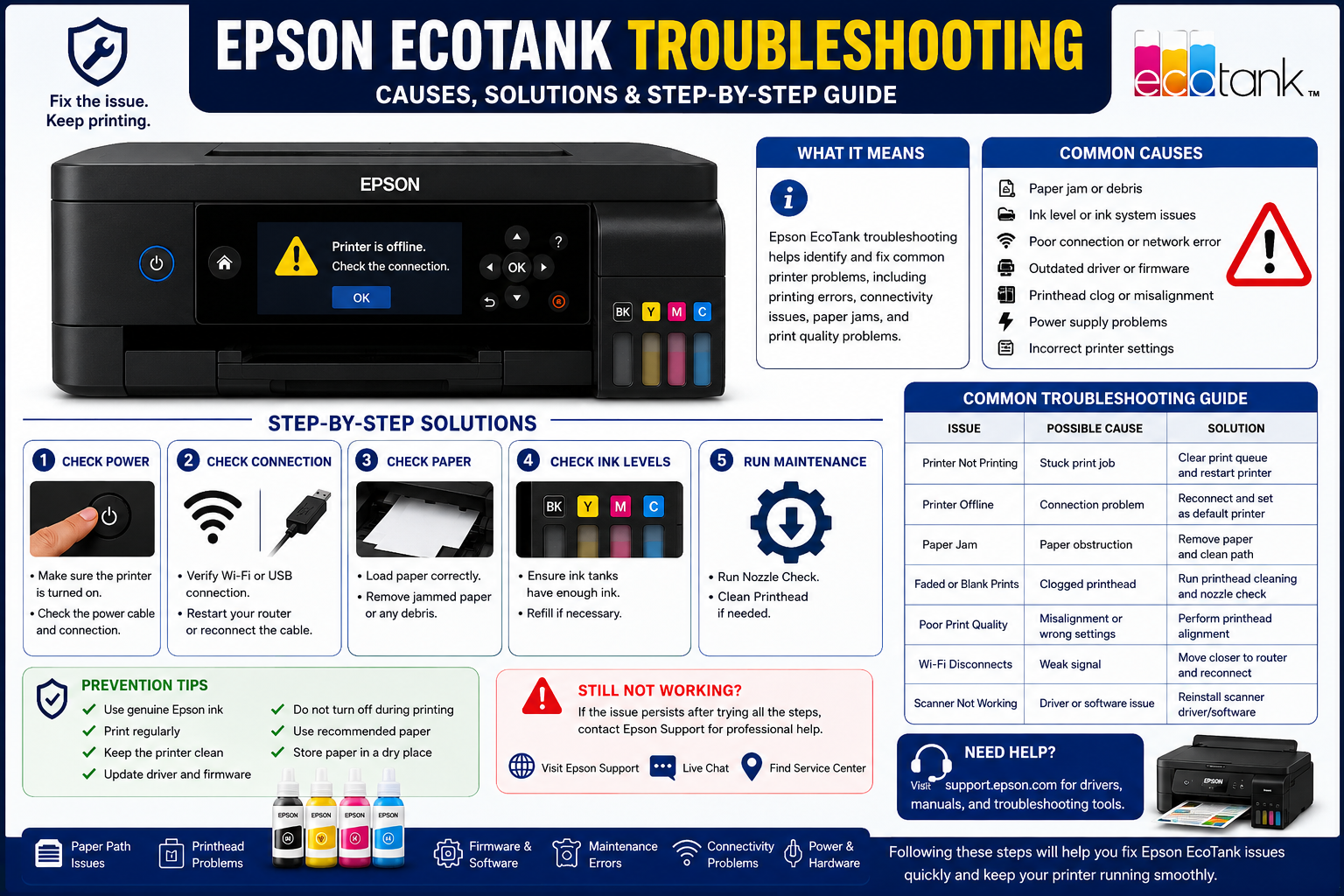
If your Epson EcoTank printer suddenly stops printing, shows an error message, loses its Wi-Fi connection, or produces faded or blank pages, you’re not alone. Although Epson EcoTank printers are known for their high-capacity ink tanks, low operating costs, and reliable performance, they can still experience occasional technical issues. Fortunately, many of these problems can be diagnosed and resolved at home without professional repair.
This comprehensive Epson EcoTank troubleshooting guide walks you through the most common printer problems, explains their causes, and provides practical, step-by-step solutions. Whether you’re using your EcoTank printer for home, school, or business, you’ll learn how to restore normal operation quickly while avoiding unnecessary downtime.
What You’ll Learn
In this guide, you’ll discover:
- How to identify common Epson EcoTank problems
- Why your printer may stop printing
- Solutions for paper jams and paper feed issues
- How to fix faded, streaky, or blank prints
- Wi-Fi and network troubleshooting steps
- Driver and software fixes
- Printhead cleaning and maintenance
- Scanner troubleshooting
- Preventive maintenance tips
- When to contact Epson support
Common Epson EcoTank Problems and Their Causes
Most Epson EcoTank issues fall into a handful of categories. Understanding the root cause makes troubleshooting faster and prevents unnecessary repairs.
| Problem | Possible Cause | Difficulty |
|---|---|---|
| Printer not printing | Driver issue, print queue, connection problem | Easy |
| Blank pages | Air in ink lines, clogged printhead | Medium |
| Poor print quality | Dirty nozzles, low ink flow | Easy |
| Paper jams | Misaligned paper, debris | Easy |
| Wi-Fi disconnects | Weak signal, router issues | Medium |
| Offline status | Network configuration | Easy |
| Scanner not working | Driver or software conflict | Medium |
| Slow printing | High-quality print mode, outdated driver | Easy |
Why Problems Occur
Most printer issues result from one or more of the following:
- Clogged printhead nozzles due to infrequent use
- Incorrect printer settings
- Outdated firmware or drivers
- Weak wireless signal
- Paper loaded incorrectly
- Interrupted print jobs
- Dust and debris inside the printer
- Improper ink refilling procedures
Expert Insight
Many users assume their printer is broken when it simply requires routine maintenance, such as a nozzle check, printhead cleaning, or driver update. Performing these basic maintenance tasks regularly can prevent many common issues and extend the lifespan of your Epson EcoTank printer.
Epson EcoTank Not Printing: Step-by-Step Troubleshooting
One of the most common complaints from EcoTank users is that the printer powers on but refuses to print. This issue can stem from software conflicts, connection failures, clogged printheads, or incorrect printer settings.
Step 1: Check Printer Status
Before making any changes:
- Ensure the printer is powered on.
- Confirm there are no error lights or warning messages.
- Verify that paper is loaded correctly.
- Check that the ink tanks contain sufficient ink.
Step 2: Verify the Connection
Depending on how your printer is connected:
USB Connection
- Ensure the USB cable is securely connected.
- Try a different USB port.
- Replace a damaged cable if necessary.
Wireless Connection
- Confirm the printer is connected to the correct Wi-Fi network.
- Restart your router.
- Move the printer closer to the router if the signal is weak.
Step 3: Check the Print Queue
A stalled print job can block all future printing.
- Open Printers & Scanners on your computer.
- Select your Epson EcoTank printer.
- Open the print queue.
- Cancel any stuck print jobs.
- Restart both the printer and your computer.
- Send a new test page.
Step 4: Confirm the Default Printer
If multiple printers are installed, your computer may be sending jobs to the wrong device.
- Open printer settings.
- Locate your Epson EcoTank.
- Set it as the default printer.
- Retry the print job.
Common Mistakes to Avoid
- Ignoring warning lights on the printer panel.
- Printing with an unstable Wi-Fi connection.
- Using outdated printer drivers.
- Skipping routine nozzle checks.
- Turning off the printer during an active print job.
Fixing Epson EcoTank Print Quality Problems
Print quality issues are among the most common concerns for Epson EcoTank users. If your documents appear faded, streaky, blurry, or contain missing colors, the problem usually lies with the printhead, ink flow, paper settings, or maintenance routines. Fortunately, most print quality issues can be resolved without replacing the printer.
Common Print Quality Problems
| Problem | Possible Cause | Recommended Solution |
|---|---|---|
| Blank pages | Air in ink lines, clogged printhead | Run Printhead Cleaning and Power Cleaning |
| Faded prints | Low ink flow or incorrect print settings | Check ink levels and increase print quality |
| Horizontal lines | Clogged nozzles | Perform a Nozzle Check followed by Printhead Cleaning |
| Blurry text | Incorrect paper type or print alignment | Run Print Head Alignment |
| Incorrect colors | Dirty printhead or wrong color profile | Clean printhead and verify printer settings |
| Smudged prints | Wet paper or dirty rollers | Clean rollers and use recommended paper |
Step 1: Check Ink Levels
Even though EcoTank printers have visible ink tanks, low ink can still cause poor print quality.
- Verify each ink tank contains enough ink.
- Refill only with genuine Epson ink bottles recommended for your model.
- Avoid overfilling the tanks.
Expert Tip: Mixing incompatible inks may reduce print quality and could damage the printhead over time.
Step 2: Run a Nozzle Check
A nozzle check identifies clogged printhead nozzles before performing a cleaning cycle.
How to perform a nozzle check:
- Load plain A4 paper.
- Open Printer Maintenance from the printer software.
- Select Nozzle Check.
- Print the test pattern.
- Compare the printed pattern with the sample shown on-screen.
If you notice:
- Missing lines → Clean the printhead.
- Broken patterns → Repeat nozzle check after cleaning.
- Perfect pattern → The issue may be related to software or print settings.
Step 3: Clean the Printhead
If the nozzle check reveals missing lines, perform a printhead cleaning.
Steps:
- Open the Epson maintenance utility.
- Select Printhead Cleaning.
- Wait for the cleaning cycle to finish.
- Print another nozzle check.
- Repeat only if necessary.
Avoid running multiple cleaning cycles back-to-back, as they consume ink and may not improve results if overused.
Step 4: Perform Print Head Alignment
Misaligned printheads often cause blurry text or double images.
To align the printhead:
- Open the printer maintenance menu.
- Select Print Head Alignment.
- Follow the on-screen instructions.
- Print a test page to confirm improvement.
Common Mistakes That Affect Print Quality
- Leaving the printer unused for several weeks.
- Printing on damp or low-quality paper.
- Selecting the wrong paper type in print settings.
- Interrupting a cleaning cycle.
- Using third-party ink not designed for your EcoTank model.
Expert Recommendation
Printing a small color page every week helps keep ink flowing through the printhead, reducing the likelihood of clogged nozzles and extending the life of your printer.
Epson EcoTank Wi-Fi Connection Problems
Wireless connectivity issues can prevent your printer from appearing on your computer or mobile device. These problems are often caused by router changes, weak signals, or incorrect network settings.
Symptoms of Wi-Fi Problems
- Printer appears offline.
- Computer cannot detect the printer.
- Mobile printing fails.
- Frequent disconnections.
- Slow printing over Wi-Fi.
- Unable to complete printer setup.
Step-by-Step Wi-Fi Troubleshooting
Step 1: Restart Everything
Restart:
- Epson EcoTank printer
- Wi-Fi router
- Computer
- Mobile device
A simple restart often refreshes network communication.
Step 2: Verify the Wi-Fi Connection
Check that:
- Wi-Fi light is solid.
- The printer is connected to the correct network.
- Your computer and printer are on the same Wi-Fi network.
- The router is functioning normally.
Step 3: Move the Printer Closer
Poor signal strength can cause:
- Lost print jobs
- Slow printing
- Random disconnects
Keep the printer within range of the router and avoid placing it behind thick walls or metal cabinets.
Step 4: Reconnect to Wi-Fi
If the printer has forgotten the network:
- Open the printer’s network settings.
- Choose Wireless Setup.
- Select your Wi-Fi network.
- Enter the password carefully.
- Wait for confirmation.
Step 5: Reinstall the Printer
If Windows or macOS cannot detect the printer:
- Remove the printer.
- Restart the computer.
- Add the printer again.
- Install the latest Epson driver.
- Print a test page.
Mobile Printing Troubleshooting
If mobile printing is not working:
- Ensure Wi-Fi is enabled.
- Update the Epson Smart Panel app.
- Restart both devices.
- Confirm both are connected to the same network.
- Re-add the printer within the app.
Preventing Future Wi-Fi Problems
- Keep printer firmware updated.
- Avoid changing router settings frequently.
- Assign a reserved IP address to the printer.
- Use a stable 2.4 GHz network if recommended for your printer model.
- Restart your router periodically.
Epson EcoTank Offline Issue
One of the most frustrating messages users encounter is “Printer Offline.” This does not always indicate a hardware fault—it usually means your computer cannot communicate with the printer.
Common Causes
- Network interruption
- USB cable issue
- Stuck print jobs
- Incorrect default printer
- Disabled print spooler service
- Driver conflicts
How to Fix an Offline Epson EcoTank Printer
Method 1: Set the Printer as Default
- Open Printers & Scanners.
- Select your Epson EcoTank.
- Click Set as Default.
- Retry printing.
Method 2: Disable “Use Printer Offline”
- Open the print queue.
- Select Printer from the menu.
- Uncheck Use Printer Offline.
- Resume printing.
Method 3: Restart the Print Spooler (Windows)
- Press Windows + R.
- Type services.msc.
- Locate Print Spooler.
- Restart the service.
- Send another print job.
Method 4: Clear the Print Queue
Delete any stalled print jobs and restart the printer.
Fixing Epson EcoTank Paper Jam Problems
Paper jams may occur due to damaged paper, incorrect loading, worn rollers, or debris inside the printer.
Signs of a Paper Jam
- Error message on display
- Paper stops halfway
- Grinding noises
- Multiple sheets feeding together
Safe Paper Jam Removal
Step 1 – Turn the printer off.
Step 2 – Open all paper access covers.
Step 3 – Pull the paper slowly using both hands. Never yank the paper suddenly.
Step 4 – Inspect for: Small paper pieces, Labels, Dust, Staples, Foreign Objects, Lists.
Step 5 – Reload paper correctly.
Step 6 – Restart the printer.
Prevent Future Paper Jams
- Fan paper before loading.
- Never exceed the paper limit.
- Store paper in a dry place.
- Remove curled or damaged sheets.
- Clean paper feed rollers regularly.
Epson EcoTank Scanner Not Working
Sometimes the printer works perfectly while the scanner refuses to scan.
Common Causes
- Missing scanner driver
- USB connection failure
- Network communication issue
- Disabled scanner service
- Outdated software
Scanner Troubleshooting Steps
Check Scanner Detection
Ensure:
- Scanner appears in Device Manager.
- Epson Scan software is installed.
- Scanner cable is secure.
- Network scanner is on the same Wi-Fi network.
Restart Epson Scan
Close Epson Scan completely.
Restart:
- Scanner
- Printer
- Computer
Launch Epson Scan again.
Update Scanner Driver
Install the latest scanner software compatible with your operating system.
Test Another Program
Try scanning using:
- Windows Scan
- Image Capture (macOS)
- Epson Scan utility
If scanning works in another application, the issue likely lies with the original software rather than the scanner itself.
Expert Maintenance Tips
Following a few simple maintenance habits can help prevent many common Epson EcoTank problems:
- Print at least one color page every week.
- Keep the printer covered when not in use to reduce dust buildup.
- Use only recommended Epson ink bottles.
- Clean the paper feed rollers every few months.
- Update printer firmware periodically.
- Avoid unplugging the printer while it is operating.
- Always power off the printer using its power button.
- Store paper in a cool, dry environment to prevent moisture-related jams.
Preventive Maintenance Tips for Epson EcoTank Printers
Preventive maintenance is the best way to avoid common Epson EcoTank issues. A few simple habits can significantly improve print quality, reduce downtime, and extend the life of your printer.
Weekly Maintenance Checklist
- Print at least one color page to keep ink flowing through the printhead.
- Check ink tank levels.
- Inspect the paper tray for dust or damaged paper.
- Verify the printer is connected to your Wi-Fi network.
- Print a nozzle check if you notice any quality changes.
Monthly Maintenance Checklist
- Clean the exterior with a soft, lint-free cloth.
- Perform a printhead alignment if text appears blurry.
- Check for available firmware updates.
- Clean the paper feed rollers.
- Remove dust from paper trays and output trays.
Best Practices
- Always turn the printer off using the Power button.
- Store paper in a cool, dry place.
- Use genuine Epson ink bottles designed for your EcoTank model.
- Avoid overfilling the ink tanks.
- Keep the printer in a dust-free environment.
- Don’t unplug the printer while it is performing maintenance.
Expert Insight: Regular maintenance is far less expensive than replacing a clogged printhead or repairing paper feed components. A few minutes of upkeep each month can save hours of troubleshooting later.
When Should You Contact Epson Support?
While many issues can be fixed at home, some problems require professional assistance.
Contact Epson support if:
- The printer displays persistent hardware error codes.
- Printhead cleaning fails to restore print quality after several attempts.
- The printer makes unusual grinding or clicking noises.
- Ink leaks are visible inside or outside the printer.
- The scanner is not detected after reinstalling drivers.
- The printer will not power on.
- Paper jams continue after removing all debris.
- Firmware updates repeatedly fail.
If your printer is still under warranty, avoid opening internal components that are not intended for user maintenance.
Quick Troubleshooting Reference Table
| Problem | Most Likely Cause | Recommended Fix |
|---|---|---|
| Printer won’t print | Stuck print job | Clear print queue |
| Blank pages | Clogged printhead | Run nozzle check and printhead cleaning |
| Faded colors | Low ink flow | Check ink levels and clean printhead |
| Printer offline | Network issue | Reconnect to Wi-Fi and set as default printer |
| Wi-Fi disconnected | Router problem | Restart router and reconnect printer |
| Paper jam | Misloaded paper | Remove paper carefully and inspect rollers |
| Scanner not working | Driver issue | Reinstall Epson Scan software |
| Slow printing | High-quality mode | Switch to Standard print quality |
| Smudged prints | Dirty rollers | Clean rollers and use dry paper |
| Blurry text | Printhead misalignment | Run printhead alignment |
Frequently Asked Questions (FAQ)
1. Why is my Epson EcoTank not printing even though it has ink?
This is usually caused by clogged printhead nozzles, air in the ink lines, connection problems, or stalled print jobs. Running a nozzle check followed by a printhead cleaning often resolves the issue.
2. How do I reset my Epson EcoTank printer?
Turn the printer off, wait about 30 seconds, and turn it back on. For some models, network settings can also be reset through the printer’s Settings or Maintenance menu.
3. Why does my Epson EcoTank print blank pages?
Blank pages are commonly caused by clogged nozzles, incorrect driver settings, empty ink lines after refilling, or selecting the wrong paper size. Perform a nozzle check to diagnose the issue.
4. How often should I clean the printhead?
Only clean the printhead when the nozzle check indicates missing lines or poor print quality. Excessive cleaning consumes ink and is generally unnecessary.
5. Why is my Epson EcoTank printer offline?
An offline status may result from Wi-Fi interruptions, incorrect printer settings, disabled print spooler services, or outdated drivers. Reconnecting the printer and clearing the print queue usually fixes the problem.
6. What paper should I use with an Epson EcoTank printer?
Use clean, dry paper that matches Epson’s recommended specifications for your printer model. High-quality paper often produces better print results.
7. Can third-party ink damage an Epson EcoTank printer?
Low-quality or incompatible ink may reduce print quality, clog the printhead, and affect long-term reliability. Genuine Epson ink is recommended for optimal performance.
8. Why is my Epson EcoTank printing slowly?
Printing in high-resolution mode, using wireless connections with poor signal strength, or processing large image files can slow printing. Selecting Standard quality often improves speed.
9. How do I reconnect my Epson EcoTank to Wi-Fi?
Open the printer’s wireless setup menu, select your Wi-Fi network, enter the password, and confirm the connection. Make sure the printer and your computer are connected to the same network.
10. How long do Epson EcoTank printers typically last?
With proper maintenance and regular use, Epson EcoTank printers can provide reliable performance for many years. Lifespan depends on print volume, maintenance, and operating conditions.
11. Why are there lines on my printed pages?
Lines or streaks usually indicate clogged nozzles or printhead alignment issues. Run a nozzle check first, then clean and align the printhead if needed.
12. Should I leave my Epson EcoTank printer plugged in?
Yes. Keeping the printer connected to power allows it to perform automatic maintenance cycles that help prevent the printhead from drying out.