Epson Paper Sensor Error: Complete Troubleshooting Guide to Fix Paper Detection Problems
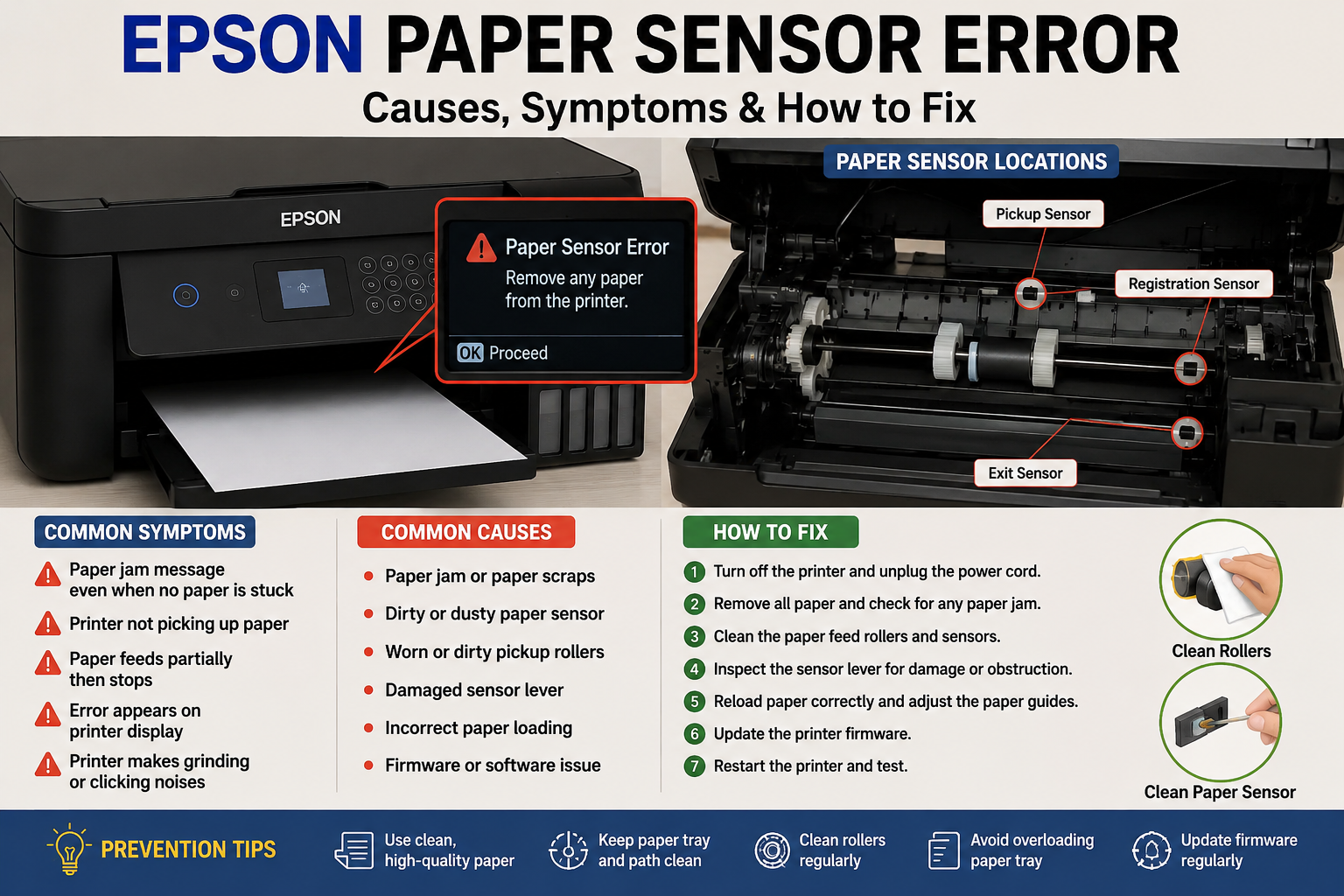
Nothing is more frustrating than preparing to print an important document only to see an Epson paper sensor error appear on your printer’s display. Whether you’re using an Epson EcoTank, WorkForce, Expression, or SureColor printer, this issue can prevent the printer from detecting paper correctly, interrupt paper feeding, or repeatedly display false paper jam messages.
Although many users assume the problem is caused by a paper jam, the actual cause is often more complex. Dust buildup, worn feed rollers, damaged sensor levers, firmware glitches, or internal hardware failures can all trigger the same error. Understanding how the paper sensor system works is the first step toward resolving the issue effectively.
This comprehensive guide explains everything you need to know about Epson paper sensor errors—from identifying the root cause to performing safe troubleshooting and preventive maintenance. Whether you’re a home user or managing printers in a busy office, you’ll find practical solutions to restore reliable printing and avoid unnecessary repair costs.
What You’ll Learn
In this guide, you’ll discover:
- What an Epson paper sensor error means
- How Epson paper sensors work
- The most common causes of paper sensor errors
- Step-by-step troubleshooting methods
- How to clean and inspect paper sensors safely
- When to replace paper feed components
- Common mistakes to avoid during troubleshooting
- Preventive maintenance tips to reduce future errors
- When professional repair is the best option
- Answers to frequently asked questions about Epson paper sensor issues
What Is an Epson Paper Sensor Error?
An Epson paper sensor error occurs when the printer cannot correctly detect the presence or movement of paper through its paper path. The issue may result from paper jams, dirty sensors, worn rollers, damaged sensor levers, firmware problems, or internal hardware failures that prevent normal paper feeding.
Understanding the Error
Every Epson printer relies on multiple paper sensors to monitor paper movement from the input tray to the output tray. These sensors communicate continuously with the printer’s control board to ensure each sheet is picked up, aligned, and ejected correctly.
If one of these sensors fails to detect paper at the expected time, the printer immediately stops printing and displays an error to prevent further damage.
Common symptoms include:
- Printer displays “Paper Sensor Error”
- Printer says “Paper Jam” even when no paper is present
- Paper loads halfway and stops
- Printer continuously attempts to feed paper
- Blank pages are ejected
- Grinding or clicking noises during paper pickup
- Flashing paper indicator lights
- Printing jobs remain stuck in the queue
Real-World Example
Imagine you’re printing a 20-page report. The first page feeds normally, but the second sheet never reaches the registration sensor because a worn pickup roller slips. The printer assumes the paper is jammed and triggers a paper sensor error, even though no paper is visibly stuck.
Why This Error Shouldn’t Be Ignored
Ignoring repeated paper sensor errors can lead to:
- Increased wear on feed rollers
- Damage to internal gears
- Frequent paper jams
- Interrupted print jobs
- Reduced printer lifespan
- Costly hardware repairs if left unresolved
Addressing the issue early often prevents more serious mechanical failures and keeps your printer operating reliably.
How Epson Paper Sensors Work
Understanding how Epson paper sensors function makes troubleshooting significantly easier.
Modern Epson printers use a series of sensors positioned along the paper path to track every stage of paper movement.
The primary paper sensors include:
| Sensor | Function | Common Issue |
|---|---|---|
| Pickup Sensor | Detects paper leaving the tray | Dirty roller, worn pickup mechanism |
| Registration Sensor | Aligns paper before printing | Misaligned paper, damaged sensor lever |
| Exit Sensor | Confirms paper exits successfully | False paper jam, incomplete print jobs |
| Multi-Purpose Tray Sensor | Detects specialty media | Incorrect media loading |
| Rear Feed Sensor | Monitors rear paper feed | Dust or debris blocking the sensor |
How the Process Works
- Paper is loaded into the input tray.
- Pickup rollers pull the sheet forward.
- The pickup sensor confirms paper movement.
- The registration sensor aligns the paper precisely before printing.
- The printhead applies ink while the paper advances.
- The exit sensor confirms successful ejection.
- The printer prepares for the next page.
If any sensor fails to detect the paper within the expected timing, the printer pauses the job and reports a paper sensor or paper feed error to prevent misfeeds and protect internal components.
How to Fix Epson Paper Sensor Error (Step-by-Step Guide)
To fix an Epson paper sensor error, remove any paper jams, inspect the paper path for debris, clean the paper sensors and rollers, reload the paper correctly, restart the printer, update the firmware, and test the printer. If the issue persists, inspect the sensor lever or contact Epson support for hardware repair.
Step 1: Turn Off the Printer
Always begin by powering off the printer.
- Cancel all print jobs.
- Turn off the printer using the power button.
- Unplug the power cable.
- Wait 2–5 minutes before continuing.
This allows the printer’s internal memory to clear and reduces the risk of damaging components while inspecting the paper path.
Step 2: Remove All Paper
Take all paper out of the input tray.
Inspect every sheet for:
- Bent corners
- Torn edges
- Damp paper
- Wrinkled pages
- Staples or paper clips
- Labels that may have peeled off
Reload only clean, flat paper.
Step 3: Check for Hidden Paper Jams
Many Epson printers report a paper sensor error even after the visible paper has been removed.
Inspect:
- Input tray
- Rear paper feed
- Duplex unit
- Output tray
- Paper path
- Printhead area
Use a flashlight to check for:
- Small paper scraps
- Dust buildup
- Foreign objects
Never use excessive force when removing stuck paper.
Step 4: Clean the Paper Feed Rollers
Dirty rollers often prevent proper paper pickup.
Materials Needed
- Lint-free cloth
- Distilled water
- Cotton swabs
Avoid alcohol unless Epson specifically recommends it for your model.
Cleaning Steps
- Turn off the printer.
- Rotate each roller manually.
- Wipe away dust.
- Remove paper residue.
- Allow rollers to dry completely.
- Test paper feeding.
Step 5: Clean the Paper Sensor
The paper sensor is typically a small optical sensor located inside the paper path.
Dust accumulation can block the sensor and generate false paper errors.
Cleaning Procedure
- Use compressed air in short bursts.
- Clean carefully with a soft brush.
- Remove dust from nearby components.
- Never press directly on the sensor.
Avoid touching the optical lens with your fingers.
Step 6: Check the Sensor Lever
Many Epson models use a tiny plastic flag (sensor lever).
The lever should move freely.
Inspect for:
- Cracks
- Bent plastic
- Loose mounting
- Obstructions
- Sticky movement
If the lever sticks, the printer may continuously display a paper sensor error.
Step 7: Reload Paper Correctly
Incorrect loading causes many feed-related errors.
Best practices:
- Fan the paper stack.
- Align paper edges.
- Adjust paper guides snugly.
- Do not overfill the tray.
- Use supported paper sizes.
- Avoid mixed paper types.
Step 8: Restart the Printer
Reconnect power.
Restart the printer.
Print a test page.
Many temporary firmware-related sensor issues disappear after a complete restart.
Step 9: Update Printer Firmware
Firmware updates often improve:
- Paper detection
- Feed timing
- Sensor calibration
- Mechanical control
- Error handling
Always install firmware provided for your exact Epson printer model.
Step 10: Test Different Paper
Poor-quality paper frequently causes feed failures.
Try:
- Genuine Epson paper
- Fresh A4 sheets
- Different paper weights
- Premium inkjet paper
Avoid:
- Damp paper
- Curled paper
- Recycled paper with rough edges
- Glossy paper not supported by your printer
How to Clean an Epson Paper Sensor Safely
Cleaning the paper sensor is one of the simplest and most effective ways to resolve false paper detection errors.
Tools You’ll Need
- Flashlight
- Soft microfiber cloth
- Cotton swabs
- Compressed air
- Small soft brush
Cleaning Process
- Turn off the printer.
- Disconnect power.
- Open the paper path.
- Locate the sensor.
- Blow away loose dust.
- Gently clean around the sensor.
- Ensure the sensor flag moves freely.
- Reassemble the printer.
- Test with plain paper.
Common Cleaning Mistakes
Avoid:
- Using excessive force
- Spraying liquid directly into the printer
- Scratching the optical sensor
- Using sharp objects
- Applying too much compressed air pressure
Epson Paper Sensor Error by Printer Series
Different Epson printer families may experience paper sensor errors for different reasons.
| Printer Series | Common Cause | Recommended Fix |
|---|---|---|
| EcoTank | Dust around paper sensor | Clean sensor and rollers |
| WorkForce | Worn pickup rollers | Replace rollers |
| Expression | Misaligned paper guides | Reload paper correctly |
| SureColor | Heavy media misfeeds | Adjust media settings |
| Dot Matrix | Sensor flag wear | Replace sensor assembly |
Epson EcoTank
Most common issues:
- Dust buildup
- Paper guide alignment
- Paper feed roller contamination
- Heavy ink residue
Recommended maintenance every 3–6 months.
Epson WorkForce
Business printers often experience:
- Roller wear
- High print volume
- Pickup assembly fatigue
- Multiple-sheet feeding
Roller replacement may be necessary after extended use.
Epson Expression
These home printers commonly encounter:
- Curled photo paper
- Mixed paper sizes
- Improper loading
- Dust accumulation
Regular cleaning significantly improves reliability.
Common Mistakes That Make the Error Worse
Many users unintentionally worsen the problem while attempting repairs.
Avoid these mistakes:
Pulling Paper Backwards
Always remove jammed paper in the direction of the paper path whenever possible.
Ignoring Tiny Paper Pieces
Even a small scrap can keep the sensor engaged.
Using Cheap Paper
Low-quality paper sheds fibers that accumulate inside the printer.
Skipping Roller Cleaning
Replacing paper without cleaning rollers rarely fixes feed issues.
Forcing Printer Covers Closed
Misaligned covers can interfere with sensor operation.
Updating Firmware During an Error
Complete basic troubleshooting before performing firmware updates.
Preventing Epson Paper Sensor Errors
Preventive maintenance reduces downtime and extends your printer’s lifespan.
Monthly Maintenance Checklist
- Clean paper tray
- Remove dust from rollers
- Inspect paper path
- Store paper in a dry location
- Check paper guides
- Print a maintenance page
- Update firmware if available
Best Practices
- Use genuine Epson supplies when possible.
- Avoid overloading the paper tray.
- Store paper flat.
- Keep the printer covered when not in use.
- Clean rollers every few months.
- Print regularly to prevent dust accumulation.
Expert Recommendation
For home users, inspecting the paper path every 2–3 months is usually sufficient. In offices or businesses with heavy print volumes, a monthly cleaning schedule can significantly reduce paper feed issues and help extend the life of rollers and sensors.
When Should You Replace the Paper Sensor?
If cleaning and basic troubleshooting do not resolve the issue, the paper sensor or related components may need replacement.
Signs that replacement is necessary include:
- Persistent paper sensor errors after cleaning
- Broken or missing sensor lever
- Sensor not responding during diagnostics
- Visible physical damage
- Frequent false paper jam messages
- Error returns immediately after restart
Typical Replacement Costs
| Repair | Estimated Cost* |
|---|---|
| Paper sensor cleaning | $0–$30 |
| Pickup roller replacement | $20–$60 |
| Paper sensor replacement | $40–$120 |
| Complete feed assembly | $80–$200 |
| Professional diagnosis | $30–$75 |
*Costs vary depending on printer model, region, and service provider.
Expert Advice
If your Epson printer is older and requires multiple hardware repairs—such as replacing the paper sensor, feed rollers, and other worn components—it may be more cost-effective to compare the repair cost with the price of a new printer before making a decision.
Conclusion
An Epson paper sensor error is often caused by simple issues such as dust, paper fragments, worn rollers, or incorrect paper loading, but it can also indicate a faulty sensor or mechanical component. By following a structured troubleshooting process—checking for hidden obstructions, cleaning the paper path and sensors, inspecting rollers, updating firmware, and performing regular maintenance—you can resolve most problems without expensive repairs. If the error continues after completing these steps, professional diagnosis or replacement of the paper sensor assembly may be necessary to restore dependable printer performance.
Frequently Asked Questions (FAQ)
1. Why does my Epson printer show a paper sensor error even when there’s no paper jam?
A false paper sensor error usually occurs due to dust on the optical sensor, a stuck sensor lever, worn paper feed rollers, tiny paper scraps inside the paper path, or a firmware issue. Carefully inspect and clean the printer before assuming a hardware failure.
2. Can I fix an Epson paper sensor error without replacing any parts?
Yes. Most paper sensor errors can be resolved by removing paper debris, cleaning the paper path, cleaning the paper feed rollers, inspecting the sensor flag, reloading paper correctly, and restarting the printer.
3. Where is the paper sensor located in an Epson printer?
The exact location varies by model, but Epson printers typically have paper sensors near the paper pickup roller, registration assembly, and paper exit path. Some models include additional sensors for rear paper feeding.
4. How do I clean the Epson paper sensor?
Power off the printer, unplug it, open the paper path, and use compressed air or a soft brush to remove dust around the sensor. Avoid touching the optical lens directly or using excessive force.
5. Can outdated firmware cause paper sensor errors?
In some cases, yes. Firmware bugs can affect paper detection or timing. Updating your printer to the latest firmware version recommended by Epson may resolve intermittent sensor-related issues.
6. Why does my Epson printer keep saying “Paper Jam” when there isn’t one?
This is commonly caused by a dirty paper sensor, a stuck sensor lever, damaged rollers, paper fragments inside the printer, or an incorrectly seated paper tray.
7. How often should I clean the paper feed rollers?
For home users, cleaning every 3–6 months is generally sufficient. In offices or high-volume environments, monthly cleaning helps maintain reliable paper feeding and reduces sensor-related problems.
8. Can worn paper rollers trigger a paper sensor error?
Yes. If the rollers cannot pull paper consistently, the sensors may not detect paper movement within the expected time, causing the printer to display a paper sensor or paper feed error.
9. Should I replace the paper sensor myself?
If you are experienced with printer repairs and have the correct replacement part for your model, replacing the sensor may be possible. However, if the printer is under warranty or disassembly is complex, professional servicing is recommended.
10. Is an Epson paper sensor error covered under warranty?
If the issue is caused by a manufacturing defect and your printer is still within the warranty period, Epson may repair or replace the faulty component. Damage caused by improper use, accidental impact, or unauthorized repairs is typically not covered.
11. What type of paper should I use to avoid paper sensor errors?
Use clean, dry, flat paper that matches the specifications for your Epson printer. Avoid curled, damp, torn, or unsupported media, as these can interfere with paper detection and feeding.
12. When should I contact Epson support?
Seek professional assistance if the error persists after cleaning the printer, checking the paper path, updating firmware, and verifying that the sensor lever and rollers are functioning correctly.