Epson Maintenance Box Error: Causes, Fixes, Replacement & Complete Troubleshooting Guide
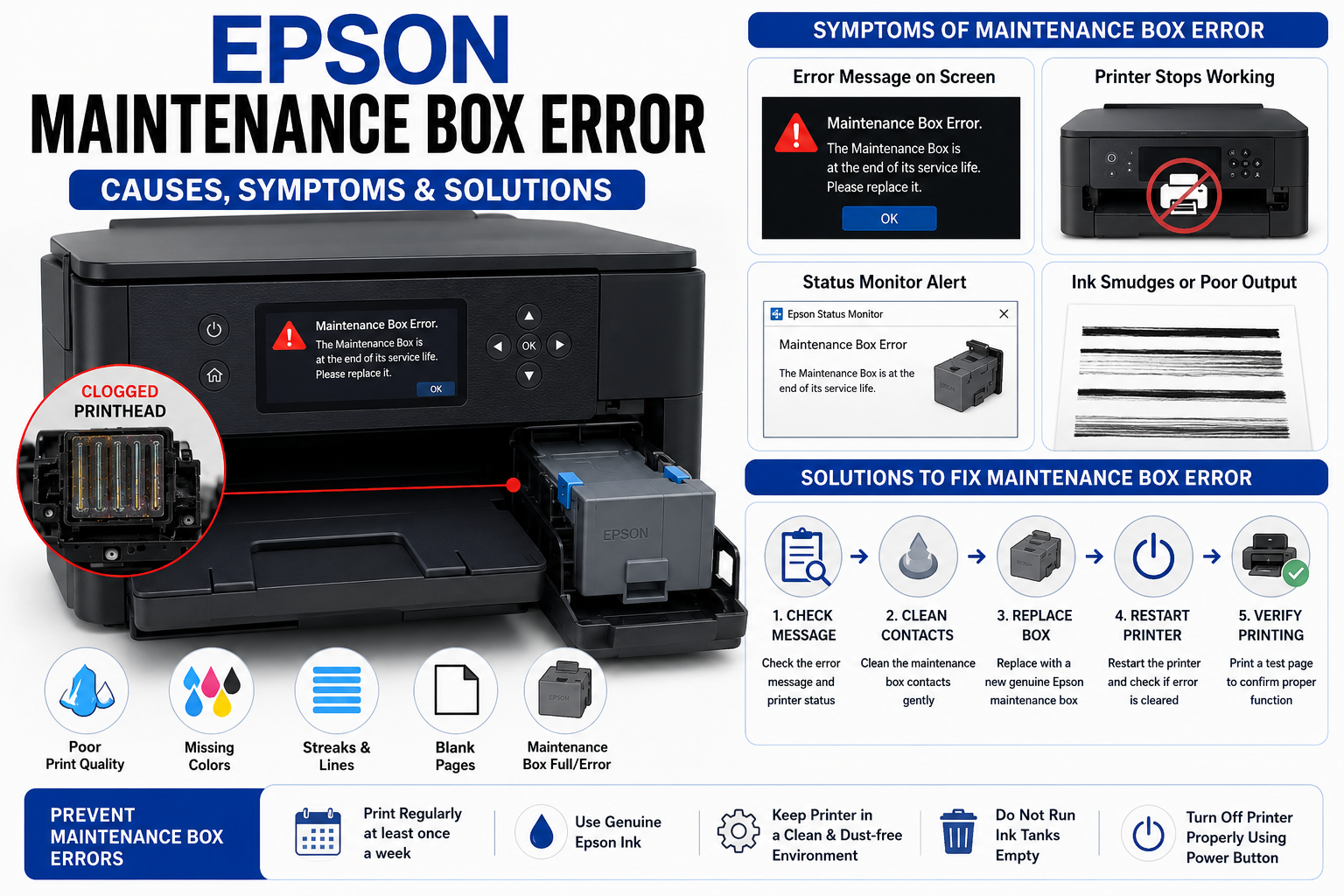
If your Epson printer suddenly displays an Epson maintenance box error, you’re not alone. This warning can prevent your printer from operating and often appears without much explanation, leaving many users unsure of what to do next.
The good news is that this issue is usually straightforward to resolve. In many cases, replacing the maintenance box or addressing a related sensor problem restores normal printing within minutes. However, understanding why the error occurs is just as important as fixing it, as it helps prevent repeat issues and unnecessary service costs.
This comprehensive guide explains everything you need to know—from how the maintenance box works to diagnosing common error messages, replacing the box correctly, troubleshooting persistent warnings, and extending the life of your Epson printer through proper maintenance.
Unlike many basic support articles, this guide combines practical troubleshooting, expert insights, preventive maintenance tips, and detailed comparisons to help both home users and business owners confidently resolve the issue.
What You’ll Learn
By the end of this guide, you’ll understand:
- What the Epson maintenance box is and why it matters.
- Why maintenance box errors occur.
- The most common warning messages and what they mean.
- How to replace the maintenance box correctly.
- What to do if the error remains after replacement.
- Whether the maintenance box can be reset or reused.
- Preventive maintenance tips to reduce future issues.
- When professional servicing is the best option.
What Is an Epson Maintenance Box?
An Epson maintenance box is a replaceable component that collects waste ink generated during printhead cleaning, nozzle checks, borderless printing, and other maintenance operations. When the box reaches its capacity, the printer stops printing and displays a maintenance box error to prevent ink overflow.
Every Epson inkjet printer performs automatic maintenance to keep print quality consistent. During these cleaning cycles, excess ink is flushed away from the printhead instead of being used for printing. This waste ink is safely stored inside the maintenance box.
Unlike older Epson models that rely on internal waste ink pads, many newer EcoTank, WorkForce, and SureColor printers use removable maintenance boxes. This design simplifies maintenance because users can replace the box themselves without disassembling the printer.
Functions of the Maintenance Box
- Collects waste ink during cleaning cycles.
- Prevents ink leakage inside the printer.
- Protects internal components from contamination.
- Supports consistent print quality.
- Helps extend the lifespan of the printhead.
Why It Matters
Ignoring a full maintenance box can lead to ink overflow, internal damage, and printing interruptions. Epson printers are designed to stop printing once the maintenance box reaches its estimated capacity, helping avoid costly repairs.
Expert Insight
Heavy users who frequently perform printhead cleaning or produce borderless prints will fill the maintenance box faster than occasional users. Monitoring printer maintenance alerts can help you replace the box before it interrupts important print jobs.
Why Does the Epson Maintenance Box Error Appear?
The Epson maintenance box error is triggered when the printer detects that the maintenance box can no longer safely collect additional waste ink. While a full maintenance box is the most common cause, several other issues can also generate the warning.
Common Causes
1. The Maintenance Box Is Full
This is the primary reason for the error. Once the printer estimates that the box has reached its maximum ink capacity, printing is disabled until the box is replaced.
2. Improper Installation
If the maintenance box is not fully inserted or locked into place, the printer may fail to recognize it.
3. Dirty or Damaged Contacts
Dust, dried ink, or debris on the maintenance box contacts can interfere with communication between the printer and the maintenance box.
4. Faulty Maintenance Box Sensor
A damaged sensor may incorrectly report that the maintenance box is full, even after a replacement.
5. Non-Genuine or Incompatible Maintenance Box
Some third-party maintenance boxes may not communicate properly with Epson printers, resulting in recognition errors.
6. Firmware or Software Issues
In rare cases, outdated firmware or temporary software glitches can prevent the printer from detecting a newly installed maintenance box.
Signs You May Notice
- “Maintenance Box Full” message.
- Printer refuses to print.
- Flashing maintenance indicator.
- Error shown in Epson Status Monitor.
- Maintenance box not recognized warning.
- Printing stops immediately after startup.
Common Error Messages
| Error Message | Likely Cause | Recommended Action |
|---|---|---|
| Maintenance Box Full | Waste ink container is full | Replace the maintenance box |
| Maintenance Box Not Recognized | Installation or compatibility issue | Reinstall or use a genuine Epson maintenance box |
| Replace Maintenance Box | End of service life reached | Install a new maintenance box |
| Maintenance Required | Maintenance box or waste ink system needs attention | Inspect the maintenance box and printer diagnostics |
Expert Recommendation
If the error persists after installing a genuine replacement, avoid forcing repeated printhead cleaning cycles. Excessive cleaning generates additional waste ink and may complicate troubleshooting. Instead, inspect the maintenance box installation, verify compatibility, and check for firmware updates before considering professional service.
How to Fix the Epson Maintenance Box Error (Step-by-Step)
If your Epson printer displays a maintenance box error, follow these steps in order. In most cases, the problem can be resolved without professional repair.
Step 1: Identify the Exact Error Message
Before making any changes, note the message displayed on your printer’s LCD screen or in the Epson Status Monitor.
Common messages include:
- Maintenance Box Full
- Replace Maintenance Box
- Maintenance Box Not Recognized
- Maintenance Required
- Service Required
Why this matters: Different messages point to different causes. For example, “Maintenance Box Full” usually requires replacement, while “Not Recognized” often indicates an installation or compatibility issue.
Step 2: Turn Off the Printer
Power off the printer completely.
Then:
- Disconnect the power cable.
- Wait for 60 seconds.
- Reconnect the power.
- Turn the printer back on.
Sometimes a simple power cycle clears temporary communication errors.
Step 3: Locate the Maintenance Box
The maintenance box location varies by model.
Typical locations include:
- Rear-right side
- Right side panel
- Bottom rear compartment
- Side access door
Always refer to your printer manual if you’re unsure.
Step 4: Inspect the Maintenance Box
Remove the maintenance box carefully.
Check for:
- Ink saturation
- Physical damage
- Broken plastic
- Bent contacts
- Ink leakage
- Cracks
If the box appears damaged or full, replace it.
Step 5: Install a Genuine Epson Maintenance Box
Insert the replacement box until it clicks securely into place.
Best practices:
- Use the correct model number.
- Remove all protective packaging.
- Do not force installation.
- Ensure the box is fully seated.
Incorrect installation is one of the most common causes of repeated errors.
Step 6: Restart the Printer
After installing the new maintenance box:
- Close all covers.
- Turn the printer on.
- Allow initialization to finish.
- Print a test page.
If the warning disappears, the issue has been resolved.
Step 7: Update Printer Firmware
If the error remains:
- Install the latest Epson printer firmware.
- Update the printer driver.
- Restart your computer.
- Reconnect the printer.
Firmware updates often improve hardware detection and resolve compatibility issues.
Step 8: Check the Maintenance Box Sensor
If a new genuine maintenance box still isn’t detected, inspect the sensor.
Possible problems include:
- Dust buildup
- Ink residue
- Bent sensor arm
- Electrical failure
Avoid touching internal electronics unless you’re comfortable performing printer maintenance.
Step 9: Contact Epson Support
If none of the above steps work, the printer may require:
- Sensor replacement
- Mainboard repair
- Internal waste ink system inspection
- Professional servicing
How to Replace an Epson Maintenance Box
Replacing the maintenance box is one of the easiest maintenance tasks on most Epson printers.
Replacement Procedure
- Turn off the printer.
- Open the maintenance box cover.
- Remove the old maintenance box slowly.
- Place it in a sealed plastic bag to avoid ink spills.
- Unpack the new maintenance box.
- Insert it firmly.
- Close the cover.
- Restart the printer.
- Print a nozzle check.
Important Safety Tips
- Wear disposable gloves if handling a saturated box.
- Never shake the maintenance box.
- Keep away from children.
- Dispose of according to local electronic waste regulations.
- Avoid touching the ink outlet.
Common Mistakes
❌ Reusing a full maintenance box
❌ Installing the wrong model
❌ Forgetting protective tape
❌ Forcing installation
❌ Using counterfeit replacement boxes
Epson Maintenance Box Error After Replacement
Sometimes users replace the maintenance box only to see the same warning again.
This usually indicates another issue.
Possible Reasons
1. Incorrect Installation
The maintenance box may not be fully inserted.
Solution:
- Remove it.
- Reinstall carefully.
- Restart the printer.
2. Wrong Maintenance Box
Some Epson models require a specific maintenance box model.
Always verify compatibility before purchasing.
3. Dirty Sensor
Ink residue can block the sensor.
Carefully clean visible dust using a dry lint-free cloth.
4. Firmware Glitch
Restart the printer.
Update firmware.
Reconnect USB or Wi-Fi.
5. Hardware Failure
Less common causes include:
- Sensor malfunction
- Damaged connector
- Mainboard failure
Professional repair may be required.
Can You Reset an Epson Maintenance Box?
No. Most modern Epson maintenance boxes cannot be reset once they are full. They are designed as replaceable consumables and should be replaced with a new compatible maintenance box.
Many websites claim maintenance boxes can be reset using software.
This is misleading.
Unlike older waste ink pad systems, maintenance boxes contain components that allow the printer to monitor their usable life. Once the printer determines the box has reached capacity, replacement—not resetting—is the intended solution.
Some unofficial reset tools exist, but they may:
- Void your warranty.
- Damage printer firmware.
- Produce inaccurate waste ink readings.
- Increase the risk of ink overflow.
Expert Recommendation: Always replace the maintenance box with a genuine Epson replacement instead of relying on unofficial reset methods.
Genuine vs Compatible Epson Maintenance Boxes
| Feature | Genuine Epson | Compatible Third-Party |
|---|---|---|
| Print Reliability | Excellent | Varies |
| Recognition by Printer | Excellent | Sometimes problematic |
| Warranty Protection | Yes | May affect warranty |
| Build Quality | High | Varies |
| Leak Protection | Excellent | Inconsistent |
| Lifespan | Manufacturer rated | Depends on brand |
| Cost | Higher | Lower |
Which Should You Choose?
For home users with occasional printing, high-quality compatible boxes may be sufficient if sourced from a reputable supplier. However, for businesses, photographers, or anyone relying on uninterrupted printing, genuine Epson maintenance boxes offer the best reliability and compatibility.
Compatible Epson Printer Series That Use Maintenance Boxes
Many Epson printers use replaceable maintenance boxes instead of internal waste ink pads.
Common series include:
EcoTank Series
- Epson EcoTank ET-5800
- ET-5850
- ET-5880
- ET-16600
- ET-16650
WorkForce Series
- WorkForce Pro WF-7820
- WF-7840
- WF-C5790
- WF-C878R
SureColor Series
- SC-P700
- SC-P900
- SC-T3100
- SC-T5100
- SC-P6000
Note: Always verify the correct maintenance box model for your specific printer before purchasing a replacement, as compatibility varies by model and region.
How to Prevent Epson Maintenance Box Errors
Preventive maintenance helps reduce downtime and extends the life of your printer.
Best Practices
- Only run printhead cleaning when necessary.
- Print regularly to prevent nozzle clogging.
- Use genuine Epson ink whenever possible.
- Replace maintenance boxes promptly when warned.
- Keep the printer firmware updated.
- Store the printer in a clean, dust-free environment.
- Avoid interrupting cleaning cycles.
- Perform periodic nozzle checks instead of repeated deep cleanings.
Expert Tips
- Borderless printing generates more waste ink than standard printing.
- Excessive head cleaning fills the maintenance box much faster.
- Offices with heavy printing should keep a spare maintenance box available to avoid workflow interruptions.
Maintenance Box Error vs Waste Ink Pad Error
| Feature | Maintenance Box Error | Waste Ink Pad Error |
|---|---|---|
| Replaceable by User | Yes | Usually No |
| Used in Newer Models | Yes | Mostly Older Models |
| Repair Complexity | Low | Medium to High |
| Requires Disassembly | No | Often Yes |
| Consumable Replacement | Yes | Internal Pad Replacement |
| Typical Downtime | Minutes | Hours |
Understanding the difference can save time and prevent unnecessary repair costs. Newer Epson printers are designed with replaceable maintenance boxes specifically to simplify maintenance and reduce service visits.
Conclusion
The Epson maintenance box error is a protective warning designed to prevent ink overflow and safeguard your printer’s internal components. While the message can interrupt printing, it is typically resolved by replacing the maintenance box with the correct compatible model and ensuring it is installed properly.
If the error persists after replacement, inspect the installation, verify compatibility, update the printer’s firmware, and check for sensor-related issues before seeking professional repair. Regular maintenance, responsible printhead cleaning, and using genuine consumables can significantly reduce the likelihood of encountering this error again.
By following the troubleshooting steps and maintenance practices outlined in this guide, you can keep your Epson printer operating reliably, minimize downtime, and extend the life of your printing equipment.
Frequently Asked Questions (FAQ)
1. What does the Epson maintenance box error mean?
The Epson maintenance box error indicates that the printer believes the maintenance box has reached its waste ink capacity or cannot detect it correctly. To continue printing, you usually need to replace the maintenance box with a compatible one.
2. Can I continue printing when the maintenance box is full?
No. Most Epson printers automatically stop printing when the maintenance box reaches its capacity. This prevents waste ink from overflowing and damaging internal printer components.
3. Can I reset an Epson maintenance box?
Generally, no. Most modern Epson maintenance boxes are designed as replaceable consumables and cannot be safely reset. Installing a new maintenance box is the recommended solution.
4. Why is my Epson printer still showing the maintenance box error after replacement?
Common reasons include:
- Incorrect installation
- Incompatible maintenance box
- Dirty sensor contacts
- Outdated firmware
- Internal hardware or sensor failure
5. How long does an Epson maintenance box last?
The lifespan depends on:
- Print volume
- Printhead cleaning frequency
- Borderless printing
- Printer model
- Ink usage
For many home users, a maintenance box can last several months to a few years, while heavy office use may require more frequent replacement.
6. Can I clean and reuse a maintenance box?
No. Epson does not recommend cleaning or reusing maintenance boxes, as they are designed to safely contain absorbed waste ink and should be replaced once full.
7. What happens if I ignore the maintenance box warning?
Ignoring the warning may:
- Prevent the printer from printing
- Increase the risk of waste ink overflow
- Damage internal components
- Lead to costly repairs
8. Where is the maintenance box located?
The location depends on the printer model but is commonly found:
- On the rear panel
- Behind a side access cover
- Near the lower-right side of the printer
Always consult your printer manual for the exact location.
9. Should I buy a genuine Epson maintenance box?
Genuine Epson maintenance boxes provide the best compatibility, reliable printer recognition, and warranty protection. High-quality third-party alternatives may work, but quality and compatibility can vary.
10. Does every Epson printer use a maintenance box?
No. Many newer EcoTank, WorkForce, and SureColor models use replaceable maintenance boxes, while older Epson printers often rely on internal waste ink pads instead.
11. How much does an Epson maintenance box cost?
Prices vary depending on the printer model and region. Genuine Epson maintenance boxes generally cost more than compatible third-party options but offer better reliability and compatibility.
12. Can excessive printhead cleaning fill the maintenance box faster?
Yes. Every printhead cleaning cycle sends waste ink into the maintenance box. Running unnecessary cleaning cycles can significantly reduce its lifespan.
13. Can outdated firmware cause maintenance box detection problems?
Although uncommon, outdated firmware or software glitches can occasionally prevent a printer from recognizing a newly installed maintenance box. Updating the printer firmware may resolve the issue.
14. How can I extend the life of my maintenance box?
You can extend its lifespan by:
- Printing regularly to avoid excessive cleanings
- Running printhead cleaning only when needed
- Keeping firmware updated
- Using high-quality ink
- Performing routine nozzle checks
15. When should I contact Epson support?
Seek professional assistance if:
- A genuine maintenance box isn’t recognized
- The error persists after troubleshooting
- You suspect sensor or motherboard failure
- Waste ink has leaked inside the printer