Epson Error Code 033001: Causes, Fixes, and Complete Troubleshooting Guide
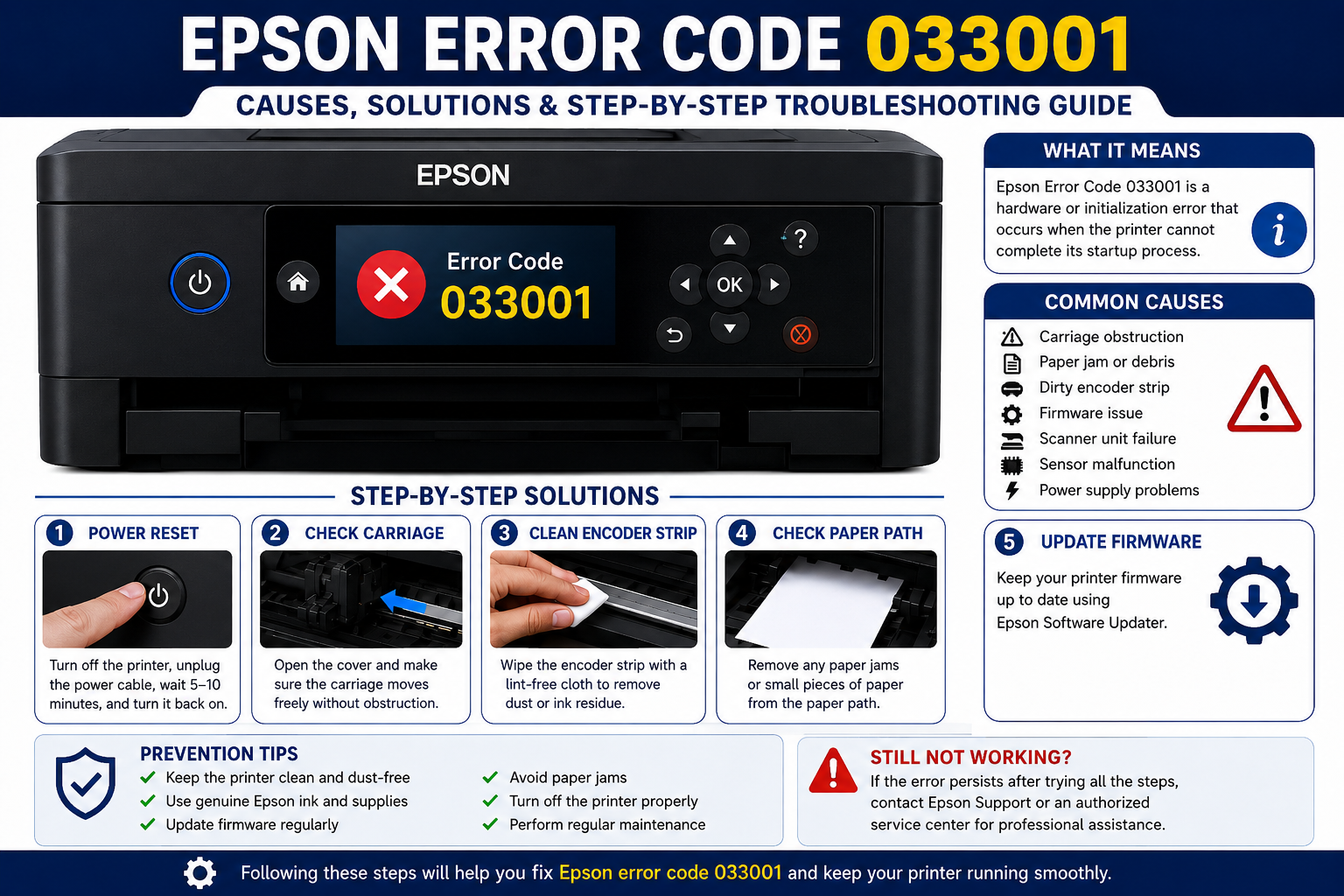
Seeing Epson error code 033001 on your printer can be frustrating, especially when you’re in the middle of printing an important document. This error usually indicates that the printer has detected an internal problem during its startup or initialization process. While the message may seem alarming, it doesn’t always mean the printer has suffered a major hardware failure.
In many cases, the issue is caused by something as simple as a temporary firmware glitch, a carriage obstruction, dust affecting internal sensors, or a paper path blockage. More serious cases may involve mechanical components or electronic hardware that require further diagnosis.
This guide provides a complete, step-by-step explanation of Epson error code 033001, including its possible causes, proven troubleshooting methods, preventive maintenance tips, and guidance on when professional repair is necessary. Whether you use an Epson EcoTank, WorkForce, or Expression printer, the following information will help you identify the root cause and restore normal printer operation.
What You’ll Learn
In this guide, you’ll discover:
- What Epson error code 033001 means
- The most common causes of the error
- Typical symptoms to watch for
- Step-by-step troubleshooting methods
- Advanced diagnostic techniques
- Preventive maintenance tips
- When to contact Epson support
- Answers to frequently asked questions
What Is Epson Error Code 033001?
Epson error code 033001 is an internal printer initialization error that occurs when the printer detects a problem with its hardware, firmware, carriage mechanism, sensors, or startup sequence. The printer stops operating to prevent potential damage until the underlying issue is resolved.
Understanding the Error
Unlike common printing errors caused by paper jams or network issues, Error Code 033001 appears during the printer’s startup process. During initialization, the printer performs several self-checks to verify that its internal components are functioning correctly. If one of these checks fails, the printer displays the error code and halts further operation.
The issue may stem from mechanical resistance, dirty sensors, outdated firmware, or an internal hardware malfunction. Because the printer cannot safely complete its startup routine, it enters an error state to avoid further damage.
How the Printer InitializatiWhen powered on, an Epson printer typically performs the following sequence:
- Activates the power supply.
- Initializes the printer firmware.
- Moves the printhead carriage to its home position.
- Checks internal sensors.
- Verifies paper feed components.
- Tests communication between hardware modules.
- Prepares the ink delivery system.
- Completes startup and becomes ready to print.
If any stage fails, the printer may display Epson error code 033001.
Printers Commonly Affected
Although the exact cause varies by model, this error may appear on several Epson printer families, including:
- Epson EcoTank printers
- Epson WorkForce printers
- Epson Expression Home printers
- Epson Business Inkjet printers
- Epson multifunction printers
- Epson all-in-one printers
The troubleshooting process is generally similar across these product lines.
What Causes Epson Error Code 033001?
Several underlying issues can trigger Epson error code 033001. Identifying the root cause is essential for applying the correct fix.
1. Carriage Mechanism Obstruction
The printhead carriage must move freely during startup. If it encounters resistance due to debris, dried ink, or a foreign object, the initialization process fails.
Common obstructions include:
- Torn paper
- Dust buildup
- Labels
- Ink residue
- Packaging materials left inside the printer
2. Dirty Encoder Strip
The encoder strip helps the printer track the precise position of the printhead. Dirt, ink splashes, or fingerprints on this strip can prevent accurate movement detection, leading to startup errors.
3. Firmware Corruption
Interrupted firmware updates, unexpected power loss, or software corruption can cause the printer to fail its startup sequence.
Signs include:
- Error appears immediately after powering on.
- Printer freezes during initialization.
- Display remains on the startup screen.
4. Internal Sensor Failure
Modern Epson printers rely on multiple sensors to monitor carriage movement, paper position, and internal mechanisms. If one of these sensors becomes dirty or faulty, the printer may stop the initialization process and display Error Code 033001.
5. Mechanical Wear
Over time, components such as gears, belts, rollers, and the carriage assembly may wear out. Excessive wear can restrict movement and trigger startup errors.
6. Power Supply Issues
Voltage fluctuations or unstable power can interrupt the printer’s startup sequence, causing temporary initialization failures.
For best results, connect the printer directly to a wall outlet instead of using overloaded extension cords or power strips.
Common Symptoms of Epson Error Code 033001
Recognizing the symptoms can help confirm that you’re dealing with this specific issue.
Typical Signs
- Printer stops during startup.
- Error code 033001 appears on the display.
- Printhead carriage fails to move normally.
- Startup noises stop unexpectedly.
- Printer becomes unresponsive.
- Printing jobs remain stuck in the queue.
- Control panel buttons do not respond.
- Printer repeatedly restarts without becoming ready.
Why These Symptoms Matter
These symptoms indicate that the printer’s self-diagnostic process has detected a fault before printing begins. Addressing the underlying cause promptly can help prevent further wear on internal components and reduce the likelihood of more extensive repairs.on Process Works
How to Fix Epson Error Code 033001
If your Epson printer displays Epson error code 033001, start with the simplest solutions before moving to advanced troubleshooting. Many initialization errors are caused by temporary glitches, blocked carriage movement, or outdated firmware rather than permanent hardware failure.
Quick Tip: Test the printer after each troubleshooting step. If the error disappears, you don’t need to continue with the remaining steps.
Step 1: Restart the Printer
A simple power cycle can clear temporary firmware or memory issues.
How to Restart
- Turn off the printer.
- Disconnect the power cable from the wall outlet.
- Wait for 5–10 minutes.
- Press and hold the power button for 20 seconds while unplugged to discharge residual power.
- Reconnect the power cable.
- Turn the printer back on.
Why This Works
Restarting clears temporary system errors and forces the printer to perform a fresh hardware initialization.
Step 2: Check for Paper Jams and Foreign Objects
Even a tiny piece of torn paper can prevent the carriage from moving correctly.
Inspect These Areas
- Paper input tray
- Rear paper feed
- Output tray
- Printhead path
- Duplex unit (if installed)
- Maintenance compartment
Look for:
- Torn paper
- Staples
- Labels
- Dust
- Packing tape
- Small plastic fragments
Expert Tip: Use a flashlight to inspect areas that are difficult to see.
Step 3: Verify Carriage Movement
The printhead carriage should move smoothly across the printer.
Steps
- Turn the printer off.
- Open the printer cover.
- Carefully move the carriage by hand (only if it is not locked).
- Check for resistance.
- Remove any obstruction.
Avoid
- Forcing the carriage.
- Using excessive pressure.
- Touching electrical contacts.
- Pulling internal cables.
If the carriage does not move freely, there may be a mechanical obstruction or worn component requiring repair.
Step 4: Clean the Encoder Strip
The encoder strip is a thin transparent strip behind the carriage that helps the printer determine the printhead position.
Cleaning Procedure
- Turn off the printer.
- Open the cover.
- Locate the transparent encoder strip.
- Use a lint-free microfiber cloth lightly dampened with distilled water.
- Gently wipe the strip from one end to the other.
- Allow it to dry completely before restarting.
Do Not
- Scratch the strip.
- Use alcohol or harsh chemicals.
- Pull or bend the strip.
- Apply excessive force.
A dirty encoder strip is a common cause of carriage positioning errors.
Step 5: Inspect Ink Cartridges or Ink Tanks
Improperly installed cartridges or low ink levels can interfere with initialization on some Epson models.
Check the Following
- Ink cartridges are fully seated.
- Ink tank caps are secure.
- Ink levels are above the minimum line.
- No leaks are visible.
- Cartridge locks are engaged.
Replace damaged or incompatible cartridges if necessary.
Step 6: Update Printer Firmware
Firmware updates often fix known bugs affecting printer startup and hardware communication.
How to Update Firmware
- Connect the printer to your computer or Wi-Fi.
- Open the Epson software utility.
- Check for firmware updates.
- Install any available updates.
- Restart the printer after installation.
Important: Never turn off the printer during a firmware update, as doing so may corrupt the firmware.
Step 7: Check Printer Connections
Loose or damaged connections may interrupt communication during startup.
Inspect
- USB cable
- Ethernet cable (if used)
- Wi-Fi connection
- Power cable
- Power adapter (where applicable)
If possible, test the printer with another USB cable or connect it directly to a wall outlet.
Step 8: Perform Printer Self-Test
Many Epson printers include built-in diagnostic tests.
Typical Procedure
- Turn off the printer.
- Press and hold the appropriate maintenance or stop button (varies by model).
- Turn the printer on while holding the button.
- Release when the self-test begins.
The self-test can help determine whether the problem is hardware-related or communication-related.
Step 9: Reset Printer Settings
If software settings are corrupted, restoring factory defaults may resolve the issue.
General Steps
- Open the printer’s Settings menu.
- Select Restore Default Settings or Factory Reset.
- Confirm the reset.
- Restart the printer.
Note: A factory reset may erase Wi-Fi and custom settings, so you’ll need to configure them again afterward.
Step 10: Contact Epson Support
If none of the previous steps resolve the problem, the printer may have a hardware fault involving the mainboard, sensors, or carriage assembly.
Before contacting support, record:
- Printer model
- Serial number
- Firmware version
- Exact error code
- When the error occurs
- Troubleshooting steps already performed
This information helps speed up diagnosis.
Advanced Troubleshooting for Epson Error Code 033001
If the basic fixes don’t work, investigate the following areas carefully.
Inspect the Paper Feed Rollers
Worn or dirty rollers can interrupt the printer’s startup checks.
Look for
- Flat spots
- Cracks
- Dust buildup
- Ink residue
- Paper dust
Clean the rollers with a lint-free cloth lightly dampened with water.
Examine Internal Gears
Grinding noises during startup may indicate worn or damaged gears.
Possible symptoms include:
- Clicking sounds
- Loud grinding
- Carriage stopping midway
- Repeated initialization attempts
Damaged gears generally require replacement.
Check Belt Tension
The carriage belt should be properly tensioned.
A loose or damaged belt can cause:
- Carriage positioning errors
- Startup failures
- Repeated calibration attempts
This repair is best left to experienced technicians.
Inspect Internal Sensors
Dust on optical sensors may prevent the printer from completing initialization.
Common sensor locations include:
- Carriage assembly
- Paper feed path
- Home position sensor
- Encoder sensor
Compressed air should be used carefully to avoid damaging sensitive components.
Test with Another Power Outlet
Electrical instability is often overlooked.
Best Practices
- Plug directly into a wall outlet.
- Avoid extension cords.
- Avoid overloaded power strips.
- Ensure a stable power supply.
Common Mistakes to Avoid
Many users accidentally make the problem worse.
Avoid these mistakes:
- Pulling the printhead carriage forcefully
- Ignoring small paper scraps
- Updating firmware during unstable power
- Using excessive cleaning liquid
- Touching electronic contacts
- Using non-genuine consumables that may cause recognition issues
- Continuing to restart the printer repeatedly without inspection
Epson Error Code 033001 Troubleshooting Table
| Problem | Possible Cause | Recommended Solution |
|---|---|---|
| Printer won’t start | Firmware glitch | Restart printer |
| Carriage won’t move | Mechanical obstruction | Remove debris |
| Grinding noise | Damaged gears | Professional repair |
| Startup freezes | Firmware corruption | Update firmware |
| Error appears after moving printer | Internal component shifted | Inspect carriage path |
| Random startup failures | Power instability | Use direct wall outlet |
| Persistent error | Sensor or motherboard issue | Contact Epson support |
Basic vs Advanced Troubleshooting
| Basic Fix | Advanced Fix |
|---|---|
| Restart printer | Inspect encoder strip |
| Remove paper jam | Check carriage belt |
| Verify ink installation | Inspect internal sensors |
| Check cables | Diagnose gears |
| Factory reset | Hardware inspection |
| Firmware update | Mainboard testing |
Preventing Epson Error Code 033001
Preventive maintenance reduces the risk of startup errors and extends the life of your printer.
Keep the Printer Clean
Dust and debris can interfere with internal sensors and moving parts.
Clean regularly:
- Paper trays
- Rollers
- Exterior surfaces
- Ventilation openings
- Printhead area (following Epson guidelines)
Use Genuine Epson Supplies
Original Epson ink and maintenance components are designed for your printer and help reduce compatibility issues.
Benefits include:
- Reliable ink flow
- Better print quality
- Reduced maintenance
- Improved hardware performance
Update Firmware Regularly
Firmware updates can improve:
- Stability
- Error handling
- Compatibility
- Security
- Overall performance
Check periodically for updates using Epson’s official software.
Avoid Power Interruptions
Protect your printer by:
- Using a surge protector.
- Avoiding unplugging the printer while it is operating.
- Shutting down the printer using its power button.
- Preventing sudden power loss during firmware updates.
Perform Routine Maintenance
Create a simple maintenance schedule.
Weekly
- Remove dust from the exterior.
- Check paper trays.
- Inspect for paper scraps.
Monthly
- Clean rollers.
- Run a nozzle check.
- Print a test page.
- Inspect the carriage path.
Every 3–6 Months
- Check firmware updates.
- Perform printhead cleaning if needed.
- Inspect the printer for signs of wear.
Frequently Asked Questions (FAQ)
1. What does Epson error code 033001 mean?
Epson error code 033001 indicates that the printer detected a problem during its hardware initialization process. The issue may involve the carriage mechanism, sensors, firmware, or another internal component.
2. Can I fix Epson error code 033001 myself?
Yes. In many cases, you can resolve the error by restarting the printer, removing paper jams, cleaning the encoder strip, checking the carriage movement, and updating the printer firmware.
3. Does Epson error code 033001 indicate a hardware failure?
Not always. While hardware faults can trigger the error, temporary firmware glitches, sensor contamination, or mechanical obstructions are also common causes.
4. Will resetting the printer remove error code 033001?
A factory reset may resolve software-related issues, but it will not repair damaged hardware or mechanical components.
5. Can outdated firmware cause Epson error code 033001?
Yes. Corrupted or outdated firmware can interrupt the startup process and trigger initialization errors.
6. Is it safe to continue using the printer after this error appears?
No. If the error persists, avoid repeated attempts to print, as this may place additional strain on internal components.
7. How do I know if the carriage is blocked?
Signs include grinding noises, restricted carriage movement, startup failure, or visible debris inside the printer.
8. Can dust inside the printer cause this error?
Yes. Dust accumulation on sensors, rollers, or the encoder strip can interfere with printer initialization.
9. Should I replace the printer if error code 033001 appears?
Not immediately. Most issues can be diagnosed and, in many cases, resolved through troubleshooting. Consider replacement only if repair costs exceed the printer’s value.
10. When should I contact Epson support?
Contact Epson support if:
- The error remains after completing all troubleshooting steps.
- The printer makes grinding or clicking noises.
- Internal components appear damaged.
- Firmware updates fail repeatedly.
- The printer cannot complete startup.