Epson Ink System Error: Causes, Troubleshooting, and Proven Fixes
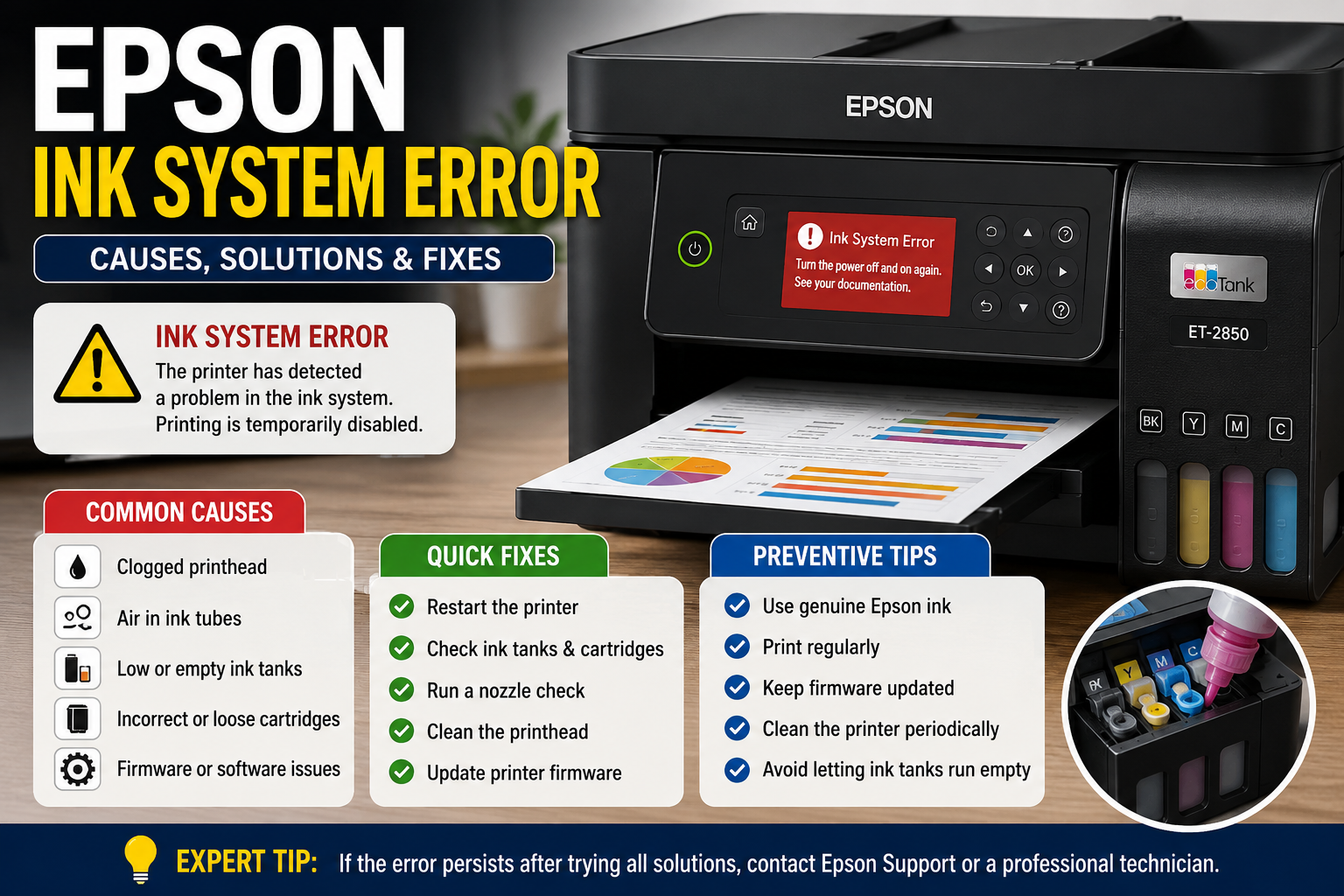
If your Epson printer suddenly displays an Epson ink system error, you’re not alone. This frustrating message often appears without warning and can prevent your printer from producing any documents, even when the ink tanks or cartridges are full.
The good news is that an ink system error doesn’t always indicate a permanent hardware failure. In many cases, the issue stems from clogged printheads, interrupted ink flow, firmware glitches, improperly installed cartridges, or maintenance-related problems that can be resolved with the right troubleshooting steps.
In this comprehensive guide, you’ll learn how the Epson ink system works, what causes these errors, practical step-by-step solutions, preventive maintenance tips, and when professional repair is the best option.
What You’ll Learn
- What an Epson Ink System Error means
- Common causes behind the error
- How Epson’s ink delivery system works
- Step-by-step troubleshooting methods
- How to reset the printer safely
- Preventive maintenance tips
- When repair or replacement is the better choice
- Answers to the most frequently asked questions
What Is an Epson Ink System Error?
An Epson Ink System Error is a printer malfunction indicating that the printer cannot properly deliver ink from the cartridges or tanks to the printhead. The issue may result from clogged printheads, air in the ink lines, cartridge detection problems, firmware errors, damaged ink tubes, or internal hardware failures.
Unlike a simple “Low Ink” notification, an Ink System Error typically stops all printing operations until the underlying issue is resolved.
Understanding the Epson Ink Delivery System
To troubleshoot the problem effectively, it helps to understand how Epson printers manage ink flow.
In most modern Epson printers—especially EcoTank models—the printing process follows these steps:
- Ink is stored in cartridges or refillable tanks.
- Ink travels through dedicated tubes or channels.
- The printhead receives ink under controlled pressure.
- Microscopic nozzles spray precise droplets onto the paper.
- Automatic cleaning cycles keep the nozzles free from clogs.
If any stage of this process is interrupted, the printer’s sensors may detect an abnormality and trigger an Ink System Error.
Main Components Involved
| Component | Function |
|---|---|
| Ink Tanks or Cartridges | Store printer ink |
| Ink Tubes | Transport ink to the printhead |
| Printhead | Sprays ink onto paper |
| Nozzles | Produce precise ink droplets |
| Ink Pump | Maintains ink circulation |
| Maintenance Box | Collects waste ink during cleaning cycles |
| Sensors | Monitor ink flow and detect abnormalities |
Understanding these components makes it easier to identify where the problem originates and apply the correct fix.
Common Causes of Epson Ink System Error
Several factors can trigger an Epson Ink System Error. Identifying the root cause is the first step toward a successful repair.
1. Clogged Printhead
Over time, dried ink can block the microscopic nozzles in the printhead, restricting ink flow. This is especially common if the printer sits unused for several weeks.
Signs include:
- Missing colors
- Streaky prints
- Faded text
- Cleaning cycles fail to improve output
2. Air Bubbles in the Ink Lines
EcoTank printers rely on a continuous ink supply system. Air trapped inside the ink tubes can interrupt ink delivery, causing the printer to detect insufficient ink flow even when the tanks are full.
This issue often occurs after:
- Refilling ink tanks
- Moving the printer
- Replacing components
- Running the tanks completely empty
3. Empty or Incorrectly Installed Ink Cartridges
If a cartridge is loose, incompatible, damaged, or improperly seated, the printer may interpret the issue as an ink system failure.
Check for:
- Improper installation
- Protective tape left on new cartridges
- Damaged cartridge chips
- Third-party cartridges with compatibility issues
4. Ink Tube Blockage
Dust, dried ink, or internal contamination can partially block the ink delivery tubes, preventing a steady flow of ink to the printhead.
Common symptoms include:
- Sudden print stoppage
- Repeated cleaning cycle failures
- Ink system error appearing after long periods of inactivity
5. Firmware or Software Glitches
Although less common, outdated or interrupted firmware updates can interfere with the printer’s internal diagnostics, leading to false Ink System Error messages.
Symptoms include:
- Error appears after a firmware update
- Printer works intermittently
- No visible ink flow issues despite the error
6. Faulty Printhead Assembly
A damaged printhead or internal electronics can prevent the printer from recognizing proper ink flow.
This issue is more likely if:
- The printer has printed a very high page count
- Non-genuine ink caused internal damage
- Electrical faults developed over time
How to Fix Epson Ink System Error (Step-by-Step Guide)
If your Epson printer displays an Ink System Error, work through the following solutions in order. Start with the simplest fixes before moving on to advanced troubleshooting.
Expert Tip: After completing each step, restart the printer and check whether the error has cleared. This helps identify the exact cause without performing unnecessary maintenance.
Method 1: Restart the Printer
A temporary software glitch can sometimes trigger an Ink System Error.
Steps
- Turn off the printer.
- Unplug the power cable from the wall outlet.
- Wait 5–10 minutes.
- Press and hold the Power button for 15 seconds while unplugged.
- Reconnect the power cable.
- Turn the printer back on.
Why it Works
Restarting clears temporary memory errors and resets communication between the printer’s hardware components.
Method 2: Inspect the Ink Tanks or Cartridges
Incorrectly installed or damaged cartridges are one of the most common causes of this error.
Check the Following
- Cartridge clicks firmly into place.
- Ink tanks contain sufficient ink.
- No protective tape remains on new cartridges.
- Cartridge chip is clean and undamaged.
- Use genuine Epson ink whenever possible.
Warning Signs
- Loose cartridge
- Cracked cartridge housing
- Ink leakage
- Expired cartridges
- Third-party cartridge incompatibility
Method 3: Perform a Nozzle Check
A nozzle check identifies clogged printhead nozzles before performing a cleaning cycle.
Steps
- Open Maintenance in Epson Printer Utility.
- Select Nozzle Check.
- Print the test pattern.
- Compare the printed pattern with the expected output.
Results
| Pattern | Meaning | Action |
|---|---|---|
| Perfect lines | Printhead is healthy | Continue troubleshooting |
| Missing lines | Partial clog | Run Printhead Cleaning |
| Blank sections | Severe blockage | Perform Deep Cleaning |
Method 4: Run Printhead Cleaning
If clogged nozzles are detected, use Epson’s built-in cleaning function.
Steps
- Open Epson Maintenance.
- Select Head Cleaning.
- Allow the printer to complete the cleaning cycle.
- Wait 15–30 minutes.
- Print another nozzle check.
Important
Avoid running more than 3 consecutive cleaning cycles.
Excessive cleaning:
- Wastes ink
- Fills the maintenance box faster
- May overheat the printhead
- Doesn’t solve hardware failures
Method 5: Check for Air in the Ink Tubes (EcoTank Models)
Air bubbles can interrupt ink delivery even when the tanks are full.
Common Causes
- Ink tank ran empty
- Recent ink refill
- Printer transported horizontally
- Long storage period
Solution
Run the printer’s Ink Charging or Power Ink Flushing function (available on supported EcoTank models).
Allow the process to complete without interruption.
Note: Power Ink Flushing consumes a significant amount of ink. Use it only when recommended by Epson or after confirming air has entered the system.
Method 6: Update Printer Firmware
Firmware bugs occasionally trigger false hardware errors.
Steps
- Visit Epson’s official support page.
- Download the latest firmware for your printer model.
- Connect the printer via USB or a stable Wi-Fi connection.
- Complete the firmware update.
- Restart the printer.
Benefits
- Fixes known software bugs
- Improves hardware communication
- Enhances compatibility
- Resolves some false error messages
Method 7: Reset the Printer
If software corruption is causing the problem, resetting the printer may help.
Basic Reset
- Turn off the printer.
- Disconnect power.
- Wait 10 minutes.
- Reconnect power.
- Restart the printer.
Factory Reset (if supported)
- Open Settings.
- Select Restore Default Settings.
- Confirm the reset.
- Reconfigure Wi-Fi and printer preferences.
Important: A factory reset does not repair physical issues such as damaged printheads, blocked ink tubes, or faulty sensors.
Method 8: Inspect the Maintenance Box (Supported Models)
Many Epson printers include a maintenance box that collects waste ink during cleaning cycles.
When full, some models may display maintenance-related errors or stop printing until the box is replaced.
Signs It Needs Replacement
- Printer reports maintenance box full
- Frequent cleaning failures
- Maintenance warning messages
Always replace it with the correct Epson maintenance box designed for your model.
Method 9: Check for Internal Hardware Damage
If none of the previous methods resolve the issue, inspect for hardware problems.
Possible failures include:
- Damaged printhead
- Faulty ink pump
- Broken ink tubes
- Ink flow sensor failure
- Mainboard malfunction
These components generally require professional servicing.
Epson Ink System Error by Printer Series
Different Epson printer families may experience the error for different reasons.
| Printer Series | Most Common Cause | Recommended Fix |
|---|---|---|
| EcoTank ET Series | Air in ink tubes | Ink charging + nozzle check |
| WorkForce Series | Cartridge recognition issue | Reinstall or replace cartridges |
| Expression Series | Printhead clogging | Head cleaning and maintenance |
| SureColor Series | Heavy print usage | Professional servicing |
Common Epson Models That May Display Ink System Errors
The troubleshooting steps in this guide apply to many popular Epson printers, including:
- Epson ET-2800
- Epson ET-2760
- Epson ET-2850
- Epson ET-2720
- Epson ET-4700
- Epson ET-4800
- Epson ET-4850
- Epson XP-4100
- Epson XP-4105
- Epson XP-440
- Epson WF-2830
- Epson WF-2850
- Epson WF-2860
- Epson WF-3720
Always consult your printer’s user manual for model-specific maintenance procedures.
Epson Ink System Error vs. Other Common Printer Errors
Understanding the difference between common Epson errors helps you choose the correct troubleshooting approach.
| Error | Meaning | Typical Solution |
|---|---|---|
| Ink System Error | Ink delivery failure | Inspect ink path, clean printhead, reset printer |
| Ink Cartridge Not Recognized | Cartridge detection issue | Reinstall or replace cartridge |
| Printhead Error | Printhead hardware problem | Clean or replace printhead |
| Nozzle Check Failed | Clogged nozzles | Run cleaning cycle |
| Maintenance Box Full | Waste ink container is full | Replace maintenance box |
| Paper Jam | Paper path obstruction | Remove jammed paper |
Mistakes to Avoid
Many users accidentally make the problem worse while trying to fix it.
Avoid these common mistakes:
- Running endless cleaning cycles
- Turning the printer off during ink charging
- Using incorrect ink bottles
- Ignoring firmware updates
- Mixing ink brands
- Letting EcoTank reservoirs run completely empty
- Moving the printer while powered on
- Opening the scanner unit during maintenance
Preventing Epson Ink System Errors
Routine maintenance significantly reduces the risk of future problems.
Weekly Maintenance
- Print a color test page.
- Check ink levels.
- Remove dust from the printer exterior.
Monthly Maintenance
- Run a nozzle check.
- Clean the paper feed rollers if needed.
- Verify firmware is up to date.
Every 3–6 Months
- Inspect the ink tanks and tubes.
- Check for leaks or dried ink.
- Replace the maintenance box if required.
- Clean the printer according to Epson’s guidelines.
Expert Recommendations
Experienced printer technicians recommend the following best practices:
- Use genuine Epson ink to ensure proper ink flow and compatibility.
- Keep the printer powered on if it is used regularly, allowing automatic maintenance cycles to run.
- Print at least one page each week to prevent ink from drying inside the printhead.
- Store the printer on a level surface to avoid disrupting the ink delivery system.
- Avoid unplugging the printer during cleaning or firmware updates.
Repair vs. Replace: Which Option Makes Sense?
If the error persists after all troubleshooting steps, compare the cost of repair with the age and value of your printer.
| Situation | Recommendation |
|---|---|
| Minor clog or air in ink lines | Repair at home |
| Cartridge or maintenance box issue | Replace the affected part |
| Printhead requires replacement | Compare repair cost to a new printer |
| Mainboard or ink pump failure | Professional repair or replacement |
| Older printer with multiple faults | Consider purchasing a new model |
For newer or higher-end Epson printers, professional servicing is often worthwhile. For older entry-level models with expensive hardware failures, replacement may be the more cost-effective choice.
Conclusion
An Epson ink system error can interrupt your workflow, but it does not always mean your printer has reached the end of its life. In many cases, the issue can be resolved by checking ink cartridges or tanks, running nozzle checks, cleaning the printhead, removing air from the ink lines, updating firmware, or resetting the printer.
Regular maintenance—such as printing weekly, using genuine Epson ink, and keeping firmware current—can greatly reduce the likelihood of future ink system problems. If the error continues after completing all recommended steps, it may indicate a hardware issue that requires professional diagnosis or repair.
Frequently Asked Questions (FAQ)
Q1. What does an Epson ink system error mean?
Answer: An Epson ink system error indicates that the printer cannot properly deliver ink to the printhead. Common causes include clogged printheads, air in the ink tubes, faulty cartridges, firmware issues, or internal hardware failures.
Q2. Can I fix an Epson ink system error myself?
Answer: Yes. In many cases, restarting the printer, checking the ink cartridges or tanks, running a nozzle check, cleaning the printhead, or updating the firmware can resolve the issue without professional repair.
Q3. Will resetting my Epson printer remove the ink system error?
Answer: A reset can clear temporary software glitches but will not fix physical problems such as damaged printheads, blocked ink tubes, or faulty sensors.
Q4. Why does my Epson printer show an ink system error after refilling the ink tanks?
Answer: This often happens because air enters the ink tubes during refilling. Running the Ink Charging or Power Cleaning function can help restore proper ink flow.
Q5. Can third-party ink cause an Epson ink system error?
Answer: Yes. Some third-party inks may not meet Epson’s specifications, which can lead to cartridge recognition issues, clogged printheads, or inconsistent ink flow.
Q6. How often should I clean my Epson printhead?
Answer: Only when print quality declines or a nozzle check reveals missing lines. Avoid unnecessary cleaning because it consumes ink and can shorten the maintenance box’s lifespan.
Q7. Is an Epson ink system error a hardware problem?
Answer: Not always. While hardware failures can trigger the error, many cases result from maintenance issues, firmware glitches, clogged printheads, or interrupted ink flow.
Q8. Which Epson printers commonly experience ink system errors?
Answer: EcoTank (ET Series), Expression (XP Series), and WorkForce (WF Series) printers can all display ink system errors, although the underlying causes may differ.
Q9. When should I contact Epson support?
Answer: Contact Epson support if the error persists after completing all recommended troubleshooting steps or if the printer displays additional hardware-related error codes.
Q10. How can I prevent Epson ink system errors?
Answer: Print regularly, use genuine Epson ink, avoid letting ink tanks run empty, perform periodic nozzle checks, keep firmware updated, and follow the manufacturer’s maintenance recommendations.
Q11. Can a clogged printhead trigger an Epson ink system error?
Answer: Yes. Severe clogs can prevent proper ink flow to the printhead, causing the printer to detect an ink delivery problem and display an ink system error.
Q12. Is replacing the printhead worth it?
Answer: It depends on the printer’s age and value. For newer or higher-end Epson models, replacing the printhead may be cost-effective. For older entry-level printers, purchasing a new device may be the better investment.