Epson Error Code 000044: Complete Troubleshooting Guide to Fix the Problem
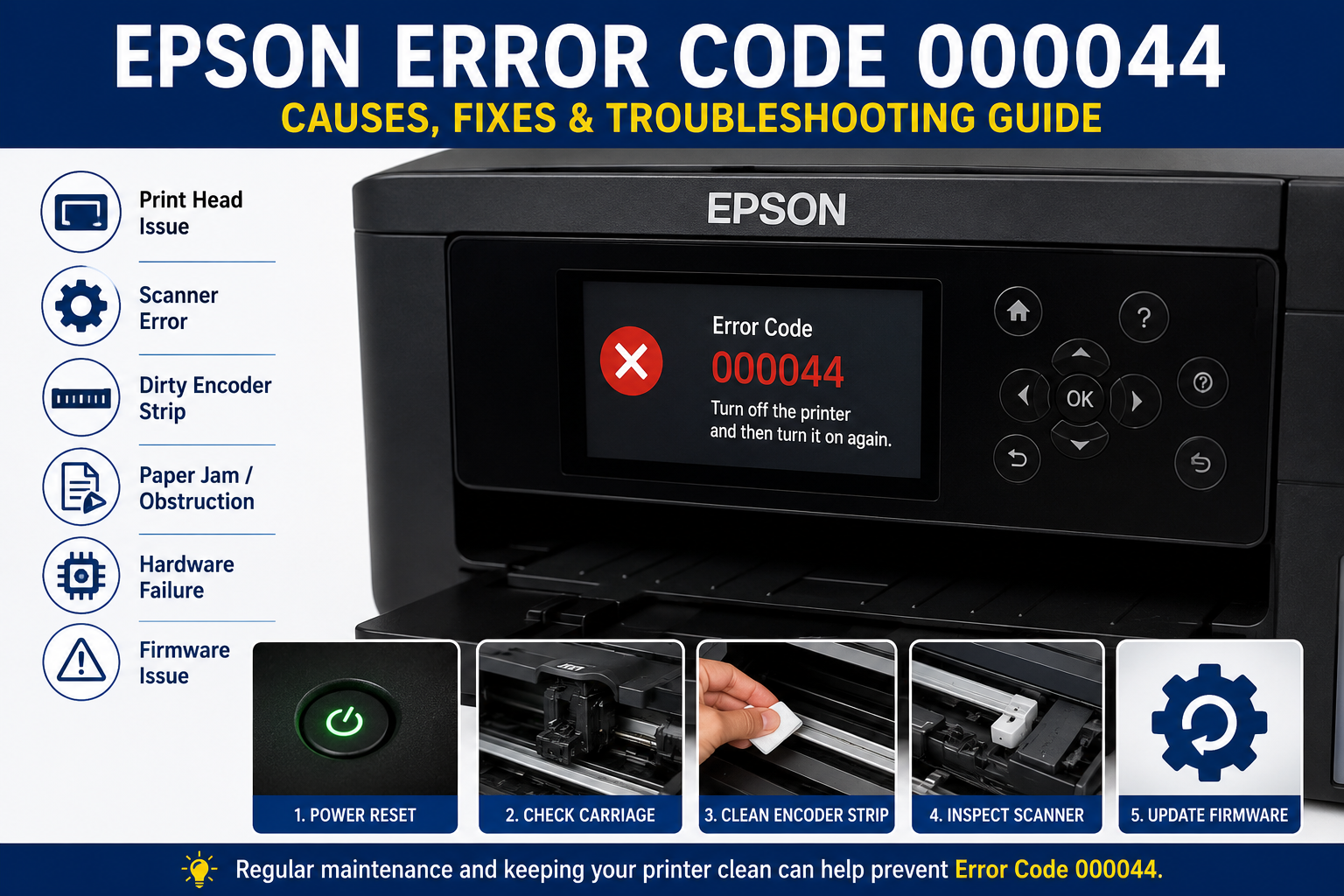
Nothing is more frustrating than preparing to print an important document only to see Epson Error Code 000044 appear on your printer’s display. Instead of printing, the device stops responding, leaving you wondering whether the issue is a simple software glitch or a serious hardware failure.
The good news is that Error Code 000044 doesn’t always mean your Epson printer is permanently damaged. In many cases, the issue can be resolved through systematic troubleshooting, cleaning internal components, updating firmware, or correcting mechanical obstructions.
This comprehensive guide explains everything you need to know—from understanding what Epson Error Code 000044 means to identifying its causes, applying proven fixes, preventing future occurrences, and knowing when professional repair is necessary.
Whether you’re using an Epson EcoTank, WorkForce, or Expression printer, this guide is designed to help you restore normal operation quickly and confidently.
What You’ll Learn
In this guide, you’ll discover:
Frequently asked questions about Error Code 000044
What Epson Error Code 000044 means
Common causes behind the error
Signs indicating hardware or software issues
Step-by-step troubleshooting methods
Advanced repair techniques
Preventive maintenance tips
When to seek professional assistance
What Is Epson Error Code 000044?
Epson Error Code 000044 is a hardware-related printer error that typically indicates a problem with the printer’s internal mechanical system, such as the print head carriage, scanner assembly, encoder strip, motor, or related sensors. The error prevents the printer from initializing correctly until the underlying issue is resolved.
Unlike paper jams or low ink warnings, Error Code 000044 usually occurs during the printer’s startup sequence. As the printer initializes, it performs several self-checks on internal components. If any of these checks fail, the printer halts operation to protect itself from further damage.
Although the exact trigger varies by printer model, the error commonly points to issues involving:
- Print head movement
- Scanner mechanism
- Carriage motor
- Encoder strip contamination
- Internal sensors
- Firmware corruption
- Hardware initialization failures
Understanding these components is the first step toward an effective repair.
How the Printer Detects This Error
Modern Epson printers include built-in diagnostic systems that monitor the health of internal components every time the device powers on.
During startup, the printer checks:
- Scanner initialization
- Print head positioning
- Carriage movement
- Motor response
- Sensor feedback
- Encoder strip readings
- Firmware communication
If any component fails to respond within expected parameters, the printer immediately displays Error Code 000044 and stops operating to prevent additional mechanical damage.
Common Symptoms of Epson Error Code 000044
Recognizing the symptoms can help narrow down the root cause more quickly.
Typical Signs Include
- Printer refuses to initialize
- Error appears immediately after power-on
- Print head stops moving
- Scanner fails during startup
- Loud grinding or clicking noises
- Carriage becomes stuck
- Printer freezes during boot
- Printing jobs remain pending
- LCD displays Error Code 000044
In some cases, users may notice intermittent operation before the error becomes permanent, indicating gradual wear of internal components.
What Causes Epson Error Code 000044?
Understanding the underlying causes is essential before attempting any repairs. While the error often points to hardware issues, software and firmware problems can also contribute.
1. Print Head Carriage Obstruction
The print head carriage moves horizontally across the printer during operation. Dust, dried ink, torn paper, or foreign objects can obstruct its path.
Common obstructions include:
- Small paper fragments
- Excess dried ink
- Dust accumulation
- Broken plastic pieces
- Foreign objects such as paper clips
If the carriage cannot move freely, the printer’s sensors detect abnormal resistance and generate Error Code 000044.
Expert Tip: Always inspect the carriage path using a flashlight before attempting more advanced repairs.
2. Dirty or Damaged Encoder Strip
The encoder strip is a transparent plastic ribbon located behind the print head carriage. It helps the printer determine the exact position of the print head.
When this strip becomes dirty with:
- Ink residue
- Dust
- Fingerprints
- Grease
the printer may lose positional accuracy, resulting in initialization failure.
Cleaning the encoder strip carefully with a lint-free cloth can often resolve this issue without replacing any parts.
3. Scanner Unit Initialization Failure
Many Epson multifunction printers perform a scanner calibration during startup. If the scanner carriage cannot move or fails to communicate correctly with the mainboard, Error Code 000044 may appear.
Possible reasons include:
- Scanner lock engaged
- Damaged scanner cable
- Faulty scanner motor
- Dirty scanner rails
- Sensor malfunction
This issue is particularly common in all-in-one printer models used frequently for scanning and copying.
4. Firmware Corruption
Firmware controls nearly every function of the printer. A failed firmware update, interrupted installation, or corrupted system memory can interfere with the startup sequence.
Symptoms of firmware-related problems often include:
- Random error messages
- Startup failures
- Freezing during initialization
- Unexpected restarts
Updating the printer to the latest firmware version may resolve these software-related issues without requiring hardware repairs.
How to Fix Epson Error Code 000044?
If your Epson printer displays Error Code 000044, don’t panic. In many cases, the issue can be resolved without replacing expensive hardware. Follow the troubleshooting steps below in order, moving to the next solution only if the error persists.
Expert Tip: Before performing any maintenance, turn off the printer, unplug the power cord, and wait at least 60 seconds to allow the internal components to reset.
Step 1: Perform a Basic Power Reset
A power reset clears temporary memory errors and resets the printer’s internal hardware initialization process.
Follow these steps:
- Turn off the printer.
- Disconnect the power cable.
- Remove the USB cable (if connected).
- Wait for 60–90 seconds.
- Press and hold the Power button for 20 seconds while unplugged.
- Reconnect the power cable.
- Turn the printer back on.
Why it works
A hard reset removes temporary software glitches that may interrupt the startup process.
Step 2: Inspect the Print Head Carriage
The print head carriage should move smoothly across the printer. Any obstruction can trigger Epson Error Code 000044.
Check for:
- Torn paper pieces
- Packing materials
- Ink buildup
- Dust accumulation
- Foreign objects (clips, labels, staples)
- Broken plastic fragments
Cleaning Procedure
- Turn off the printer.
- Open the printer cover.
- Move the carriage gently by hand (only if it is unlocked).
- Remove visible debris.
- Wipe the carriage rail with a lint-free cloth.
- Restart the printer.
Common Mistake: Never force the carriage if it feels locked. Applying excessive force may damage the carriage motor.
Step 3: Clean the Encoder Strip
The encoder strip is one of the most overlooked components. Even a small fingerprint can prevent the printer from detecting the print head’s position accurately.
Signs the encoder strip is dirty
- Print head jerks while moving
- Grinding sounds
- Initialization failure
- Error Code 000044 appears immediately after startup
How to Clean It
You’ll need:
- Microfiber cloth
- Cotton swab
- Distilled water (optional)
Steps
- Turn off the printer.
- Locate the transparent encoder strip behind the carriage.
- Hold the strip gently.
- Wipe it carefully from one end to the other.
- Avoid bending or scratching the strip.
- Allow it to dry.
- Restart the printer.
Expert Recommendation: Never use alcohol-based cleaners, as they may damage the encoder strip’s markings.
Step 4: Check the Scanner Assembly
For Epson all-in-one printers, the scanner mechanism initializes during startup. If it cannot move correctly, the printer may stop with Error Code 000044.
Inspect the scanner for:
- Transport lock still enabled
- Dust on scanner rails
- Loose ribbon cable
- Broken gears
- Mechanical blockage
What to Do
- Remove any obstruction.
- Ensure the scanner lock is disengaged.
- Restart the printer.
If the scanner makes repeated clicking noises, professional service may be required.
Step 5: Verify Paper Path Components
Even if there isn’t an obvious paper jam, tiny scraps of paper can interfere with sensors.
Inspect:
- Rear paper feed
- Front tray
- Duplex unit
- Output tray
- Rollers
- Feed sensors
Remove all debris carefully.
Step 6: Update Printer Firmware
Outdated or corrupted firmware can sometimes cause initialization problems.
Steps
- Visit the official Epson Support website.
- Download the latest firmware for your printer model.
- Install the update following Epson’s instructions.
- Restart the printer.
Benefits
- Bug fixes
- Improved hardware compatibility
- Better startup diagnostics
- Performance improvements
Step 7: Reinstall the Printer Driver
Driver conflicts between Windows/macOS and your Epson printer may contribute to startup issues.
Windows
- Open Device Manager.
- Remove the Epson printer.
- Restart your computer.
- Install the latest driver from Epson.
- Reconnect the printer.
macOS
- Remove the printer from Printer Settings.
- Restart the Mac.
- Download the latest Epson driver.
- Add the printer again.
Step 8: Run Epson Printer Diagnostics
Many Epson printers include built-in diagnostic tools.
These utilities can detect:
- Hardware communication failures
- Sensor errors
- Firmware inconsistencies
- Motor malfunctions
Running diagnostics may identify the exact component causing Error Code 000044.
Advanced Causes of Epson Error Code 000044
If the basic troubleshooting steps do not resolve the issue, one or more internal components may require repair or replacement.
1. Carriage Motor Failure
The carriage motor controls print head movement.
Symptoms
- Loud grinding noise
- Carriage not moving
- Sudden stopping
- Startup failure
Solution
Motor replacement by an authorized technician.
2. Damaged Encoder Sensor
The encoder sensor reads the markings on the encoder strip.
If the sensor cannot interpret the strip correctly, the printer loses track of the print head position.
Common signs include:
- Carriage moving erratically
- Print head crashing into the frame
- Error appearing during startup
3. Mainboard Failure
The printer’s motherboard controls all hardware communication.
A damaged board can cause:
- Random startup errors
- Multiple error codes
- Failure to initialize
- Complete printer shutdown
Mainboard replacement should only be performed by qualified technicians.
4. Scanner Motor Damage
Scanner motors wear out over time.
Symptoms include:
- Scanner not moving
- Clicking noises
- Scanner vibration
- Error 000044
5. Damaged Ribbon Cable
Ribbon cables connect moving components to the mainboard.
Damage can occur due to:
- Repeated movement
- Improper servicing
- Age-related wear
- Moisture exposure
Troubleshooting Table
| Problem | Possible Cause | Recommended Fix |
|---|---|---|
| Printer won’t start | Hardware initialization failure | Power reset |
| Carriage stuck | Obstruction | Remove debris |
| Grinding noise | Encoder strip dirty | Clean strip |
| Scanner not moving | Scanner failure | Inspect scanner assembly |
| Startup freezes | Firmware corruption | Update firmware |
| Random hardware errors | Mainboard issue | Professional repair |
| Carriage jerks | Encoder sensor problem | Clean or replace sensor |
| Paper feed issues | Hidden paper jam | Inspect rollers and feed path |
When Should You Contact Epson Support?
Professional repair is recommended if:
- Error remains after completing all troubleshooting steps.
- The printer emits burning smells.
- The carriage does not move at all.
- Scanner gears are damaged.
- Firmware update fails repeatedly.
- Internal cables appear damaged.
- Mainboard failure is suspected.
Attempting advanced hardware repairs without proper tools may void your warranty.
Preventing Epson Error Code 000044
Preventive maintenance can significantly reduce the risk of hardware-related errors.
Clean Your Printer Regularly
Dust and dried ink are major contributors to mechanical failures.
Clean:
- Print head area
- Encoder strip
- Rollers
- Scanner glass
- Paper feed path
A monthly cleaning routine is recommended for home users, while offices with heavy printing should perform maintenance more frequently.
Use Genuine Epson Ink
Compatible or counterfeit ink cartridges may leak or produce excess residue.
Benefits of genuine Epson ink include:
- Better print quality
- Reduced ink buildup
- Lower risk of clogging
- Longer print head life
Avoid Overloading the Paper Tray
Overfilled paper trays can strain the feed mechanism and increase the chance of jams.
Best practices:
- Do not exceed the maximum paper capacity.
- Fan paper before loading.
- Align paper guides correctly.
- Use supported paper types.
Keep Firmware Updated
Firmware updates often include:
- Stability improvements
- Error fixes
- Security enhancements
- Better hardware compatibility
Check for updates periodically using Epson’s official support tools.
Protect the Printer from Dust
Dust is one of the leading causes of sensor contamination.
To minimize dust exposure:
- Cover the printer when not in use.
- Avoid placing it near open windows.
- Keep the surrounding area clean.
- Store paper in a dry, dust-free environment.
Common Mistakes to Avoid
Many users unintentionally worsen the problem by making avoidable mistakes.
Avoid the following:
- Forcing the print head manually
- Pulling jammed paper aggressively
- Cleaning the encoder strip with alcohol
- Using sharp tools inside the printer
- Ignoring grinding noises
- Installing incorrect firmware
- Disconnecting power during firmware updates
- Using low-quality third-party ink
Featured Snippet: Can You Fix Epson Error Code 000044 Yourself?
Yes, in many cases Epson Error Code 000044 can be fixed without professional repair. Common solutions include performing a power reset, removing carriage obstructions, cleaning the encoder strip, checking the scanner assembly, updating firmware, and reinstalling printer drivers. If the issue is caused by internal hardware failure, professional servicing may be required.
Frequently Asked Questions (FAQ)
1. What does Epson Error Code 000044 mean?
Epson Error Code 000044 usually indicates a hardware initialization problem. It commonly occurs when the printer detects an issue with the print head carriage, scanner assembly, encoder strip, motor, or another internal component during startup.
2. Can I fix Epson Error Code 000044 without professional help?
Yes. In many cases, you can resolve the error by performing a power reset, checking for paper jams, cleaning the encoder strip, inspecting the carriage path, updating the printer firmware, and reinstalling the printer driver. If the problem persists, professional servicing may be required.
3. Is Epson Error Code 000044 a hardware failure?
Not always. While the error often points to hardware-related issues, it can also be caused by firmware corruption, outdated drivers, or temporary initialization problems. Following a structured troubleshooting process can help determine the exact cause.
4. Does cleaning the encoder strip fix Error Code 000044?
Yes, a dirty encoder strip is a common cause of this error. Carefully cleaning it with a lint-free microfiber cloth can restore accurate print head positioning and resolve the issue.
5. Why does my Epson printer show Error Code 000044 after replacing ink cartridges?
If the print head carriage is obstructed during cartridge installation or if the carriage does not return to its home position correctly, the printer may display Error Code 000044. Ensure the cartridges are installed correctly and that nothing blocks carriage movement.
6. Can outdated firmware cause Epson Error Code 000044?
Yes. Corrupted or outdated firmware may interrupt the printer’s startup sequence and trigger hardware initialization errors. Installing the latest firmware can often resolve software-related issues.
7. Should I reset my Epson printer before attempting repairs?
Absolutely. A hard power reset is one of the safest first troubleshooting steps because it clears temporary memory errors without affecting printer hardware.
8. How do I know if the carriage motor is damaged?
Common signs include:
- Loud grinding noises
- Carriage not moving
- Jerky carriage movement
- Startup failure
- Repeated Error Code 000044 after cleaning
9. Is Error Code 000044 covered under warranty?
If your Epson printer is still within the manufacturer’s warranty period and the issue is caused by a hardware defect rather than accidental damage or misuse, it may be covered. Check your warranty terms or contact Epson Support for confirmation.
10. How can I prevent Epson Error Code 000044?
Preventive maintenance is the best approach:
- Clean the printer regularly.
- Use genuine Epson ink cartridges or bottles.
- Update firmware periodically.
- Avoid paper jams.
- Keep the printer free from dust.
- Do not overload the paper tray.
- Turn the printer off properly after use.
11. Can third-party ink cause Epson Error Code 000044?
While third-party ink does not directly cause this error, poor-quality ink can lead to excessive residue, clogged components, and increased wear, which may contribute to hardware issues over time.
12. When should I contact Epson Support?
Contact Epson Support if:
- The error persists after all troubleshooting steps.
- The printer emits unusual smells or smoke.
- Internal components appear physically damaged.
- Firmware updates fail repeatedly.
- The printer is still under warranty.